

In today’s digital world, taking notes is essential for organizing ideas, keeping track of tasks, and improving productivity. Many people use cloud-based note-taking apps, but they come with privacy concerns, subscription fees, or limited customization. If you want full control over your notes, Memos is a great alternative.
Memos is an open-source, self-hosted note-taking application that gives you complete ownership of your data, which is lightweight, easy to use, and ideal for personal use or small teams.
In this article, we will explore Memos, their features, installation process, and how to use it effectively.
What is Memos?
Memos is a minimalist note-taking application that allows you to write, organize, and manage your notes without relying on third-party services. It is self-hosted, meaning you install and run it on your own server, which gives you complete privacy and control over your data.
Key Features of Memos:
- Privacy First – Your data stays with you, means everything is stored safely in your local database.
- Fast and Simple – Write and save notes quickly in plain text, with Markdown for easy formatting and sharing.
- Lightweight Yet Powerful – Built with Go and React.js for a smooth and efficient experience.
- Fully Customizable – Change the server name, icon, theme, description, and more to suit your needs.
- Open Source – 100% transparent, with all code available on GitHub for anyone to view or contribute.
- Completely Free – No fees, no subscriptions – just full access to all features at no cost.
Prerequisites
Before you begin, ensure your server meets the following requirements:
- A Linux-based system (Ubuntu, Debian, RHEL, etc.)
- Docker installed on your system.
- A domain name (optional, for web access).
Step 1: Install Docker on Linux
Memos runs as a Docker container, so you need Docker installed first, follow the steps below based on your Linux distribution.
Install the latest Docker version on Debian-based distributions such as Ubuntu and Mint:
sudo apt update
sudo apt install -y ca-certificates curl gnupg
sudo install -m 0755 -d /etc/apt/keyrings
curl -fsSL https://download.docker.com/linux/ubuntu/gpg | sudo tee /etc/apt/keyrings/docker.asc > /dev/null
echo "deb [arch=$(dpkg --print-architecture) signed-by=/etc/apt/keyrings/docker.asc] https://download.docker.com/linux/ubuntu $(lsb_release -cs) stable" | sudo tee /etc/apt/sources.list.d/docker.list > /dev/null
sudo apt update
sudo apt install -y docker-ce docker-ce-cli containerd.io
For RHEL-based systems (CentOS, AlmaLinux, Rocky Linux, Fedora):
sudo dnf config-manager --add-repo https://download.docker.com/linux/centos/docker-ce.repo
sudo dnf install -y docker-ce docker-ce-cli containerd.io
By default, Docker requires root privileges, which is inconvenient, so enable non-root users to run Docker commands without sudo.
sudo usermod -aG docker $USER
newgrp docker
Once installed, enable Docker to start on boot and start the service.
sudo systemctl enable --now docker
sudo systemctl start docker
Step 2: Install Memos Using Docker
To set up Memos using docker run, execute the following one command to start Memos, which will launch Memos in the background, exposing it on port 5230 and data will be stored in ~/.memos/, a hidden directory inside your user’s home.
docker run -d \
  --init \
  --name memos \
  --publish 5230:5230 \
  --volume ~/.memos/:/var/opt/memos \
  neosmemo/memos:stable
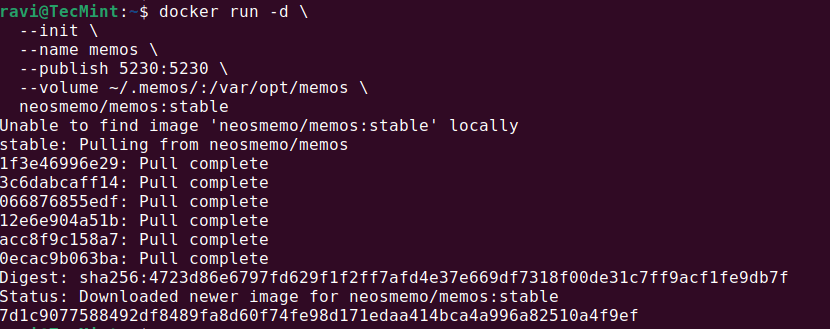
Once the container is running, you can access Memos by opening your web browser and navigating to:
http://your-server-ip:5230
OR
http://localhost:5230
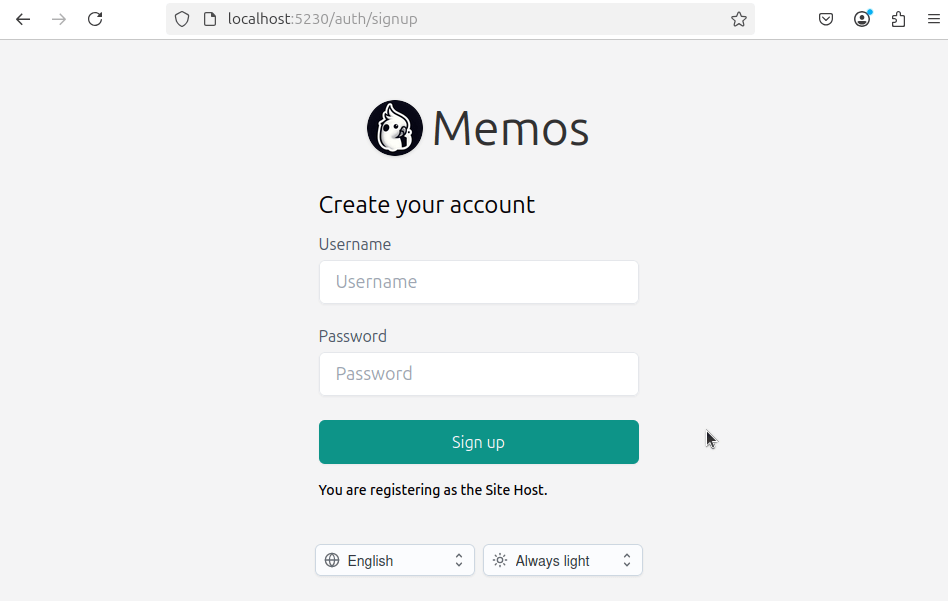
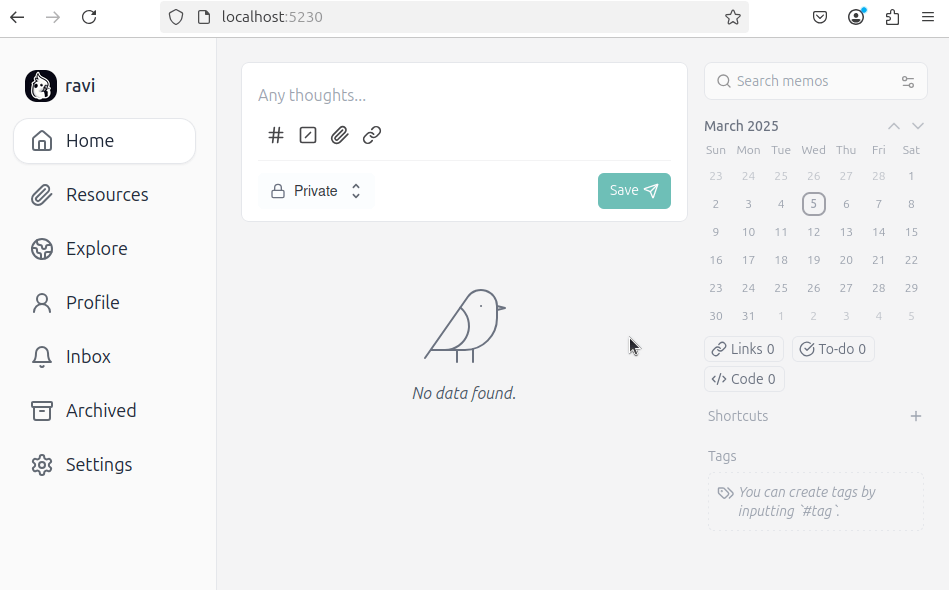
If you set up a domain, you can configure a reverse proxy (using Nginx or Caddy) for a better experience.
Conclusion
Memos is a powerful yet lightweight self-hosted note-taking app that lets you take and manage notes your way. It is easy to install, highly customizable, and gives you complete ownership of your data.