
Arch Linux has a reputation for being an intimidating operating system to use, especially for beginners. Unlike popular Linux distributions such as Ubuntu and Fedora which provide a graphical installer, installation of Arch Linux is a tedious and time-consuming process.
You have to set up everything from the command line, which includes configuring the timezone and local settings, keyboard, and partitioning the disk partitions to mention a few. This can be daunting and time-consuming. Even after installation, you still have to go to great lengths to configure everything to your preference.
Given the difficulty associated with setting up and using Arch Linux, a few user-friendly Arch-based distros have been developed to help beginners and regular users get off the ground without much hassle.
Manjaro Linux is one of the popular desktop-oriented Arch-based distributions that places an emphasis on user-friendliness and accessibility. Another hugely popular, and widely-adopted Arch-based distro is Garuda Linux, and this will the focus of our guide today.
Garuda Linux is a free and open-source rolling release based on Arch Linux that focuses on user-friendliness, privacy, and performance. Being a rolling release, Garuda ensures that you get up-to-date software updates. In addition, it uses an extra repository on top of Arch Linux Repos bringing it a step closer to Arch Linux.
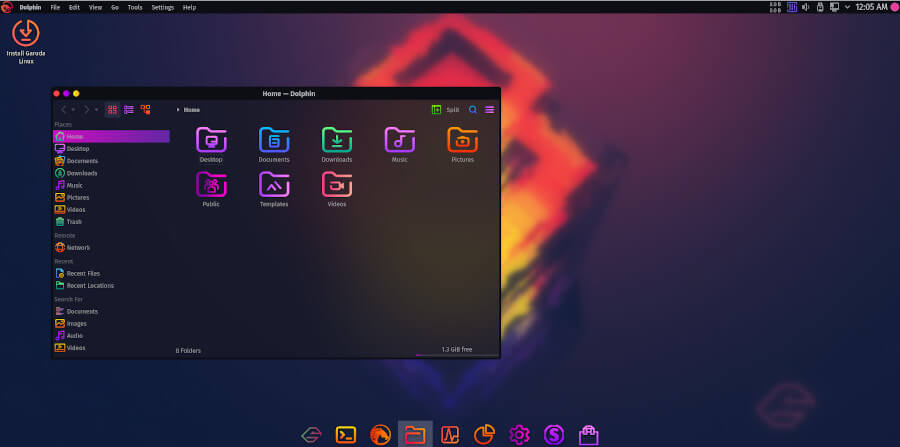
Garuda Linux was founded on 26, March 2020 by Shrinivas Vishnu Kumbhar, a developer from India. The name ‘Garuda‘ comes from Indian mythology and refers to a mix of a bird creature with Eagle-like features and human features.
Key Features of Garuda Linux
Over time, Garuda has risen up the ranks to become a favorite Arch-based Linux distro and a desktop flavor for that matter. At the time of writing this review, Garuda is among the top 10 distributions on distrowatch.
So, what gives Garuda a competitive edge? Here are some of the key spotlights:
Calameres Installer
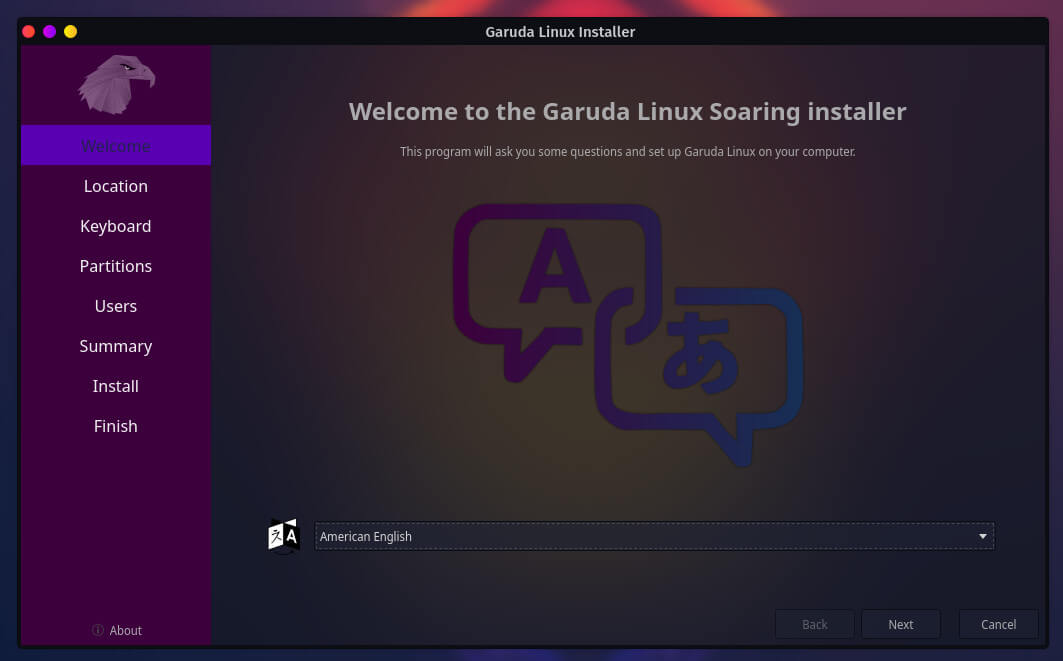
Calameres is a free and open-source distribution-agnostic Linux installer that simplifies the installation of a Linux operation system. Garuda Linux ships with the Calameres installer which provides an intuitive UI that is easy to use and track the installation process.
BTRFS Filesystem
In Garuda Linux, BTRFS is the default filesystem, which is a modern copy-on-write (CoW) filesystem for Linux that was released in March 2009. BTRFS provides the following advantages over other filesystems.
- Efficient drive storage.
- Support for storing massive files (Can store up to 16 exbibytes).
- Consistency of data backups.
- RAID Storage (RAID 0, 1, and 10).
- Snapshot and checksum support.
- Optimized SSD support.
And many others.
Elegant Themes
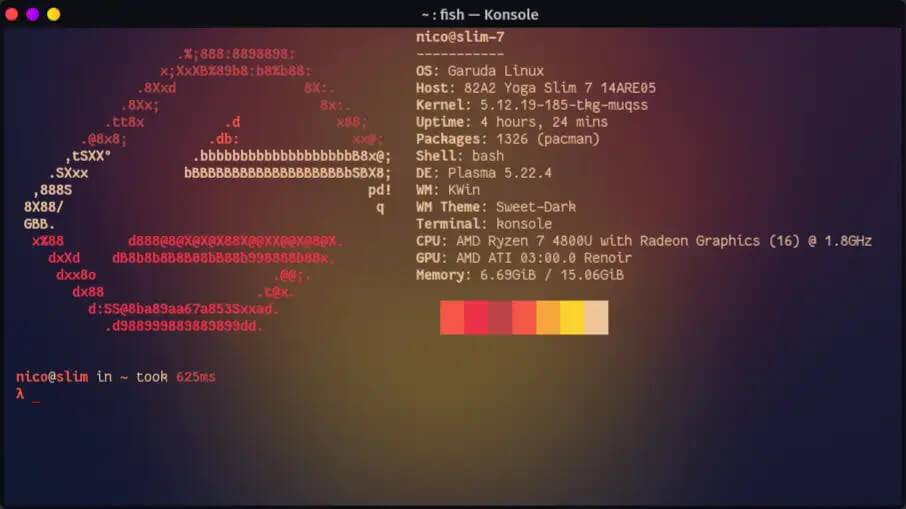
One of the goals of Garuda Linux is to provide users with a vibrant user experience. It accomplishes this by providing a collection of dazzling desktop themes that add a splash of color and energy to the overall UI.
The desktop themes are eye-candy and come with blur effects out of the box. In addition, you can customize them to suit your preference.
Desktop Environments
Garuda Linux comes with a variety of Editions each with its default desktop environments. All the editions have Arch Linux as their base. The Garuda development Team then provides their own additional package build using the Chaotic-AUR.
Garuda is mostly popular with its Garuda KDE Dragonized edition which is a mac-like layout based on the KDE Plasma desktop environment. The KDE dragonized gaming edition comes installed with additional packages to provide a wholesome gaming experience.
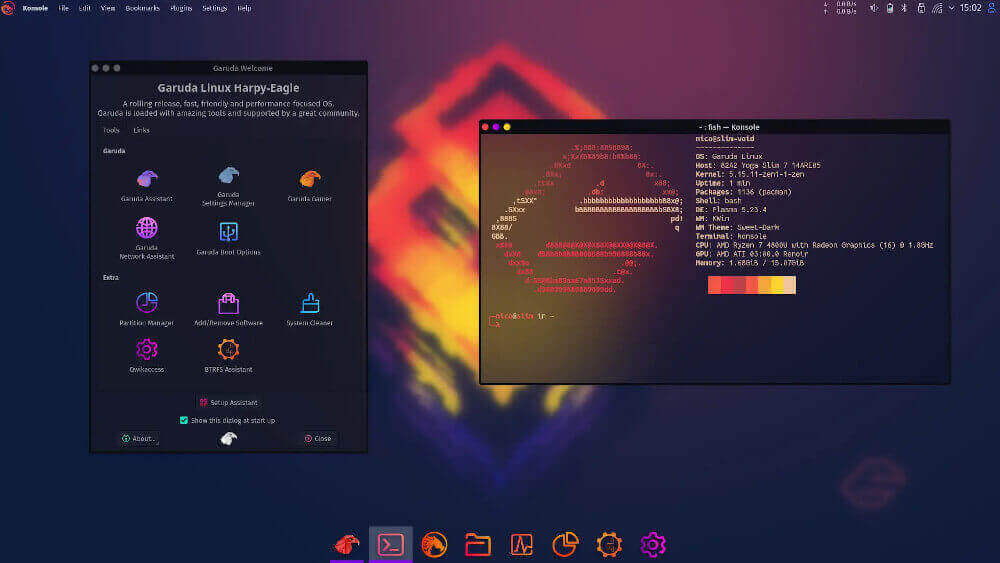
Other Garuda editions include Garuda GNOME, Garuda Cinnamon, Garuda MATE, Garuda XFCE, Garuda LXQT-Kwin, Garuda Sway, Garuda i3WM and Garuda WayFire to mention a few. Check out the Offiical Garuda website for the entire list of the editions.
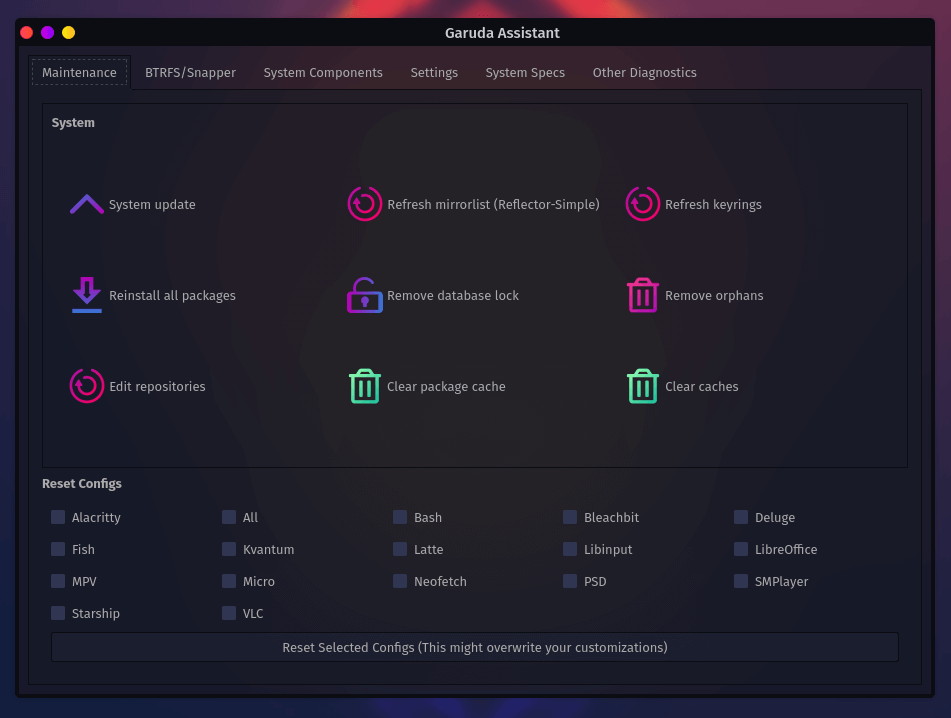
Garuda Assistant
Garuda provides Garuda Assistant – a graphical tool for performing a range of system administration tasks such as package management, network, and firewall configuration, editing repositories, printing & scanning support and so much more.
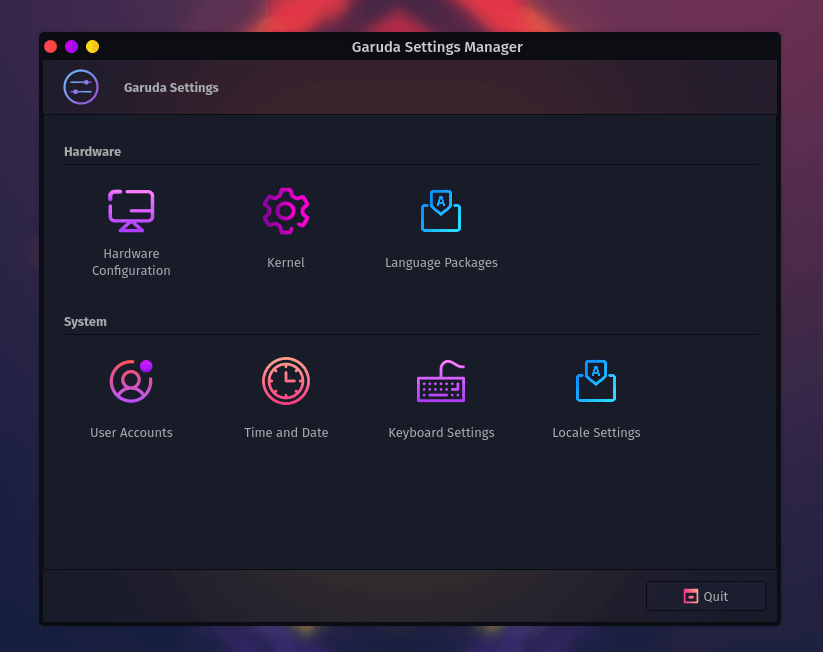
Garuda Settings Manager
Garuda Settings Manager is a GUI for managing hardware and system components including drivers and kernels. You can configure time and date, keyboard settings, locale, and also manage user accounts.
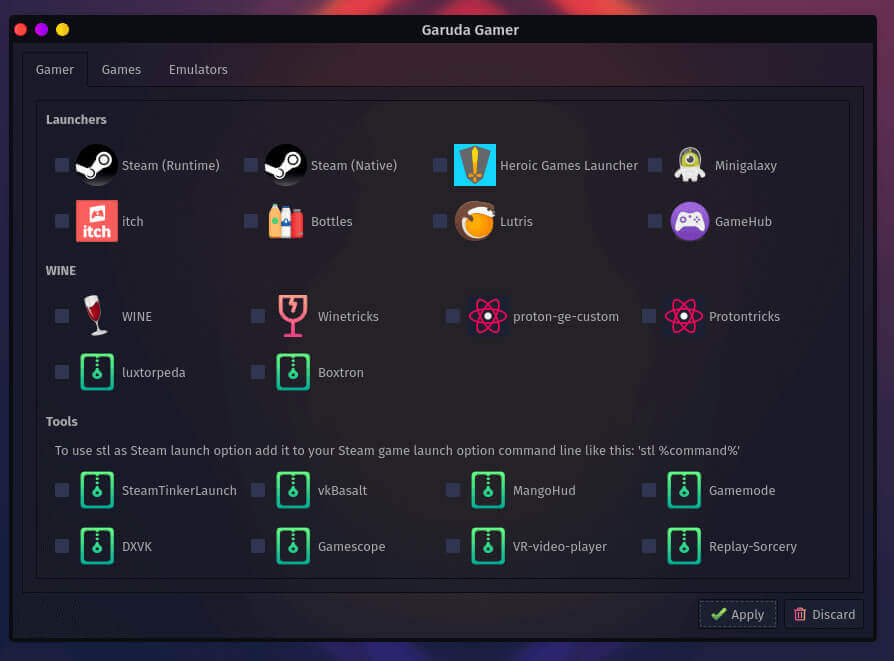
Garuda Gamer
Garuda gamer is a GUI for installing curated gaming applications and gaming platforms such as Steam and other helpful tools such as Wine, and PlayOnLinux.
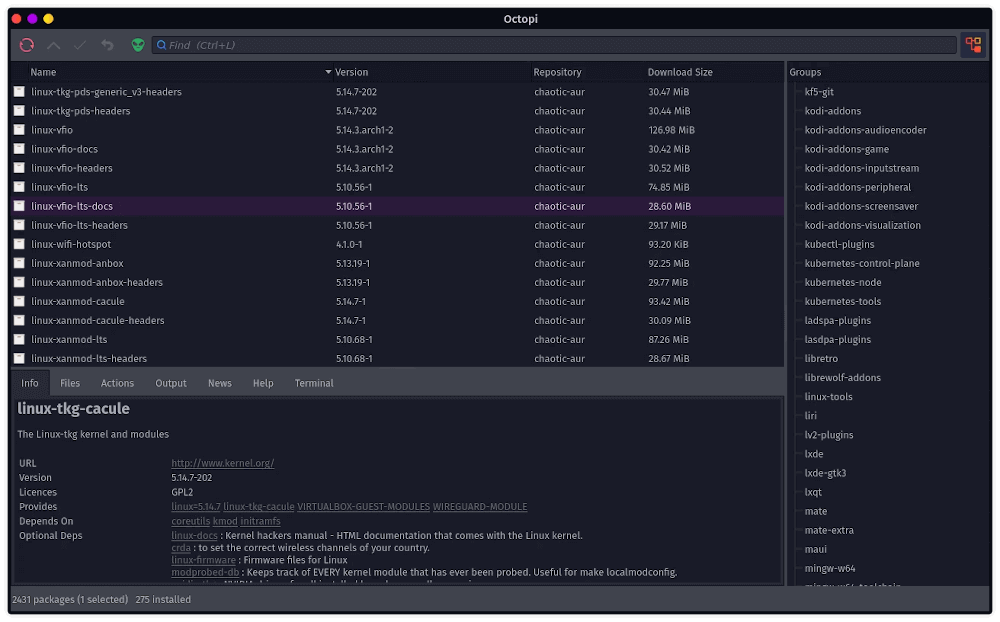
Garuda Chaotic-AUR Repository
Garuda uses Chaotic-AUR which is an automated repository for building AUR packages. Out of the box, it features a wide selection of pre-configured software packages. It offers about 2400 packages which include games, kernels, themes, emulators and so much more.
Downloading Garuda Linux ISO Images
You can download the ISO images from the Official Garuda Download page which provides a wide selection of Garuda Editions to choose from. Once downloaded, you can proceed to create a bootable USB drive after which you can use it to install Garuda Linux on your system.
To install Garuda, ensure your system meets the following requirements.
- 30 GB storage space
- 4 GB RAM
- Video card with OpenGL 3.3 or better
- 64-bit system
Despite being a fairly new Arch-distro, Garuda has made impressive strides since its inception. It offers solid performance coupled with a modern and aesthetically appealing UI. The Dragonized Edition is optimized for gaming and is considered one of the popular editions provided by Garuda.
Garuda is considered an ideal distribution for beginners or learners seeking to have an Arch experience and for gaming enthusiasts. It’s highly customizable, easy to use, and good on performance.
