

Single user mode, also known as rescue mode, is a minimal environment in Linux that allows system administrators to perform maintenance tasks, troubleshoot issues, and recover from system failures.
The single user mode is particularly useful when you need to reset the root password, fix misconfigured settings, repair a damaged file system, or investigate system errors that prevent normal booting.
AlmaLinux 8 and 9, as RHEL-based distributions, provide an easy way to boot into single user mode through the GRUB bootloader.
In this guide, we will explain step by step how to enter single user mode on AlmaLinux 8 and 9.
What is Single User Mode?
Single user mode is a special boot mode in Linux that allows a system to run with minimal services and only a root shell.
Unlike normal multi-user mode, in single user mode:
- Only the root user has access.
- Networking services are disabled.
- Only essential system processes are started.
- The system runs in command-line mode without a graphical interface.
Since the system is not fully operational in this mode, it is ideal for troubleshooting critical issues and making system-level changes.
Step 1: Access the GRUB Boot Menu
The first step to boot into single user mode is accessing the GRUB boot menu, which appears before the system starts up fully.
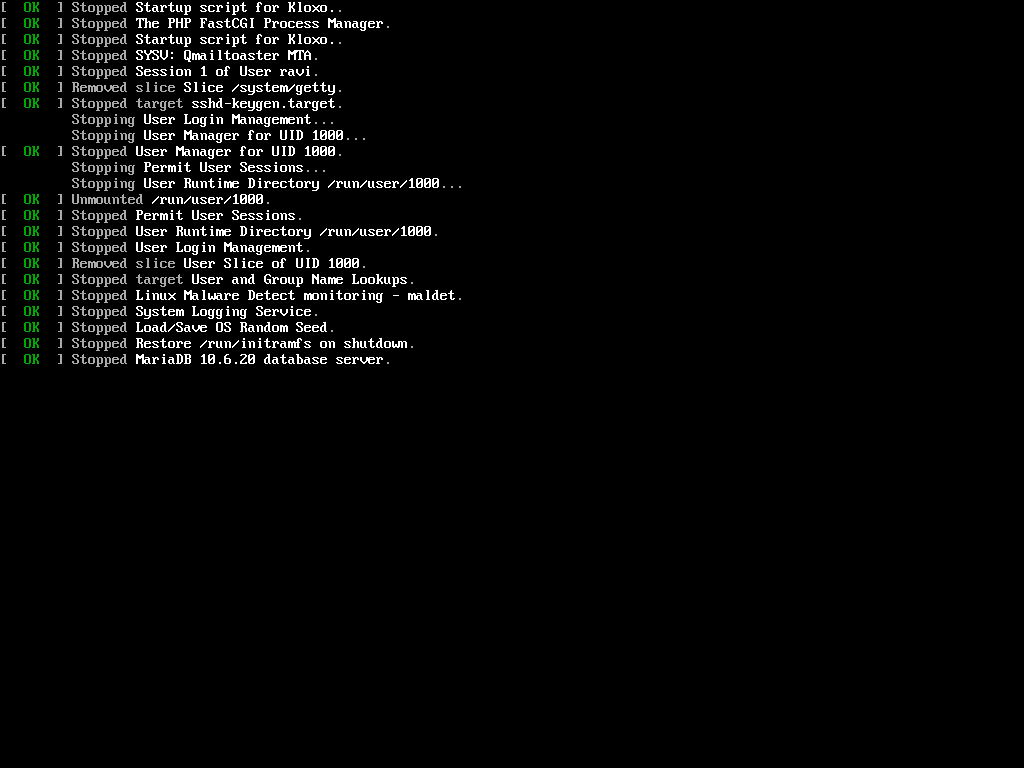
If the system is already powered on, restart it using:
reboot
As soon as the system begins to reboot, press the “Esc” key (on some systems, it might be the Shift key).
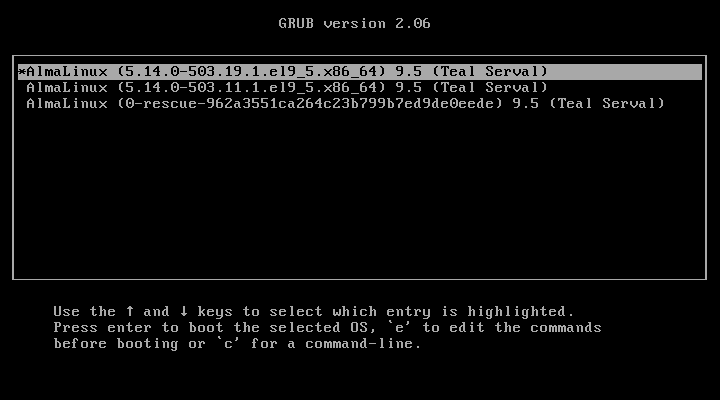
You will see a screen displaying a list of available kernels in the GRUB menu, you can now use the arrow keys to select the kernel version you want to modify boot settings.
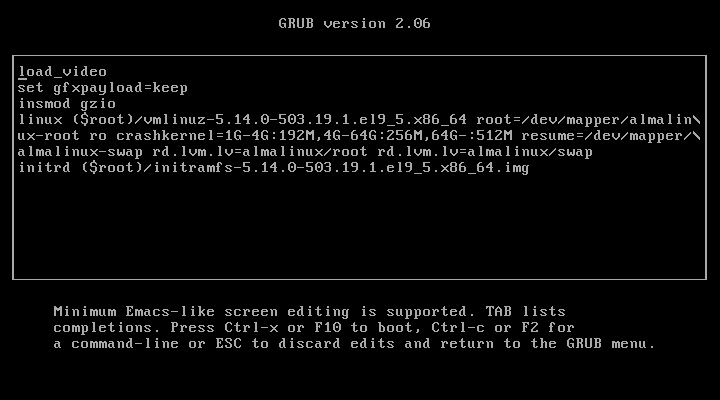
Once you have selected the kernel version, press 'e' to edit the boot configuration screen where you can modify the kernel parameters.
Step 2: Modify the Kernel Boot Parameters
Now, we need to add a special command to instruct the system to boot into single user mode instead of normal multi-user mode.
Find the line that starts with linux or linuxefi (if your system uses UEFI boot).
linux /vmlinuz-<version> root=/dev/mapper/almalinux-root ro quiet splash
Go to the end of this line and add the following:
systemd.unit=rescue.target
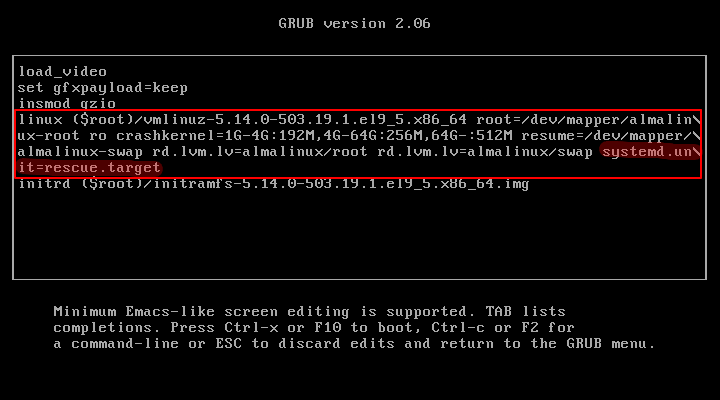
After modification, press Ctrl + X or F10 to boot with the modified settings.
Step 3: Boot into Single User Mode
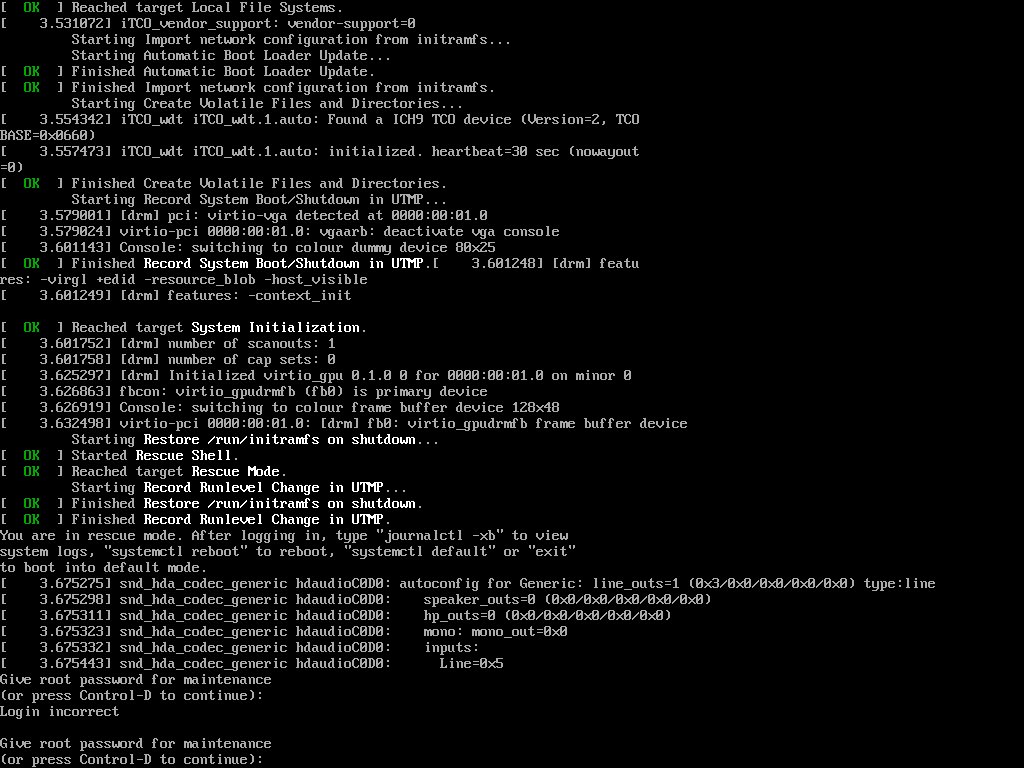
After you press Ctrl + X or F10, the system will begin booting into single user mode.
- You will see a command-line interface instead of the normal login screen.
- The system will prompt you for the root password (on some systems, it might not require one).
- Once you enter the root password, you will have complete control over the system.
Step 4: Perform System Maintenance
Now that you are in single user mode, you can perform various system maintenance tasks.
Here are some common actions you might need to take:
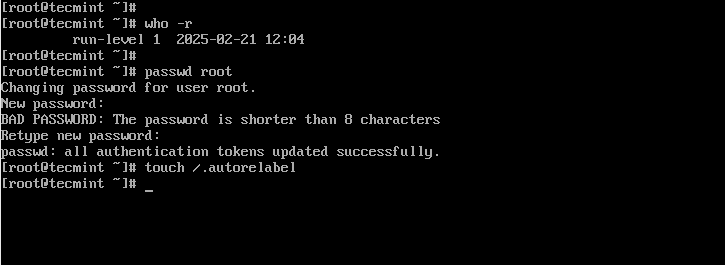
1. Reset the Root Password
If you forgot your root password, you can reset it using:
passwd root
Once changed, make sure to update the SELinux policy (if enabled) by running:
touch /.autorelabel
2. Check and Repair the Filesystem
If your system is experiencing boot errors due to filesystem corruption, run:
fsck -y /dev/mapper/almalinux-root
This will check and attempt to fix errors on the root partition.
3. Modify System Configuration Files
If a misconfiguration is preventing normal boot, you can edit configuration files:
vi /etc/fstab
Make the necessary corrections and save the file.
Once you have completed the necessary maintenance tasks, reboot the system to start normally.
reboot
Your system will now boot into its normal operating mode.
Alternative: Boot into Emergency Mode
If single user mode does not work or you need a lower-level troubleshooting environment, you can modify any existing boot parameters with the following:
systemd.unit=emergency.target
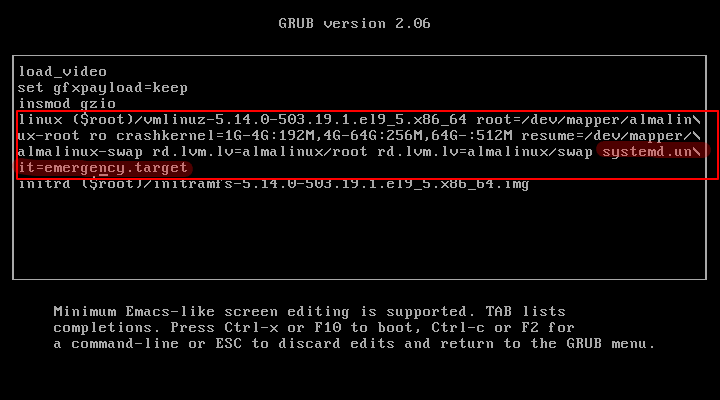
Emergency mode provides even fewer services than single user mode, which is helpful for deep troubleshooting.
Example: Fixing a Corrupted fstab File
If the /etc/fstab file (which controls how filesystems are mounted) is misconfigured or contains an incorrect entry, the system may fail to boot properly.
Let’s say you manually edited /etc/fstab and added a wrong entry like this:
/dev/sdb1 /mnt/data ext4 defaults 0 0
But the partition /dev/sdb1 does not exist.
What Happens?
- If you boot normally, the system may hang during startup.
- If you try single user mode, it may not load properly because
/etc/fstabis read before reaching the shell.
Solution: Boot into Emergency Mode
Since emergency mode loads only the most essential services, it skips mounting filesystems incorrectly defined in /etc/fstab, allowing you to fix the issue.
Conclusion
Single user mode in AlmaLinux 8/9 is a powerful mode that allows administrators to reset passwords, repair filesystems, and fix configuration errors. By following these steps, you can safely boot into rescue mode and troubleshoot system issues efficiently.
