How to Change User Password in Ubuntu

Take Your Linux Skills to the Next Level All courses, certifications, ad-free articles & community — from $8/mo
Join Root →
Ad-free access to all premium articles
Access to all courses: Learn Linux, AI for Linux, Bash Scripting, Ubuntu Handbook, Golang and more.
Access to Linux certifications (RHCSA, RHCE, LFCS and LFCA)
Access new courses on release
Get access to weekly newsletter
Priority help in comments
Private Telegram community
Connect with the Linux community
From $8/mo · or $59/yr billed annually · Cancel anytime

In this short quick article, we will show you how to change a user password in Ubuntu Linux using the graphical interface as well as the command line interface. As you are well aware, most operations on Ubuntu are applicable to its derivatives such as Linux Mint, Xubuntu, Lubuntu, and many others.

Changing User Password in Ubuntu via GUI

The easiest means of changing user password is via the graphical user interface, using the Account Details setting. To get there, open Settings or System Settings, then find the Details or Account Details settings and click on it.
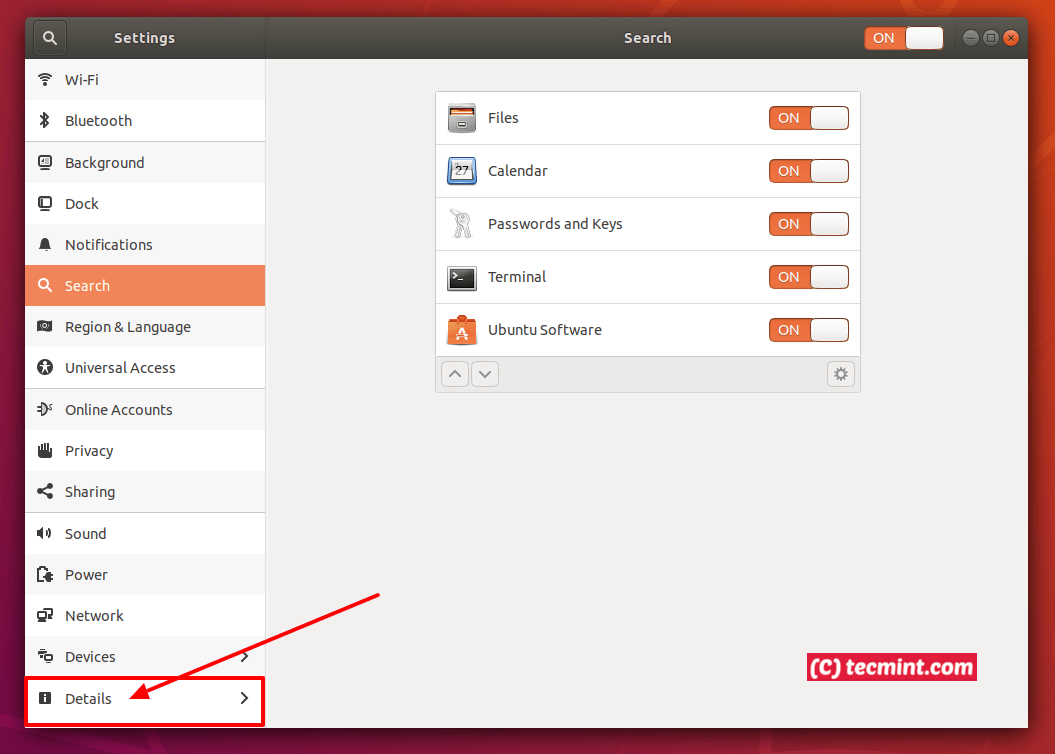
Ubuntu Settings
Ubuntu Settings

Next, click on Users tab, it will display current user’s account details as shown in the following screenshot. To change a user password, click on the password (dotted lines), a popup window to change user password should appear.
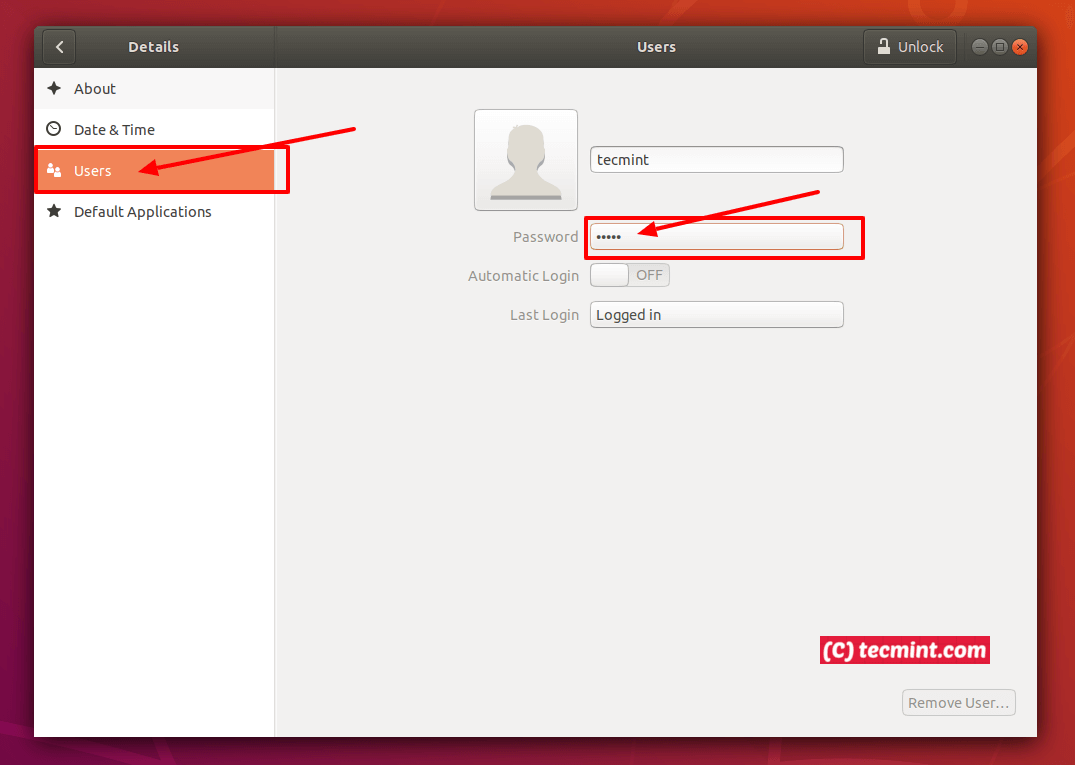
Ubuntu User Details
Ubuntu User Details

Enter the current password and set a new password and confirm it. Then click Change to save the changes.
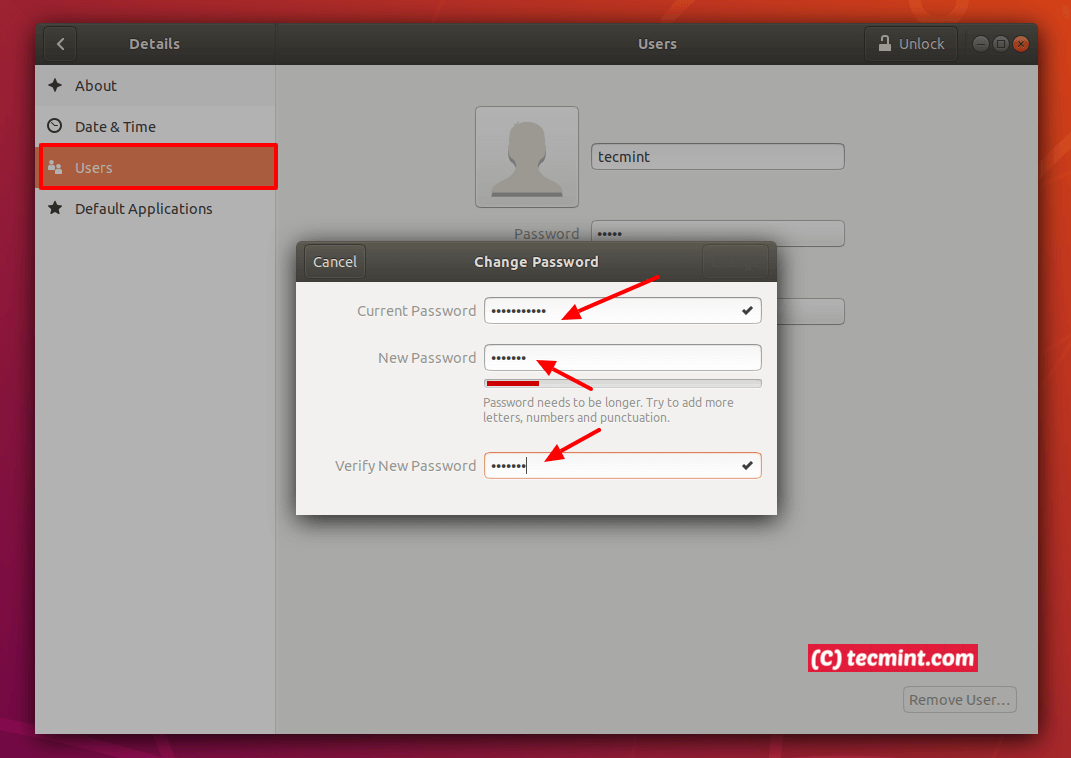
Change User Password in Ubuntu

Changing User Password in Ubuntu via Terminal

For those who prefer the command line over the graphical interface, you can use the passwd utility to change a user password. Simply provide your username as an argument, for example:

$ passwd aaronkilik
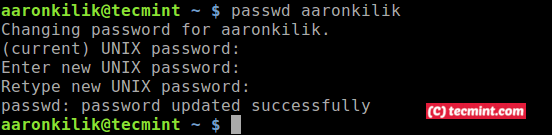
Change User Password in Ubuntu Terminal

Note that as an administrator, you need superuser (or root user) privileges to change another user’s password. In this regard, you can use the sudo command to gain root privileges, for example:

$ sudo passwd tecmint

For more information, see the passwd man page:

$ man passwd

You will also find these articles about Ubuntu useful:

  1. How to Install VirtualBox 6 in Debian and Ubuntu
  2. How to Mount Windows Partitions in Ubuntu
  3. ext3grep – Recover Deleted Files on Debian and Ubuntu
  4. How to Install Latest GIMP 2.10 in Ubuntu

That’s all! In this quick article, we’ve explained how to change a user password in Ubuntu Linux. If you have any thoughts to share, or questions to ask, use the feedback form below.


Root Plan
Premium Linux Education for Serious Learners

Take Your Linux Skills to the Next Level

Root members get full access to every course, certification prep track, and a growing library of hands-on Linux content — with new courses added every month.

What You Get
Ad-free access to all premium articles
Access to all courses: Learn Linux, AI for Linux, Bash Scripting, Ubuntu Handbook, Golang and more.
Access to Linux certifications (RHCSA, RHCE, LFCS and LFCA)
Access new courses on release
Get access to weekly newsletter
Priority help in comments
Private Telegram community
Connect with the Linux community
Aaron Kili
Aaron Kili is a Linux and F.O.S.S enthusiast, an upcoming Linux SysAdmin, web developer, and currently a content creator for TecMint who loves working with computers and strongly believes in sharing knowledge.

Each tutorial at TecMint is created by a team of experienced Linux system administrators so that it meets our high-quality standards.

Join the TecMint Weekly Newsletter (More Than 156,129 Linux Enthusiasts Have Subscribed)
Was this article helpful? Please add a comment or buy me a coffee to show your appreciation.

2 Comments

Leave a Reply
  1. Thanks for the article, I didn’t knew about the graphical way to change the password. Does this work only for local user accounts, or also for accounts maintained in a kerberos domain like Active Director or Univention Corporate Server? Currently I use “kpasswd” on the command line to do the job, a GUI tool would be great.

    Reply

Got Something to Say? Join the Discussion...

Thank you for taking the time to share your thoughts with us. We appreciate your decision to leave a comment and value your contribution to the discussion. It's important to note that we moderate all comments in accordance with our comment policy to ensure a respectful and constructive conversation.

Rest assured that your email address will remain private and will not be published or shared with anyone. We prioritize the privacy and security of our users.

Root Plan Premium Linux Education for Serious Learners

Before You Go - Upgrade Your Linux Skills

Root members get everything in one place, with new courses added every month.

What You Get
Ad-free access to all premium articles
Access to all courses: Learn Linux, AI for Linux, Bash Scripting, Ubuntu Handbook, Golang and more.
Linux certifications: RHCSA, RHCE, LFCS and LFCA
Access new courses on release
Weekly newsletter, priority support & Telegram community
Join Root Today and Start Learning Linux the Right Way
Structured courses, certification prep, and a community of Linux professionals - all in one membership.
Join Root Plan →
$8/mo · or $59/yr billed annually