
In our last article, we have explained how to use df (disk filesystem) utility to report file system disk space usage in Linux. We have discovered yet a another great utility for the same purpose but with a prettier output, called discus.
Discus is a df-like, highly configurable utility for checking disk space utilization in Linux, intended to make df prettier with fancy features such as colored output, bar graphs, and smart formatting of numbers. To configure it, you may copy its main configuration file /etc/discusrc to ~/.discusrc and do your customization in there.
Read Also: Pydf an Alternative “df” Command to Check Disk Usage in Different Colours
The package discus is available to install from the default system repositories using package manager on Linux distribution as shown.
$ sudo apt install discus	#Debian/UBuntu
$ sudo yum install discus	#RHEL/CentOS
$ sudo dnf install discus	#Fedora 22+
After installing discus, learn how to use discus with the following examples.
Discus Command Examples
Run the discus command with the default settings.
$ discus
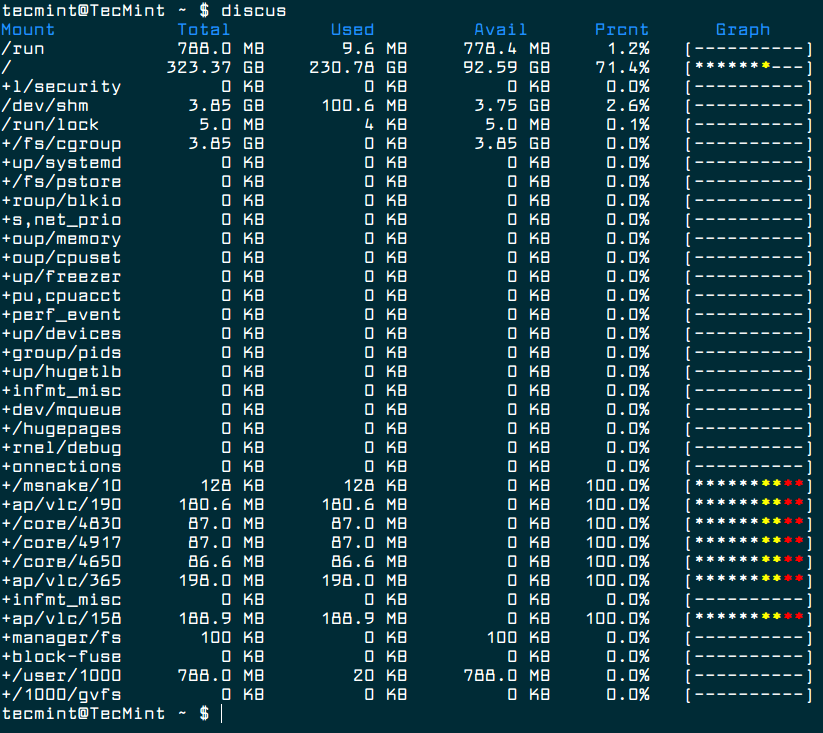
To disable the color, use the -c flag.
$ discus -c
To display device names instead of graphs, use the -d flag:.
$ discus -d
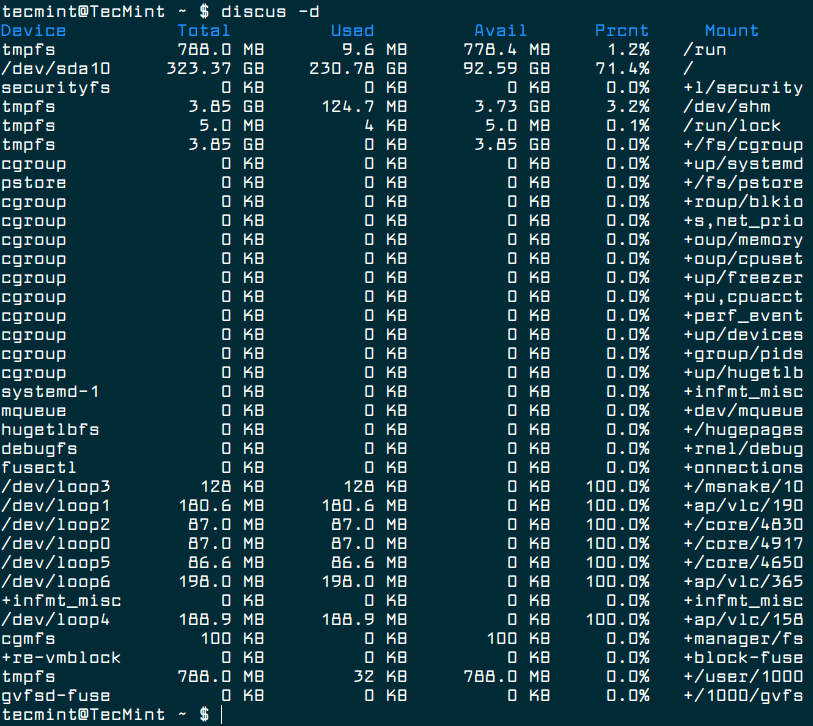
If do not want to use smart formatting, you can disable it using the -s switch as shown.
$ discus -s
You can specify the number of digits to right of decimal place using the -p flag.
$ discus -p 3
To display sizes in kilobytes, gigabytes, megabytes, or terabytes use the -k, -g, -m, or -t flags respectively. For example.
$ discus -m
Last but not least, if you want to configure it to your preference, copy its main configuration file /etc/discusrc to ~/.discusrc as shown.
$ sudo cp /etc/discusrc ~/.discusrc
Then open the newly created file and perform your customization.
$ vim ~/.discusrc
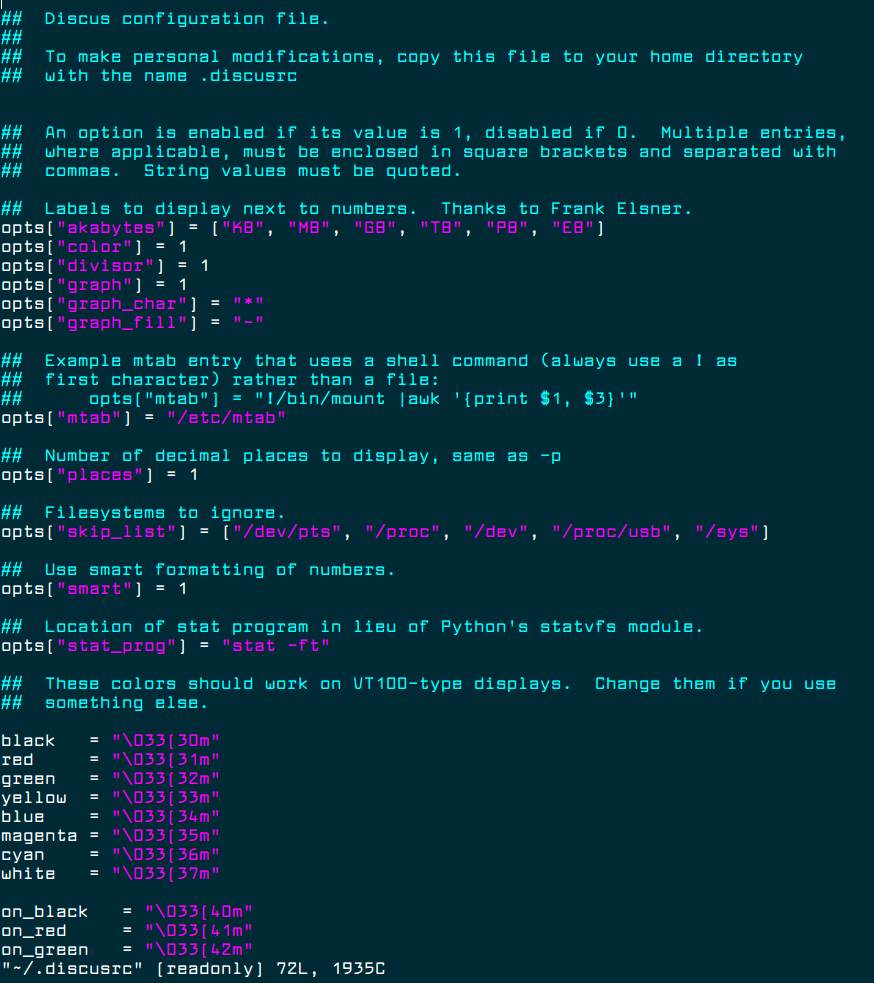
For more information, see the discus man page.
$ man discus
You may also like to read these following useful articles on Linux disk space usage.
- 10 Useful du (Disk Usage) Commands to Find Disk Usage of Files and Directories
- How to Find Out Top Directories and Files (Disk Space) in Linux
That’s all! Discus is a simple utility intended to make df command prettier. Try it out and let us know of thoughts in the comments section below.




discus is not in any of the default system repositories. both CentOS 7 & 8 doesn’t have it.
@nobleaxis
Allow us to check if this is the case.
Hey guys I can’t install it on Fedora:
Can you guys help me?
Wow, I had no idea anyone still used this. I wrote Discus in 2000. I haven’t thought about it in years, yet here is a brand-new review of it.
Thanks!
@Stormy Henderson
Welcome. Maybe you should consider getting back to it.
This package is not available in CentOS 7 or EPEL repositories. Tecmint, why do you hurt me so? This is the second thing I have tried from this site this month that does not work on CentOS. Recommend testing before writing.
Aaron, I tried installing Discus on a Centos 7.5 but it wont work, previously you suggested to enable EPEL but this still not working.
https://www.tecmint.com/how-to-enable-epel-repository-for-rhel-centos-6-5/
Do you know what other Repository I can use to download Discus?
This really fills out a very much-needed gap in the Linux world.
@DFD
Many thanks for sharing your thoughts with us.
Nice terminal font! What’s the name? Thanks!
@raphaelmsx
Larabie Font