
As a Linux administrator, you must periodically check which files and folders are consuming more disk space, because it is very necessary to find unnecessary junk and free it up from your hard disk.
In this article, you will learn how to find the largest files and directories consuming disk space in Linux using the du, find, and ncdu commands with examples.
If you want to learn more about these commands, then head over to the following articles.
- Learn 10 Useful ‘du’ (Disk Usage) Commands in Linux
- Master the ‘Find’ Command with these 35 Practical Examples
- Ncdu – A Powerful NCurses-Based Disk Usage Analyzer for Linux
Find Largest Directories in Linux Using du Command
Run the following command to find out the top 5 biggest directories under /home partition.
du -a /home | sort -n -r | head -n 5
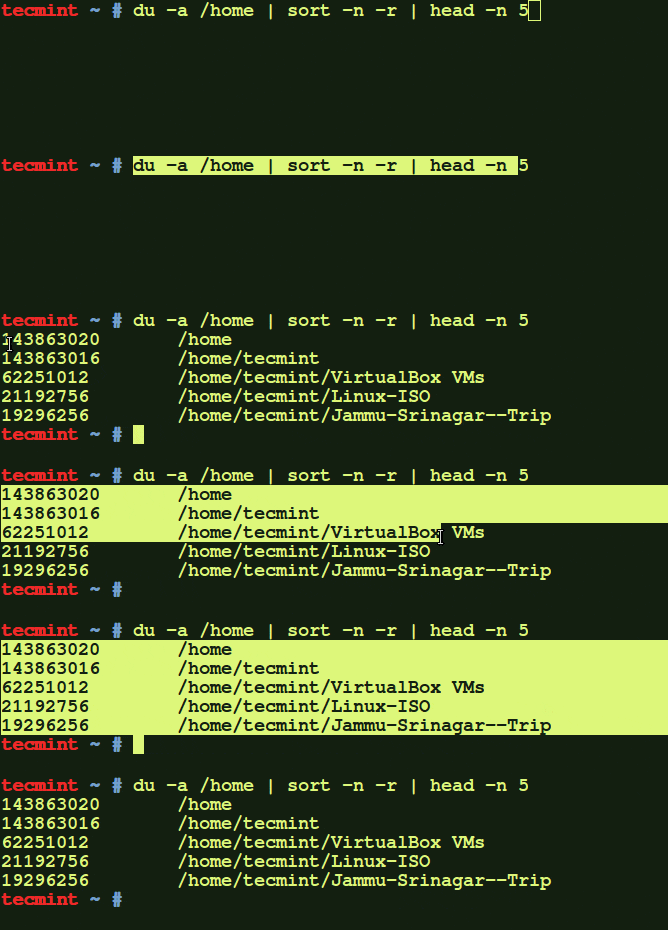
If you want to display the biggest directories in the current working directory, run:
du -a | sort -n -r | head -n 5
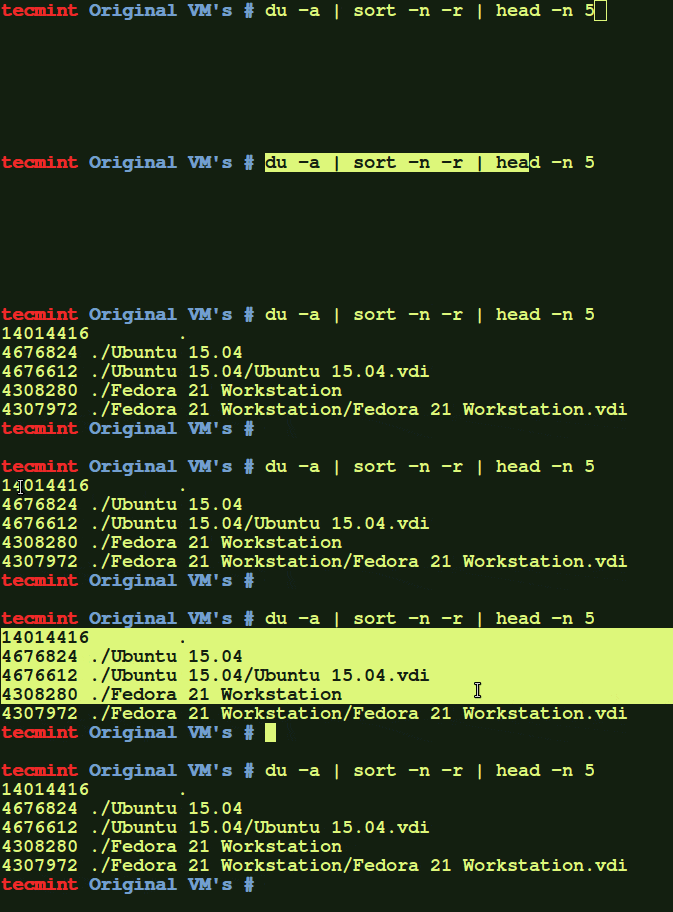
Let us break down the command and see what each parameter says.
ducommand: Estimate file space usage.a: Displays all files and folders.sortcommand : Sort lines of text files.-n: Compare according to string numerical value.-r: Reverse the result of comparisons.head: Output the first part of the files.-n: Print the first‘n’lines. (In our case, we displayed the first 5 lines).
Display Disk Usage in Human-Readable Format (MB, GB)
Some of you would like to display the above result in a human-readable format. i.e., you might want to display the largest files in KB, MB, or GB.
du -hs * | sort -rh | head -5
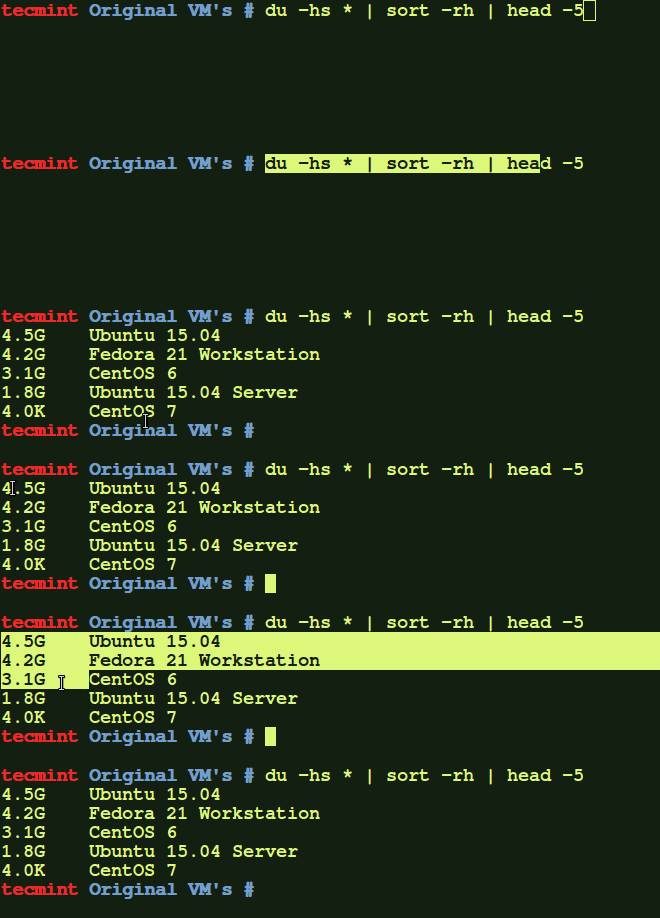
The above command will show the top directories, which are eating up more disk space. If you feel that some directories are not important, you can simply delete a few sub-directories or delete the entire folder to free up some space.
Find Top Directories and Subdirectories by Size
To display the largest folders/files, including the sub-directories, run:
du -Sh | sort -rh | head -5
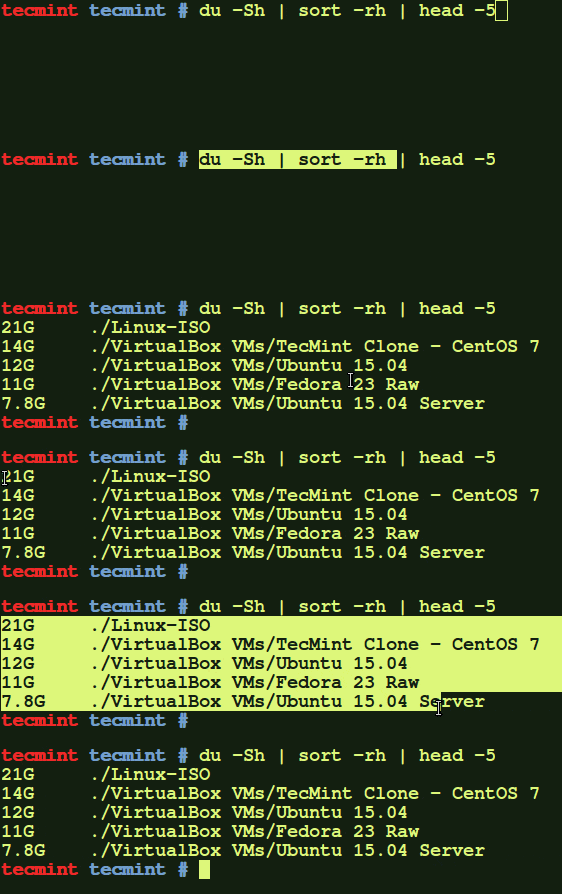
Find out the meaning of each option using the above command:
ducommand: Estimate file space usage.-h: Print sizes in human-readable format (e.g., 10MB).-S: Do not include the size of subdirectories.-s: Display only a total for each argument.sortcommand : sort lines of text files.-r: Reverse the result of comparisons.-h: Compare human-readable numbers (e.g., 2K, 1G).head: Output the first part of the files.
Find Largest Files in Linux Using find Command
If you want to display the biggest file sizes only, then run the following command:
find -type f -exec du -Sh {} + | sort -rh | head -n 5

To find the largest files in a particular location, just include the path beside the find command:
find /home/tecmint/Downloads/ -type f -exec du -Sh {} + | sort -rh | head -n 5
OR
find /home/tecmint/Downloads/ -type f -printf "%s %p\n" | sort -rn | head -n 5

The above command will display the largest file from /home/tecmint/Downloads directory.
Find Files Larger Than a Specific Size in Linux
Sometimes you don’t need to see all files ranked by size, but you just want to identify files that exceed a certain threshold, such as files larger than 100MB or 1GB.
find /home -type f -size +100M -exec ls -lh {} \; | awk '{ print $9 ": " $5 }'
To find files larger than 1GB:
find /home -type f -size +1G -exec ls -lh {} \; | awk '{ print $9 ": " $5 }'
You can also search for files within a size range, for example, to find files between 10MB and 100MB:
find /home -type f -size +10M -size -100M -exec ls -lh {} \; | awk '{ print $9 ": " $5 }'
Exclude Directories from Disk Usage Search
When analyzing disk usage, you might want to exclude certain directories like /proc, /sys, or mounted external drives to get more accurate results.
du -h --exclude=/proc --exclude=/sys --exclude=/dev / | sort -rh | head -n 10
To exclude multiple directories when using the find command:
find /home -type f -not -path "*/node_modules/*" -not -path "*/.cache/*" -exec du -Sh {} + | sort -rh | head -n 10
This is particularly useful when dealing with development directories where node_modules or cache folders can skew your results.
Find Old Large Files That Haven’t Been Accessed
To identify large files that haven’t been accessed in a long time (potential candidates for archival or deletion), combine size and time parameters:
find /home -type f -size +50M -atime +180 -exec ls -lh {} \;
The above command finds files larger than 50MB that haven’t been accessed in the last 180 days.
Find Large Files Modified Over a Year Ago
To find large files modified more than a year ago:
find /var/log -type f -size +100M -mtime +365 -exec ls -lh {} \;
Find Disk Usage by File Type (Extension)
If you want to know which file types are consuming the most space, you can group files by extension:
find /home/tecmint -type f | sed 's/.*\.//' | sort | uniq -c | sort -rn | head -10
Find Total Space Used by Log Files
To get the total size consumed by specific file types, like all .log files:
find /var/log -type f -name "*.log" -exec du -ch {} + | grep total$
Find Total Space Used by Video Files
Or to find the total space used by video files:
find /home/tecmint -type f \( -name "*.mp4" -o -name "*.avi" -o -name "*.mkv" \) -exec du -ch {} + | grep total$
Find and Remove Empty Files and Directories
Empty files and directories waste inodes and clutter your filesystem, so here’s how to find them:
To find all empty files:
find /home/tecmint -type f -empty
To find all empty directories:
find /home/tecmint -type d -empty
If you want to delete all empty files (use with caution):
find /home/tecmint -type f -empty -delete
Analyze Disk Usage with ncdu Tool
While the du and find commands are powerful, the ncdu (NCurses Disk Usage) tool provides an interactive, user-friendly interface for analyzing disk usage.
First, install ncdu:
sudo yum install ncdu       [On RHEL/CentOS/Fedora]
sudo apt install ncdu       [On Debian/Ubuntu]
Then run it on any directory:
ncdu /home
The ncdu tool allows you to navigate through directories using the arrow keys, delete files with the 'd' key, and get a visual representation of disk usage. It’s particularly helpful when you need to quickly identify and clean up space interactively.
Find Recently Created Large Files in Linux
To track down large files that were recently created (useful for identifying what’s filling up your disk):
find /home -type f -size +50M -ctime -7 -exec ls -lh {} \;
This finds files larger than 50MB created in the last 7 days.
When using the find command with -size option, remember these units:
c: bytesk: kilobytes (1024 bytes)M: megabytes (1024 kilobytes)G: gigabytes (1024 gigabytes)T: terabytes (1024 gigabytes)
Example: -size +500M finds files larger than 500 megabytes.
That’s all for now. Finding the biggest files and folders is no big deal. Even a novice administrator can easily find them. If you find this tutorial useful, please share it on your social networks and support TecMint.


I need a shell script to display the largest folder in the server directory and user information.
Hi, Karthick,
Use this command.
$ du -s * | sort -rn | awk '{system("ls -ld $2") ; exit}'@Gilles,
Thanks for the tip, but it didn’t work on my end. Here is the output of the command…
$ du -s * | sort -rn | awk '{system("ls -ld $2") ; exit}' drwxr-xr-x 33 tecmint tecmint 4096 Nov 16 10:46 .Sorry for the two mistakes.
First, if running as root, wildcard
("*")expansion includes “dot directories“, and current dir(".")would always be the biggest one since it includes all others.And there was also a mistake in the awk statement.
So this should do the trick:
$ find . -mindepth 1 -maxdepth 1 -type d | xargs du -s * | sort -rn | awk ‘{system(“ls -ld ” $2) ; exit}’
@Gilles,
Thanks again, but the command giving an error, see below.
$ find . -mindepth 1 -maxdepth 1 -type d | xargs du -s * | sort -rn | awk '{system("ls -ld  "  $2)  ; exit}'

du: cannot access './VirtualBox': No such file or directory
du: cannot access 'VMs': No such file or directory
drwxr-xr-x 17 tecmint tecmint 184320 Nov 16 14:52 Downloads
Could you run the above command in your Linux setup, and share the output?
@Ravi Sorry for replying here; the “reply link” is missing from your latest comment.
> “but the command giving an error, see below”
sorry again, remove the
"*"from"xargs du -s *".The fixed command is :
$ find $HOME -mindepth 1 -maxdepth 1 -type d | xargs du -s | sort -rn | awk '{system("ls -ld " $2) ; exit}'
Thanks for this!
We also found deleted files that were still locked by some process:
Thank you sharing this.
I was trying to find these commands from ages and now I got the write answer
It appears that if you use
-h(human readable) with du, the sort gets confused as it doesn’t interpret the decimal unit prefix (i.e. the G, M, or K) properly, and you get the largest displayed numeric value.For example: 9G, 10K, 8K, 4M, 7G would sort to 10K, 9G, 8K, 7G, 4M.
I noticed this when I got the following results:
This has already be discussed previously:
https://www.tecmint.com/find-top-large-directories-and-files-sizes-in-linux/comment-page-1/#comment-775274
Hello Ravi,
My questioned is to find the big file for particular date says we have thousand files of in folder with different date and need to find the biggest file of december 2016.
My problem isn’t big files, it’s a huge number of tiny files. How can I list the biggest directories *by the number of files*?
@Bob,
You can find the number of files including its sizes with the following command:
The above output lists the number of files contained in a directory, including subdirectories, sorted by number of files.
How do I can list all the files in several directories and at the end write the total of all the files and directories. I’m using the du command as fallow:
this command give me the size of all the files but not the global total.
@Adam,
Just this comment, I hope this is what you looking for: https://www.tecmint.com/find-top-large-directories-and-files-sizes-in-linux/comment-page-1/#comment-1206179
To find big files and directories you have to use 3 commands is 1 line du, sort, and head.
1- du : Estimate file space usage
2- sort : Sort lines of text files or given input data
3- head : Output the first part of files i.e. to display first 10 largest file
Let give on example:- .
Find largets 20 files or directories, I prefer root access to execute the commands.
Output
Only works with GNU find.
Sample outputs:
You can skip directories and only display files, type:
find /path/to/search/ -type f -printf ‘%s %p\n’| sort -nr | head -10
I tried this:
Which shows result like this:
Now this is my issue. I only want the name of those files located in folders that are consuming space at / and not at /u01 or /home. Since / is base of everything, it is showing me every file of my server.
Is is possible to get big files that is contributing to 78% of / ?
“find / -type f -size +20000k -exec ls -lh {} ; | awk ‘{ print $8 “: †$5 }’”
needs to have the exec altered
find / -type f -size +20000k -exec ls -lh {} \; | awk ‘{ print $8 “: †$5 }’
Also, I find this output easier to read
find . -type f -size +20000k -exec ls -lh {} \; | awk ‘{print $5″: “$8}’
This lists files recursively if they’re normal files, sorts by the 7th field (which is size in my find output; check yours), and shows just the first file.
The first option to find is the start path for the recursive search. A -type of f searches for normal files. Note that if you try to parse this as a filename, you may fail if the filename contains spaces, newlines or other special characters. The options to sort also vary by operating system. I’m using FreeBSD.
A “better” but more complex and heavier solution would be to have find traverse the directories, but perhaps use stat to get the details about the file, then perhaps use awk to find the largest size. Note that the output of stat also depends on your operating system.
Sorting using “sort -n” the output of “du -Sh” (“h” stands for “human-readable”) gives incorrect results: sizes are printed by “du” in float values with trailing unit indicator (none, “K”, “G”). For instance 1.2M is sorted as *lower* than 4.0K (since 1 < 4) which is false.
So, instead of
find /home/tecmint/Downloads/ -type f -exec du -Sh {} + | sort -rh | head -n 5
You'd better use
find /home/tecmint/Downloads/ -type f -printf "%s %p\n" | sort -rn | head -n 5
which gives the 5 top size files.
Oups! Didn’t noticed the “-h” option to “sort” too (which I didn’t knew BTW).
So that’s OK.
@Gilles,
Thanks for the tip, will include your command as alternative way to achieve the same results with better format..
Good advice. I’ve put together a tool that makes a lot of this even easier, in case anyone is interested.
I expect that urls are not permitted in content, but are invited for one’s name, so I’ve placed the bitbucket link to my script, “duke” there.
@Gregory,
Thanks for sharing the duke tool, seems excellent with nice presentation of files sizes and their ages, will surely write about this duke tool on our next article. Could you please send more about the tool and features at [email protected]?
You can also use ncdu.
@Mike,
Yes, I agree that ncdu much better than this custom created commands, here is the guide on ncdu tool.
https://www.tecmint.com/ncdu-a-ncurses-based-disk-usage-analyzer-and-tracker/