

Darkstat is a cross-platform, lightweight, simple, real-time network statistics tool that captures network traffic, computes statistics concerning usage, and serves the reports over HTTP.
Darkstat Features:
- An integrated web-server with deflate compression functionality.
- Portable, single-threaded and efficient Web-based network traffic analyzer.
- The Web interface shows traffic graphs, reports per host and ports for each host.
- Supports asynchronous reverse DNS resolution using a child process.
- Support for IPv6 protocol.
Requirements:
- libpcap – a portable C/C++ library for network traffic capture.
Being small in size, it uses very low system memory resources and it is easy to install, configure and use in Linux as explained below.
How to Install Darkstat Network Traffic Analyzer in Linux
1. Luckily, darkstat is available in the software repositories of mainstream Linux distributions such as RHEL/CentOS and Debian/Ubuntu.
$ sudo apt-get install darkstat		# Debian/Ubuntu
$ sudo yum install darkstat		# RHEL/CentOS
$ sudo dnf install darkstat		# Fedora 22+
2. After installing darkstat, you need to configure it in the main configuration file /etc/darkstat/init.cfg.
$ sudo vi /etc/darkstat/init.cfg
Note that for the purpose of this tutorial, we will only explain mandatory as well as important configuration options for you to start using this tool.
Now change the value of START_DARKSTAT from no to yes and set the interface darkstat will listen on with the INTERFACE option.
And also uncoment DIR=”/var/lib/darkstat” and DAYLOG=”–daylog darkstat.log” options to specify its directory and log file respectively.
START_DARKSTAT=yes
INTERFACE="-i ppp0"
DIR="/var/lib/darkstat"
# File will be relative to $DIR:
DAYLOG="--daylog darkstat.log"
3. Start the darkstat daemon for now and enable it to start at system boot as follows.
------------ On SystemD ------------
$ sudo systemctl start darkstat
$ sudo /lib/systemd/systemd-sysv-install enable darkstat
$ sudo systemctl status darkstat

------------ On SysV Init ------------
$ sudo /etc/init.d/darkstat start
$ sudo chkconfig darkstat on
$ sudo /etc/init.d/darkstat status
4. By default, darkstat listens on port 667, so open the port on firewall to allow access.
------------ On FirewallD ------------
$ sudo firewall-cmd --zone=public --permanent --add-port=667/tcp
$ sudo firewall-cmd --reload

------------ On IPtables ------------
$ sudo iptables -A INPUT -p udp -m state --state NEW --dport 667 -j ACCEPT
$ sudo iptables -A INPUT -p tcp -m state --state NEW --dport 667 -j ACCEPT
$ sudo service iptables save

------------ On UFW Firewall ------------
$ sudo ufw allow 667/tcp
$ sudo ufw reload
5. Finally, access the darkstat web interface by going to URL http://Server-IP:667.
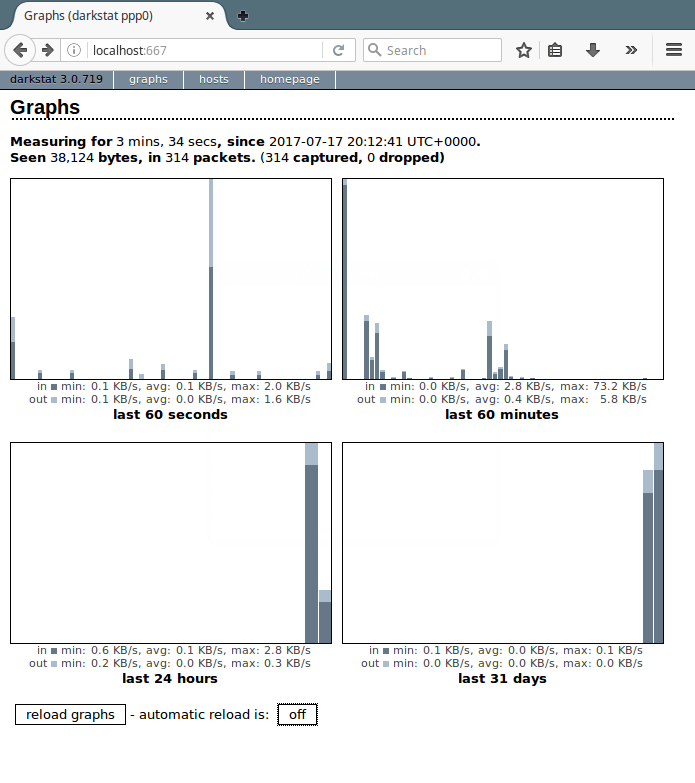
You can reload graphs automatically by clicking on and off buttons.
Manage Darkstat From Command Line in Linux
Here, we will explain a few important examples of how you can operate darkstat from the command line.
6. To collect network statistics on the eth0 interface, you can use the -i flag as below.
$ darkstat -i eth0
7. To serve web pages on a specific port, include the -p flag like this.
$ darkstat -i eth0 -p 8080
8. To keep an eye on network statistics for a given service, use the -f or filter flag. The specified filter expression in the example below will capture traffic concerned with SSH service.
$ darkstat -i eth0 -f "port 22"
Last but not least, if you want to shut darkstat down in a clean way; it is recommended to send SIGTERM or SIGINT signal to the darkstat parent process.
First, get the darkstat parent process ID (PPID) using the pidof command:
$ pidof darkstat
Then kill the process like so:
$ sudo kill -SIGTERM 4790
OR
$ sudo kill -15 4790
For additional usage options, read through the darkstat manpage:
$ man darkstat
Reference Link: Darkstat Homepage
You may also like to read the following related articles on Linux network monitoring.
- 20 Command Line Tools to Monitor Linux Performance
- 13 Linux Performance Monitoring Tools
- Netdata – A Real-Time Linux Performance Monitoring Tools
- BCC – Dynamic Tools for Linux Performance and Network Monitoring
That’s It! In this article, we have explained how to install and use darkstat in Linux to capture network traffic, calculates usage, and analyze reports over HTTP.
Do you have any questions to ask or thoughts to share, use the comment form below?

where is the darkstat database stored?
Thanks for your article. How can I do autostart on boot with Ubuntu 20.04? “sudo chkconfig darkstat on” is not work on Ubuntu 20.04.
Hi
This was very helpful for me.
One little error on “sudoiptables -A INPUT -p tcp -m state –state NEW –dport 667 -j ACCEPT” => sudoiptables is unknown, should be
“sudo iptables -A INPUT -p tcp -m state –state NEW –dport 667 -j ACCEPT” (with space between sudo and iptables).
Best regards from Switzerland
Christopher
@Chris,
Thanks, corrected the command in the article…