

A file system is the way in which files are named, stored, retrieved as well as updated on a storage disk or partition; the way files are organized on the disk.
A file system is divided in two segments called: User Data and Metadata (file name, time it was created, modified time, it’s size and location in the directory hierarchy etc).
In this guide, we will explain seven ways to identify your Linux file system type such as Ext2, Ext3, Ext4, BtrFS, GlusterFS plus many more.
1. Using df Command
df command reports file system disk space usage, to include the file system type on a particular disk partition, use the -T flag as below:
$ df -Th
OR
$ df -Th | grep "^/dev"

For a comprehensive guide for df command usage go through our articles:
- 12 Useful “df” Commands to Check Disk Space in Linux
- Pydf – An Alternative ‘df’ Command That Shows Disk Usage in Colours
2. Using fsck Command
fsck is used to check and optionally repair Linux file systems, it can also print the file system type on specified disk partitions.
The flag -N disables checking of file system for errors, it just shows what would be done (but all we need is the file system type):
$ fsck -N /dev/sda3
$ fsck -N /dev/sdb1

3. Using lsblk Command
lsblk displays block devices, when used with the -f option, it prints file system type on partitions as well:
$ lsblk -f

4. Using mount Command
mount command is used to mount a file system in Linux, it can also be used to mount an ISO image, mount remote Linux filesystem and so much more.
When run without any arguments, it prints info about disk partitions including the file system type as below:
$ mount | grep "^/dev"

5. Using blkid Command
blkid command is used to find or print block device properties, simply specify the disk partition as an argument like so:
$ blkid /dev/sda3

6. Using file Command
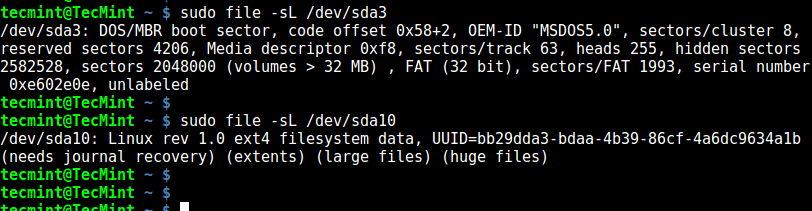
file command identifies file type, the -s flag enables reading of block or character files and -L enables following of symlinks:
$ sudo file -sL /dev/sda3
7. Using fstab File
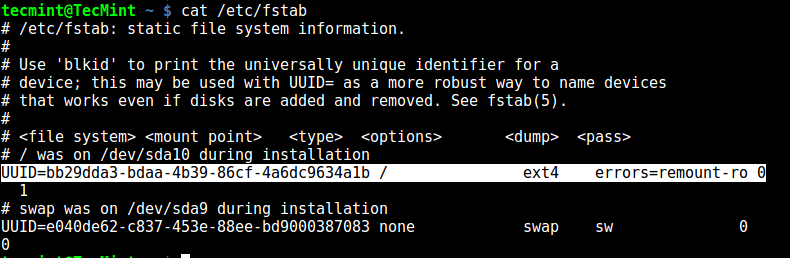
The /etc/fstab is a static file system info (such as mount point, file system type, mount options etc) file:
$ cat /etc/fstab
That’s it! In this guide, we explained seven ways to identify your Linux file system type. Do you know of any method not mentioned here? Share it with us in the comments.

Note that,
will create a ext2 filesystem on image1, if its not big enough (warning “Filesystem too small for a journal” means a filesystem without a journal, a.k.a. ext2, is created)
If you don’t realize this and nevertheless mount it as ext4. The df and mount methods above will mirror back ext4:
but fsck and file reveal the true filesystem:
The only working method for me was ‘
lsblk -f‘; the other replied “fuseblk“, “HPFS/NTFS/exFAT” or nothing.@Zac
Thanks for the useful feedback.
cat /etc/fstabworks good.@Hamdy
True, it is easy to use. Thanks for the feedback.
but it does not show system mounted in
/media.but I appreciate very much this page :)
@mic
We very much appreciate you too. Many thanks for the feedback.
What is known fact about linux
@Aman
Check out this article: https://www.tecmint.com/lesser-known-facts-about-gnu-linux/
how to read file system in linux?
@Joana,
There are several types of filesystem in Linux, let me know which file type you want to read?
HELLO,
how to list out the size of the disks which are above or below range for example i want to list out the disks above 60M ,is there a command for this.
Great article. Never knew about “lsblk” command. Thank you very much.
@Anon
Welcome, thanks for following us.