
If you’ve ever worked with sensitive files on Linux, you might have wanted to prevent others (or even yourself) from accidentally renaming or deleting them. Thankfully, Linux provides a few methods to “lock” a file, making sure it stays safe from unwanted changes.
In this guide, we’ll show you how to lock a file to prevent renaming or deleting it using simple commands and tools available in Linux. We’ll also walk through an example to demonstrate each method.
Let’s assume we have a file called important.txt located in the /home/user/ directory, and we want to protect this file from being renamed or deleted.
Method 1: Using chattr to Make a File Immutable
One of the simplest and most effective ways to protect a file from renaming or deletion is to use the chattr command, which changes file attributes in Linux.
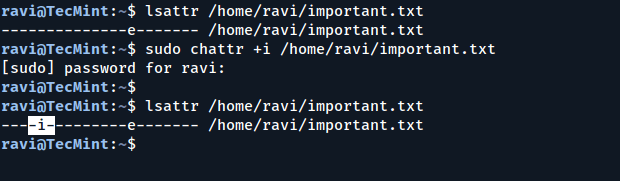
First, let’s check the attributes of important.txt using the lsattr command, which will list the attributes of files and directories:
lsattr /home/user/important.txt
If the file is not locked, you should see nothing or just - in the output.

To make important.txt immutable (unable to be renamed or deleted), run the following command:
sudo chattr +i /home/user/important.txt
lsattr /home/user/important.txt
Now, you should see an i in the output next to the file name, indicating it’s locked.
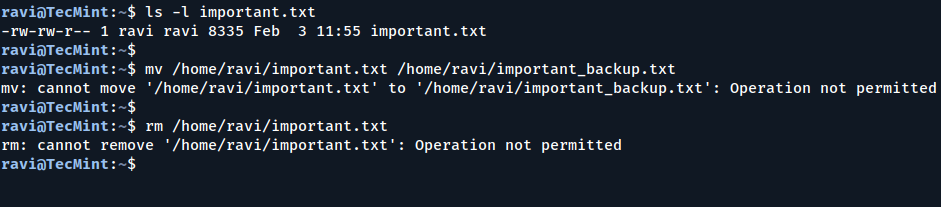
Attempting to rename or delete the file will now fail.
mv /home/user/important.txt /home/user/important_backup.txt
Similarly, if you try to delete the file.
rm /home/user/important.txt
You will get an error saying “Operation not permitted“.
To remove the immutability and allow changes to the file, use:
sudo chattr -i /home/user/important.txt
Now, you can rename or delete the file as usual.
Method 2: Using File Permissions to Restrict Deleting
Another way to prevent file deletion is by changing the file’s permissions by using the chmod command, which sets permissions that make a file unreadable or uneditable by other users.
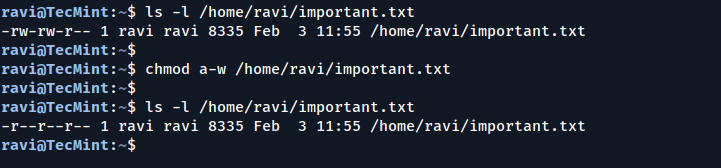
To prevent everyone (including yourself) from deleting or modifying the file, use:
chmod a-w /home/user/important.txt
You can check the file’s permissions with:
ls -l /home/user/important.txt
You should see something like this, where the w (write) permission has been removed, which indicates that no one can modify or delete the file.
To allow yourself to delete or modify the file again:
chmod +w /home/user/important.txt
Method 3: Using chown to Change Ownership
If you’re the only person who should be able to modify or delete the file, you can change the ownership of the file.
sudo chown yourusername:yourgroup /home/user/important.txt
Replace yourusername and yourgroup with your actual username and group.
Now, you can check the file’s owner and group with:
ls -l /home/user/important.txt
You should see something like:
-r--r--r-- 1 yourusername yourgroup 0 Feb 3 10:00 /home/user/important.txt
Now, only you can modify or delete the file.
Conclusion
Locking a file in Linux can help prevent accidental changes like renaming or deletion, which is especially useful when dealing with important files.
The methods we’ve discussed – using chattr to make a file immutable, adjusting file permissions, and changing file ownership are easy to use and can provide the security you need.


“
chmod a-w file” will NOT prevent it from being removed! The file can be removed if the user has write permission on the directory. You will/might see a warning asking if you wish to remove a write-protected file@Peter,
You’re absolutely right! Removing write permissions from a file (
chmod a-w file) does not prevent it from being deleted if the user has write permission on the parent directory.To truly prevent deletion, the best approach is:
1. Make the directory immutable, which will prevents any modifications, including file deletions inside the directory.
2. Modify directory permissions.
This removes write access, preventing users from deleting files.