

GoAccess is an interactive and real-time web server log analyzer program that quickly analyze and view web server logs. It comes as an open-source and runs as a command line in Unix/Linux operating systems. It provides brief and beneficial HTTP (webserver) statistics report for Linux administrators on the fly. It also takes care of both the Apache and Ngnix web server log formats.
GoAccess parses and analyze the given web server log formats in preferred options including CLF (Common Log Format), W3C format (IIS), and Apache virtual hosts, and then generate an output of the data to the terminal.
Check out the Live Demo of Goaccess – https://rt.goaccess.io/
GoAccess Features
It has the following features.
- General Statistics, bandwidth, etc.
- Top Visitors, Visitors Time Distribution, Referring Sites & URLs, and 404 or Not Found.
- Hosts, Reverse DNS, IP Location.
- Operating Systems, Browsers, and Spiders.
- HTTP Status Codes
- Geo-Location – Continent/Country/City
- Metrics per Virtual Host
- Support for HTTP/2 & IPv6
- Ability to output JSON and CSV
- Incremental log processing and support for large datasets + data persistence
- Different Color Schemes
How Do I Install GoAccess in Linux?
Presently, the most recent version of GoAccess v1.4 is not available from default system package repositories, so to install the latest stable version, you need to manually download and compile it from source code under Linux systems as shown:
Install GoAccess from Sources in Linux
------------ Install GoAccess on CentOS, RHEL and Fedora ------------
# yum install ncurses-devel glib2-devel geoip-devel
# cd /usr/src
# wget https://tar.goaccess.io/goaccess-1.4.tar.gz
# tar -xzvf goaccess-1.4.tar.gz
# cd goaccess-1.4/
# ./configure --enable-utf8 --enable-geoip=legacy
# make
# make install
------------ Install GoAccess on Debian and Ubuntu ------------
$ sudo apt install libncursesw5-dev libgeoip-dev apt-transport-https
$ cd /usr/src
$ wget https://tar.goaccess.io/goaccess-1.4.tar.gz
$ tar -xzvf goaccess-1.4.tar.gz
$ cd goaccess-1.4/
$ sudo ./configure --enable-utf8 --enable-geoip=legacy
$ sudo make
$ sudo make install
Install GoAccess Using Package Manager
The easiest and preferred way to install GoAccess on Linux using the default package manager of your respective Linux distribution.
Note: As I said above, not all distributions will have the most recent version of GoAccess available in the system default repositories..
On RedHat, CentOS, and Fedora
# yum install goaccess
# dnf install goaccess    [From Fedora 23+ versions]
On Debian and Ubuntu Systems
GoAccess utility is available since Debian Squeeze 6 and Ubuntu 12.04. To install just run the following command on the terminal.
$ sudo apt-get install goaccess
Note: The above command will not always provide you the most latest version. To get the latest stable version of GoAccess, add the official GoAccess Debian & Ubuntu repository as shown:
$ echo "deb http://deb.goaccess.io/ $(lsb_release -cs) main" | sudo tee -a /etc/apt/sources.list.d/goaccess.list
$ wget -O - http://deb.goaccess.io/gnugpg.key | sudo apt-key add -
$ sudo apt-get update
$ sudo apt-get install goaccess
How Do I Use GoAccess?
Once you have GoAccess installed on your Linux machine, you can ready to start using it by running the following command. It will first ask you to determine the log format of your access log.
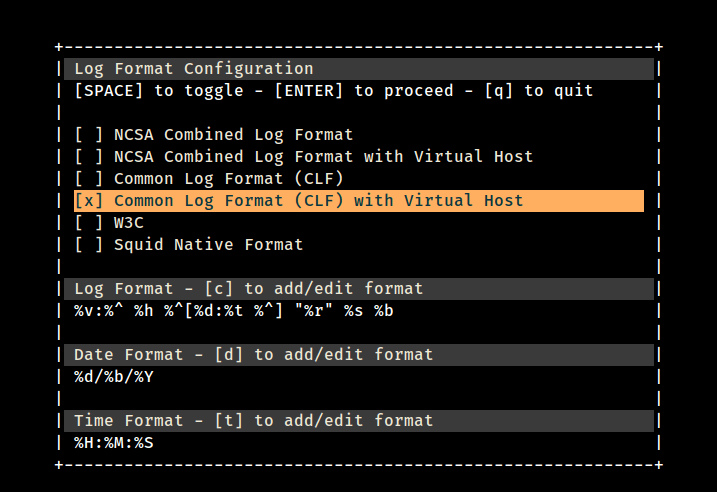
The easiest way to get any web server statistics use the flag ‘f‘ with input log file name as shown below. The below command will give you general statistics of your web server logs.
# goaccess -f /var/log/httpd/tecmint.com
# goaccess -f /var/log/nginx/tecmint.com
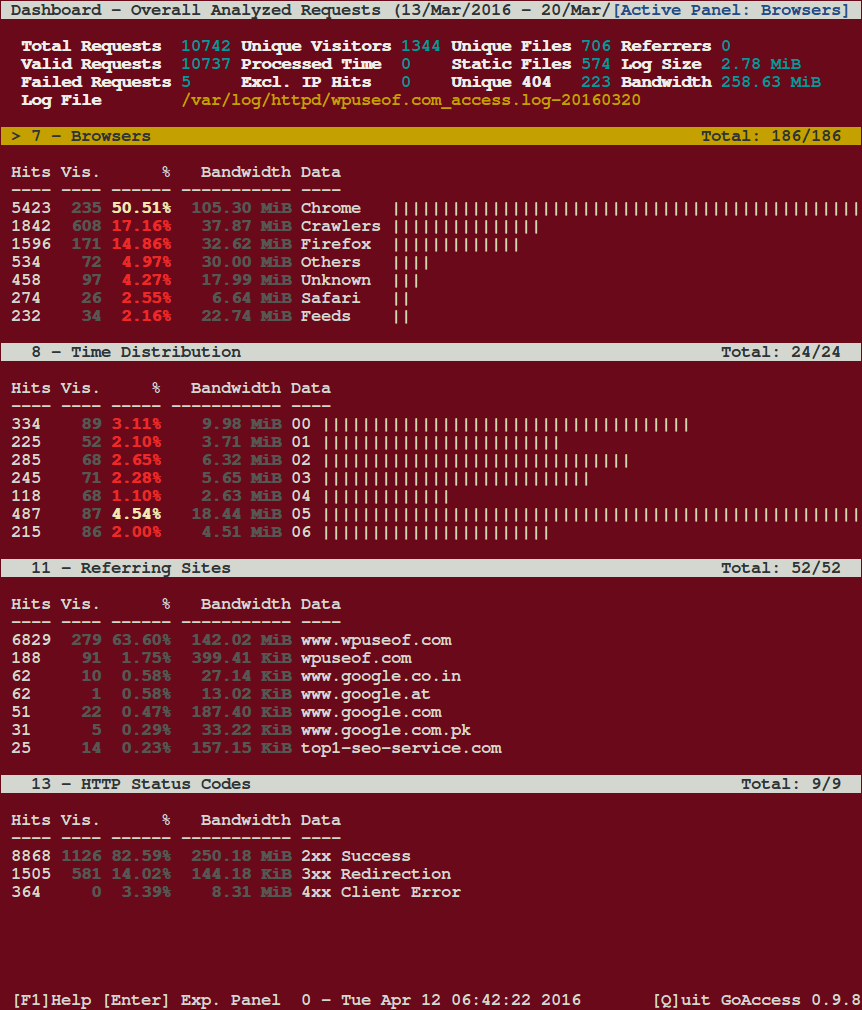
The above command gives you a complete overview of web server metrics by showing summaries of various reports as panels on a one scrollable view as shown.
Apache Logs Overview
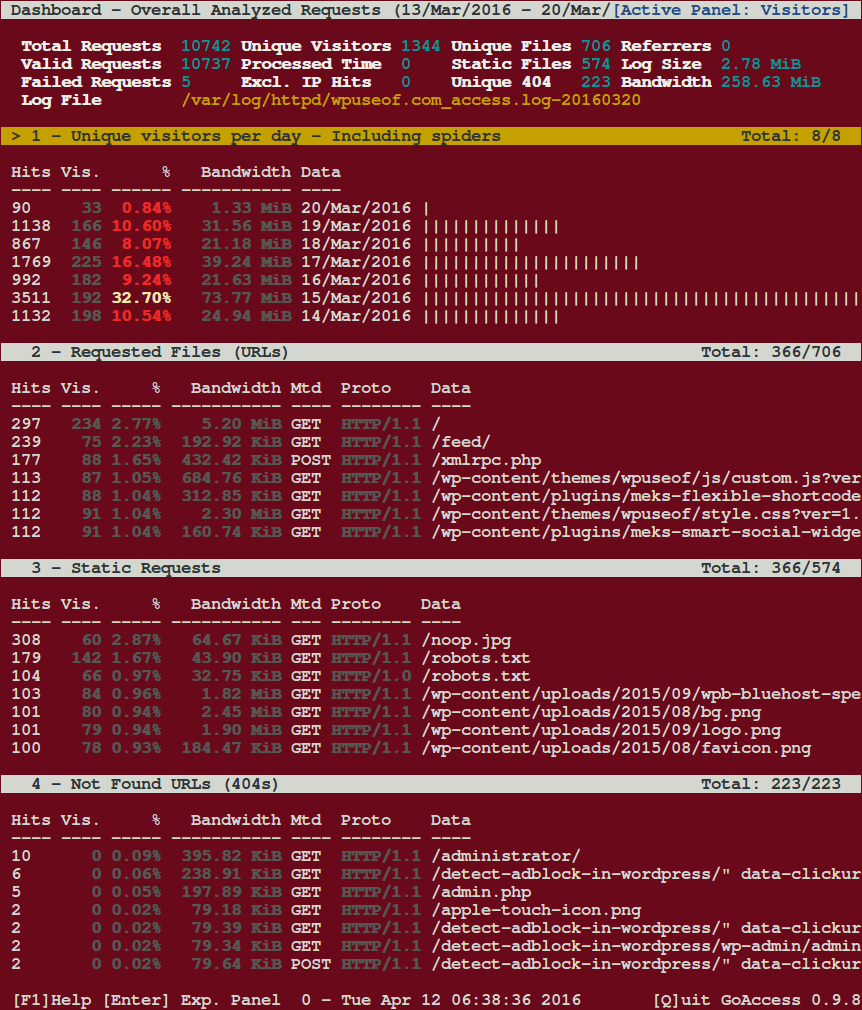
Apache Logs by Operating System – Overview
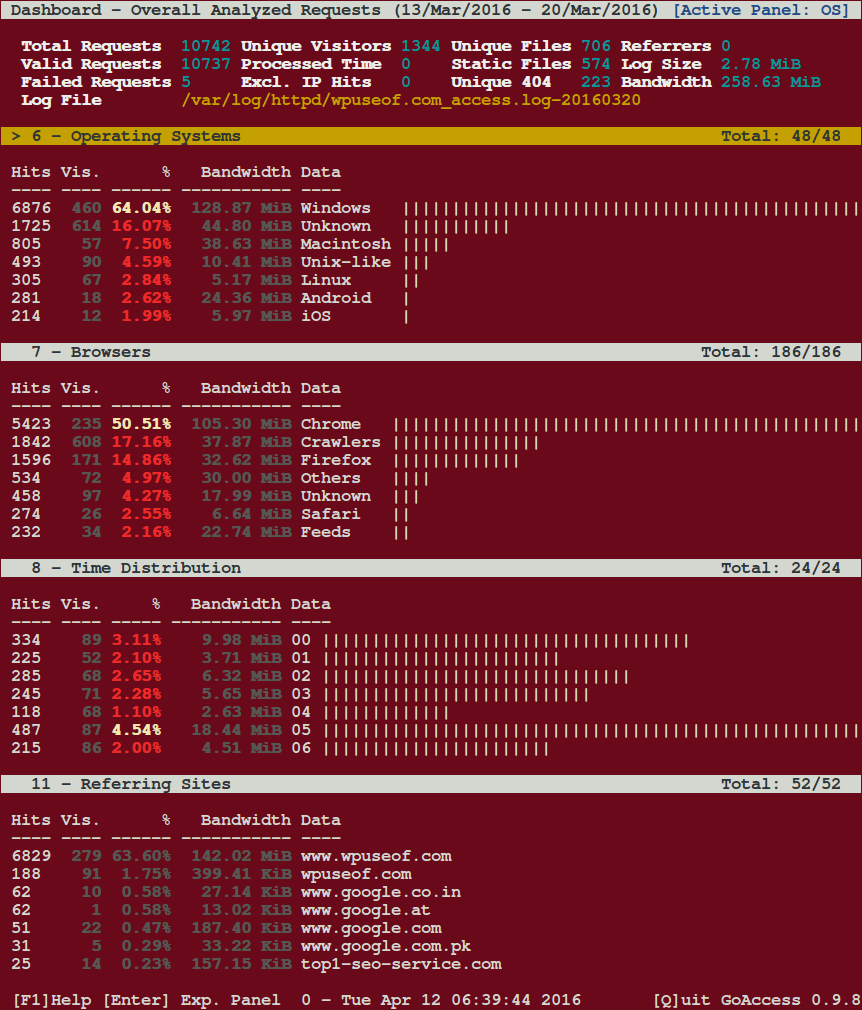
Apache Logs by Visitor Bandwidth – Overview
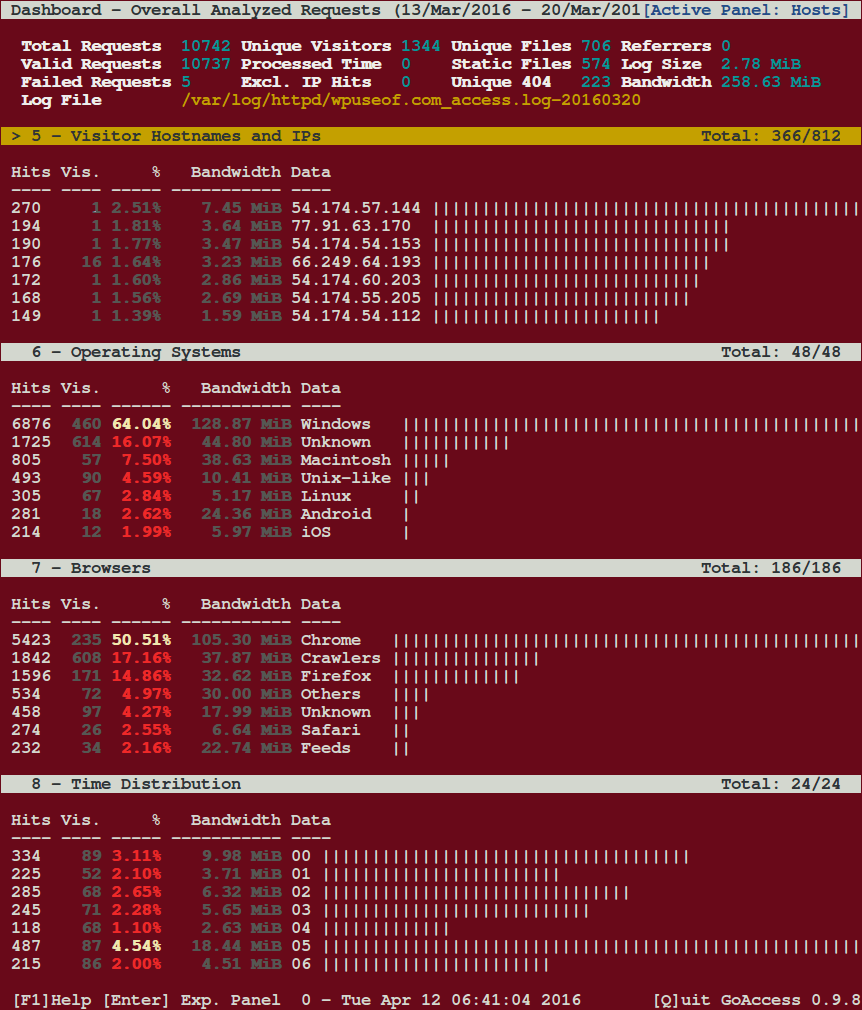
Apache Logs by Web Browser – Overview
How do I generate the Apache HTML report?
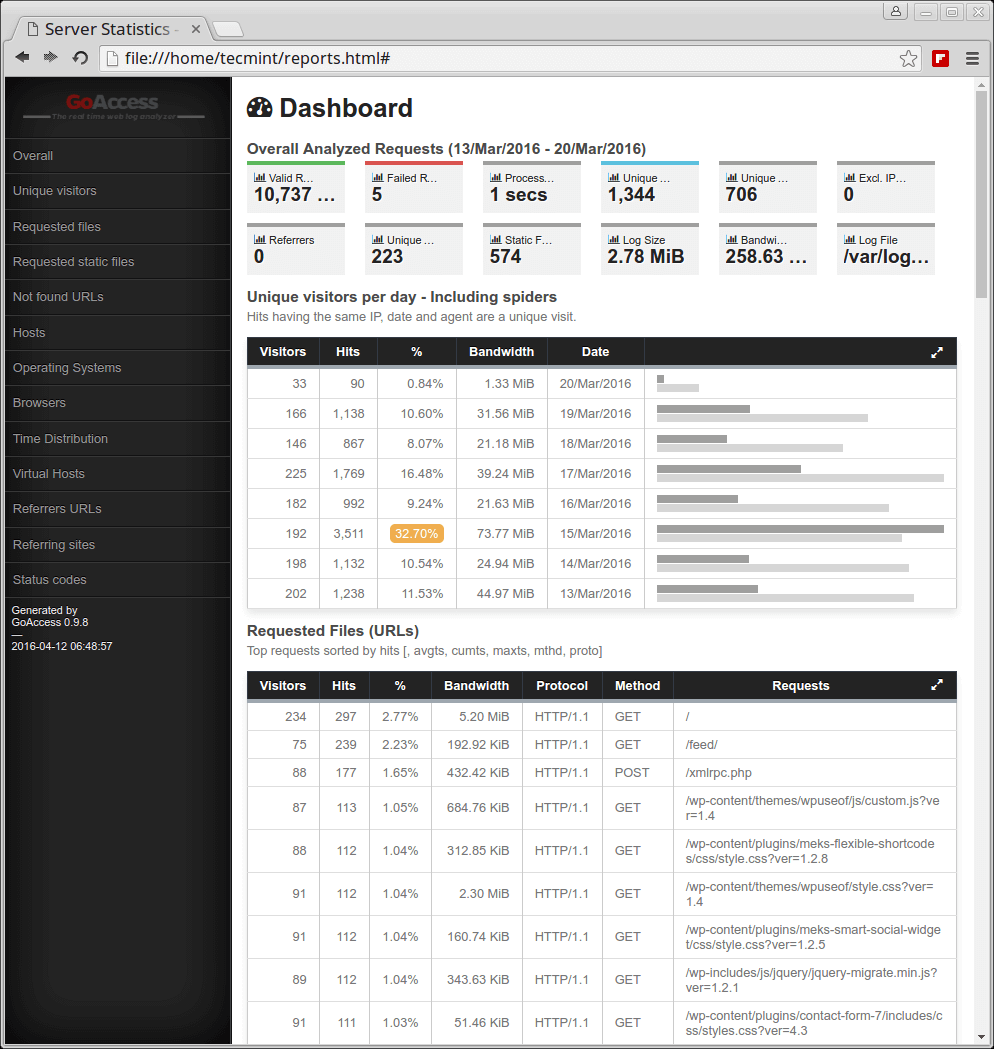
To generate an HTML report of your Apache web server logs, just run it against your weblog file.
# goaccess -f /var/log/httpd/access_log > reports.html
For more information and usage please visit http://goaccess.io/.

I have the following error:
Fatal error has occurred
Error occurred at: src/parser.c – read_log – 2730
Unable to open the specified log file. Device or resource busy
any solution?
How it can be work in cpanel server, getting below error ?
#goaccess -f /usr/local/cpanel/logs/access_log
GoAccess – version 0.9.8 – May 20 2016 13:21:04
Config file: /usr/local/etc/goaccess.conf
Fatal error has occurred
Error occured at: src/parser.c – verify_formats – 2215
No time format was found on your conf file.
@rlinux,
Did you uncomment or re-configured date-format or time-format in goaccess.conf file? Please check these time parameters in the configuration file and correct them. If you don’t know, try this thread, hope you will find solution https://github.com/allinurl/goaccess/issues/136
Thanks a lot
very nice article…
Hi Ravi,
I am getting the below error, please let me know where i have to make changes and I am not able to find out .goaccessrc file.
[root@nagios goaccess-0.5]# goaccess -f /var/log/httpd/
GoAccess – version 0.5 – Oct 16 2015 02:38:28
An error has occurred
Error occured at: goaccess.c – render_screens – 239
Message: Nothing valid to process.
@Bheema,
Change the format as shown in the configuration it should work..
Hi,
i’ve installed goaccess on my apache machines.. would it be possible to send notification/alert email from goaccess ? .. if not could you suggest me any product (freeware).
Hello, I just start with Goaccess, is there a way to know pageviews per mouth?
I can’t find info?
merci
@Pierre,
Go for Piwik for better insights about your site.
Hi
Is it possible to parse the logs from remote server ie. if i have apache server running in 192.168.1.2 and logs placed in /var/log/apache.log in the same server .is it possible to watch the stats from 192.168.1.3(where go access is installed)
Please help me
Anand, I never tried on the remote machine, but you should give a try, if it works for you then it definitely works others too and don’t forget to post your output here, if you’ve tried.
Yea, Version 0.6 fixed the F10 key binding issue. Great post Ravi, just what I needed. Very cool that it is real time.
This is works awesome on my nginx server. Version 0.6 just came out which fixed the F10 key in gnome term.
I had the same issue, however, I configured my log format/date in my: ~/.goaccessrc
color_scheme 1
date_format %d/%b/%Y
log_format %h %^[%d:%^] %^ “%r” %s %b “%R” “%u”
Interesting, but the terminal I use captures F10, which prevents specifying the log format. Log format cannot be specified on the command line either.