
In one of our several articles about the tar command, we showed you how to extract tar files to a specific or different directory in Linux. This short guide explains to you how to extract/unzip .zip archive files to a specific or different directory in Linux.
Zip is a simple, cross-platform file packaging and compression utility for Unix-like systems including Linux and Windows OS; plus many other operating systems. The “zip” format is a common archiving file format used on Windows PC’s and most importantly, it enables you to specify the compression level between 1 and 9 as an option.
Read Also: 5 Best Command Line Archive Tools for Linux
Create Zip Archive File in Linux
To create a .zip (packaged and compressed) file from the command line, you can run a similar command like the one below, The -r flag enables recursive reading of files directory structure.
$ zip -r tecmint_files.zip tecmint_files
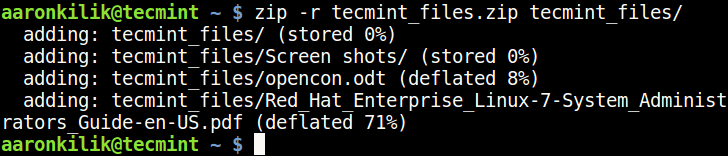
To unzip the tecmint_files.zip archive file you have just created above, you can run the unzip command as follows.
$ unzip tecmint_files.zip
The above command will extract the files into the current working directory. What if you want to send the unzipped files into a specific or different directory – you can learn this in the next section.
Extract Zip File to Specific or Different Directory
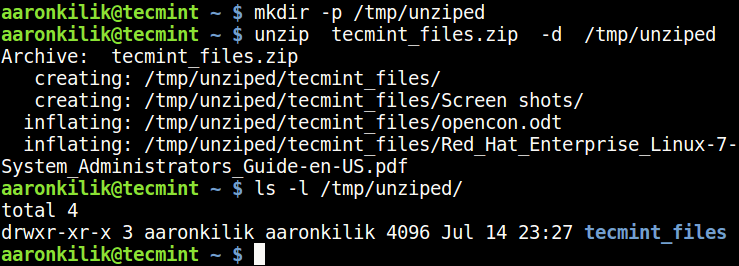
To extract/unzip .zip archive files to specific or different directory from the command line, include the -d unzip command flag as shown below. We will use the same example above to demonstrate this.
This will extract the .zip file content into the /tmp directory:
$ mkdir -p /tmp/unziped
$ unzip tecmint_files.zip -d /tmp/unziped
$ ls -l /tmp/unziped/
For more usage information, read zip and unzip command man pages.
$ man zip
$ man unzip
You may also like to read the following related articles.
- How to Archive/Compress Files & Directories in Linux
- How to Open, Extract and Create RAR Files in Linux
- Peazip – A Portable File Manager and Archive Tool for Linux
- Dtrx – An Intelligent Archive Extraction (tar, zip, cpio, rpm, deb, rar) Tool for Linux
In this short article, we have explained how to extract/unzip .zip archive files to a specific or different directory in Linux. You can add your thoughts to this article via the feedback form below.




I hope this isn’t a stupid question. I have googled and tried to answer it on my own. I want to not only unzip the installer and etcher. I want to install these apps on my manjaro arm-based Linux laptop…..they are unzipped with a program called “Ark” but they don’t seem to be installed.
So then I am going to unzip them again with the unzip utility, will that install them? how do you install etcher and the installer (the easy one-step bootable sd creator ) so that they show up as an app in the application menu…again I am running a major arm version arch Linux.
Thanx…….I’m a noob…..
Thank you
@Kamath
Welcome, thanks for the feedback.
May i know where do you learn Linux and AWS?
@varma
You can learn Linux by following TecMint.com, here is collection of useful guides for you to start with: https://www.tecmint.com/free-online-linux-learning-guide-for-beginners/