

Personalizing your Fedora desktop can make your computing experience more enjoyable and efficient. With Fedora using the GNOME desktop environment, you have various options to change themes, and icons, and add extensions.
This guide will walk you through the steps to personalize your Fedora desktop easily.
Installing GNOME Tweaks in Fedora
Before starting, it’s always a good idea to make sure your Fedora system is up-to-date.
sudo dnf update
To customize the GNOME desktop, you’ll need the GNOME Tweaks tool, which allows you to change themes, icons, fonts, and much more.
sudo dnf install gnome-tweaks
Once the installation is complete, you can find GNOME Tweaks in your applications menu.
Changing Themes and Icons in Fedora
There are many websites where you can find GNOME themes and icons, here are some popular sites include:
Installing Themes on Fedora
Now to install themes, you need to download your chosen theme (it will usually be a ZIP or TAR file), extract the downloaded file and move the extracted theme folder to your local themes directory:
mv ~/Downloads/theme-folder ~/.themes/
To apply the theme, open GNOME Tweaks and go to the “Appearance” section. Under “Themes” you can change the Applications, Cursor, and Shell themes. Click on the dropdown menu and select your installed theme.
Installing Icons on Fedora
Just like themes, you can download the icon pack, extract it, and move the extracted icon folder to your local icons directory:
mv ~/Downloads/icons-folder ~/.icons/
To apply icons, open GNOME Tweaks, go to the Appearance section, find the Icons dropdown, and select your desired icon pack from the list.
Installing GNOME Extensions in Fedora
GNOME extensions add additional functionality to your desktop environment.
Here’s how to install and manage them:
- Open your web browser (like Firefox or Chrome).
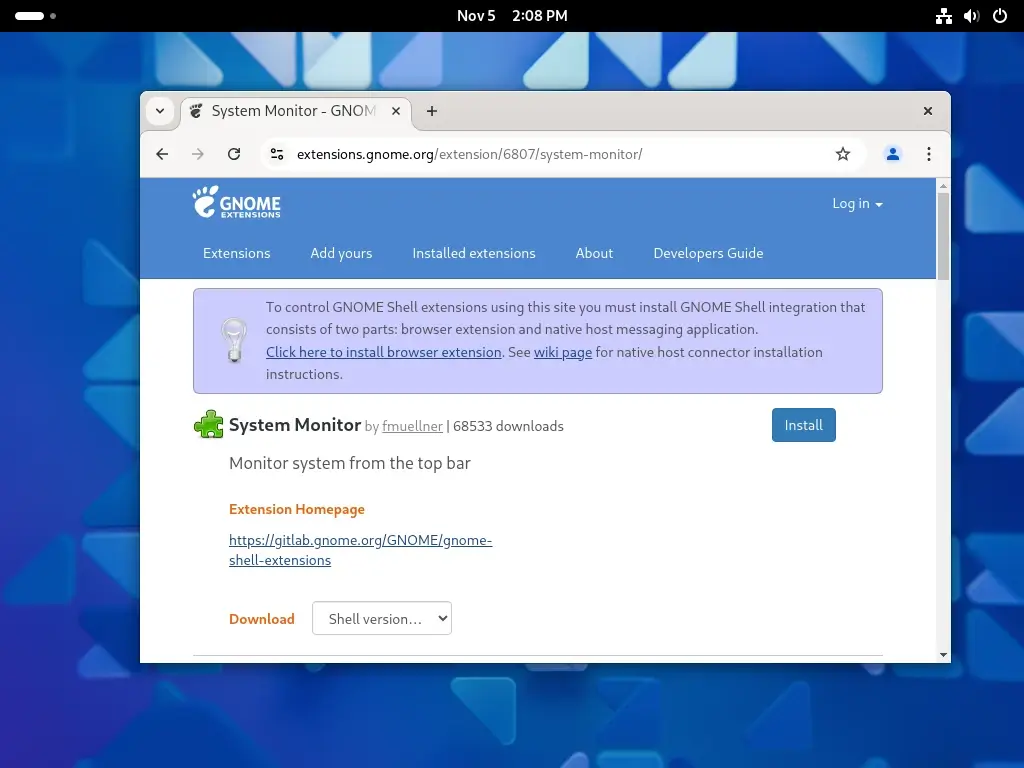
- Go to the GNOME Shell Integration page and click on the link to install the browser extension.
- Follow the prompts to add the extension to your browser.
Once you have the browser extension installed, return to the GNOME Extensions website, browse for extensions you like, and click on the toggle switch to install them.
Once you have made all your changes, take some time to explore your newly personalized desktop. You can always revisit GNOME Tweaks to adjust any settings further as you find what works best for you.
Conclusion
Personalizing your Fedora desktop environment with different themes, icons, and GNOME extensions can significantly enhance your user experience. By following the steps outlined in this guide, you can create a desktop that reflects your style and meets your needs.
