

Nano is a simple and user-friendly command-line text editor for Linux, which is often used for basic text editing tasks, such as creating and editing configuration files, scripts, or simple documents.
However, many users don’t know that Nano supports syntax highlighting, which can make editing code files easier by coloring different parts of the text (like keywords, variables, and comments) for better visibility.
This guide will explain how to enable syntax highlighting in Nano to make your coding experience smoother and more efficient.
What Is Syntax Highlighting?
Syntax highlighting in a text editor means using different colors to represent different elements of a programming language.
For example, keywords may appear in bold or a different color, making code easier to read and debug. Nano can highlight syntax for many programming and scripting languages, such as Python, JavaScript, HTML, CSS, C, and Bash.
Installing Nano Editor in Linux
To use syntax highlighting, make sure you have a at least 2.0 or higher version of Nano installed. If you don’t have the required version, consider updating Nano through your package manager:
sudo apt install nano         [On Debian, Ubuntu and Mint]
sudo yum install nano         [On RHEL/CentOS/Fedora and Rocky/AlmaLinux]
sudo emerge -a sys-apps/nano  [On Gentoo Linux]
sudo apk add nano             [On Alpine Linux]
sudo pacman -S nano           [On Arch Linux]
sudo zypper install nano      [On OpenSUSE]
sudo pkg install nano         [On FreeBSD]
Enabling Syntax Highlighting in Nano
Nano’s syntax highlighting rules are typically defined in configuration files located in the /usr/share/nano/ directory.
ls /usr/share/nano
You’ll see a variety of files, each corresponding to different programming languages or file formats. Examples include python.nanorc, c.nanorc, and html.nanorc.
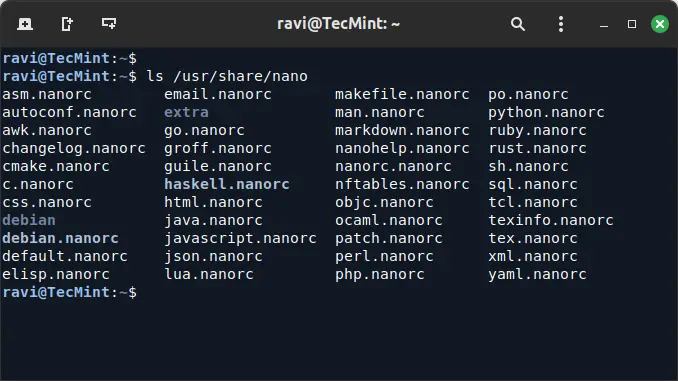
By default, Nano may not highlight syntax unless explicitly configured. To enable it, you need to modify your Nano configuration file, ~/.nanorc, and include the syntax files you need.
nano ~/.nanorc
Add the following lines to include the desired syntax highlighting rules:
include /usr/share/nano/python.nanorc
include /usr/share/nano/c.nanorc
include /usr/share/nano/html.nanorc
You can add more lines for different languages by replacing python.nanorc, c.nanorc, and html.nanorc with the appropriate filenames from the /usr/share/nano/ directory.
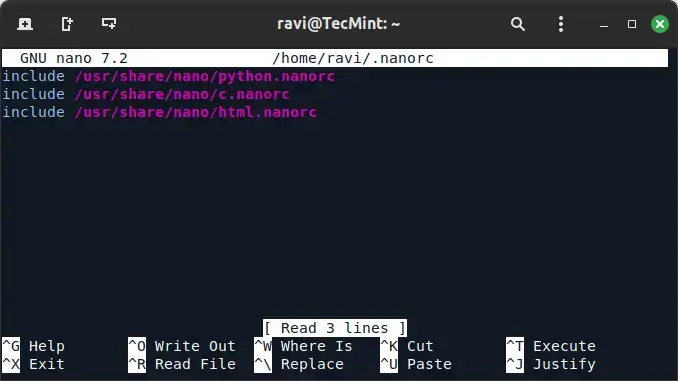
Save and exit Nano by pressing CTRL + X, then Y, and then ENTER.
Using Syntax Highlighting in Nano
Now, when you open a file in Nano that matches one of the configured syntax rules, you should see the text highlighted according to its syntax.
For example, if you open a Python file:
nano sample.py
You’ll notice that keywords, strings, and comments appear in different colors, making the code easier to read.
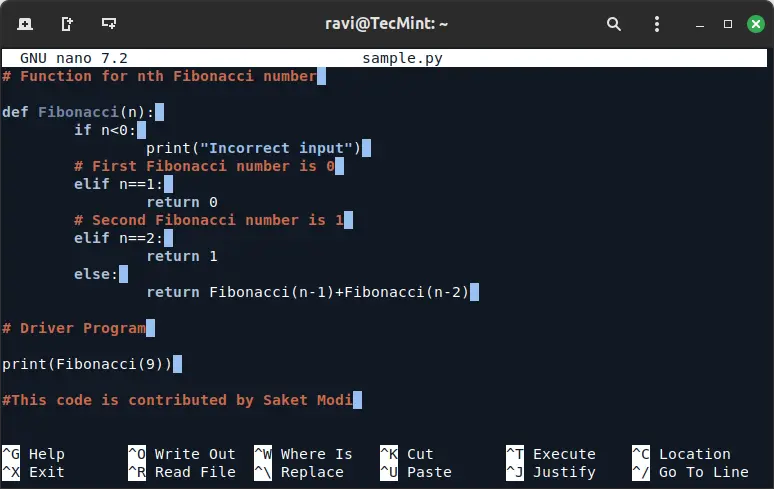
If you want to disable syntax highlighting temporarily, you can open Nano with the -Y option set to “none“:
nano -Ynone sample.py
Conclusion
Syntax highlighting can significantly improve your productivity when working with code in Nano. By enabling it and customizing rules to fit your needs, you can make Nano a more powerful tool for coding and editing configuration files.
Give it a try, and enjoy the colorful world of coding with Nano!
