

FFmpeg is a powerful command-line tool used for handling multimedia files, including editing metadata, which contains essential information such as title, artist, album, genre, creation date, and encoding details.
Modifying metadata is useful for organizing media libraries, improving searchability, and adding copyright or author details to media files.
This guide explains how to modify media metadata using FFmpeg with practical examples in Linux.
Understanding Media Metadata
Metadata in media files is stored in containers such as MP4, MKV, MP3, and FLAC.
These metadata fields include:
- Title – Name of the media file.
- Artist – Creator of the file.
- Album – Album name (for audio files).
- Genre – Category of the media.
- Year – Release or creation date.
- Comment – Additional information.
- Copyright – Ownership details.
FFmpeg allows you to edit metadata without re-encoding the media, making the process fast and efficient.
Checking Metadata of a Media File
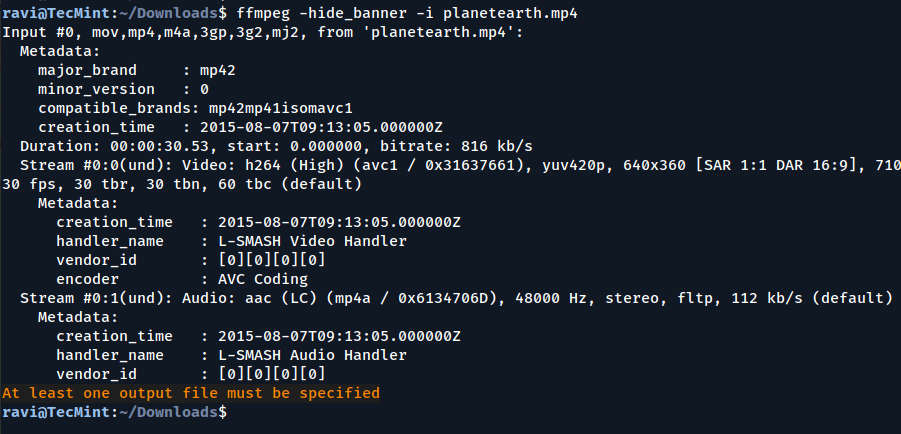
Before modifying metadata, check the existing metadata of media file using the following command, the option -hide_banner remove the version details.
ffmpeg -hide_banner -i planetearth.mp4
Updating Metadata in Audio/Video Files
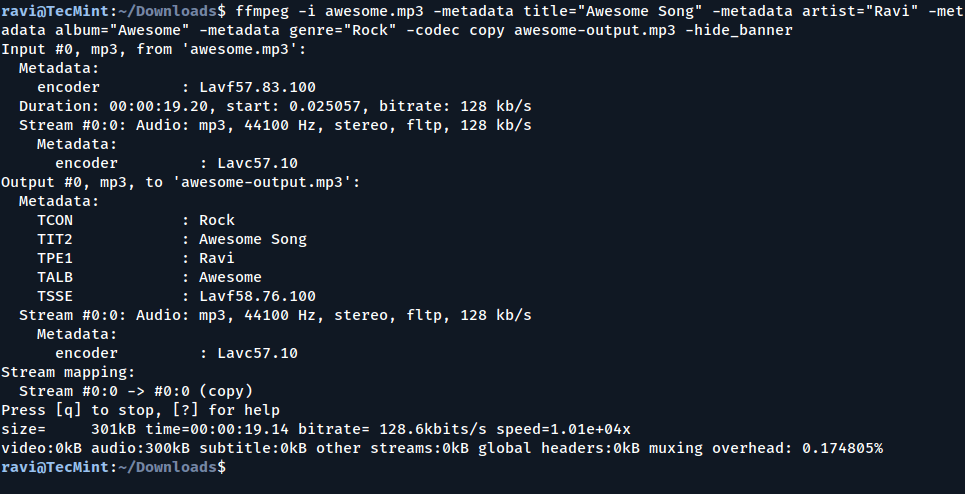
To modify metadata fields of audio files such as title, artist, album, or genre, use:
ffmpeg -i awesome.mp3 -metadata title="New Title" -metadata artist="New Artist" -metadata album="New Album" -metadata genre="Rock" -codec copy awesome-output.mp3
For video files, use a similar command:
ffmpeg -i input.mp4 -metadata title="My Video" -metadata author="John Doe" -codec copy output.mp4
Here:
-metadata title="New Title"updates the title.-metadata artist="New Artist"changes the artist’s name.-metadata album="New Album"modifies the album name.-metadata genre="Rock"sets the genre.-codec copyprevents re-encoding, making the process lossless.
To add or modify the description of a file, use:
ffmpeg -i input.mp4 -metadata comment="This is a sample video" -codec copy output.mp4
To add copyright details to a media file:
ffmpeg -i input.mp4 -metadata copyright="© 2025 Your Name" -codec copy output.mp4
You can add an album cover to MP3 or FLAC files:
ffmpeg -i input.mp3 -i cover.jpg -map 0 -map 1 -metadata:s:v title="Album Cover" -metadata:s:v comment="Cover Image" -codec copy output.mp3
You can extract metadata and save it as a text file.
ffmpeg -i input.mp4 -f ffmetadata metadata.txt
To modify the metadata, edit metadata.txt and then apply it to a file:
ffmpeg -i input.mp4 -i metadata.txt -map_metadata 1 -codec copy output.mp4
Removing Metadata from Media Files
To completely remove all metadata from a media file:
ffmpeg -i input.mp4 -map_metadata -1 -codec copy output.mp4
For audio files:
ffmpeg -i input.mp3 -map_metadata -1 -codec copy output.mp3
Conclusion
FFmpeg provides a simple yet powerful way to modify media metadata without re-encoding files. Whether you’re updating titles, adding copyright information, embedding album art, or removing metadata, FFmpeg makes the process efficient.

This guide was exactly what I needed!
I had a bunch of MP3 files with missing metadata, and using FFmpeg saved me a ton of time. The batch editing script worked like a charm!
I never knew FFmpeg could handle metadata like this! I’ve always used it for video conversion, but now I’ll be using it to clean up my media library.
Thanks for the detailed examples
Removing metadata from video files was a lifesaver for me. I had some old recordings with incorrect timestamps, and your guide helped me clean them up.
Appreciate the clear instructions!
Great tutorial!
I was able to add cover art to my FLAC collection without any issues, FFmpeg is truly a Swiss Army knife for media files!
I used this to fix incorrect artist and album names in my MP3 files. Worked flawlessly! One quick question – can FFmpeg also update metadata in WAV files, or does it only support compressed formats?
Yes, FFmpeg can update metadata in WAV files as well! While WAV files don’t support as many metadata fields as formats like MP3 or FLAC, you can still modify basic tags such as title, artist, album, and comment.