Filelight – Quickly Analayze Disk Usage Statistics in Linux

Take Your Linux Skills to the Next Level All courses, certifications, ad-free articles & community — from $8/mo
Join Root →
Ad-free access to all premium articles
Access to all courses: Learn Linux, AI for Linux, Bash Scripting, Ubuntu Handbook, Golang and more.
Access to Linux certifications (RHCSA, RHCE, LFCS and LFCA)
Access new courses on release
Get access to weekly newsletter
Priority help in comments
Private Telegram community
Connect with the Linux community
From $8/mo · or $59/yr billed annually · Cancel anytime

Filelight is a free, open source, simple, easy to use, and cross-platform KDE utility for viewing graphical disk space usage information. It works on Linux distributions and Windows operating systems. It is a disk analyzer that outputs your file system as a set of concentric segmented-rings to help you view disk usage.

Read Also: 10 Useful Commands to Find Disk Usage of Files and Directories

The filelight package is available for installation in most if not all mainstream Linux distributions, you can install it using a package manager as shown.

$ sudo apt install filelight   [On Debian/Ubuntu]
$ sudo yum install filelight   [On CentOS/RHEL]
$ sudo dnf install filelight   [On Fedora 22+]

Once you have installed fileflight, you can search for it in the system menu, and open it. You will land in the interface below, which shows all the mounted filesystems.
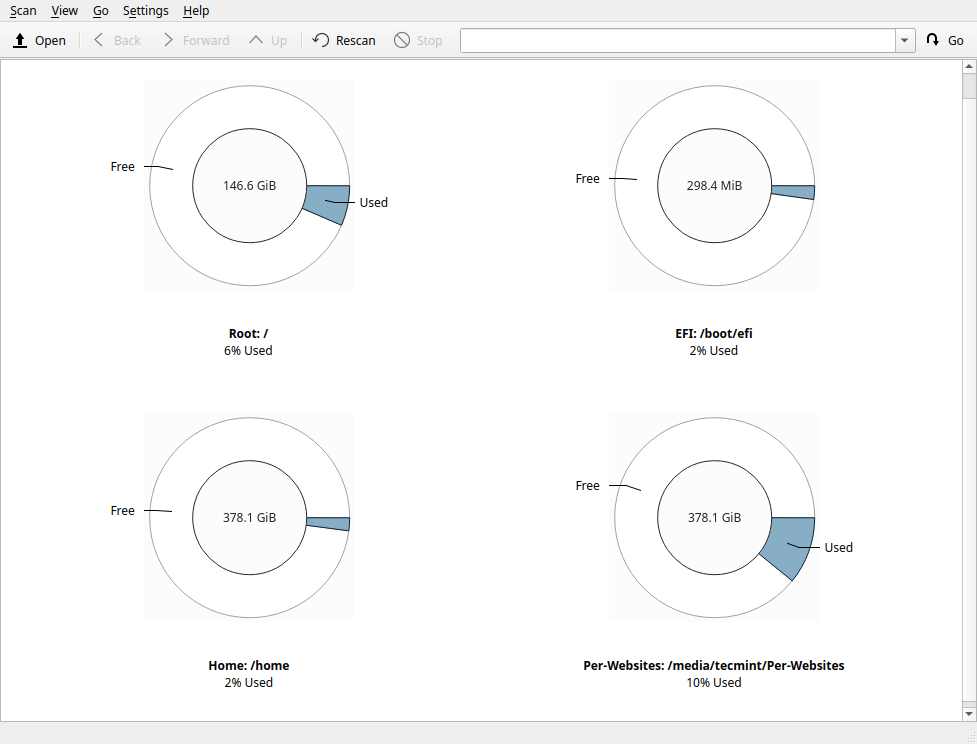
Show Linux Disk Space Summary

To view a file system in detail, simply click on it. You can move your mouse over the graphical layout to view files and sub-directories under it.
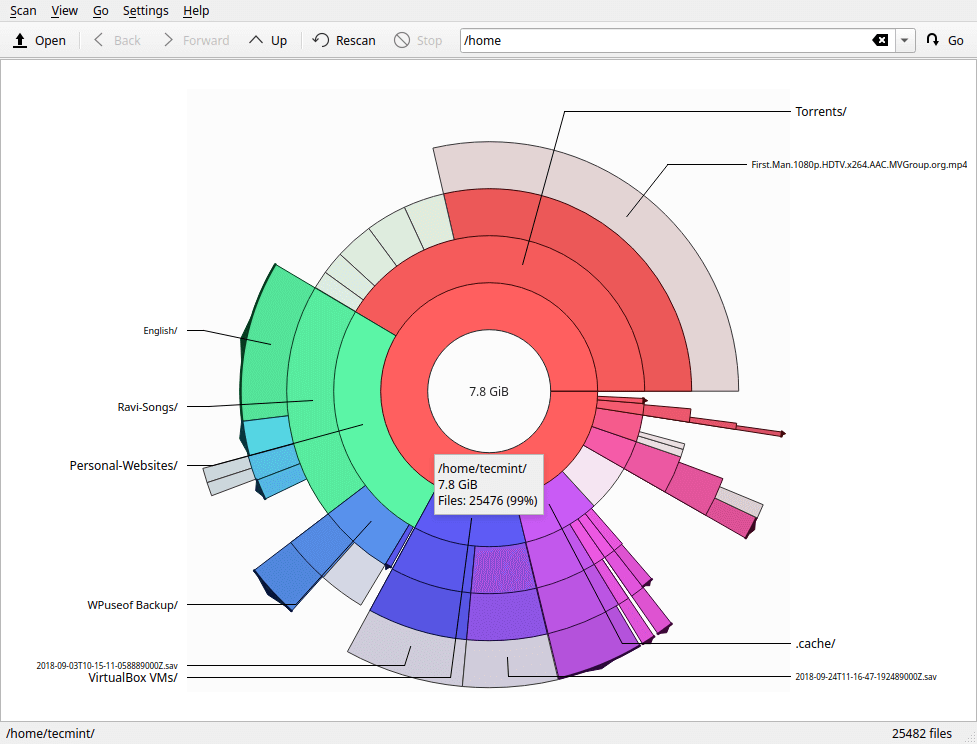
Linux Filesystem Disk Usage

The application also allows you to scan an individual folder/directory to identify hot spots (files and sub-directories occupying the largest space) in it. To do that, go to Scan -> Scan Folder, then select the folder you want to analyze (for example the Downloads folder), and click Choose.
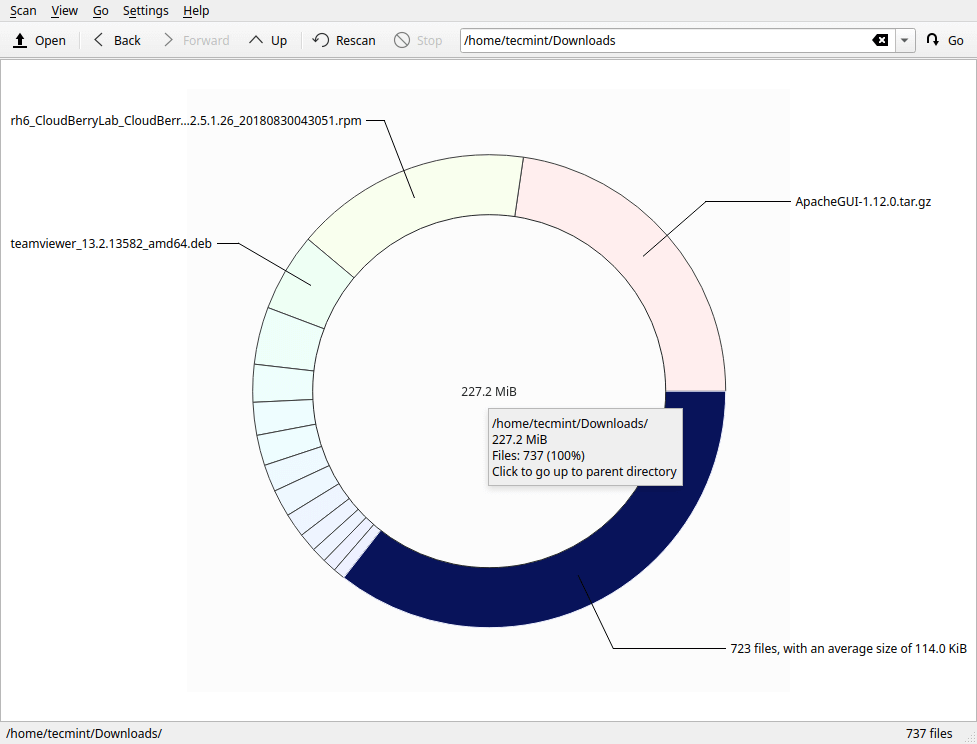
Show Disk Usage by File Size

There are many options under Scan; you can choose to Scan your home folder or root folder using the provided options.

Fileflight is also configurable under the Settings menu item. You can select the Toolbars to be shown; configure shortcuts, toolbars and the entire application.

Under the option Configure Fileflight, you can add or remove filesystems to or not to scan by clicking on the Scanning tab. You can also configure its appearance (color scheme, font size etc.) under the Appearance tab.

Fileflight Homepage: https://utils.kde.org/projects/filelight/

That’s all! Fileflight is a simple graphical disk analyzer for Linux systems and Windows operating system. Try it out and share your thoughts with us via the feedback form below.

Root Plan
Premium Linux Education for Serious Learners

Take Your Linux Skills to the Next Level

Root members get full access to every course, certification prep track, and a growing library of hands-on Linux content — with new courses added every month.

What You Get
Ad-free access to all premium articles
Access to all courses: Learn Linux, AI for Linux, Bash Scripting, Ubuntu Handbook, Golang and more.
Access to Linux certifications (RHCSA, RHCE, LFCS and LFCA)
Access new courses on release
Get access to weekly newsletter
Priority help in comments
Private Telegram community
Connect with the Linux community
Aaron Kili
Aaron Kili is a Linux and F.O.S.S enthusiast, an upcoming Linux SysAdmin, web developer, and currently a content creator for TecMint who loves working with computers and strongly believes in sharing knowledge.

Each tutorial at TecMint is created by a team of experienced Linux system administrators so that it meets our high-quality standards.

Join the TecMint Weekly Newsletter (More Than 156,129 Linux Enthusiasts Have Subscribed)
Was this article helpful? Please add a comment or buy me a coffee to show your appreciation.

Got Something to Say? Join the Discussion...

Thank you for taking the time to share your thoughts with us. We appreciate your decision to leave a comment and value your contribution to the discussion. It's important to note that we moderate all comments in accordance with our comment policy to ensure a respectful and constructive conversation.

Rest assured that your email address will remain private and will not be published or shared with anyone. We prioritize the privacy and security of our users.