

As a seasoned Linux user with over a decade of experience, I’ve come across many tools that help in various aspects of system administration, security, and forensics.
One such tool that I find particularly useful is hashdeep, which is a powerful command-line utility used primarily for file integrity checking and verifying cryptographic hashes.
In this article, I’ll provide a detailed understanding of what hashdeep is, how it works, and how you can use it effectively in Linux environments.
What is hashdeep?
hashdeep is a tool used to compute, compare, and verify hashes of files, which are unique identifiers that are created by applying a hash function (like SHA-256 or MD5) to the contents of a file. These hashes serve as “fingerprints” for files. When two files have the same hash, it means that their contents are identical.
hashdeep supports multiple hash algorithms such as MD5, SHA-1, and SHA-256, making it flexible for various use cases.
It is most commonly used in:
- File Integrity Checking: Ensuring that files have not been tampered with or corrupted over time.
- Digital Forensics: Verifying the integrity of files in forensic investigations.
- Backup and Restoration: Verifying the integrity of backup files and ensuring data consistency during recovery processes.
Installing hashdeep in Linux
Before we dive into its usage, let’s first get hashdeep installed on your Linux system, which is available in most distribution package repositories, so installation is easy.
sudo apt install hashdeep         [On Debian, Ubuntu and Mint]
sudo yum install hashdeep         [On RHEL/CentOS/Fedora and Rocky/AlmaLinux]
sudo emerge -a sys-apps/hashdeep  [On Gentoo Linux]
sudo apk add hashdeep             [On Alpine Linux]
sudo pacman -S hashdeep           [On Arch Linux]
sudo zypper install hashdeep      [On OpenSUSE]
sudo pkg install hashdeep         [On FreeBSD]
Once installed, you can start using hashdeep to calculate and verify file hashes.
Below are some of the most common use cases.
1. Calculating Hashes of Files
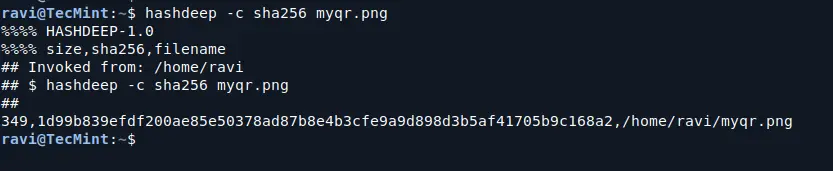
The most basic usage of hashdeep is to calculate the hash of a single file or multiple files.
hashdeep -c sha256 myqr.png
In this command:
-c sha256specifies the hash algorithm (SHA-256 in this case).myqr.pngis the file you want to hash.
You can replace sha256 with md5, sha1, or other supported algorithms depending on your preference.
2. Hashing Files Recursively in a Directory
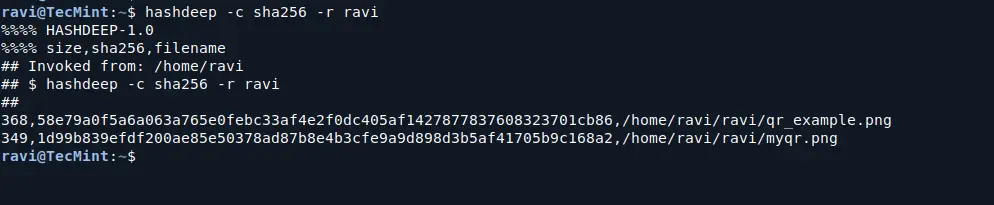
You can also hash all files in a directory, including subdirectories, by using the -r flag (recursive):
hashdeep -c sha256 -r /path/to/your/directory
3. Saving Hashes to a File
If you want to save the calculated hashes to a file for later comparison, you can use the -o option to specify an output file:
hashdeep -r ravi > hashes.txt
cat hashes.txt

4. Verifying File Integrity
One of hashdeep’s most important uses is verifying the integrity of files. If you already have a list of known hashes (e.g., from a previous session), you can compare the current file hashes to these known values to see if any files have been altered.
To do this, use the following command to verify files:
hashdeep -a -k hashes.txt -r /home/ravi/ravi
This command will recursively check all files within the “ravi” directory against the hashes listed in hashes.txt, allowing you to verify their integrity properly.

5. Generating Multiple Hashes Simultaneously
To calculate multiple types of hashes (e.g., MD5, SHA-1, and SHA-256) at once, you can specify more than one algorithm with the -c flag:
hashdeep -c md5,sha1,sha256 -r /path/to/your/directory

Conclusion
hashdeep is a versatile and powerful tool for file integrity checking and digital forensics. Its support for multiple hash algorithms, recursive directory hashing, and file comparison make it an indispensable utility for anyone working in security, forensics, or system administration.

Hi,
This was a really helpful guide!
Hashdeep looks like a powerful tool for ensuring file integrity in Linux.
Thanks a lot for the clear explanations