

In Linux, there are various commands available to display the contents of the text file. Some of the popular and most frequently used commands are cat, less, more, view, etc. However, all of these commands are more relevant when we want to display a large part of the file.
Sometimes, we just want to display the first few lines of the file. In such, cases we can use the head command, which comes in handy when we want to display the first part of the file.
In this guide, we will learn about the head command using some practical examples. After following this guide, Linux users will be able to work with text files efficiently from the command line interface.
[ez-toc]
head Command Syntax
The syntax of the head command is very simple and it is identical to other Linux commands:
$ head [OPTIONS] [FILE-1] [FILE-2] ..
It is important to note that, in the above syntax, both OPTIONS and FILE parameters are optional. So, if the input file is not provided or the file argument is a hyphen (-) then, it reads the input from the stdin stream.
To start, first, let’s create a simple text file with the following contents:
$ cat file-1.txt
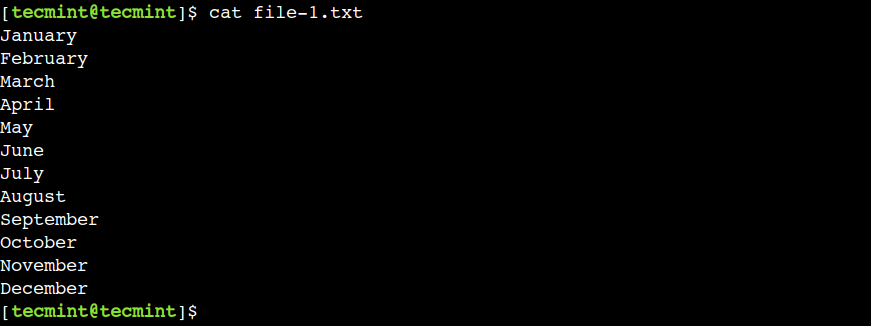
Now, the input file is ready. So let’s use it to demonstrate the usage for the head common.
1. Show First 10 Lines Of File in Linux
By default, the head command displays the first ten lines of the input file as shown.
$ head file-1.txt
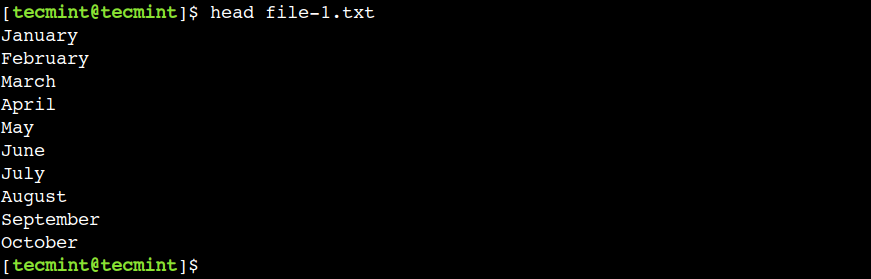
Here, we can see that the command shows only the first ten lines of the file-1.txt file.
2. Show First N Lines of File in Linux
In the previous example, we saw that the head command displays the first ten lines of the file by default. However, we can overwrite this default behavior using the -n option, which allows us to limit the number of lines to be displayed.
To understand this, let’s use the below command to display the first five lines of the file-1.txt file:
$ head -n 5 file-1.txt

3. Remove Last N Lines of a File in Linux
In a similar way, we can use the negative number with the -n option to skip the last N lines from the file. For example, let’s use the -10 value to skip the last 10 lines of the file:
$ head -n -10 file-1.txt

In the above output, we can see that now the head command shows only the first two lines.
4. Show First N Characters of the File
We can also instruct the head command to display the first N bytes of the file using the -c option:
$ head -c 8 file-1.txt
In the below output, we can see that the head command shows the first eight characters from the file.

In this case, the file contains ASCII characters that take 1 byte per character. Hence the command shows the first eight characters including the newline (\n) character.
5. Remove Last N Characters of File
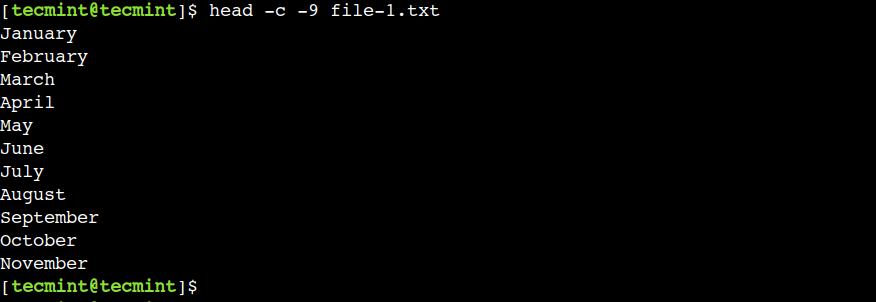
Similarly, we can use the negative number with the -c option to remove the last N bytes. So let’s skip the last line of the file-1.txt file using the below command:
$ head -c -9 file-1.txt
In the below output, we can see that the head command shows all the characters except the last nine characters.
6. Show File Name in Header of File
The head command allows us to display the current file name as a display header using the -v option:
$ head -n 5 -v file-1.txt
In the below output, ==> file-1.txt <== represents the display header.
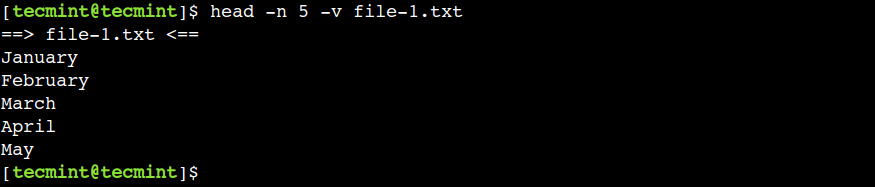
This option comes in handy while working with multiple files. Hence the head command enables this option by default when we use multiple files with it.
7. Show File Name in Header in Multiple Files
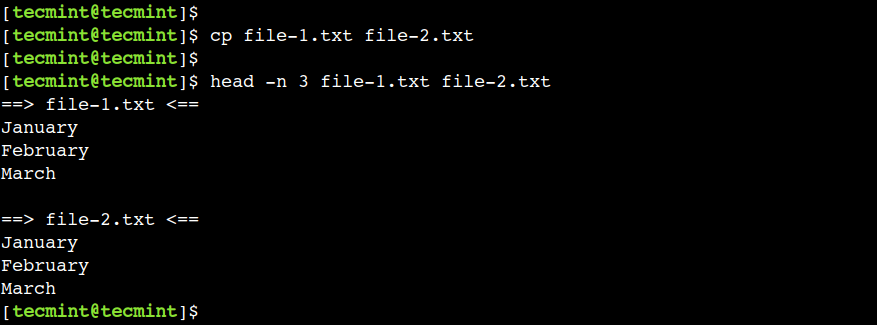
We can use multiple files with the head command. In such cases, the display header is used to separate the file contents. Let’s understand this with a simple example.
First, let’s create a copy of the file-1.txt using the cp command:
$ cp file-1.txt file-2.txt
Now, let’s display the first three lines from each file:
$ head -n 3 file-1.txt file-2.txt
8. How to Disable the Display Header
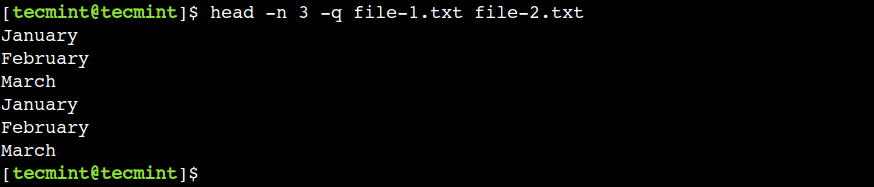
In the previous example, we saw that by default, the head command enables the display header if we use multiple files with it. However, we can use the -q option to override this default behavior.
Let’s use the below command to display the first three lines from both files:
$ head -n 3 -q file-1.txt file-2.txt
Here, we can see that now the head command displays the file contents one after another without any display header.
In this article, we learned about the head command using practical examples. Linux newbies can refer to this guide while working with Linux systems.
Do you know of any other best example of the head command in Linux? Let us know your views in the comments below.

Hi! I am a complete newbie in Linux and I have to thank you for the clear examples here, they were very very helpful!