

AnyDesk is a popular remote desktop software that allows users to connect and control other computers remotely. It’s lightweight, fast, and ideal for anyone who needs to access their systems from afar, troubleshoot remotely, or collaborate with others on their devices.
In this guide, we’ll cover how to install AnyDesk on Ubuntu in a few simple steps.
Installing AnyDesk in Ubuntu
First, it’s a good idea to update your system packages to ensure you’re working with the latest versions.
sudo apt update && sudo apt upgrade -y
Next, you need to add the AnyDesk repository key, which confirms the authenticity of the software.
wget -qO- https://keys.anydesk.com/repos/DEB-GPG-KEY | gpg --dearmor | sudo tee /etc/apt/trusted.gpg.d/anydesk.gpg > /dev/null
Next, add the AnyDesk repository so that your system knows where to find AnyDesk when you install it.
echo "deb http://deb.anydesk.com/ all main" | sudo tee /etc/apt/sources.list.d/anydesk.list
Now that the AnyDesk repository is added, update the package list again to include the latest packages from the AnyDesk repository:
sudo apt update
With the repository added and the packages list updated, you’re ready to install AnyDesk.
sudo apt install anydesk -y
After installation, you can start AnyDesk from the applications menu, or you can launch it directly from the terminal by typing:
anydesk
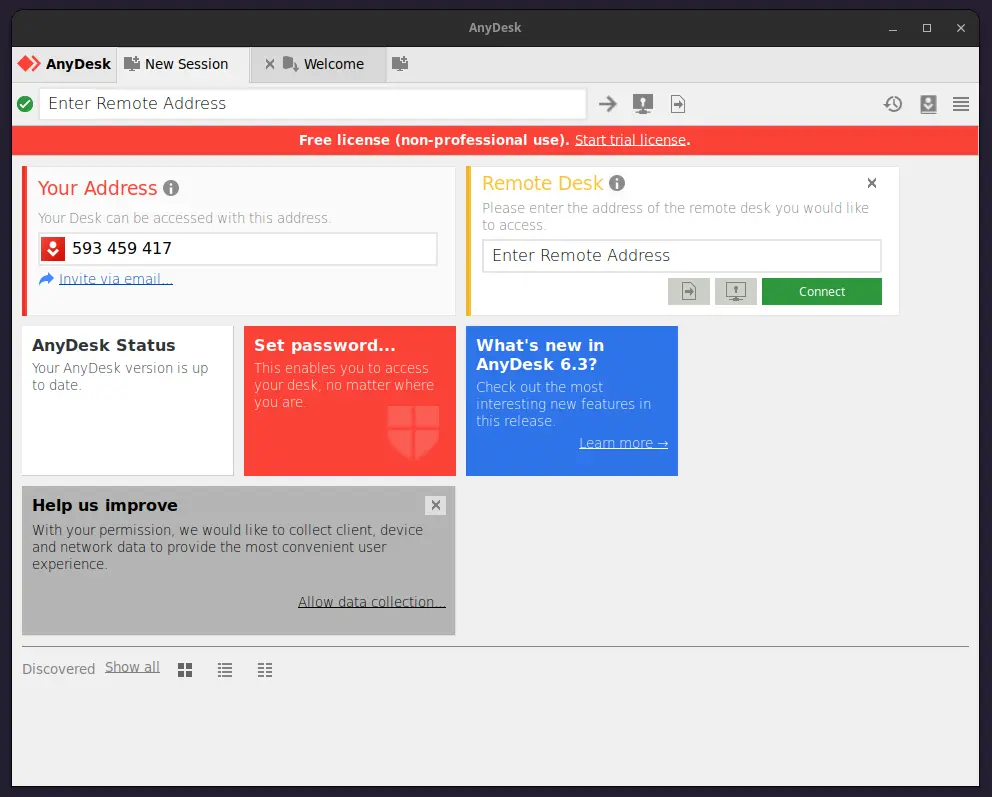
When you open AnyDesk for the first time, you’ll see your AnyDesk address on the main window. You can use this address to connect to other computers or share it with others for remote access.
Uninstall AnyDesk in Ubuntu
If, for any reason, you want to remove AnyDesk from your system, you can do so by running:
sudo apt remove anydesk -y
This command removes AnyDesk, but it keeps the AnyDesk repository in your sources list. If you also want to remove the repository, delete the anydesk.list file:
sudo rm /etc/apt/sources.list.d/anydesk.list
Then, update your package list:
sudo apt update
Conclusion
You have successfully installed AnyDesk on your Ubuntu system! Now you can easily connect to and control remote devices, collaborate with others, or assist people with technical issues from afar.
AnyDesk offers a user-friendly interface with quick connection speeds, making it a reliable choice for remote desktop needs.

Warning:
apt-keyis deprecated. Instead, manage keyring files intrusted.gpg.d(seeapt-key(8)).Instead of using the deprecated
apt-keycommand to add keys, use the updated method.Replace:
with:
This way, if you delete the repository, you can also easily remove the key file.
@Jean,
I’ve updated the command as suggested. Thanks for the tip!