

To minify CSS and JavaScript (JS) files using the Linux command line, you can utilize two popular tools: UglifyJS for JavaScript and UglifyCSS for CSS.
Minification is a process that helps you to reduce file sizes by removing unnecessary characters from source code, such as spaces, tabs, line breaks, and comments, without changing their functionality and can improve load times for web applications.
This article will guide you through the process of minifying CSS and JS files using the Linux command line interface (CLI) with UglifyJS and UglifyCSS tools.
Step 1: Installing Node.js and NPM in Linux
Before you start, make sure that you have Node.js and npm (Node Package Manager) installed on your Linux system.
node -v
npm -v
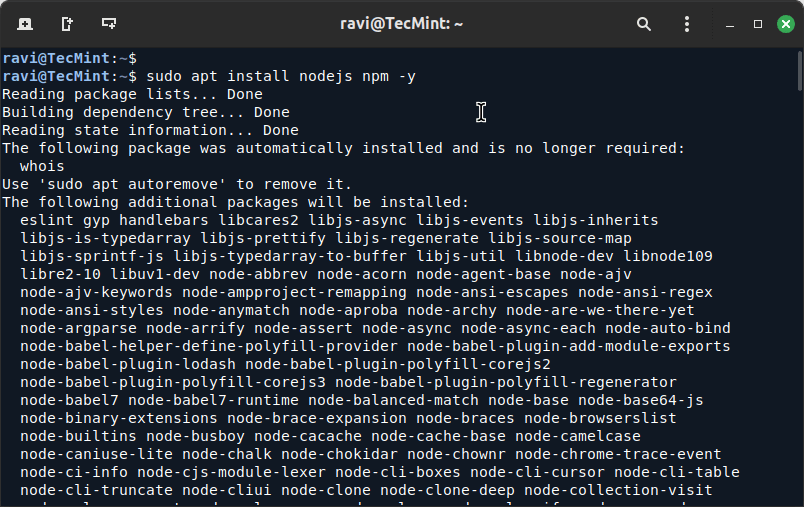
If they are not installed, you can install them on Debian-based distributions using the following commands.
sudo apt update
sudo apt install nodejs npm -y
On RHEL-based distributions, you can use:
sudo dnf update
sudo dnf install nodejs npm -y
Step 2: Installing UglifyJS and UglifyCSS
Once Node.js and npm are installed, you can use them to install UglifyJS and UglifyCSS, which are npm packages used for minifying JavaScript and CSS files, respectively.
sudo npm install -g uglify-js
sudo npm install -g uglifycss
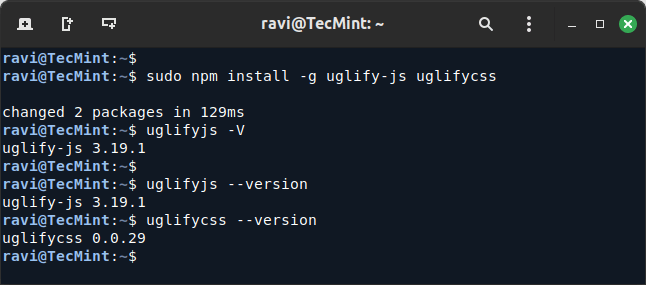
After installation, check if UglifyJS and UglifyCSS are installed correctly by running:
uglifyjs -V
uglifycss -V
Step 3: Minifying JavaScript and CSS Files
To minify a JavaScript or CSS file, navigate to the directory containing the file you want to minify by running:
uglifyjs yourfile.js -o yourfile.min.js
uglifycss yourfile.css > yourfile.min.css
To minify multiple CSS and JS files in a directory, you can use a simple bash script that can significantly improve your website’s performance by reducing the file sizes.
Minifying Multiple JavaScript Files
Create a Bash script to minify all JS files.
nano minify_js.sh
Add the following script to the minify_js.sh file.
#!/bin/bash
for file in *.js; do
  if [ "$file" != "${file%.min.js}" ]; then
    echo "Skipping minified file: $file"
    continue
  fi
  uglifyjs "$file" -o "${file%.js}.min.js" --compress --mangle
  echo "Minified $file to ${file%.js}.min.js"
done
Make the script executable and run it.
chmod +x minify_js.sh
./minify_js.sh
This script will loop through all .js files in the directory, minify them using UglifyJS, and create new files with the .min.js extension.
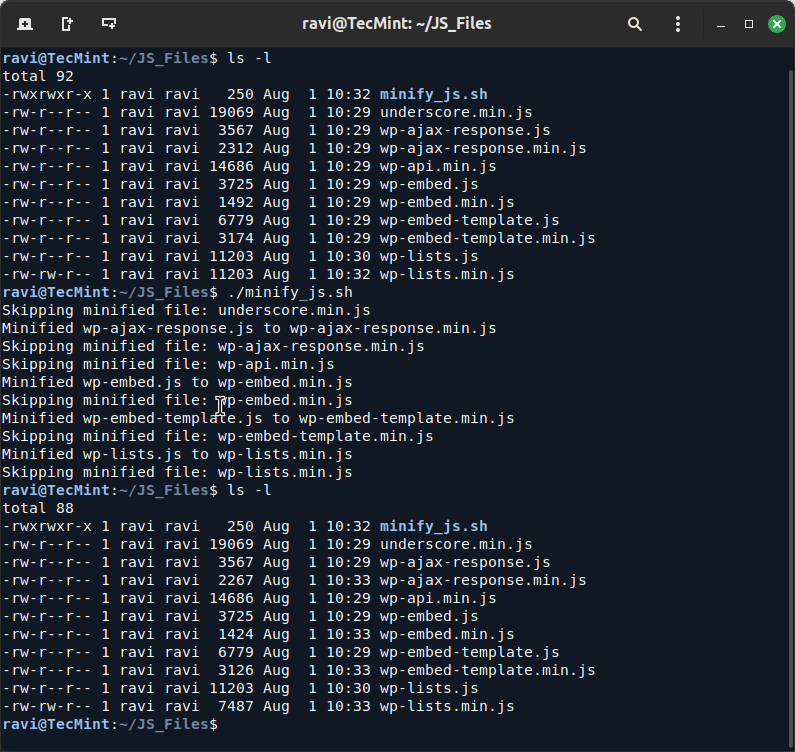
If you don’t want to create new files, you can use the -o option in the bash script to overwrite the original files.
#!/bin/bash
for file in *.js; do
  if [ "$file" != "${file%.min.js}" ]; then
    echo "Skipping already minified file: $file"
    continue
  fi
  uglifyjs "$file" --compress --mangle -o "$file"
  echo "Minified $file"
done
Minifying Multiple CSS Files
Similarly, to minify all CSS files in a directory, create a Bash script.
nano minify_css.sh
Add the following script to the minify_css.sh file:
#!/bin/bash
for file in *.css; do
  if [ "$file" != "${file%.min.css}" ]; then
    echo "Skipping minified file: $file"
    continue
  fi
  uglifycss "$file" > "${file%.css}.min.css"
  echo "Minified $file to ${file%.css}.min.css"
done
Make the script executable and run it.
chmod +x minify_css.sh
./minify_css.sh
This script will loop through all .css files in the directory, minify them using UglifyCSS, and create new files with the .min.css extension.
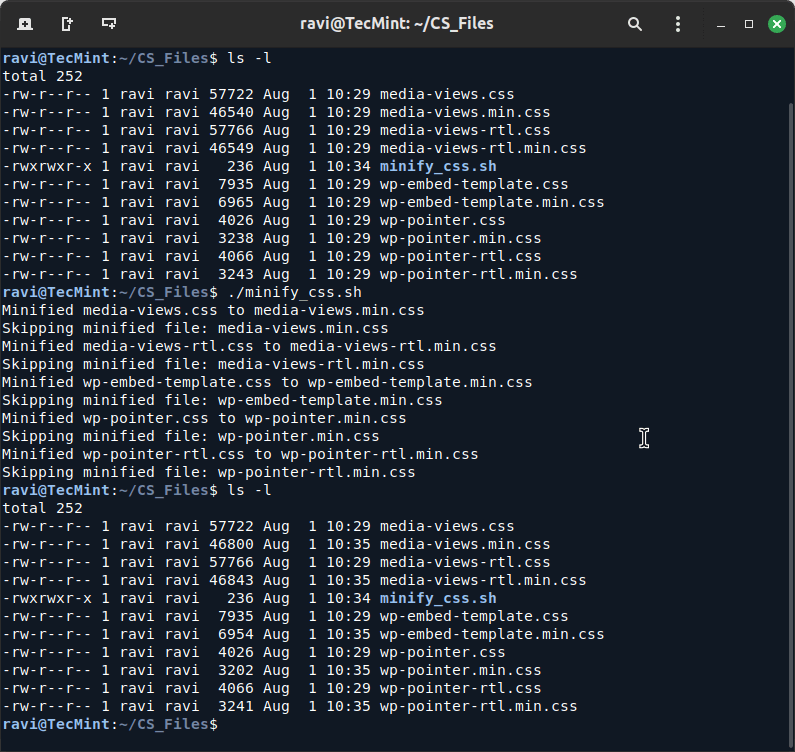
If you don’t want to create new files, you can use the following bash script to overwrite the original files.
#!/bin/bash
for file in *.css; do
  if [ "$file" != "${file%.min.css}" ]; then
    echo "Skipping already minified file: $file"
    continue
  fi
  uglifycss "$file" > temp.css
  mv temp.css "$file"
  echo "Minified $file"
done
Conclusion
Minifying your CSS and JS files is a straightforward process using UglifyJS and UglifyCSS on the Linux CLI. This not only reduces the file sizes but also helps in improving the load times of your web pages.
