

Markdown (.MD) files are a favorite among developers, writers, and content creators due to their simplicity and flexibility, but what happens when you need to share your beautifully formatted Markdown file with someone who prefers a more universally accepted format, like PDF?
On Linux, you have several tools and methods to achieve this seamlessly and this guide will walk you through the process of converting .MD files to .PDF, ensuring your documents look professional and polished.
Method 1: Using Pandoc – A Document Converter
Pandoc is a powerful command-line tool for converting files between different formats and most Linux distributions have Pandoc available in their repositories.
sudo apt install pandoc         [On Debian, Ubuntu and Mint]
sudo dnf install pandoc         [On RHEL/CentOS/Fedora and Rocky/AlmaLinux]
sudo apk add pandoc             [On Alpine Linux]
sudo pacman -S pandoc           [On Arch Linux]
sudo zypper install pandoc      [On OpenSUSE]
sudo pkg install pandoc         [On FreeBSD]
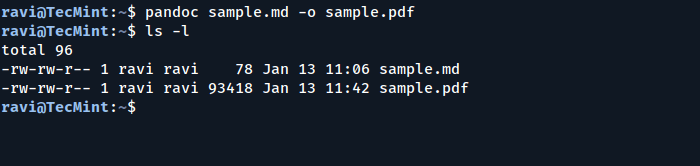
Once installed, converting a Markdown file to PDF is as simple as running a single command:
pandoc input.md -o output.pdf
Method 2: Markdown Preview in VS Code
Visual Studio Code (VS Code) is a popular text editor that supports Markdown preview and export.
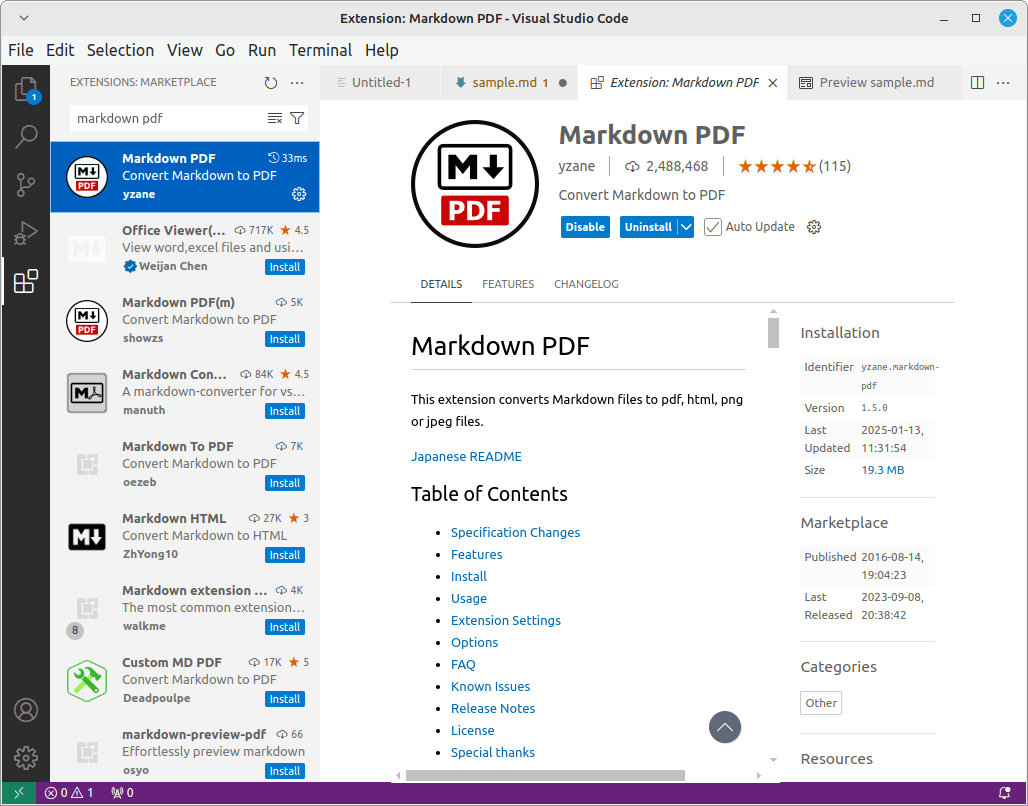
First, install VS Code from your distribution’s repository or download it from the official site and then install the Markdown PDF extension.
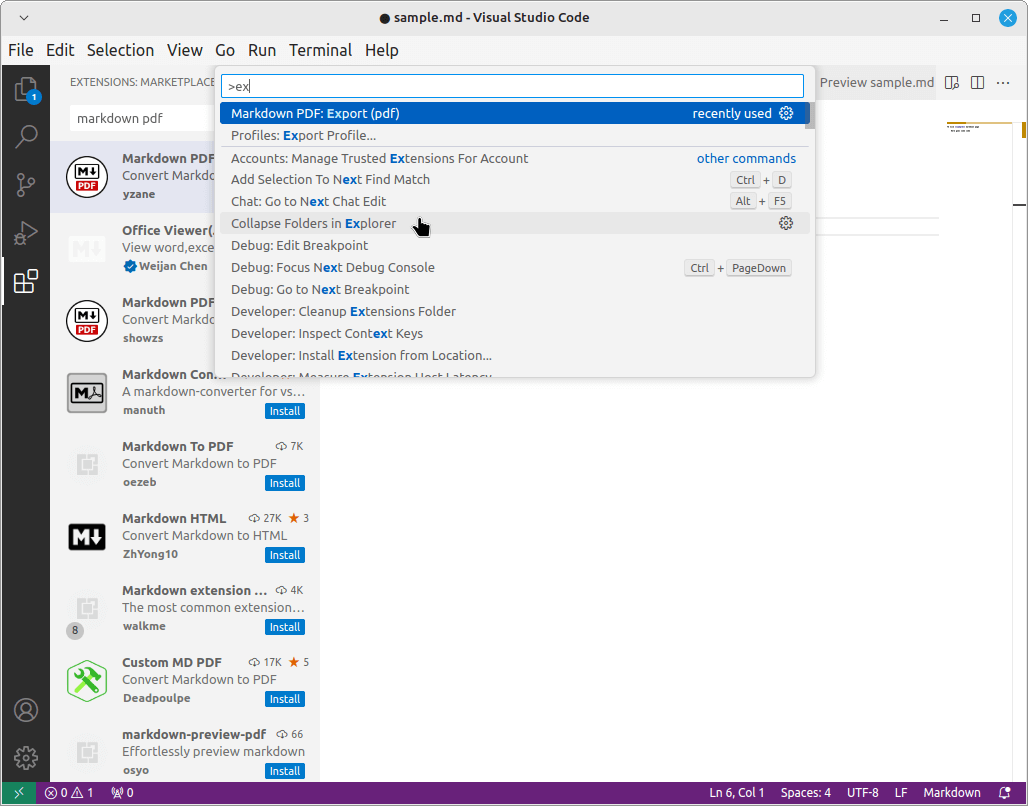
Next, open your .md file in VS Code and press F1 or Ctrl+Shift+P and type export and select markdown-pdf: Export (pdf).
Method 3: Using Grip Tool
Grip is a Python-based tool that renders Markdown in your web browser, which is especially useful for previewing Markdown as it would appear on GitHub.
pip install grip
Once installed, you can run the following command to render your Markdown file:
grip sample.md
Grip starts a local server, open the provided URL in your browser, and then use the browser’s print functionality to save the rendered file as a PDF.
Method 4: Using Calibre eBook Manager
Calibre is a feature-rich eBook management tool that supports various formats, including Markdown.
sudo apt install calibre         [On Debian, Ubuntu and Mint]
sudo dnf install calibre         [On RHEL/CentOS/Fedora and Rocky/AlmaLinux]
sudo apk add calibre             [On Alpine Linux]
sudo pacman -S calibre           [On Arch Linux]
sudo zypper install calibre      [On OpenSUSE]
sudo pkg install calibre         [On FreeBSD]
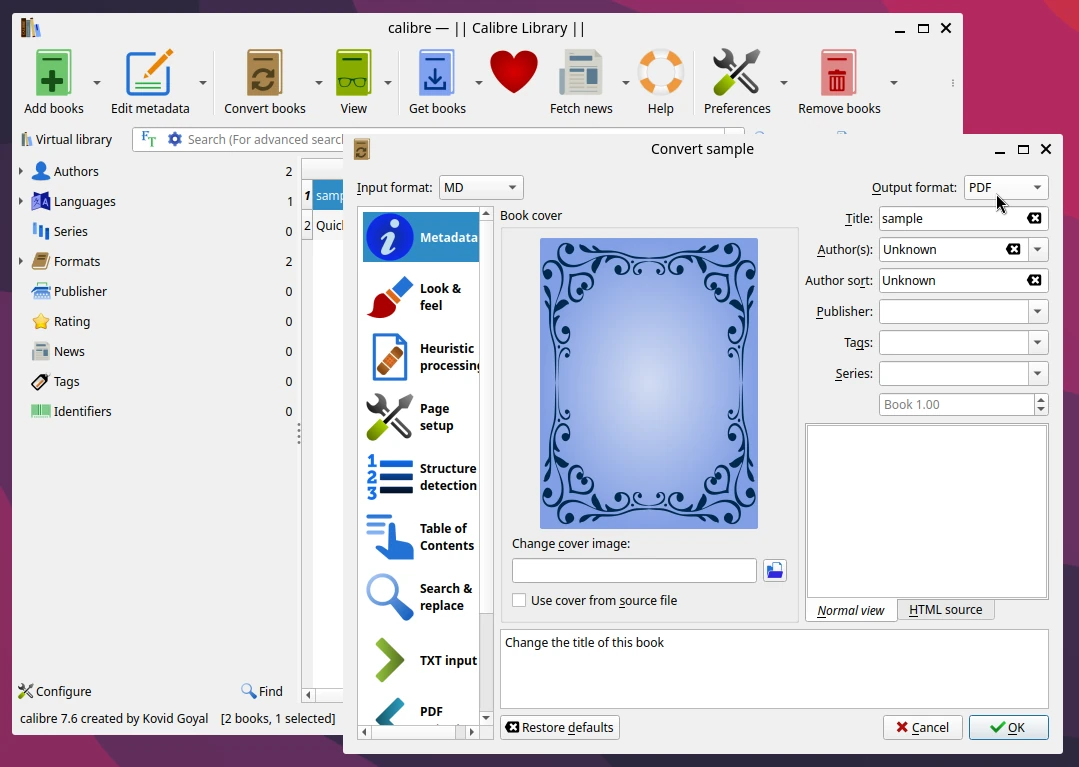
Once installed, open Calibre and add your .md file and then right-click on the file and select Convert Books > Convert Individually.
Choose PDF as the output format and click OK.
Conclusion
Converting Markdown to PDF on Linux is straightforward and offers multiple methods tailored to your workflow. Whether you prefer the command-line power of Pandoc, the simplicity of VS Code, or the visual rendering of Grip, Linux has you covered.
With these tools, you can create professional, shareable PDFs from your Markdown files in no time.
