
Whether it’s a server administrator or a programmer some time we need to refer multiple logfiles for effectively troubleshooting tasks. To achieve this we have to open, tail or less a each logfile in a different shell. However, we can use traditional tail command like tail -f /var/log/messages or tail -f /var/log/secure in a single line. But if we want to see multiple files in a real-time we need to install a specific tool called MultiTail.
What is MultiTail?
MultiTail is an open source ncurses utility that can be used to display multiple logfiles to standard output in a single window or a single shell that shows last few lines of logfiles in a real-time like tail command which split console into more subwindows (much like screen command). It also supports color highlighting, filtering, adding and deleting windows and much more.
Features
- Multiple input sources.
- Color display using Regular Expression in the case of important informations.
- Line filtering.
- Interactive Menus for deleting and adding shells.
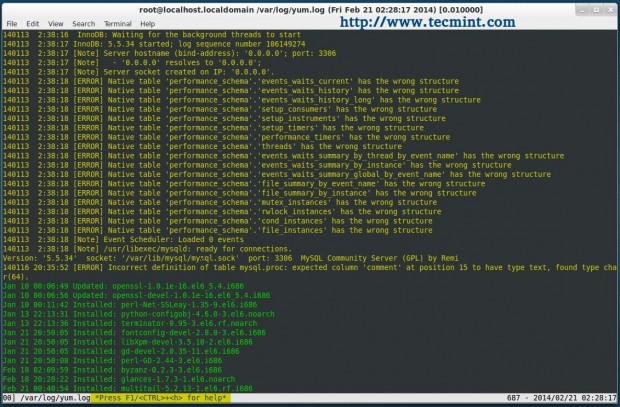
Here is an example screen grab of MultiTail in action.
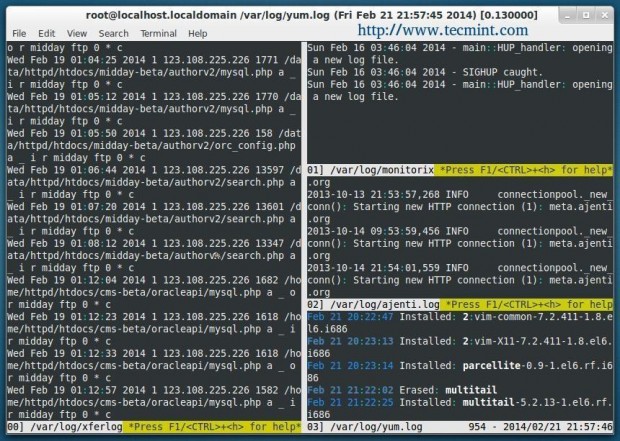
Installation of MultiTail in Linux
To get MultiTail on Red Hat based distributions, you must turn on EPEL repository and then run the following command on the terminal to install it.
On RHEL/CentOS/Fedora
# yum install -y multitail
On Debian/Ubuntu/Linux Mint
$ sudo apt-get update
$ sudo apt-get install multitail
Usage of MultiTail
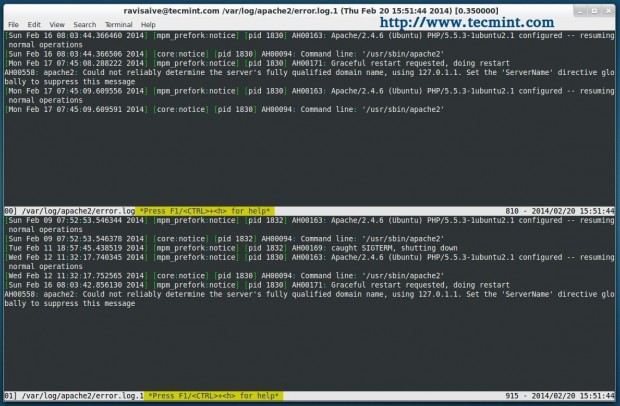
By default MultiTail does the same thing as ‘tail -f‘, i.e. view files in a real time. To view/monitor two different files in one window, the basic syntax is:
1. How To View 2 Files in Single Window
root@tecmint:~# multitail /var/log/apache2/error.log /var/log/apache2/error.log.1
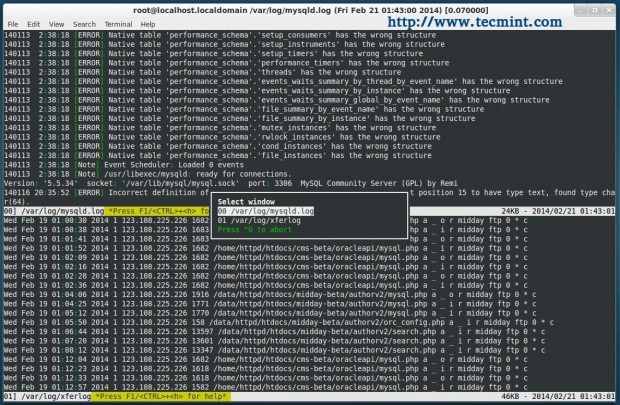
To scroll through the files, hit ‘b‘ and select the file you want from the list.
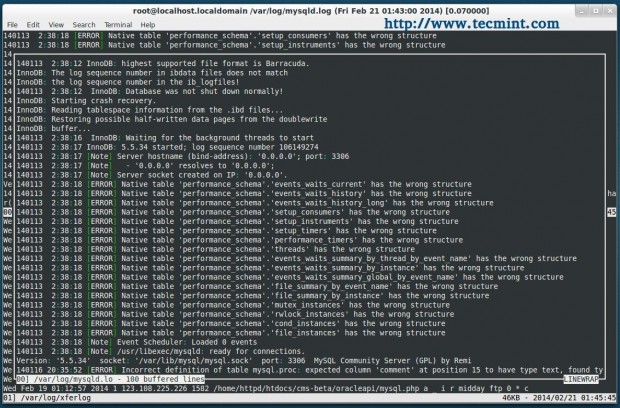
Once, you select the file, it will show you last 100 lines of that selected file, to scroll through use the cursor keys. You can also use ‘gg‘/’G‘ to move to the top/bottom of the scroll window. If you want to view more lines, hit ‘q’ to exit and hit ‘m‘ to enter a new value for the number of lines to view.
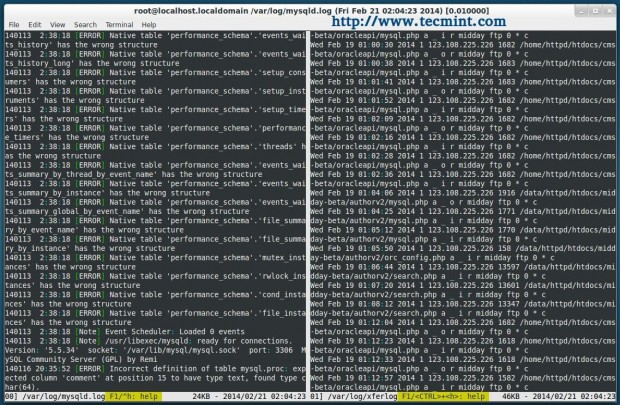
2. How To View 2 Files in 2 Columns
The following command will display two different files in 2 columns.
[root@tecmint ~]# multitail -s 2 /var/log/mysqld.log /var/log/xferlog
3. How To View Multiple Files in Multiple Columns
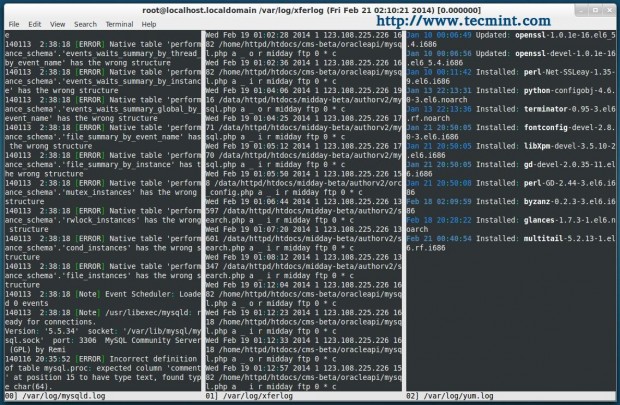
Display 3 files in three columns.
[root@localhost ~]# multitail -s 3 /var/log/mysqld.log /var/log/xferlog /var/log/yum.log
4. Merge/View Multiple Files in Multiple Columns
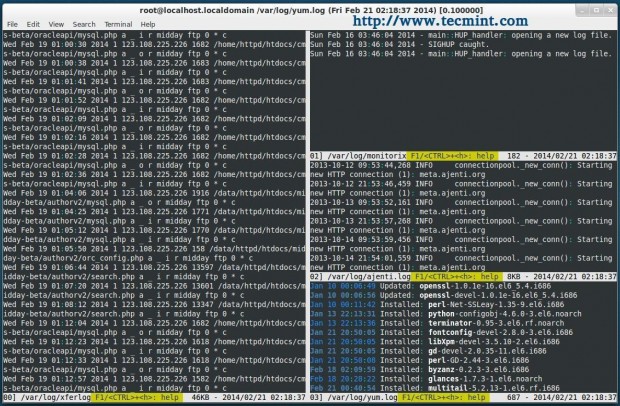
Displays 5 logfiles while merging 2 files in one column and keep 2 files in two columns with only one in the left column.
[root@localhost ~]# multitail -s 2 -sn 1,3 /var/log/mysqld.log -I /var/log/xferlog /var/log/monitorix /var/log/ajenti.log /var/log/yum.log
5. How to View File and Execute a Command
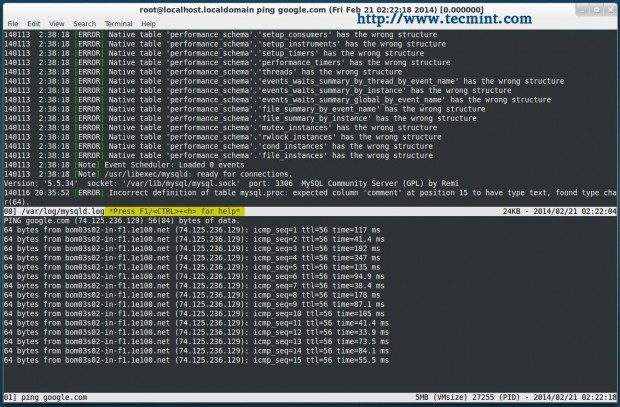
Shows 1 file while ‘-l‘ option allows command to execute in a window.
[root@localhost ~]# multitail /var/log/iptables.log -l "ping server.nixcraft.in"
6. How to Merge/View Two Files in Different Color
Merge 2 logfiles in one window, but give different color to each logfile so that you can easily understand what lines are for what logfile.
[root@localhost ~]# multitail -ci green /var/log/yum.log -ci yellow -I /var/log/mysqld.log
Conclusion
We’ve only covered few basic usage of multitail command. For a complete list of options and keys you can look at the man page of multitail or you may press ‘h‘ key for help while the program runs.





Hi
Thanks, I do love multitail – but it seems to be missing from epel 8.
@AlexS,
I have not tested MultiTail in new CentOS 8, let me check and get back to you…
Looks like the multitail is available in the [epel-playground] repository.
Really interesting article.
I see that while using ‘I’ switch in the last command, it overrides the log files. Using it without I switch, works fine:
multitail -ci green /var/log/httpd/error_log -ci yellow /var/log/mysqld.log
However, it is a great new thing for me.
Thanks for the detailed article , very well explained.