

Xfce is a modern, open-source, and lightweight desktop environment for Linux systems. It also works well on many other Unix-like systems such as Mac OS X, Solaris, *BSD plus several others. It is fast and also user-friendly with a simple and elegant user interface.
[ You might also like: 13 Open Source Linux Desktop Environments of All Time ]
Installing a desktop environment on servers can sometimes prove helpful, as certain applications may require a desktop interface for efficient and reliable administration and one of the remarkable properties of Xfce is its low system resources utilization such as low RAM consumption, thereby making it a recommended desktop environment for servers if need be.
XFCE Desktop Features
Additionally, some of its noteworthy components and features are listed below:
- xfwm4 windows manager
- Thunar file manager
- User session manager to deal with logins, power management, and beyond
- Desktop manager for setting a background image, desktop icons, and many more
- An application manager
- It’s highly pluggable as well plus several other minor features
The latest stable release of this desktop is Xfce 4.16, all its features and changes from previous versions are listed here.
Install Xfce Desktop on Ubuntu Linux
Linux distributions such as Xubuntu, Manjaro, OpenSUSE, Fedora Xfce Spin, Zenwalk, and many others provide their own Xfce desktop packages, however, you can install the latest version as follows.
$ sudo apt update
$ sudo apt install xfce4
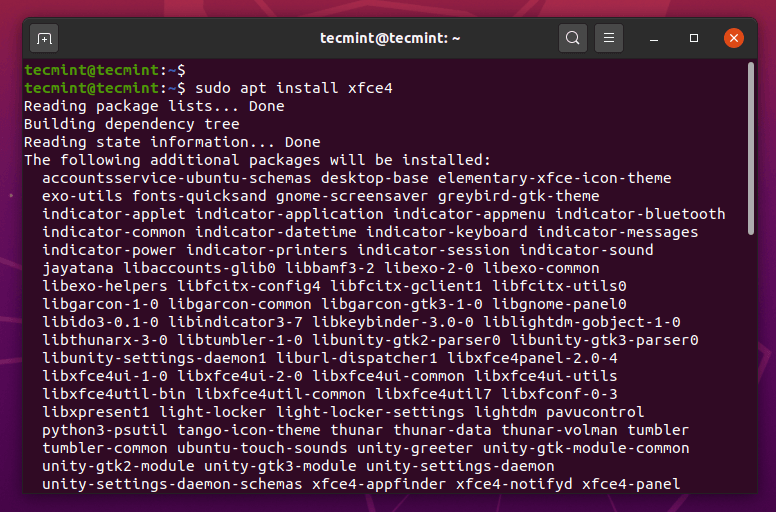
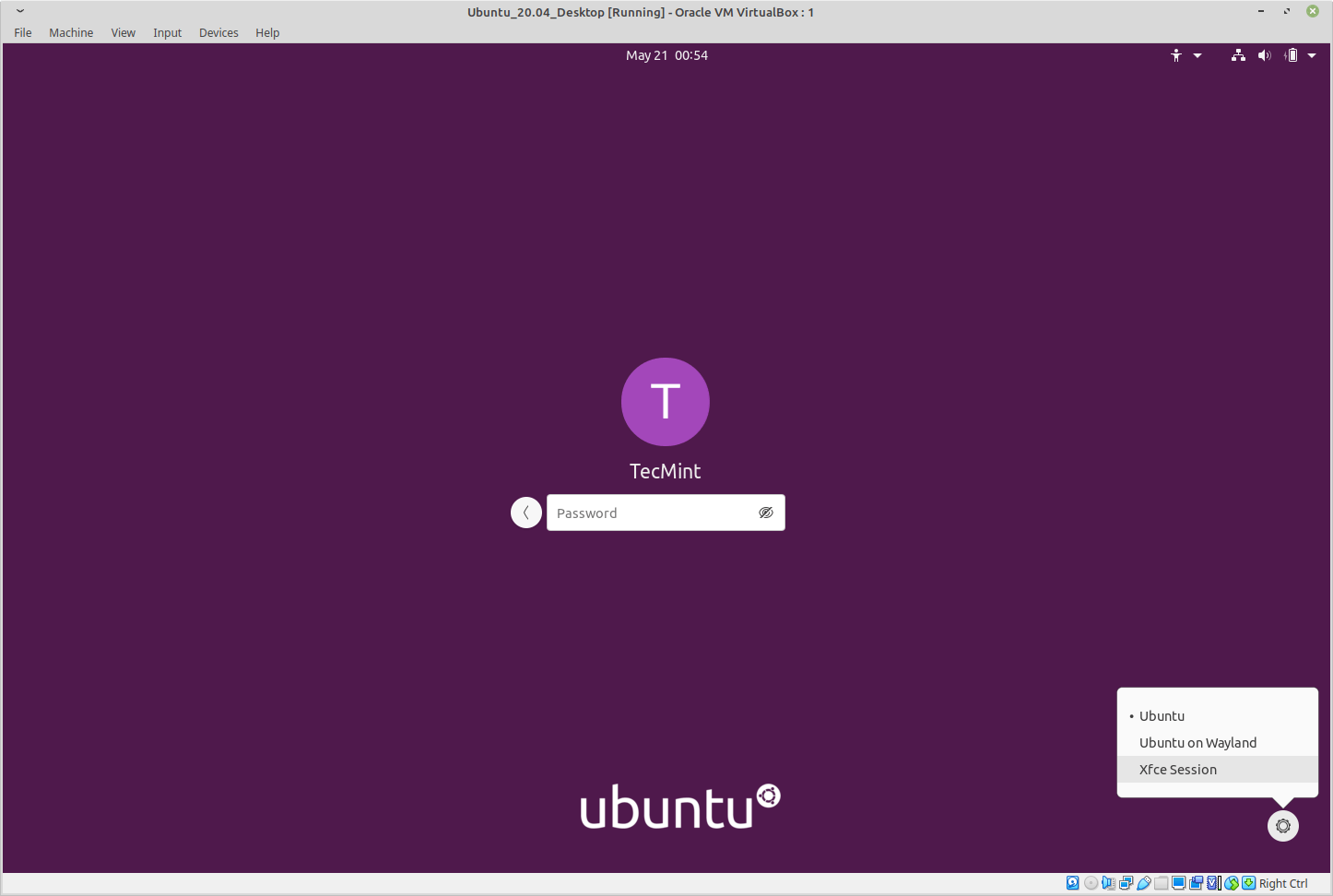
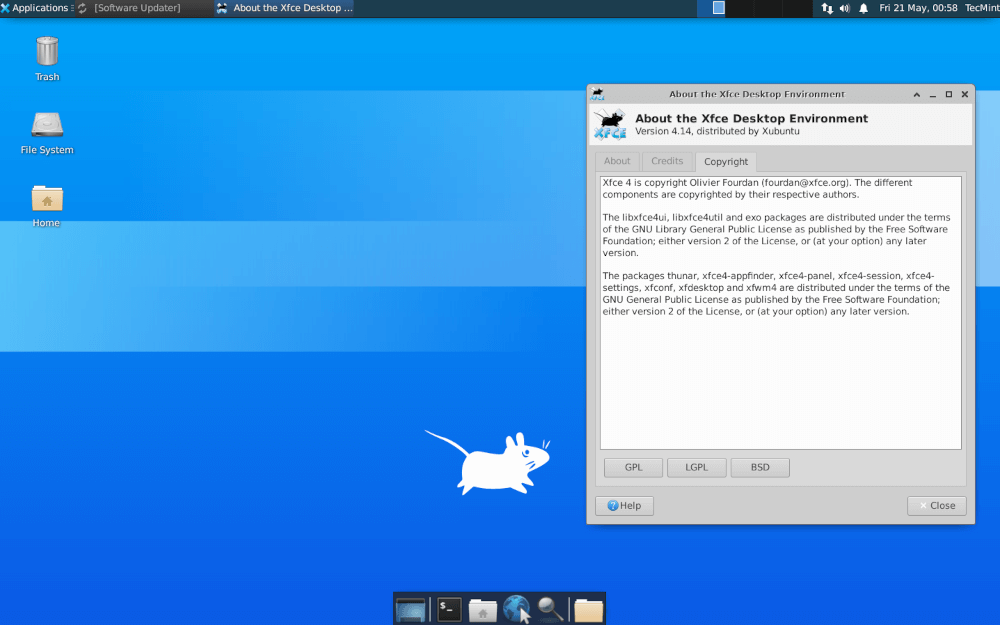
Wait for the installation process to complete, then logout out of your current session or you can possibly restart your system as well. At the login interface, choose Xfce desktop and login as in the screenshot below:
Install Xfce Desktop in Fedora Linux
If you have an existing Fedora distribution and wanted to install the xfce desktop, you can use the dnf command to install it as shown.
# dnf install @xfce-desktop-environment
OR
# dnf groupinstall 'XFCE Desktop'
# echo "exec /usr/bin/xfce4-session" >> ~/.xinitrc
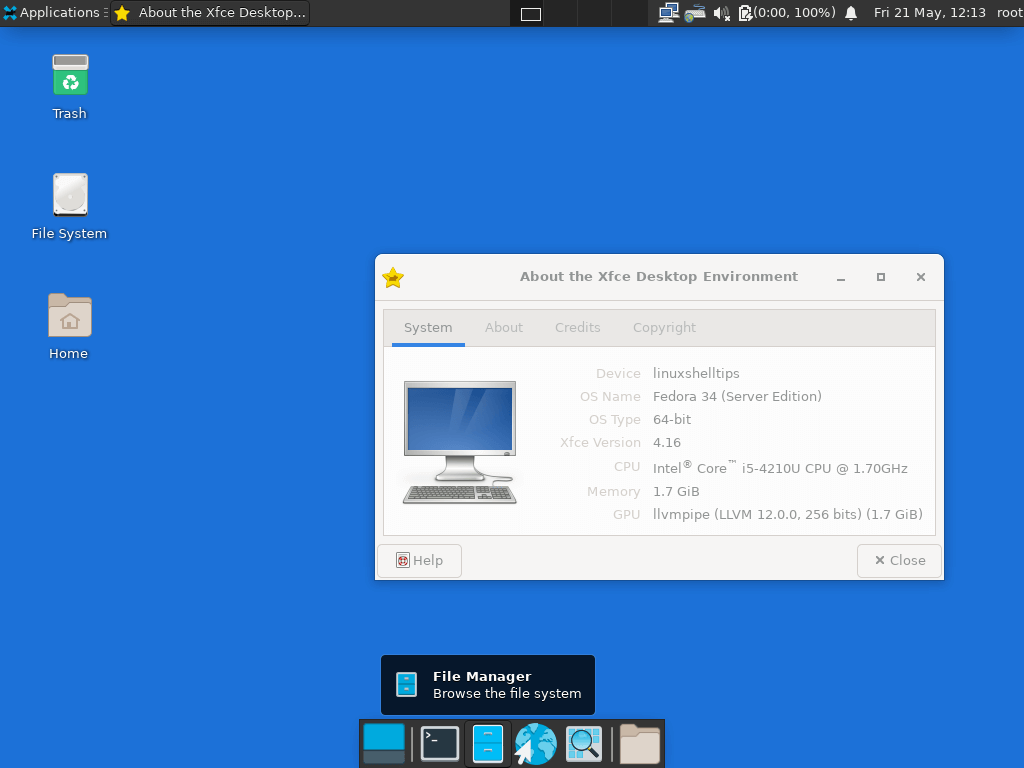
After installing Xfce, you can choose the xfce login from the Session menu or reboot the system.

Removing Xfce Desktop in Ubuntu & Fedora
If you don’t want Xfce desktop on your system anymore, use the command below to uninstall it:
-------------------- On Ubuntu Linux --------------------
$ sudo apt purge xubuntu-icon-theme xfce4-*
$ sudo apt autoremove

-------------------- On Fedora Linux --------------------
# dnf remove @xfce-desktop-environment
In this simple how-to guide, we walked through the steps for installation of the latest version of the Xfce desktop, which I believe were easy to follow. If all went well, you can enjoy using xfce, as one of the best desktop environments for Linux systems.
However, to get back to us, you can use the feedback section below and remember to always stay connected to Tecmint.

Thanks a lot for this article..
@Tito
Welcome, we are glad that you found it useful.