
Progress, formerly known as Coreutils Viewer, is a light C command that searches for coreutils basic commands such as cp, mv, tar, dd, gzip/gunzip, cat, grep, etc currently being executed on the system and shows the percentage of data copied, it only runs on Linux and Mac OS X operating systems.
Additionally, it also displays important aspects such as estimated time and throughput and offers users a “top-like” mode.
It utterly scans the /proc filesystem for fascinating commands and then searches the fd and fdinfo directories to find opened files seek positions, and reports status for the extensive files. Importantly, it is a very light tool, and compatible with practically any command.
Table of Contents
How to Install Progress Viewer on Linux
Progress requires the ncurses library in order to work, therefore install libncurses before proceeding to install it, by running the appropriate command below:
$ sudo apt install libncurses5-dev   [On Debian, Ubuntu and Mint]
$ sudo yum install ncurses-devel     [On RHEL/CentOS/Fedora and Rocky Linux/AlmaLinux]
$ sudo emerge -a ncurses-devel       [On Gentoo Linux]
$ sudo apk add ncurses-dev           [On Alpine Linux]
$ sudo pacman -S ncurses-devel       [On Arch Linux]
$ sudo zypper install ncurses-devel  [On OpenSUSE]
On rpm-based distributions such as (Red Hat, CentOS, Fedora, SUSE, Rocky, AlmaLinux, etc.), run one of these:
$ sudo dnf install progress
$ sudo yum install progress
On deb-based systems (Debian, Ubuntu, Mint, etc.) run:
$ sudo apt install progress
On Arch Linux, run:
$ sudo pacman -S progress
On other Linux distributions, you can start by cloning or downloading the package files from its Github repo as follows:
# git clone https://github.com/Xfennec/progress.git
Next, move into the progress directory and build it as shown:
$ cd progress
$ make
$ sudo make install
After successfully installing it, simply run this tool from your terminal, below we shall walk through a few examples of using Progress on a Linux system.
Monitor the Progress of Commands in Linux
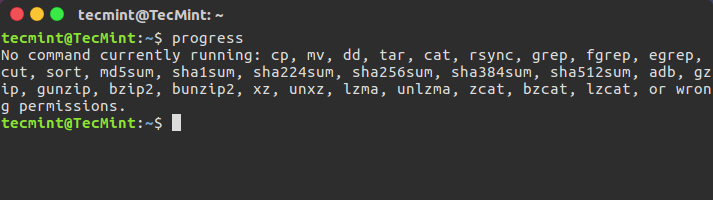
You can view all the coreutils commands that Progress works with by running it without any options, provided non of the coreutils commands is being executed on the system:
$ progress
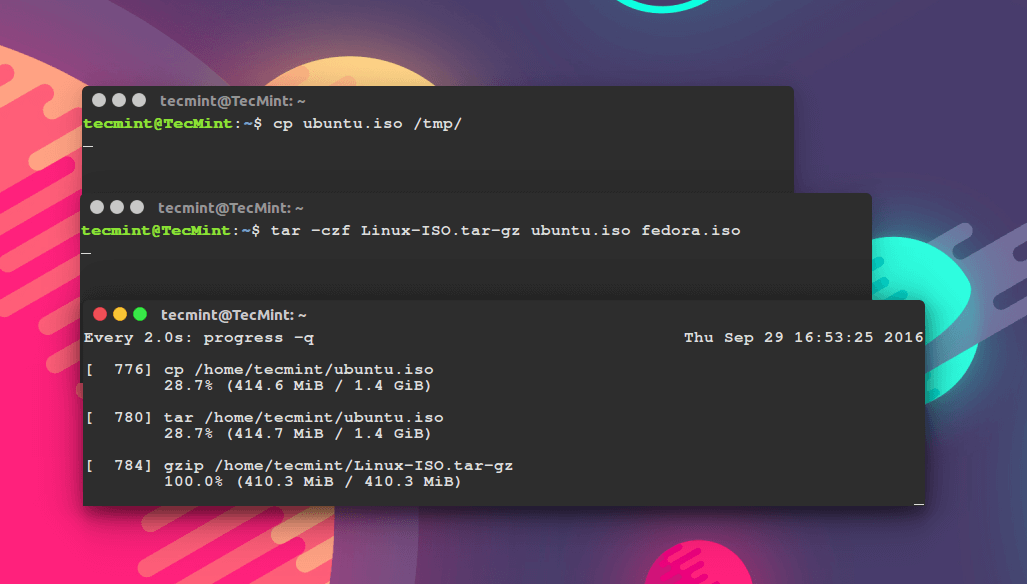
To display estimated I/O throughput and the estimated remaining time for ongoing coreutils commands, enable the -w option:
$ progress -w
Show Progress in Copying Files
To view the progress of the cp command, while copying large files, run:
$ cp GhostBSD.vdi /home/tecmint/Downloads/ & progress -mp $!

Show Progress of Moving Files
To view the progress of the mv command, while moving large files, run:
$ mv GhostBSD.vdi /media/tecmint/Personal_Data/ & progress -mp $!

Show Progress of Tar Files
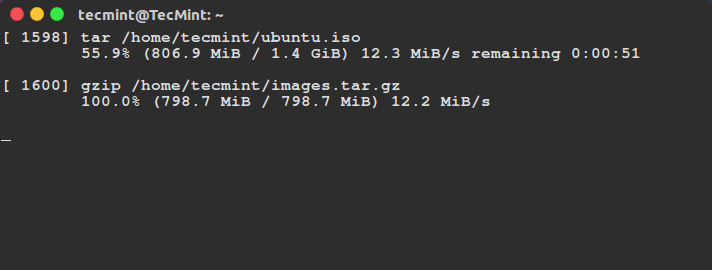
To view the progress of the tar command, while creating the tar archive, run:
$ tar czf images.tar.gz linuxmint-18-cinnamon-64bit.iso CentOS-7.0-1406-x86_64-DVD.iso CubLinux-1.0RC-amd64.iso | progress -m $!
Show Progress of Multiple Commands
In the next example, you can open two or more terminal windows, then run the coreutils commands in one each, and watch their progress using the other terminal window as shown in the image below.
The command below will enable you to monitor all the current and imminent instances of coreutils commands:
$ watch progress -q
For more interesting options, look through the progress man pages or visit https://github.com/Xfennec/progress :
$ man progress
Conclusion
As a concluding remark, this is a very useful tool for monitoring the progress of coreutils commands, especially when copying or archiving and compressing heavy files, plus so much more.
If you have installed it successfully, use it and share your experience with us via the comment section below. You can as well provide us some great usage examples where you find it helpful for important everyday system administration tasks and more.



Hi All, I need to activate my progress (OpenEdge Release 12.2.5) which is installed on CentOS 7, so can someone help me out on the same?
Hi, running Ubuntu and getting the “pkg-config” error during make.
any ideas?
@Markus,
Please install missing pkg-config package using following command, which is needed to build Progress tool from sources..
Hi Guys, While installing progress in centos pkgconfig command not found while make command use?
@kunalsing
Try this method:
Run the following commands to download and install progress on CentOS:
wget http://cbs.centos.org/kojifiles/packages/progress/0.13/1.el6/x86_64/progress-0.13-1.el6.x86_64.rpm
yum install progress-0.13-1.el6.x86_64.rpm
I hope this will help.
Awesome I have installed without error. Thanks aaron
@kunalsing
Welcome, good to know.
I have an offtopic question. What is your theme windows? I mean to the theme used to the Linux machines of the post author (Black Shell)
@Antonio,
It’s Flatabulous Theme and Icons for Ubuntu, you can install it on your Ubuntu distribution.
Thank you Ravi!