
Learn how to enable and configure AI agents in ONLYOFFICE Desktop Editors to automate document editing, generate content, analyze files, and boost productivity on Linux.
Whether we like it or not, artificial intelligence is becoming more and more widely used in different areas, changing our habits and the way we live and work.
That’s why knowing how to use its strengths and deal with its weaknesses is crucial if you want to maintain your productivity under constantly changing circumstances.
Making the AI technology your digital ally is not so difficult if you have access to the right AI tools, know how they work, and how they can be integrated into your workflows.
AI agents have been gaining massive attention recently because, unlike chatbots, they can perform multi-step tasks autonomously, adapting to user preferences and quickly reacting to new instructions.
AI agents can be used for almost all common tasks, doing your research work, writing code for your app, finding cheap flight tickets, and even booking a table in your favourite restaurant.
When it comes to productivity, agentic AI can save you a lot of time by simplifying your routine work.
In this article, we will take a look at how AI agents can make it easier for you to handle office files when integrated into ONLYOFFICE Desktop Editors, an open-source office suite for Linux and other OS.
You will learn how to set up your favourite AI agent and use its capabilities in various usage scenarios.
Why You Should Enable an AI Agent in ONLYOFFICE Desktop Editors
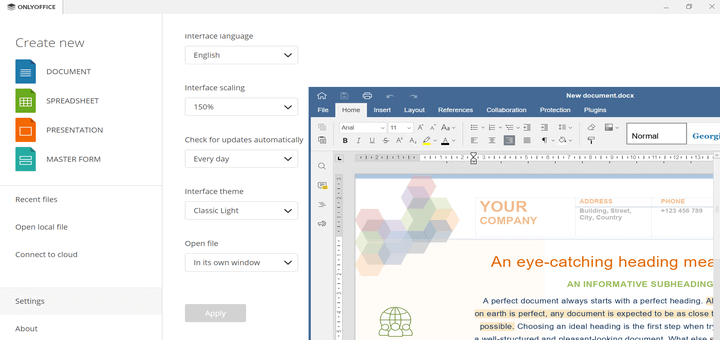
ONLYOFFICE Desktop Editors is a free and open-source office for Linux users who often work with proprietary file formats, such as Word documents, PowerPoint presentations, and Excel spreadsheets.
The program natively supports DOCX, XLS,X and PPTX, and provides decent compatibility with OpenDocument files and other popular file extensions. What’s more, it has a built-in PDF editor and a diagram viewer.
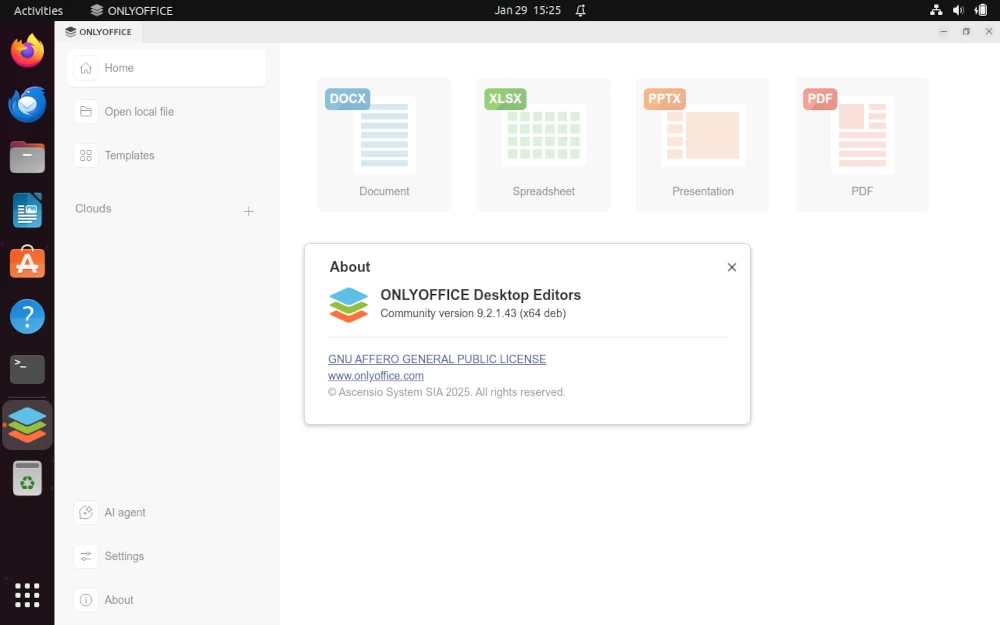
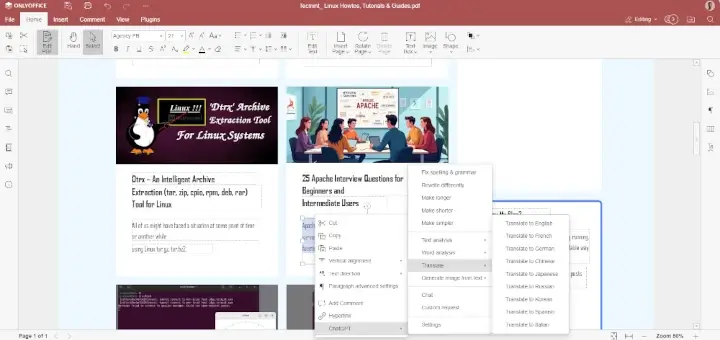
ONLYOFFICE Desktop Editor is equipped with an AI plugin, which allows you to connect external services and providers, and use their AI models to create text content, generate new images, rewrite your existing text, translate, correct mistakes, and more.
For example, you can integrate platforms like Ollama, LocalAI, GPT4ALL, and providers like OpenAI, Mistral, TogetherAI, Google Gemini, etc., for AI-powered document editing.
Starting from version 9.2, ONLYOFFICE Desktop Editors offers an additional AI agent option, which allows you to manipulate documents, spreadsheets, presentations, PDF forms, and their contents without launching the editors, right from the start window.
These are the reasons why it’s worth using an AI agent in ONLYOFFICE Desktop Editors:
- The AI agent feature is optional, so you are not forced to use AI if you don’t want to.
- There are no predefined AI agents, and you can connect your favourite AI tool, choosing among OpenAI, Anthropic, Ollama, TogetherAI, and OpenRouter.
- You can connect a local AI model via Ollama if you want to keep your data under control.
- For a more personalised user experience, you can connect an MCP server and use it with your AI agent.
For example, you are allowed to connect the ONLYOFFICE DocSpace MCP server and interact with your collaborative DocSpace environment through an AI agent — delete, copy, move, update, download files and more.
How to Get Started with AI Agents in ONLYOFFICE Desktop Editors
If you don’t have ONLYOFFICE Desktop Editors installed on your Linux distro, you can simply add its repository.
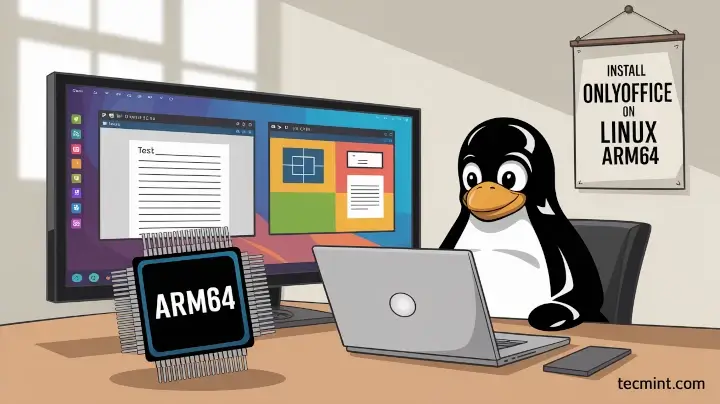
This method works for Ubuntu, Debian, and derivatives. If you are looking for an alternative installation method, you can take a look at our guide on How to Install ONLYOFFICE Desktop Editors on Linux ARM64 Devices.
First of all, add the GPG key:
mkdir -p -m 700 ~/.gnupg
gpg --no-default-keyring --keyring gnupg-ring:/tmp/onlyoffice.gpg --keyserver hkp://keyserver.ubuntu.com:80 --recv-keys CB2DE8E5
chmod 644 /tmp/onlyoffice.gpg
sudo chown root:root /tmp/onlyoffice.gpg
sudo mv /tmp/onlyoffice.gpg /usr/share/keyrings/onlyoffice.gpg
Then add the corresponding repository:
echo 'deb [signed-by=/usr/share/keyrings/onlyoffice.gpg] https://download.onlyoffice.com/repo/debian squeeze main' | sudo tee -a /etc/apt/sources.list.d/onlyoffice.list
Now run the following commands to update the package manager cache, install it, and run it.
sudo apt update
sudo apt install onlyoffice-desktopeditors
desktopeditors
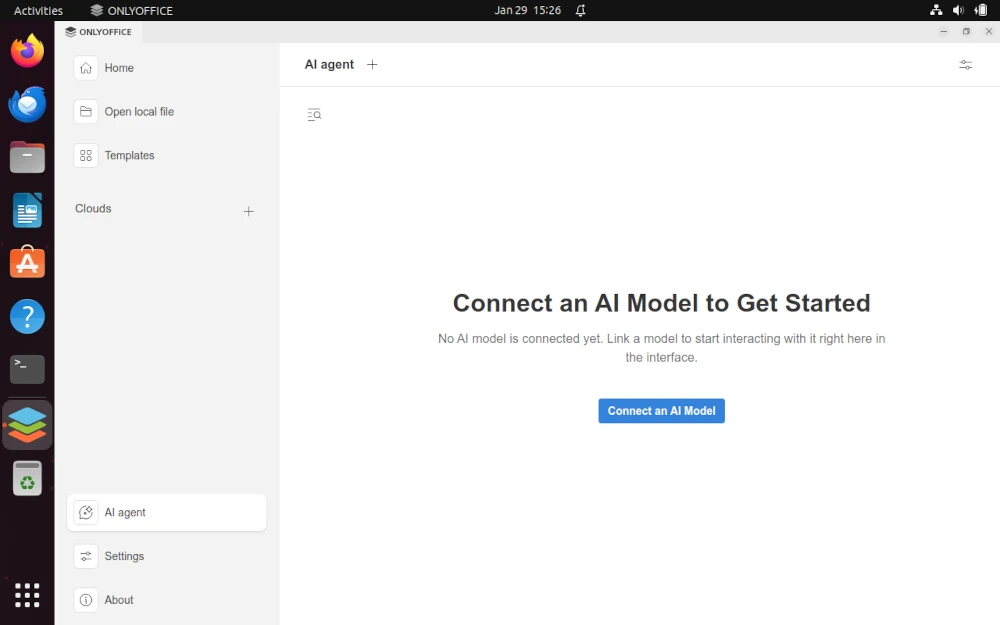
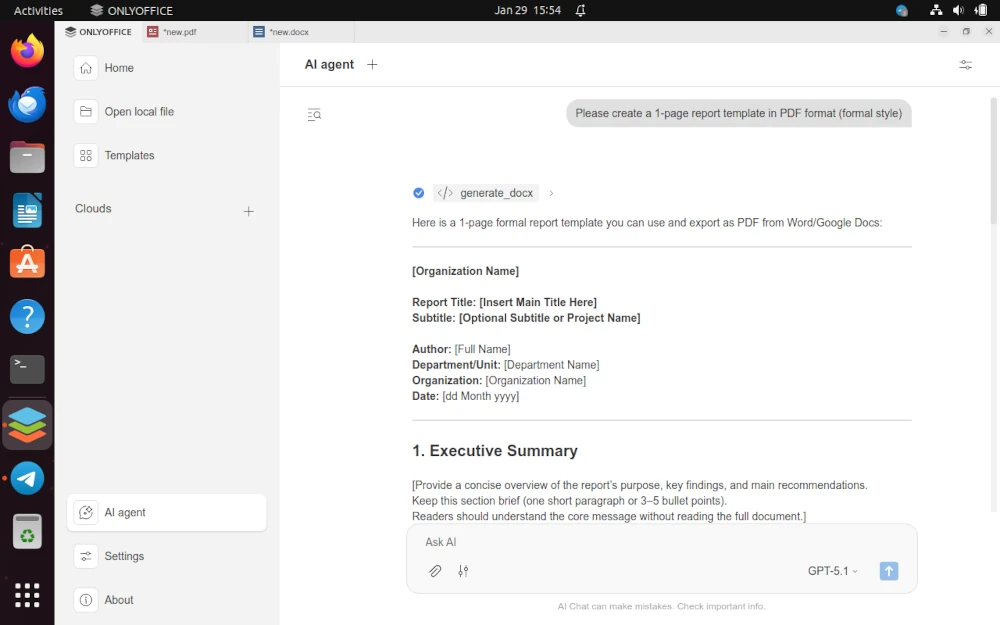
After launching the app, open the AI Agent section and click the Connect an AI model button to configure the AI agent.
Press the Add provider button and enter the required information in all fields, except the URL field configured automatically.
In the API key field, it’s necessary to add a valid API key that you can get from your AI provider, which is important because the ONLYOFFICE app provides no API keys.
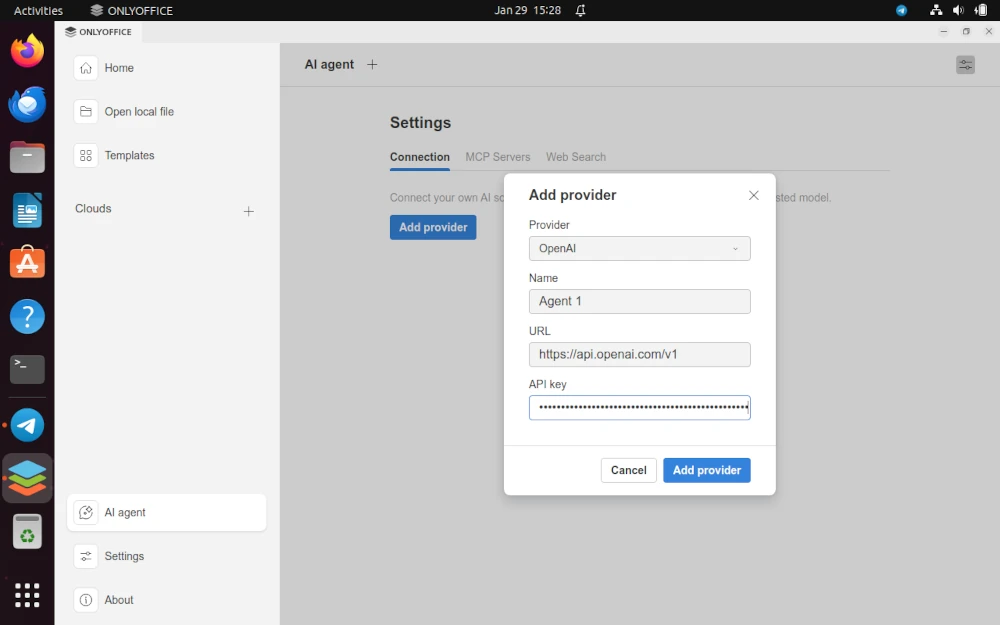
Finally, click the Add provider button to finish the configuration process.
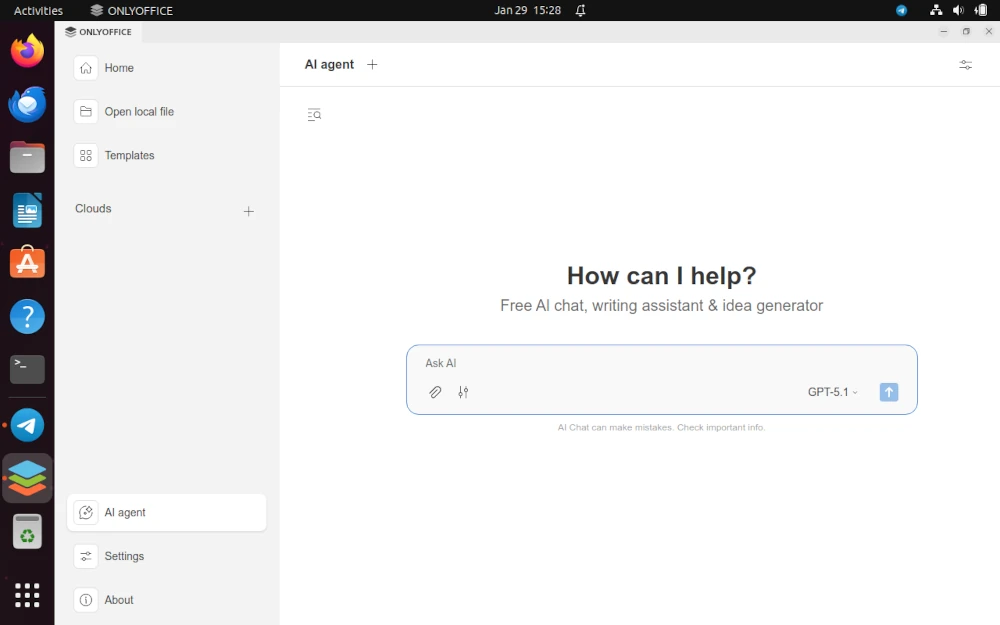
If you can access the AI agent chat, it has been configured correctly, and you can start using the AI agent’s features.
How to Use the AI Agent in ONLYOFFICE Desktop Editors
Interaction with the AI agent takes place in the chat field. You simply type what you want the agent to do and press Enter.
Available functionality depends on your AI provider and AI model you use, but most AI agents can:
- Answer your questions and provide additional information at your request.
- Generate text content and make it structured.
- Provide writing assistance and improve style and grammar.
- Create new documents, presentations and fillable PDF forms.
- Open certain files stored on your device.
- Display content from files without opening them.
- Analyse documents and fillable PDF forms.
- Complete fillable forms with the required information and more.
You can set up several agents and give them a try to find out what works best for you.
Conclusion
By enabling an AI agent in ONLYOFFICE Desktop Editors, you get a universal solution for file management and document analysis, which is always under your control, especially if you run local AI models.
You can use it as a mere chatbot for conversations with chat history or run it to interact with the contents of multiple files in one place.
Have you ever used an AI agent for document analysis or content creation on Linux? Don’t hesitate to share your experience below!



AI is data-hoovering on steroids. AI learns on YOUR data.
No wonder companies are tripping all over themselves to integrate AI into all their products. It certainly NOT out of altruism.