
Have you ever typed a command and rushed to hit Enter, only to find that you had a typo in it? While you can use the up and down arrows to navigate the command history and edit the typo, there’s an easier and faster way.
Don’t Miss: The Power of Linux “History Command” in Bash Shell
In this tip, we shall cover a simple and handy method of dealing with a command line typo, let’s suppose you wanted to see if there’s a service listening on port 22, but accidentally typed nestat instead of netstat.
You can easily replace the typo with the correct command and execute it like so:
# nestat -npltu | grep 22
# ^nestat^netstat
That’s right. Using two carat signs (they should be followed by the typo and the right word, respectively) you can correct the typo and run the command automatically afterwards.
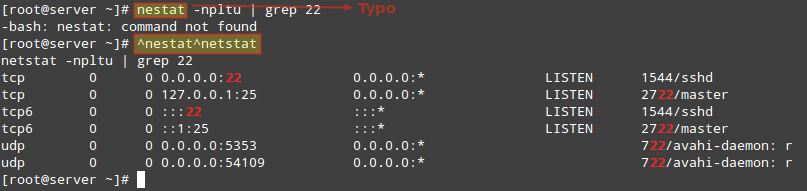
You must take note that this method only works for the previous command (most recent command executed), when you try to correct a typo for a command executed earlier on, the shell will print out an error.
Summary
This is a great tip that can help you eliminate time wasting tendencies, as you have seen, it is much easier and faster than scrolling through commands history to locate and correct a typo.
All you have to do is correct the typo using the carat signs, hit Enter button and the correct command is executed automatically.
There are possibly several other ways of correcting command line typos, it would be so interesting to learn new ones and you can share any that you have discovered with us via the comment form below.
In the next Linux tip for System administrators, we shall cover how to run a command once at a given time. Until then, stay connected to Tecmint.


24 blooming years of using Linux and I never knew this existed!
Super helpful, thanks!
This would be very handy if your previous command was:
rm -rf /
but what you really meant was:
rm -rf /home/danny/junk
*caret
(I can’t take credit. A friend of mine that I shared this with pointed it out.)
@Wilson,
That is correct. Thank you for bringing this to our attention.
@Ravi,
Please correct the typo in the title.
@Wilson,
Say thanks to your friend who pointed out this typo, really appreciated…:)
@Gabriel,
Corrected in the writeup…
Sorry, but as of September 2018, the incorrect word is still in the title and in two places in the write-up.
$ Carat
$ ^at^et
@All,
Feel free to use this tip if it is helpful. If you feel more comfortable using the arrow keys and correcting the command, feel free to do so as well. This was just a tip :)
Very good to know! Thanks a lot! We can even do more simpler than that.
For instance:
$ nestat -npltu | grep 22
$ ^ne^net
I see the benefit if you are using many pipes or parameters, but it still only works for the most recent command. I think I would still simply use the up arrow once and a correction rather than typing the carat mistype, carat, and correct command.
Seems like it would be simpler to type the correct command. Instead of a carat, the mistype, a carat, and then the correct command