

Are you looking through an extremely lengthy configuration file, one with hundreds of lines of comments, but only want to filter the important settings from it. In this article, we will show you different ways to view a configuration file without comments in Linux.
Read Also: ccat – Show ‘cat Command’ Output with Syntax Highlighting or Colorizing
You can use the grep command to for this purpose. The following command will enable you view the current configurations for PHP 7.1 without any comments, it will remove lines starting with the ; character which is used for commenting.
Note that since ; is a special shell character, you need to use the \ escape character to change its meaning in the command.
$ grep ^[^\;] /etc/php/7.1/cli/php.ini
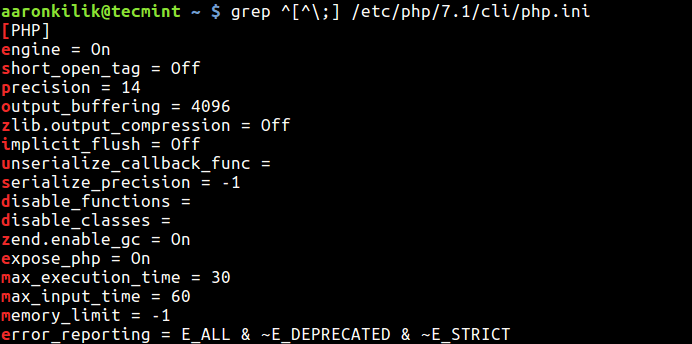
In most configuration files, the # character is used for commenting out a line, so you can use the following command.
$ grep ^[^#] /etc/postfix/main.cf
What if you have lines starting with some spaces or tabs other then # or ; character?. You can use the following command which should also remove empty spaces or lines in the output.
$ egrep -v "^$|^[[:space:]]*;" /etc/php/7.1/cli/php.ini
OR
$ egrep -v "^$|^[[:space:]]*#" /etc/postfix/main.cf
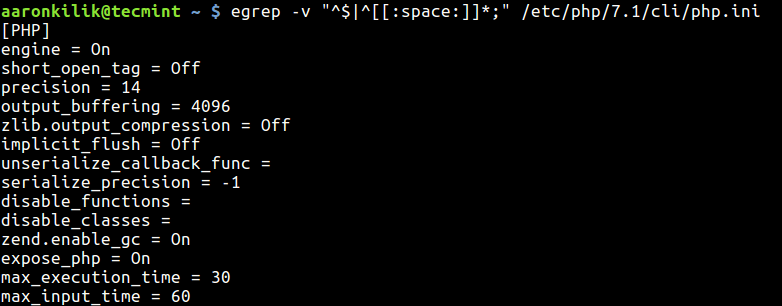
From the above example, the -v switch means show non-matching lines; instead of showing matched lines (it actually inverts the meaning of matching) and in the pattern “^$|^[[:space:]]*#”:
^$– enables for deleting empty spaces.^[[:space:]]*#or^[[:space:]]*;– enables matching of lines that starting with#or;or “some spaces/tabs.|– the infix operator joins the two regular expressions.
Also learn more about grep command and its variations in these articles:
- What’s Difference Between Grep, Egrep and Fgrep in Linux?
- 11 Advanced Linux ‘Grep’ Commands on Character Classes and Bracket Expressions
That’s all for now! We would love to hear from you, share with us any alternative methods for viewing configuration files without comments, via the feedback form below.

Many thanks for this great and useful tip.
@Rishi
Thanks for the kind words of appreciation, and for following us.
egrep -v “^#|^$” file.conf
@Stoyan
Thanks for sharing, we will try it out.
You can exclude blank lines with the following statement:
@David
Okay, many thanks for this useful tip.
Yes, right.
You can combine the # and the $(space) in one grep statement: