

Chromium is an open-source web browser project started by Google, and it’s the base for the popular Chrome browser.
While Chrome includes proprietary features, Chromium is completely open-source, making it a preferred choice for many Linux users.
If you’re using Ubuntu 24.04, this guide will help you install Chromium on your system.
Method 1: Install Chromium Using Ubuntu Software Center
To install Chromium, start by opening the Ubuntu Software Center. Click on the “Show Applications” icon at the bottom left of the screen, search for “Ubuntu Software” and open it.
In the search bar, type “Chromium” and press Enter. When the Chromium entry shows in the search results, click on it and then click the “Install” button.
Enter your password when prompted to authorize the installation.
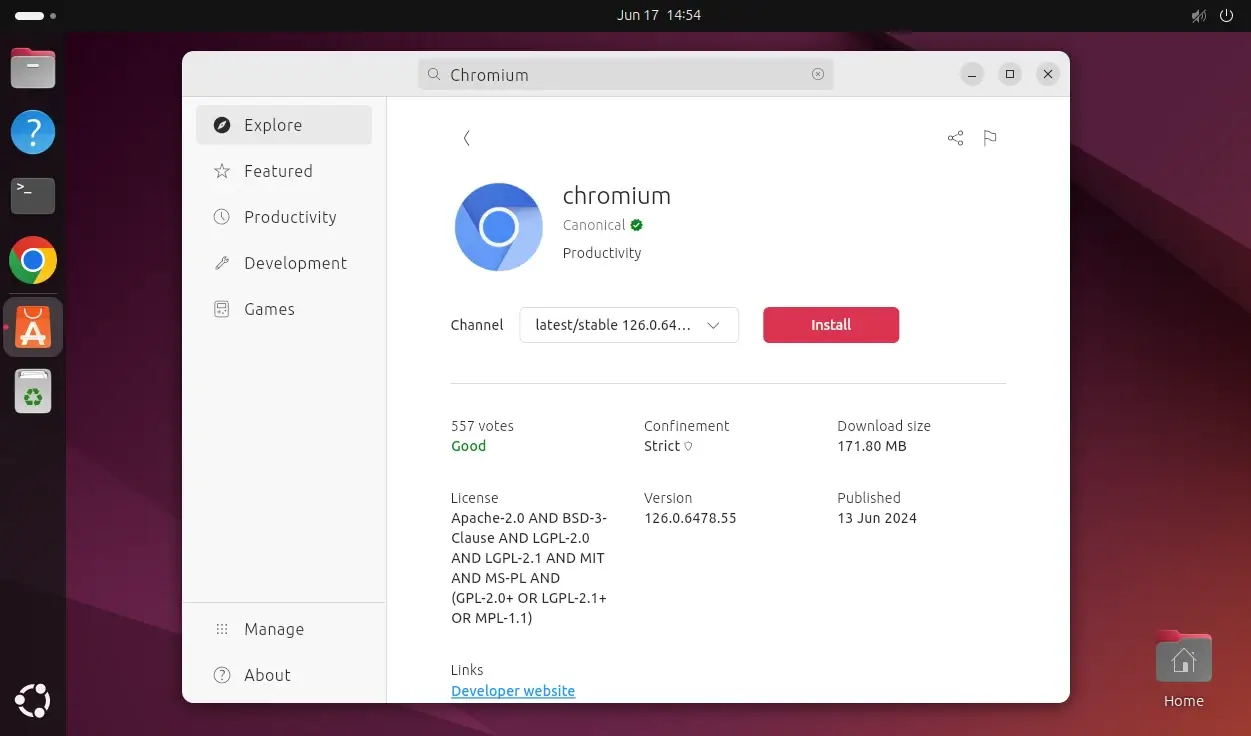
Once installed, you can launch Chromium from the application menu.
Method 2: Install Chromium Using with APT
The apt command is an advanced package tool and the default package manager for Ubuntu which provides a straightforward way to install software from the command line.
sudo apt update
sudo apt install chromium-browser
After the installation is complete, you can start Chromium by typing chromium-browser in the terminal or by finding it in the application menu.
chromium-browser
Method 3: Install Chromium Using Snap Package Manager
Snap is a package management system that makes it easy to install software across different Linux distributions.
sudo apt install snapd
sudo snap install chromium
You can launch Chromium by typing chromium in the terminal or by finding it in the application menu.
Method 4: Install Chromium Using Flatpak
Flatpak is another package management system that allows for the installation of software in a containerized format.
sudo apt install flatpak
sudo flatpak remote-add --if-not-exists flathub https://flathub.org/repo/flathub.flatpakrepo
sudo flatpak install flathub org.chromium.Chromium
You can launch Chromium by typing the following command in the terminal or by finding it in the application menu.
flatpak run org.chromium.Chromium
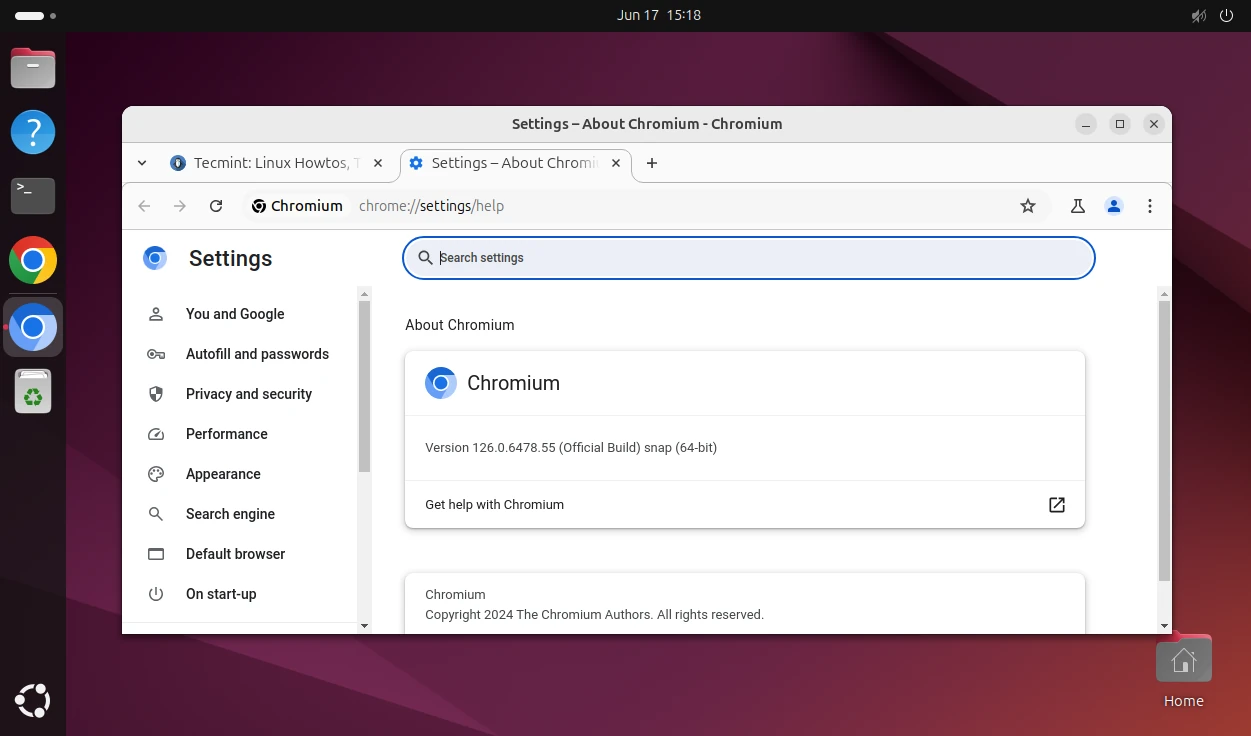
Uninstalling Chromium in Ubuntu
If you need to remove Chromium for any reason, follow the instructions for your installation method:
For apt method:
sudo apt remove chromium-browser
sudo apt autoremove
For snap method:
sudo snap remove chromium
For Flatpak method:
sudo flatpak uninstall org.chromium.Chromium
Conclusion
Installing Chromium on Ubuntu 24.04 is straightforward and can be done using various methods to suit different preferences.
Whether you prefer using the graphical interface of the Ubuntu Software Center or the command line with APT, Snap, or Flatpak, you can easily get Chromium up and running.
