How to Install .NET SDK and .NET Runtime on Ubuntu

Take Your Linux Skills to the Next Level All courses, certifications, ad-free articles & community — from $8/mo
Join Root →
Ad-free access to all premium articles
Access to all courses: Learn Linux, AI for Linux, Bash Scripting, Ubuntu Handbook, Golang and more.
Access to Linux certifications (RHCSA, RHCE, LFCS and LFCA)
Access new courses on release
Get access to weekly newsletter
Priority help in comments
Private Telegram community
Connect with the Linux community
From $8/mo · or $59/yr billed annually · Cancel anytime

The .NET platform is a powerful framework developed by Microsoft for building and running applications on various platforms, including Linux.

Installing .NET on Ubuntu is straightforward and allows you to develop and run .NET applications seamlessly.

Installing .NET on Ubuntu

Before installing any new software, it’s a good idea to update your package lists to ensure you have the latest information about available packages and their versions.

sudo apt update

Next, install .NET SDK (Software Development Kit) which has everything that you need to build and run .NET applications.

sudo apt install -y dotnet-sdk-8.0

If you prefer to install a different version of the .NET SDK, simply replace 8.0 in the command with the version number you need, such as 6.0.
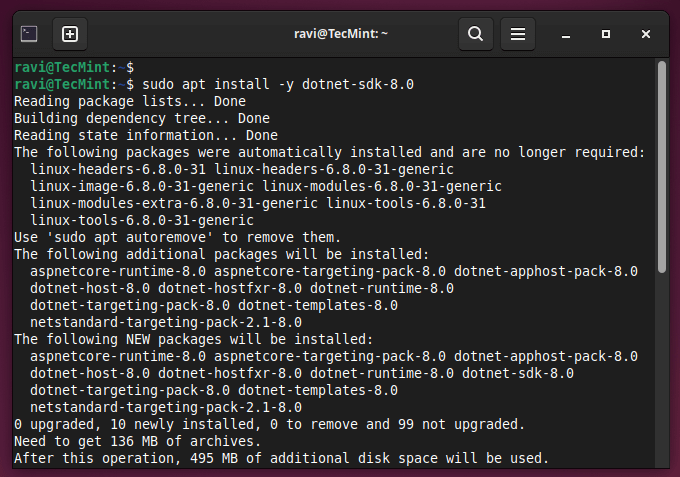
Install Net SDK in Ubuntu

In addition to the SDK, you may also need to install the .NET Runtime if you’re running applications that were built with .NET but don’t include the runtime.

sudo apt install -y aspnetcore-runtime-8.0

This will install the ASP.NET Core Runtime, which is the most compatible runtime for .NET 8.0. Alternatively, you can install the .NET Runtime without the ASP.NET Core components by using the following command.

sudo apt install -y dotnet-runtime-8.0

After installing the .NET SDK and/or Runtime, you can verify the installation by running the following command:

dotnet --version

You can also try creating a new .NET project to ensure that the installation was successful.

dotnet new console -o my-app
cd my-app
dotnet run
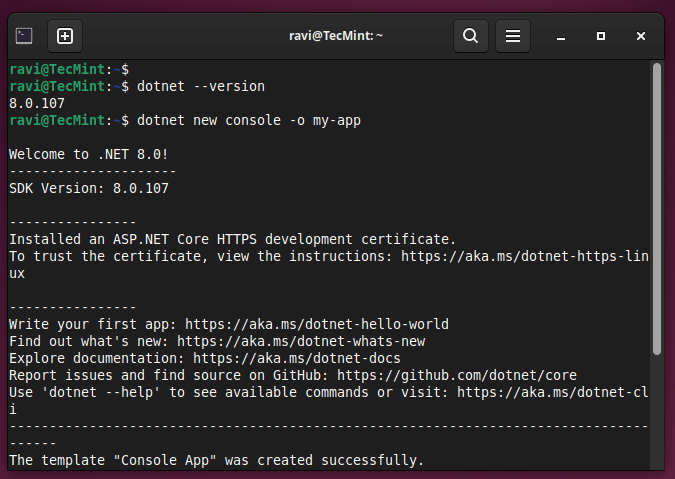
Verify Net SDK in Ubuntu

This will create a new .NET Console application, navigate to the project directory, and run the application. If everything is set up correctly, you should see the default “Hello, World!” output in the terminal.

Install Visual Studio Code (VS Code) in Ubuntu

If you prefer to use a lightweight code editor with excellent support for .NET development, you can install Visual Studio Code.

sudo apt install software-properties-common apt-transport-https wget -y
wget -q https://packages.microsoft.com/keys/microsoft.asc -O- | sudo apt-key add -
sudo add-apt-repository "deb [arch=amd64] https://packages.microsoft.com/repos/vscode stable main"
sudo apt update
sudo apt install code
code --version

Open VS Code, go to the Extensions view (Ctrl+Shift+X), and search for “C#” and install the extension provided by Microsoft.
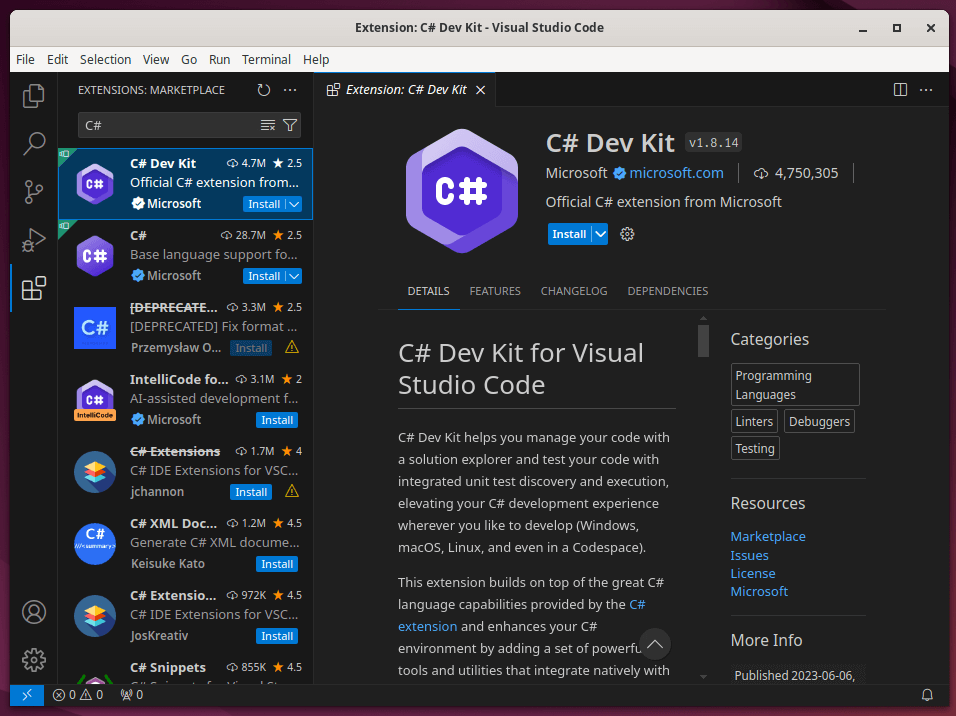
Install C# Extension in VSCode

You’re now ready to start developing .NET applications on your Ubuntu system. Create a new project or open an existing one using the dotnet new and dotnet build commands in your terminal.

Conclusion

Installing .NET on Ubuntu enables you to leverage the power of .NET for building robust applications on Linux. With these steps, you should have a working .NET development environment ready to go.


Root Plan
Premium Linux Education for Serious Learners

Take Your Linux Skills to the Next Level

Root members get full access to every course, certification prep track, and a growing library of hands-on Linux content — with new courses added every month.

What You Get
Ad-free access to all premium articles
Access to all courses: Learn Linux, AI for Linux, Bash Scripting, Ubuntu Handbook, Golang and more.
Access to Linux certifications (RHCSA, RHCE, LFCS and LFCA)
Access new courses on release
Get access to weekly newsletter
Priority help in comments
Private Telegram community
Connect with the Linux community
Ravi Saive
I'm Ravi Saive, an award-winning entrepreneur and founder of several successful 5-figure online businesses, including TecMint.com, GeeksMint.com, UbuntuMint.com, and the premium learning hub Pro.Tecmint.com.

Each tutorial at TecMint is created by a team of experienced Linux system administrators so that it meets our high-quality standards.

Join the TecMint Weekly Newsletter (More Than 156,129 Linux Enthusiasts Have Subscribed)
Was this article helpful? Please add a comment or buy me a coffee to show your appreciation.

Got Something to Say? Join the Discussion...

Thank you for taking the time to share your thoughts with us. We appreciate your decision to leave a comment and value your contribution to the discussion. It's important to note that we moderate all comments in accordance with our comment policy to ensure a respectful and constructive conversation.

Rest assured that your email address will remain private and will not be published or shared with anyone. We prioritize the privacy and security of our users.

Root Plan Premium Linux Education for Serious Learners

Before You Go - Upgrade Your Linux Skills

Root members get everything in one place, with new courses added every month.

What You Get
Ad-free access to all premium articles
Access to all courses: Learn Linux, AI for Linux, Bash Scripting, Ubuntu Handbook, Golang and more.
Linux certifications: RHCSA, RHCE, LFCS and LFCA
Access new courses on release
Weekly newsletter, priority support & Telegram community
Join Root Today and Start Learning Linux the Right Way
Structured courses, certification prep, and a community of Linux professionals - all in one membership.
Join Root Plan →
$8/mo · or $59/yr billed annually