The duty of a System Administrator is really tough as they have to monitor the servers, users, logs, create backups, and so on. For the most repetitive tasks, many administrators write scripts to automate their day-to-day work.
Here, we have written a shell script that aims to help newbies by providing information about their system, network, users, load, RAM, host, internal IP, external IP, uptime, etc. While it may not automate all tasks of a typical system admin, it can be helpful in certain situations.
We have taken care of formatting the output to a certain extent. The script doesn’t contain any malicious content and it can be run using a normal user account. In fact, it is recommended to run this script as a user and not as root.
You are free to use, modify, or redistribute the piece of code below, provided that you give proper credit to Tecmint and the author. We have customized the output to ensure that only the required output is generated.
Additionally, we have utilized variables that are typically unused by the Linux system and are likely available.
Dependency
There is no dependency required to use this shell script on a standard Linux Distribution. Moreover the script don’t requires root permission for execution purpose. However if you want to install it, you need to enter root password once.
How Do I Install and Run Shell Script
First, use following wget command to download the monitor script "tecmint_monitor.sh" and make it executable by setting appropriate permissions.
wget https://tecmint.com/wp-content/scripts/tecmint_monitor.sh
chmod 755 tecmint_monitor.sh
It is strongly advised to install the script as user and not as root. It will ask for root password and will install the necessary components at required places.
To install "tecmint_monitor.sh" script, simple use -i (install) option as shown below.
./tecmint_monitor.sh -i
Enter root password when prompted. If everything goes well you will get a success message like shown below.
Password:
Congratulations! Script Installed, now run monitor command
After installation, you can run the script by calling command 'monitor' from any location or user.
monitor
If you don’t like to install it, you need to include the location every-time you want to run it.
./Path/to/script/tecmint_monitor.sh
Now run monitor command from anywhere using any user account simply as:
monitor
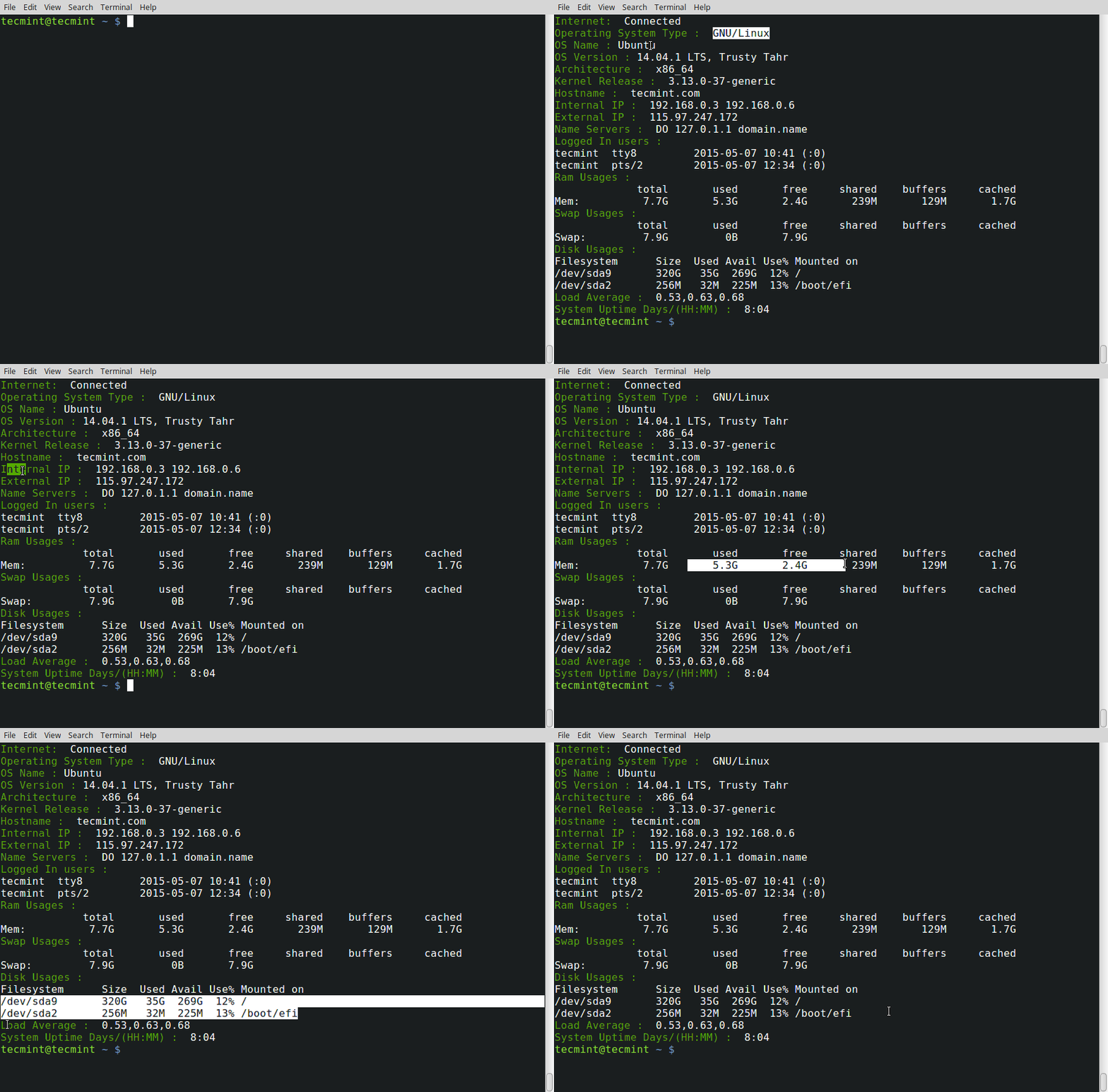
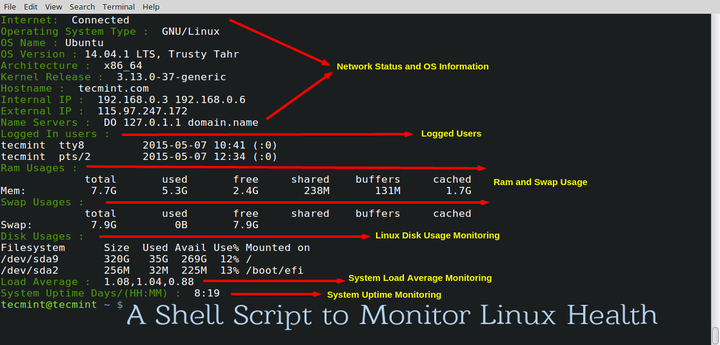
As soon as you run the command you get various System related information which are:
- Internet Connectivity
- OS Type
- OS Name
- OS Version
- Architecture
- Kernel Release
- Hostname
- Internal IP
- External IP
- Name Servers
- Logged In users
- Ram Usages
- Swap Usages
- Disk Usages
- Load Average
- System Uptime
Check the installed version of script using -v (version) switch.
monitor -v

tecmint_monitor version 0.1
Designed by Tecmint.com
Released Under Apache 2.0 License
Conclusion
This script is working out of the box on a few machines I have checked. It should work the same for you as well. If you find any bugs, let us know in the comments. This is not the end; it’s just the beginning. You can take it to any level from here.
We’ve received a few complaints that the script is not working on some Linux distributions. One of our regular readers, Mr. Andres Tarallo, has taken the initiative and made the script compatible with all Linux distributions. You can find the updated script on GitHub.
If you feel like editing the script and taking it further, you are free to do so, giving us proper credit. Also, share the updated script with us so that we can update this article and give you proper credit.
Don’t forget to share your thoughts or your script with us. We’re here to help you. Thank you for all the love you have given us. Keep Connected! Stay tuned.