
File Transfer Protocol (FTP) was once a widely used method for transferring files or data remotely. However, it transmits information in an unencrypted format, making it an insecure way to communicate.
As we all know, FTP is not secure because all transmissions occur in clear text, which means that anyone sniffing network packets can easily read the data.
Because of this, FTP should only be used in limited cases or on networks you fully trust. Over time, protocols like SCP (Secure Copy) and SSH (Secure Shell) have addressed these security concerns by introducing encrypted layers for securely transferring data between remote systems.
[ You might also like: Best Command-Line FTP Clients for Linux ]
What Is sFTP?
sFTP (Secure File Transfer Protocol) is a part of the SSH protocol suite that runs over the SSH protocol on the standard port 22 by default to establish a secure connection. SFTP has been integrated into many GUI tools such as FileZilla, WinSCP, and FireFTP.
You can access sFTP from the Linux terminal using the sftp command, which often pre-installed on most Linux distributions.
which sftp
If that returns a path like /usr/bin/sftp, you’re good to go.
Security Warning: Please don’t expose the SSH (Secure Shell) port to the public internet, as this poses a security risk. Instead, allow access only from specific IP addresses that will be used to transfer or manage files on the remote system.
Related Articles:
- How to Secure and Harden OpenSSH Server
- How to Change SSH Port in Linux
- How to Sync Files Using Rsync with Non-standard SSH Port
- 5 Best Practices to Secure and Protect SSH Server
- 10 Wget Command Examples in Linux
This article walks you through real-world sFTP command examples, from logging in and navigating directories to uploading and downloading files. We’ll also cover batch transfers, scripting, and automation tips using sFTP.
1. How to Connect to SFTP
By default, the same SSH protocol is used to authenticate and establish an SFTP connection. To start an SFTP session, enter the username and the remote hostname or IP address at the command prompt.
Once authentication is successful, you will see a shell with the sftp> prompt.
sftp [email protected]
If SSH is running on a custom port (say 2222), use:
sftp -oPort=2222 [email protected]
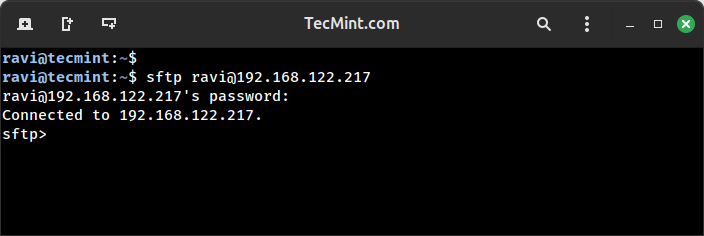
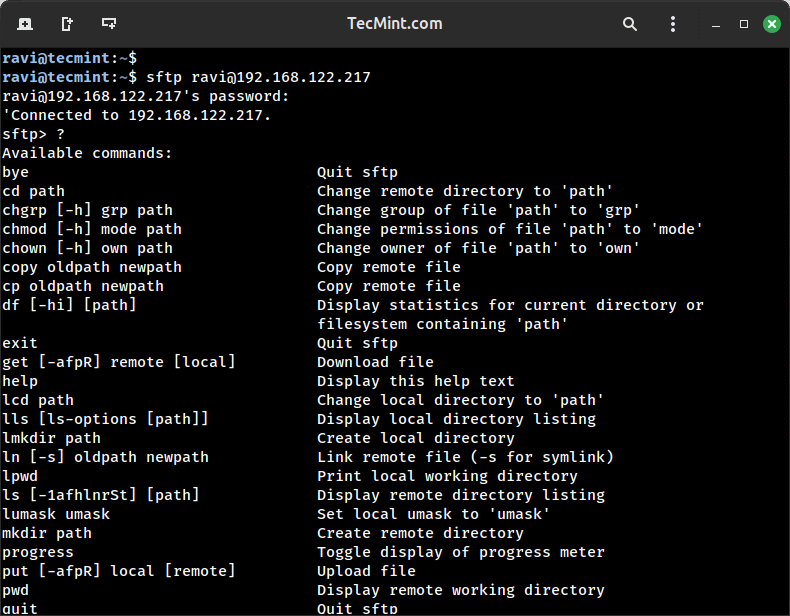
Once, you are in the sftp prompt, check the available commands by typing ‘?‘ or ‘help‘ at the command prompt.
sftp> ?
2. Check Present Working Directory
When you’re connected to a remote server via sFTP, it’s important to know where you are – both locally (on your own machine) and remotely (on the server). sFTP provides two simple commands for this purpose: lpwd and pwd.
The command lpwd (local print working directory) is used to display your current local directory on your own machine from which you’re working. On the other hand, the command pwd (print working directory) shows your current directory on the remote server.
Here’s how they look in an active sFTP session:
sftp> lpwd
Local working directory: /
sftp> pwd
Remote working directory: /tecmint/
lpwdhelps you verify where files will be downloaded to.pwdhelps you confirm where files will be uploaded from.
Understanding these commands is especially useful when you’re navigating multiple directories during file transfers.
3. Listing Files with sFTP
Once you’re connected to a remote server using sFTP, you’ll often need to browse through directories to check the available files on remote system and on your local machine.
To list files on the remote server, simply use the ls command, which will show the contents of the current directory on the remote host.
sftp> ls
If you want to see detailed file information like size and permissions, you can also use the -l option:
sftp> ls -l
Now, if you want to list files on your local system (the machine you’re running sFTP from), you’ll use the lls command, which behaves like the regular ls command but shows the contents of your local directory.
sftp> lls
You can also pass options to lls to list files in long format:
sftp> lls -l
Using ls and lls together helps you manage files efficiently between local and remote systems within the sFTP interface.
4. Upload File Using sFTP
Once you’ve connected to the remote server using the sftp command, you can use the put command to upload a file. For example, let’s say you have a file called local.profile on your local machine, and you want to transfer it to the remote server.
put local.profile
When you run this command, sFTP will upload the file from your current local directory to the current directory on the remote server.
You should see output similar to:
Uploading local.profile to /home/username/local.profile
If you want to upload multiple files at once, you can use wildcard characters with the mput command. For instance, to upload all .txt files from the current local directory:
mput *.txt
Tip: Before uploading, it’s always good to check and set your local and remote working directories using the lcd and cd commands, respectively.
For example:
lcd /home/user/documents
cd /var/www/html
put index.html
5. Download Files Using sFTP
To download a single file from the remote system to your current local directory, use the get command followed by the filename.
sftp> get SettlementReport_1-10th.xls
If you want to download multiple files at once, you can use the mget command, which is especially useful when you’re dealing with a bunch of reports, logs, or data files:
sftp> mget *.xls
The mget command uses wildcard patterns like *.xls to grab all files with the .xls extension from the remote directory and copy them into your local working directory.
6. Renaming Files While Downloading Using sFTP
By default, the get command downloads the file using its original name. However, if you wish to save the file under a different name locally, you can specify a second argument with the desired name.
sftp> get SettlementReport_1-10th.xls Report_Jan.xls
In this case, the remote file SettlementReport_1-10th.xls will be downloaded and saved locally as Report_Jan.xls.
7. Switching Directories in sFTP
To change the remote directory (the directory on the server you’re connected to), use the cd command followed by the desired path.
sftp> cd test
You can verify your current location on the remote system by running:
sftp> pwd
Similarly, to switch to a different local directory (your current machine’s file system), use the lcd command:
sftp> lcd Documents
To confirm the local directory change, you can run:
sftp> lpwd
8. Creating Directories Using sFTP
To create a new directory on the remote server, you can use the mkdir command from within the sFTP prompt:
mkdir test
This command creates a directory named test in the current working directory on the remote server. You can then upload files into this directory using put, or change into it using cd.
On the other hand, if you want to create a directory on your local machine while inside the sFTP session, use the lmkdir command:
lmkdir Documents
This creates a directory called Documents in your current local working directory. You might use this before downloading multiple files into a dedicated folder using the mget command.
9. Remove Directories Using sFTP
To delete a file, use the rm command inside the sFTP prompt. For example, if you want to remove a file named Report.xls from the current remote directory, run:
rm Report.xls
To remove a directory, use the rmdir command.
rmdir sub1
Important Note: sFTP can only delete empty directories. If the directory contains files or subdirectories, you’ll need to delete those contents first using rm, or remove them recursively using other tools like SSH or rsync.
So before removing any directory, make sure it’s empty. Otherwise, the rmdir command will fail with an error like:
rmdir failed: Directory not empty
Use sFTP with SSH Keys (No Password Prompt)
If you want to avoid typing your password every time you connect via sFTP, you can set up SSH key-based authentication using SSH key pair on your local machine.
ssh-keygen -t rsa -b 4096
You can simply press Enter to accept the default file location (~/.ssh/id_rsa) and optionally set a passphrase, which will generate two files: a private key (id_rsa) and a public key (id_rsa.pub).
Next, copy your public key to the remote server using:
ssh-copy-id user@remote_host
Once that’s done, you can connect to the server using sFTP without entering a password:
sftp user@remote_host
10. Exit sFTP Shell
To exit the sFTP shell and end your session with the remote server, you simply need to type:
bye
Or
exit
But there’s also another helpful trick you should know.
If you’re inside an sFTP session and need to temporarily drop into your local Linux shell without disconnecting from the remote sFTP session, you can use the ! command, which lets you run local Linux commands directly from within the sFTP environment.
sftp> !
Now you can run any regular Linux command.
ls -l
Once you’re done with the local shell and want to return to the sFTP prompt, just type:
exit
After running exit, you’ll return to the sFTP session as shown:
exit
Shell exited with status 1
sftp>
Finally, when you’re ready to fully leave the sFTP session, run:
sftp> bye
Conclusion
The SFTP is a very useful tool for administrating servers and transferring files to and from (Local and Remote). We hope these examples will help you to understand the usage of SFTP to some extent.


“To start an SFTP session, enter the username and remote hostname or IP address at the command prompt.”
Syntax ???
@Dude,
Here is the sftp syntax:
Hi,
Please advise how to input the password automatically in a script instead of manually typing the password.
Thanks
I want to add a prefix to file name while downloading it with get command.
Can you help to do that
Hi Team,
Is there a way to download only the first few sets of lines from a file in the server into my pc??
Hello Experts,
Any idea how to get latest file on sftp. I have tried with multiple options but it isn’t working:
In local UNIX box above command works perfectly but same when I tried to execute on SFTP it gives complete list and not latest file.
Is there any specific command that can be used for getting only one latest file out of multiple files
How to resolve this error when connect to sftp?
Error: Disconnected: No supported authentication methods available (server sent: publickey,gssapi-keyex,gssapi-with-mic)
Error: Could not connect to server
@Ravi Saive,
I have got the solution for my issue. Actually the password I was trying to copy past in UNIX box had dollar sign and Euro sign (£$). Whenever I pasted the password these converted into another character (^A). So the password was not identified and failed every time.
After resetting the password to simple values I am able to login and also transfer the files.
Thanks again for your Support Ravi.
@Chitvan,
Lazy man…:) Always type password instead copy/pasting.
I am unable to login to a server. I have the username and password and firewall also open but its saying wrong password.
@Chitvan,
Are you sure you have opened port 10023 on Firewall? Also “DTUIT98101UAT” is your username?
Yes, while doing telnet I am able to connect to the server 22.113.232.22.
See below telnet output:
But when I want to sftp, then its not accepting the password. Yes DTUIT98101UAT is the username.
However, when I am running below command it seems to be connected.
See below:
Now when I am trying to use put command, the output something below.
Its not letting me to transfer the files
@Chitvan,
First try to connect to an SFTP session by using following command along with the username and IP address at the command prompt. Once authentication successful, you will see a shell with an
sftp>; prompt.Output would be something like.
Once you login, try to upload single file using put command as show.
Thanks Ravi for the reply, but still facing same issue:
@Chitvan,
I think SSH is giving some trouble here, I think you should first configure your SSH to accept sftp connections, read this article https://www.tecmint.com/restrict-sftp-user-home-directories-using-chroot/.
Else, you could use proftpd which offers a SFTP frontend.
Very nice! Works great!
I do have a problem when downloading multiple files (hundreds). It exits the shell script before finishing to download all files.
I have to manually connect and download everything (get inbox/*).
Is there a way to get all files and then have the shell script exit?
Perfect explaination
Thank you very much, just what I needed!
How do i copy the files incrementally using sftp from a window server.
Hey,
I have two questions.
1. How can i rename more than one files?
2. How can i cd with a direct path?
For example, change from “/export/test” to “/import/test”.
@Varauc,
For you first question, go though the article to rename multiple files in on go in Linux.
Your second question is not clear to me, could you explain more what you looking for..
what sftp command do i need to use to download only one file from Multiple files from sftp server?
For ex: test_1.txt ,
test_2.txt,
test_3.txt,
test_4.txt resides on sftp server. All I would need is download only one file (Any one file)?
@Mohan,
Connect to sftp server, and use get command with filename to download the file, for example.
I tried to push all folders as well into another server, I did sftp> put *, it transfers all files excluding folder, then i created a folder and tried to sent the files like sftp> put wp-admin/* wp-admin (still it is sending all files of wp-admin to wp-admin excluding all folders). I have tried sftp> put
-rfoldername and tried get-ras well but i get “invalid flag -r”. I am using terminal, what shall i do ?@Debendra,
Instead using sftp to transfer files, why not use rsync to sync or transfer files to remote location? If you planning use rsync, here are guides to follow:
https://www.tecmint.com/rsync-local-remote-file-synchronization-commands/
https://www.tecmint.com/sync-new-changed-modified-files-rsync-linux/
Hi Ravi,
I am trying to use mput command to sftp multiple files with regular expression with below command:
mput file*
But this is not working and i have also tried the mput you have given in this article and i am getting an error saying
“*” not found
I’m using ksh to run sftp! Please help
@Balu,
You should execute these commands in bash shell only, ksh shell have different switches I think, you need check man pages for this..
Can anyone brief me how MFT is different from SFTP.
kindly share your valuable inputs on this as we want to migrate the file processing system from SFTP to MFT. Also suggest a few commands in MFT to transfer the files from different servers.
Very nice article. I was researching how to solve a problem with sftp and this article helped me greatly. Thanks.
Regarding item #10, ‘Exist sFTP Shell’ probably should be ‘Exit sFTP Shell’.
@Patrick,
Thanks for finding this article helpful, and also thanks for notifying us about that typo, corrected in the writeup..
Good morning guys. I’m having an issue with sftp. For some reason, unknown at the moment, sftp just stopped being able to send multiple files at once. I have a bunch of txt files in my folder and I’m running AIX, I can manually put only one at a time, wild cards like *.*, filename.* or even *.txt are no longer accepted. I have to put the full file for sftp to send it. This has been working for 3 months now but just stopped 2 days ago. Does anyone have a clue as to what happened?
Very short and helpful article, Thanks
I can not seem to input non english characters, such as Å, Ä or Ö (swedish a and o characters), in the linux CLI sftp client. When I try to nothing is printed.
ls cmd displays files and dirs with these characters just fine, but I can not type in the characters, so entering a dir (cd) or downloading (get) a dir/file with any non english character seems impossible.
This issue does not exist during a standard ssh shell login, so the locale does not seem to be the problem. It seems to be within the sftp client itself.
Anyone who has an idea?
Can you please let me know how can I move files from one directory to another directory on SFTP server (mv equivalent)?
@Sri,
We’ve already covered how to transfer files from one server to another server in this article, and there isn’t any mv command equivalent for this, either use rsync over ssh to transfer files, file transfer using scp over ssh or transfer files using nc and pv tools.
Hi, As i run the ls command in sftp it closes the connection.
So can you tell that how can i use the ls command in sftp?
sftp> pwd
Remote working directory: /incoming
sftp> ls
Connection closed
@Alok,
It seems that the user you’re connecting to remote sftp has proper permission to /incoming directory? Please check and confirm..
Hi Ravi,
Thanks for your reply.
Yes. user has the proper permission. User is the member of a group which has chrootjail configuration. So the user can not move to another directory. Still user is not able to see the list of directories and files in his own directory.
@Alok,
It seems SELinux giving trouble here, could you please disable it for a moment and try one more time?
Ok I will try then i will update you for this.
Thanks alot…
I wanted to know if we have any way to enable the SFTP in ascii mode.I have read online that ascii mode in SFTP is supported sftp v4 onwards, can you please help me to find out as in how can I set the transfer mode to ascii in SFTP??
Thanks a lot in advance.
@Neha,
I think you should try dos2unix and unix2dos, check out the man pages of these tools..
Hi,
I need to transfer files from one server to another server.Is it possible using sftp?
@Rathi,
Yes it’s possible….use winscp or ftp client to do so…or you can use command line tricks as described in the article..
Hello. On one of my server SFTP command is non- recognizeable
While FTP is working fine. What I need to do for this
@Parag,
Means? can you explain clearly, what’s exact your problem..
Thanks alot. This post helped me move lots of files remotely. I like the simplicity and the approach in whole article. Keep Up!
@David,
Thanks for appreciating our efforts and article..will keep that approach..thanks..
1 Important thing you forget to include
For those having SFTP/SSH on different port can use below
sftp -oPort=3476 user@host
Where 3476 is port number.
Thanks
I want to transfer an entire folder from one linux machine to another linux machine.
Please let me know the command for the same.
try using rsync command
rsync -rtav localfolder/ remoteuser@remotehost:/remotefolder/
transfer only files not transfer folders
sftp will not pass along a password as a parameter and you cannot script reading the password. You must either manually enter the password or use RSA keys to bypass using passwords. Search for “sftp rsa key password” and you will find many examples of how to do this. (This drove me crazy when I was first learning sftp, I was used to scripting the password for ftp).
ssh-keygen -t rsa
cd .ssh
ls
u have show the public key
scp publickey oracle@sys2:/tmp
u have cp the torget file have 1777 permessions
k u have go to another system
cd .ssh
ls
cp /tmp/publickey authorized_keys
service sshd restart
go to sys1
ssh sys2
do not ask the passwd
use sftp –password=”passboss”
Hi,
Generally it will prompt to enter password if we enter SFTP command.
Is it possible to enter the password into the SFTP command so that I do not see a prompt again asking for password.
Could you please suggest the syntax,
My SFTP command is like this, then it will ask for a password say ‘passboss’
sftp -o StictHostKeyChecking=no -oProxyCommand=’/usr/bin/nc -abcdef.kk.lmmm:1080 %h %p’ [email protected] 22
Could you please add the password in the above syntax so that it will not prompt again.
eagerly awaiting ur reponse.
Regards,
Kamal