

In our last article, we have put together a list of 13 best file managers for Linux systems, most of which where graphical user interface (GUI) based. But if you have a Linux distribution that only uses the command line interface (CLI), then you need a text based file manager. In this article, we bring you one such file manager called Vifm.
Vifm is a powerful CLI and ncurses based cross-platform file manager for Unix-like, Cygwin and Window systems. It is feature-rich and comes with Vi like key bindings. It also uses a number of useful features from Mutt.
There is no need to learn a new set of usage commands, it provides you with absolute keyboard control over your files using generic Vi options/commands.
Useful Vifm Features:
- Provides a facility to edit several kinds of files.
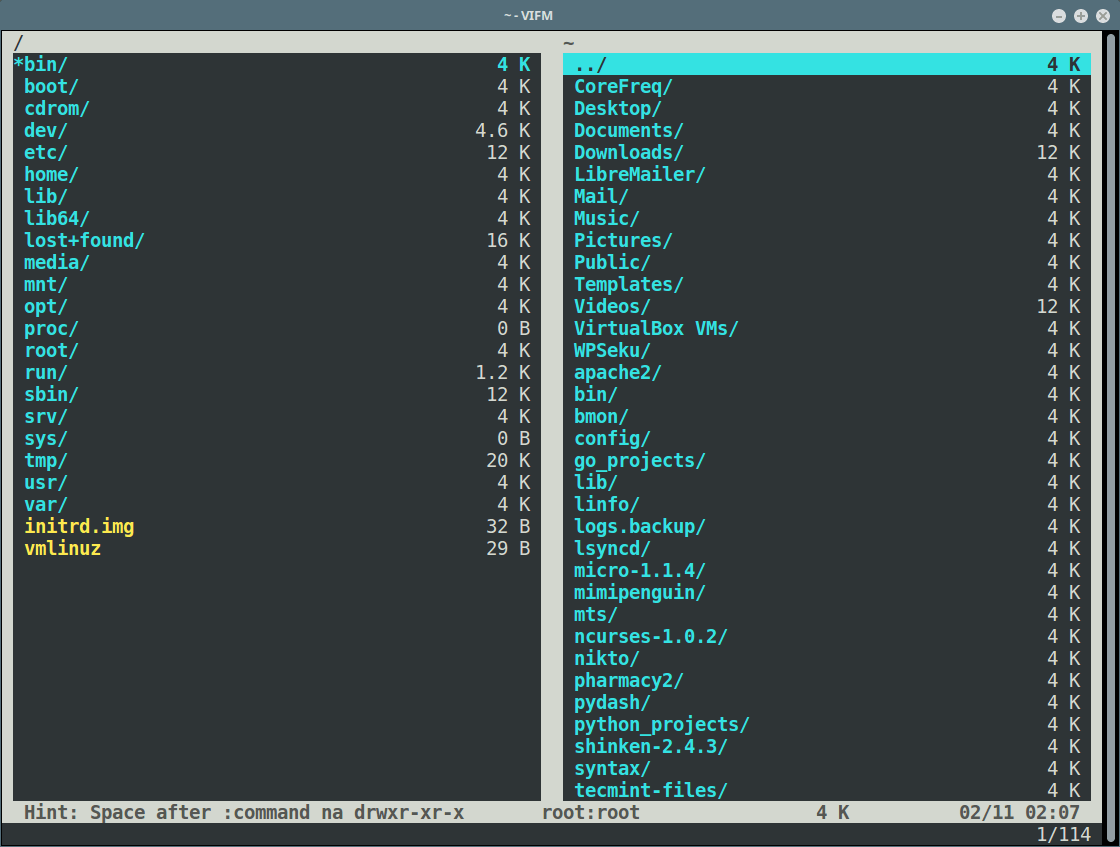
- Comes with two panes by default.
- Supports Vi modes, options, registers, commands and so much more.
- Supports auto-completion of commands.
- Support for trash directory.
- Offers various views (such as custom, column, compare and ls-like).
- Supports remote execution of commands.
- Also supports remote changing of directories.
- Supports various color schemes.
- Built-in support of automated FUSE file system mounts.
- Supports use of functions.
- Supports plugin for using vifm in vim as a file selector and so much more.
Suggested Read: Cloud Commander – Web File Manager to Control Linux File/Programs via Browser
How to Install Vifm Command-line File Manager in Linux
Vifm is available in the official software repositories of Debian/Ubuntu and Fedora Linux distributions. To install it, use the respective package manager to install it like this.
$ sudo apt install vifm   [On Debian/Ubuntu]
$ dnf install vifm        [On Fedora 22+]
Once installed, you can start it by typing.
$ vifm
Supports Two Panes By Default
Use the space bar to shift from one pane to the other. To enter a directory, simply hit the [Enter] button.
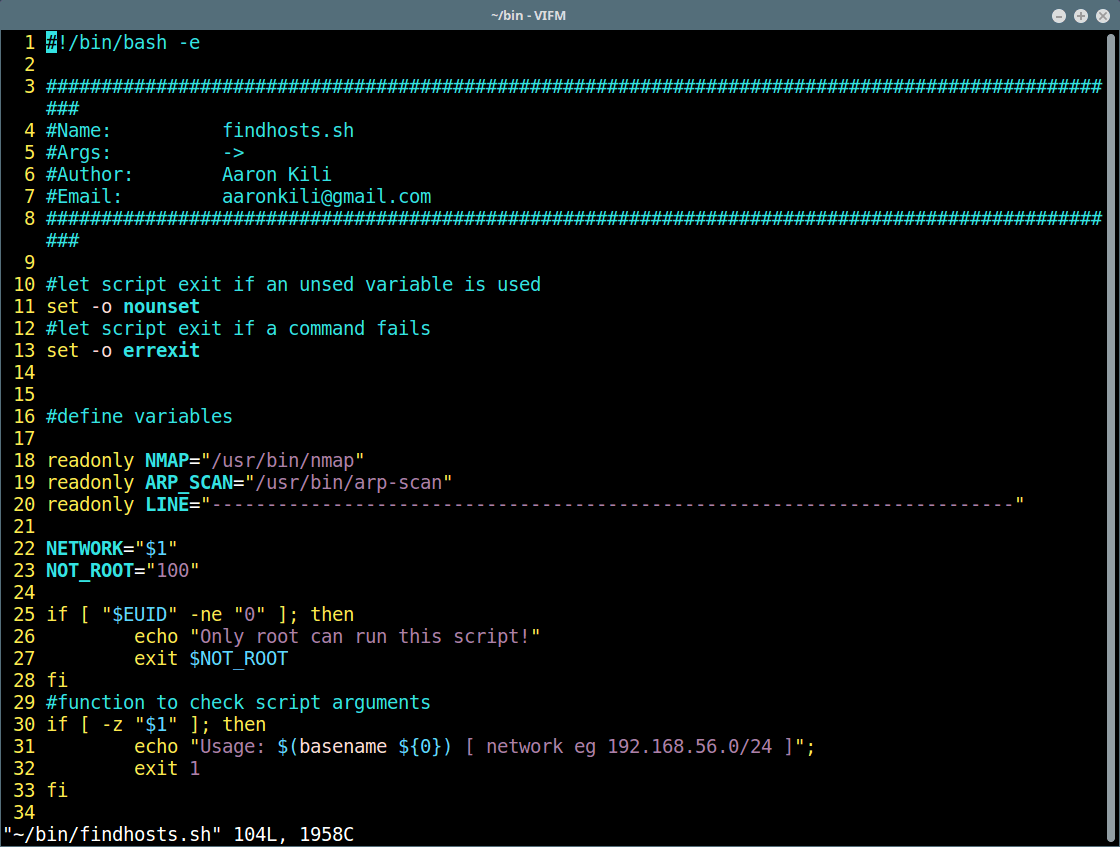
Open A File in Vi/m Editor
To open a file such as the findhost.sh script in the right pane above, just highlight the file and press [Enter]:
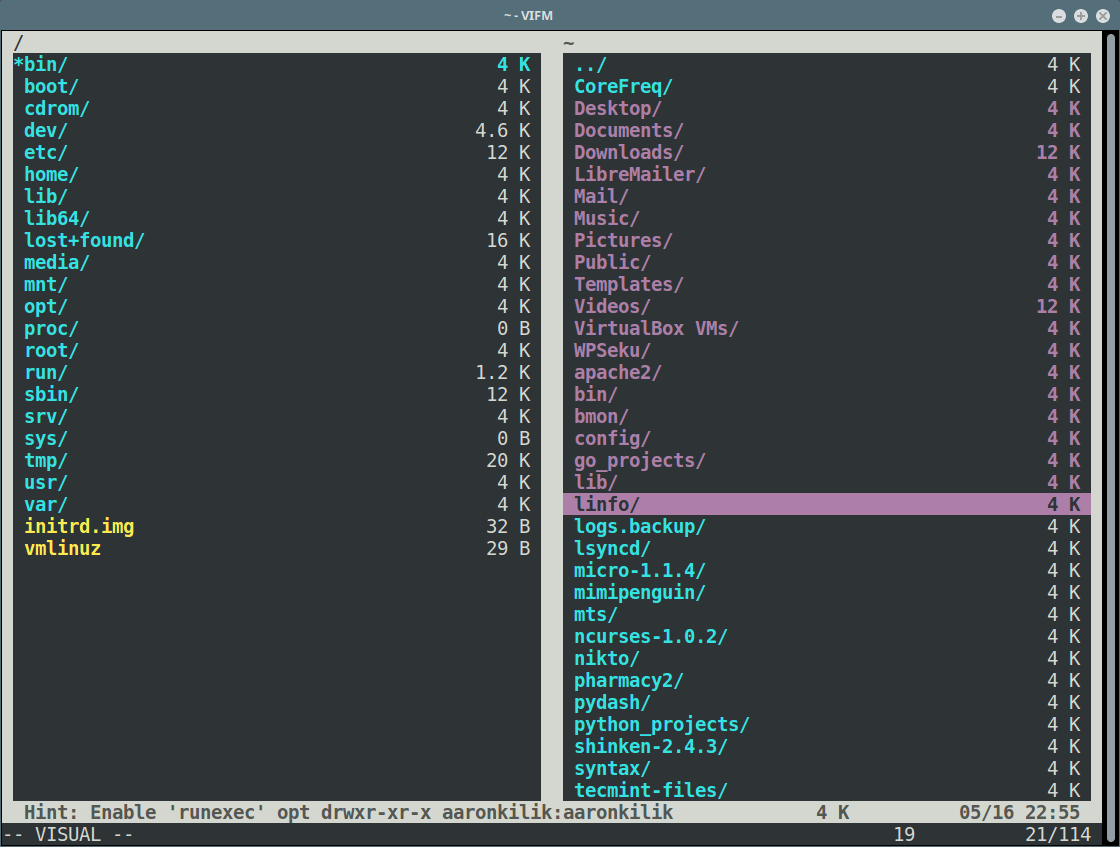
Colored Visual Highlighter
To enable the visual highlighter, press V and scroll to see how it works.
Main Pane Manipulation Options
To view pane manipulation options/keybindings, press Ctrl-W.
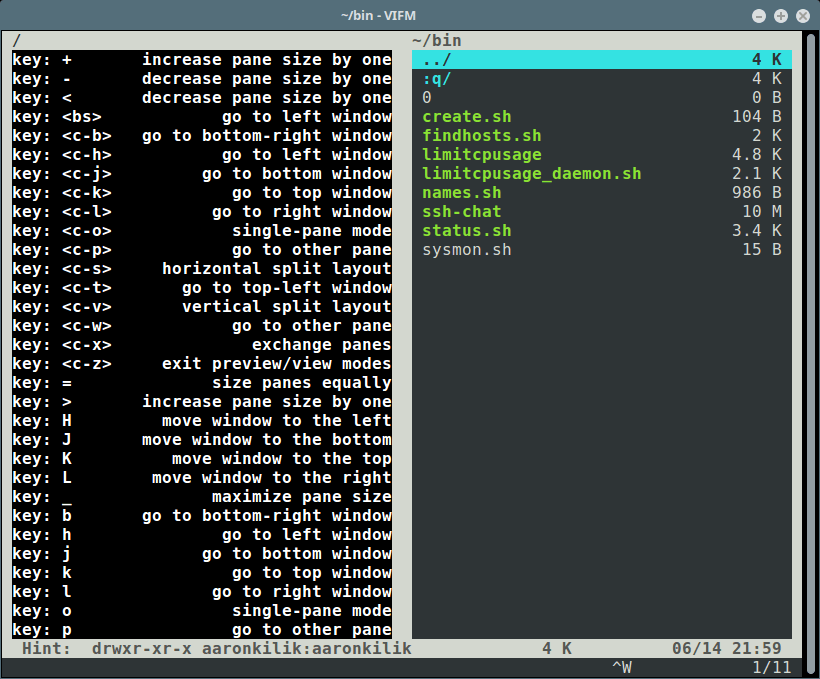
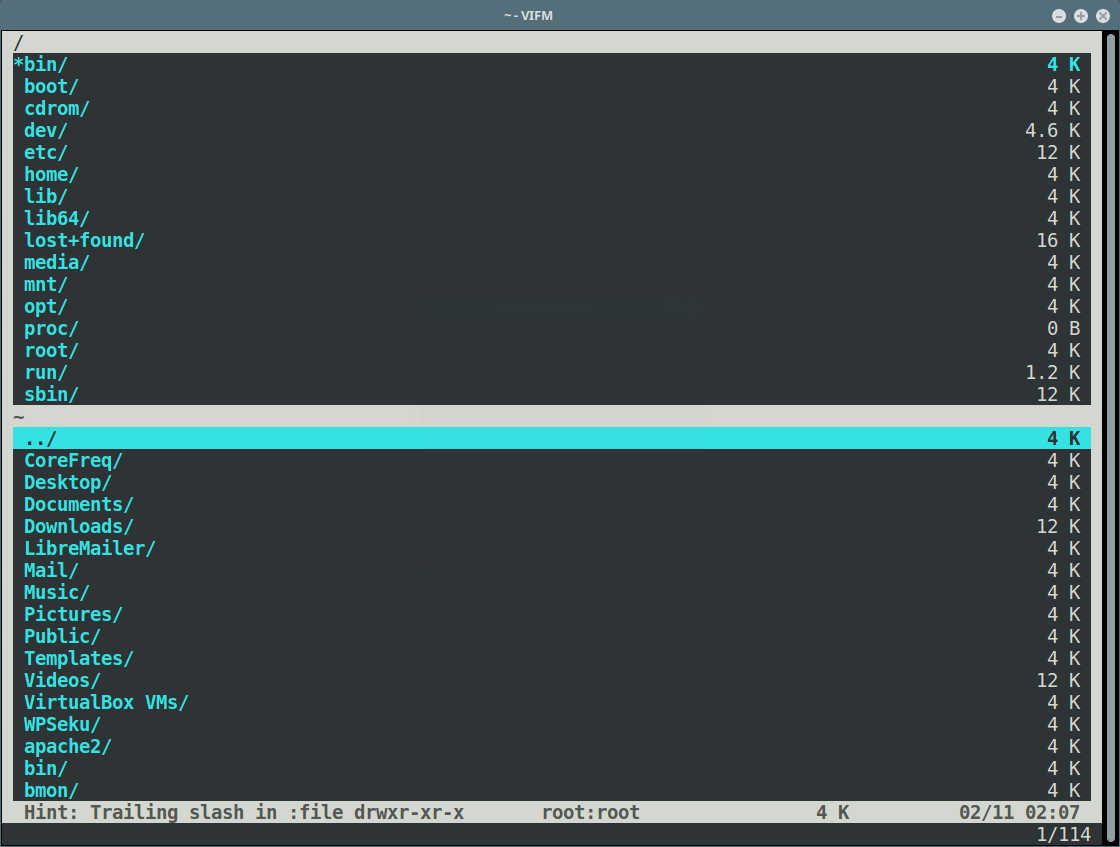
To split the window horizontally press Ctrl-W then s.
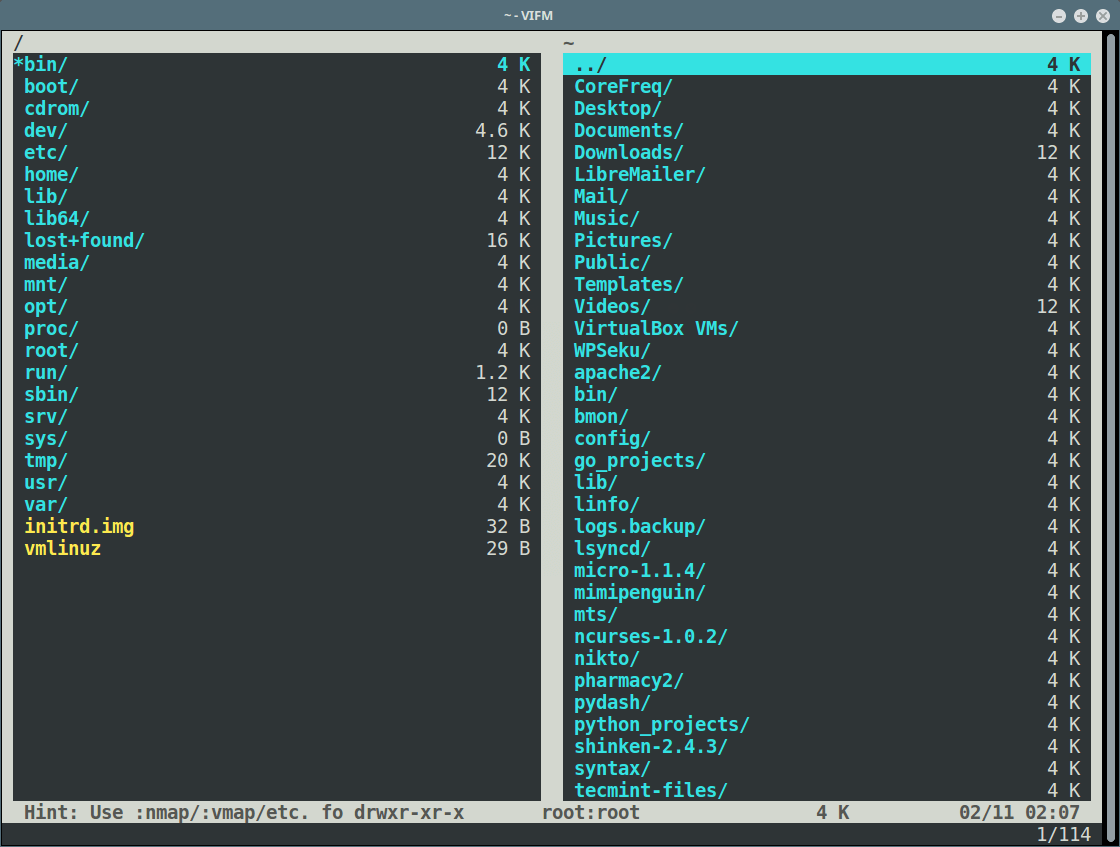
To split the window vertically press Ctrl-W then v.
Use Tab To Auto-Complete Commands
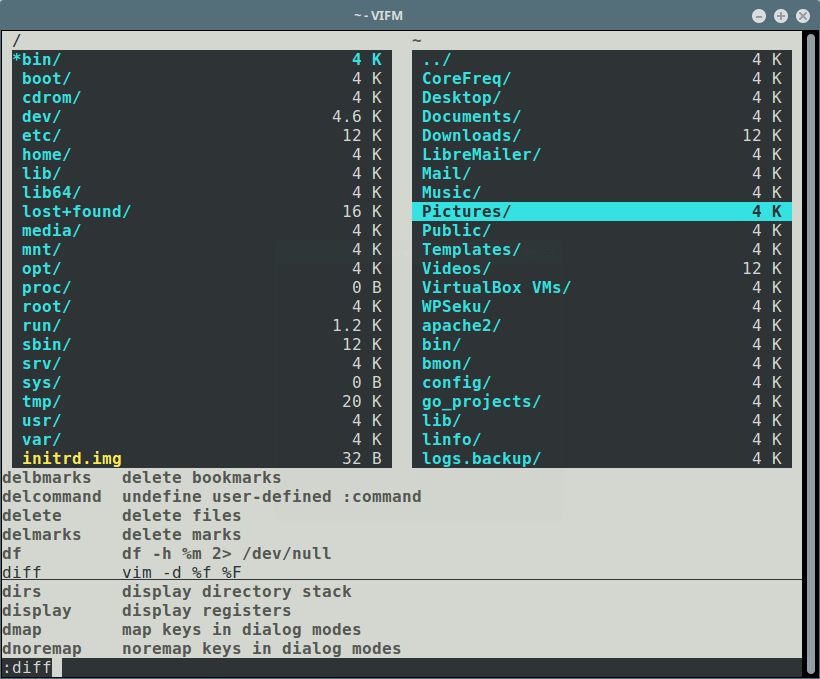
First type a few letters in the command name (possibly two), then press Tab. To select the next option, press Tab again then hit [Enter].
Highlight Files in One Pane and View It On Another
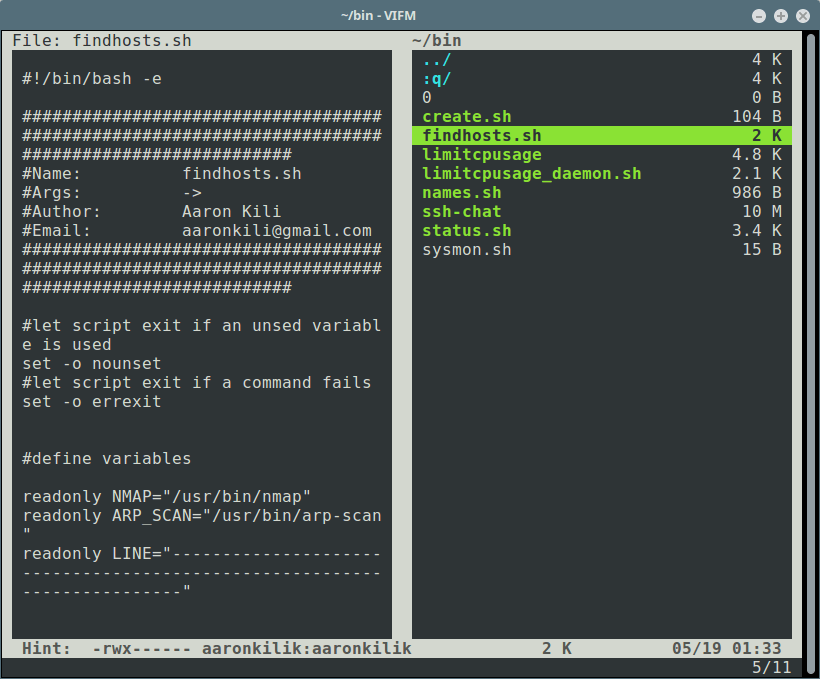
You can list files in one pane and view content in another as you scroll over files, simply run the view command like this.
:view
Delete A File in Vifm
You can delete a highlighted file by pressing dd. To delete it, press Y or N otherwise.
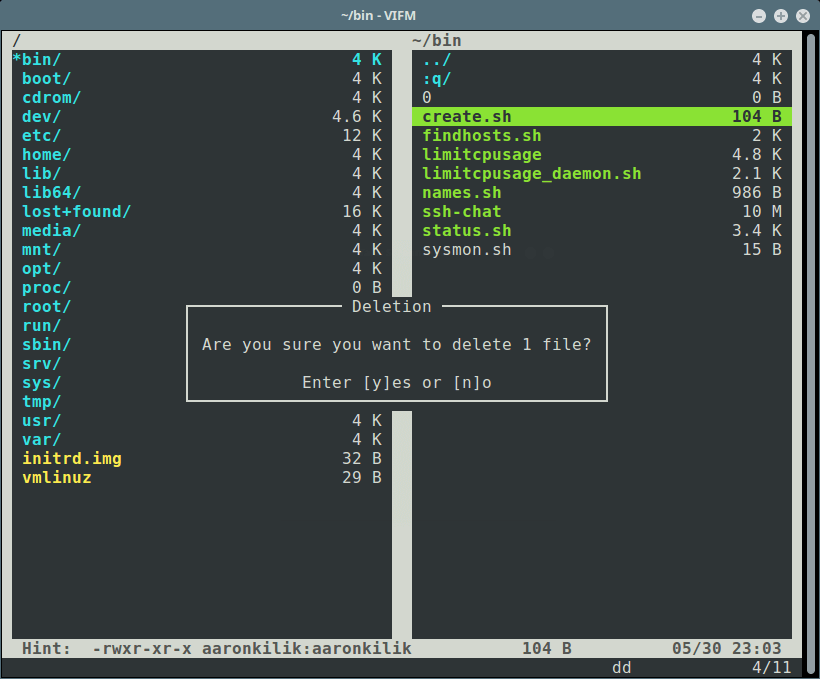
Vifm Command Line Trash
If you delete a file in Vifm, it is stored in the trash. To view the trash directory, type this command.
:trashes
To view files in trash, run the lstrash command (press q to return).
:lstrash
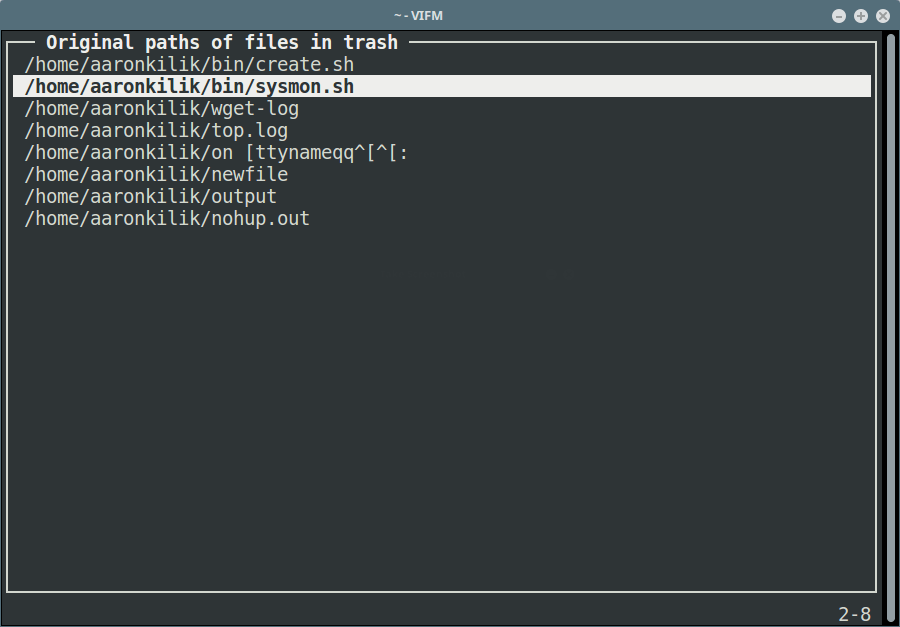
To restore files from the trash directory, first move into it by using the cd command like this.
:cd /home/aaronkilik/.local/share/vifm/Trash
Then select the file to restore, and type:
:restore
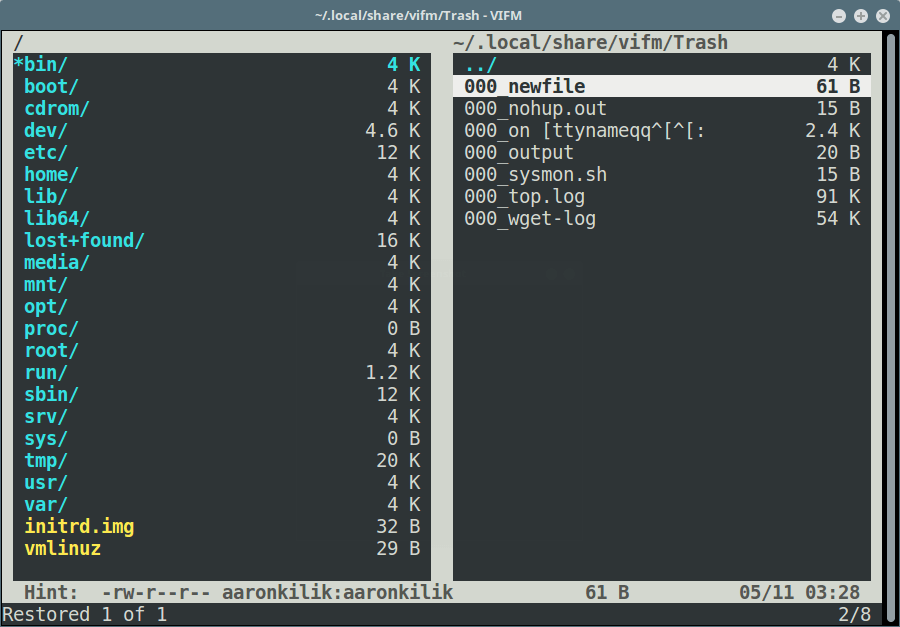
For a comprehensive usage information and options, commands, tips check out the Vifm man page:
$ man vifm
Vifm Homepage: https://vifm.info/
Do check out following articles.
- GNOME Commander: A ‘Two pane’ Graphical File Browser and Manager for Linux
- Peazip – A Portable File Manager and Archive Tool for Linux
In this article, we covered installation and basic features of Vifm a powerful CLI based file manager for Linux systems. Use the feedback form below to share your thoughts about it.
