

Polo is a modern, light-weight and advanced file manager for Linux, that comes with a number of advanced features that are not present in many commonly used file managers or file browsers on Linux distributions.
It comes with multiple panes with multiple tabs in each pane, support for archive creation, extraction and browsing, support for cloud storage, support for running KVM images, support for modifying PDF documents and image files, support for writing ISO files to UDB drives and much more.
Features
- Multiple Panes – Supports three layouts: single-pane, dual-pane and quad-pane with tabs in each pane with an embedded terminal which can be changed with the F4 key.
- Multiple Views – Support for multiple views: List view, Icon view, Tiled view, and Media view.
- Device Manager – shows a list of connected devices with mount and unmount options with support for locking/unlocking LUKS encrypted devices.
- Archive Support – Support for the creation of multiple archives formats with advanced compression settings.
- PDF Actions – Split and Merge PDF pages, Add or Remove Password, Rotate, etc.
- ISO Actions – Mount, Boot in Virtual Machine, Write to the USB drive.
- Image Actions – Rotate, Resize, Reduce Quality, Optimize PNG, Convert to other formats, Boot or Reduce Colors, etc.
- Checksum & Hashing – Generate MD5, SHA1, SHA2-256 ad SHA2-512 checksums for file and folders, and verify.
- Video Downloads – Allows video downloads in a folder and can be integrated with the youtube-dl downloader.
How to Install Polo File Manager in Linux
On Ubuntu and Ubuntu-based distributions such as Linux Mint, Elementary OS, etc, you can install the polo packages from the Launchpad PPA as follows.
$ sudo apt-add-repository -y ppa:teejee2008/ppa
$ sudo apt-get update
$ sudo apt-get install polo-file-manager
On other Linux distributions such as Debian, RHEL, CentOS, Fedora and Arch Linux, you can download the installer file and execute it in a terminal window as shown.
$ sudo sh ./polo*amd64.run   [On 64-bit]
$ sudo sh ./polo*i386.run    [On 32-bit]
Once you have successfully installed Polo, search for it in the system menu or dash and open it.
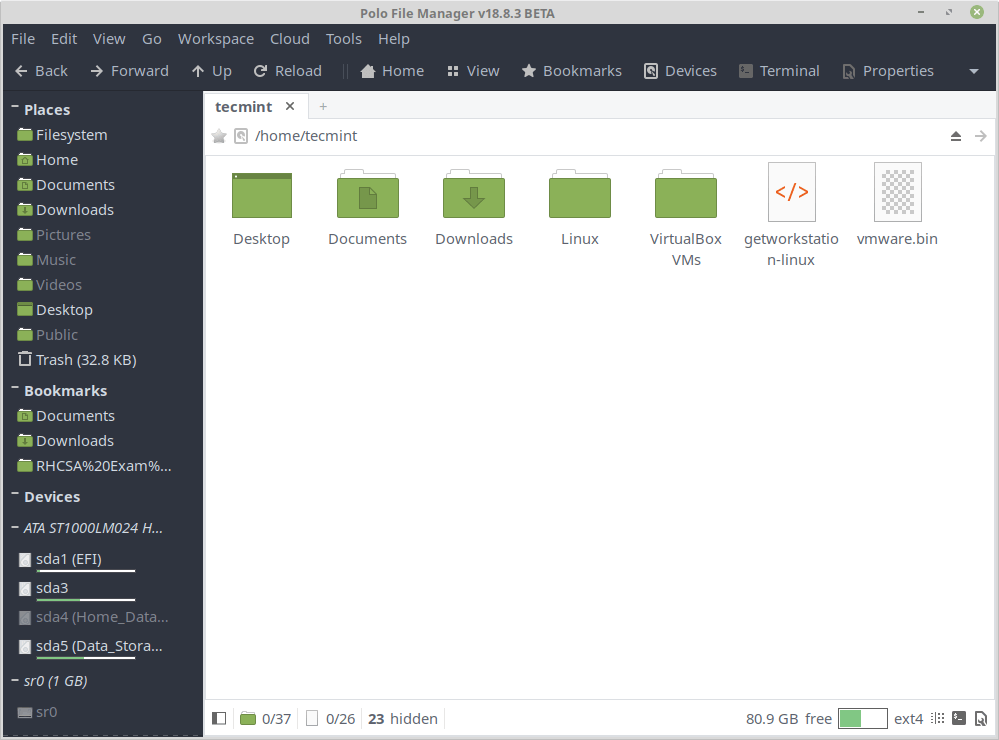
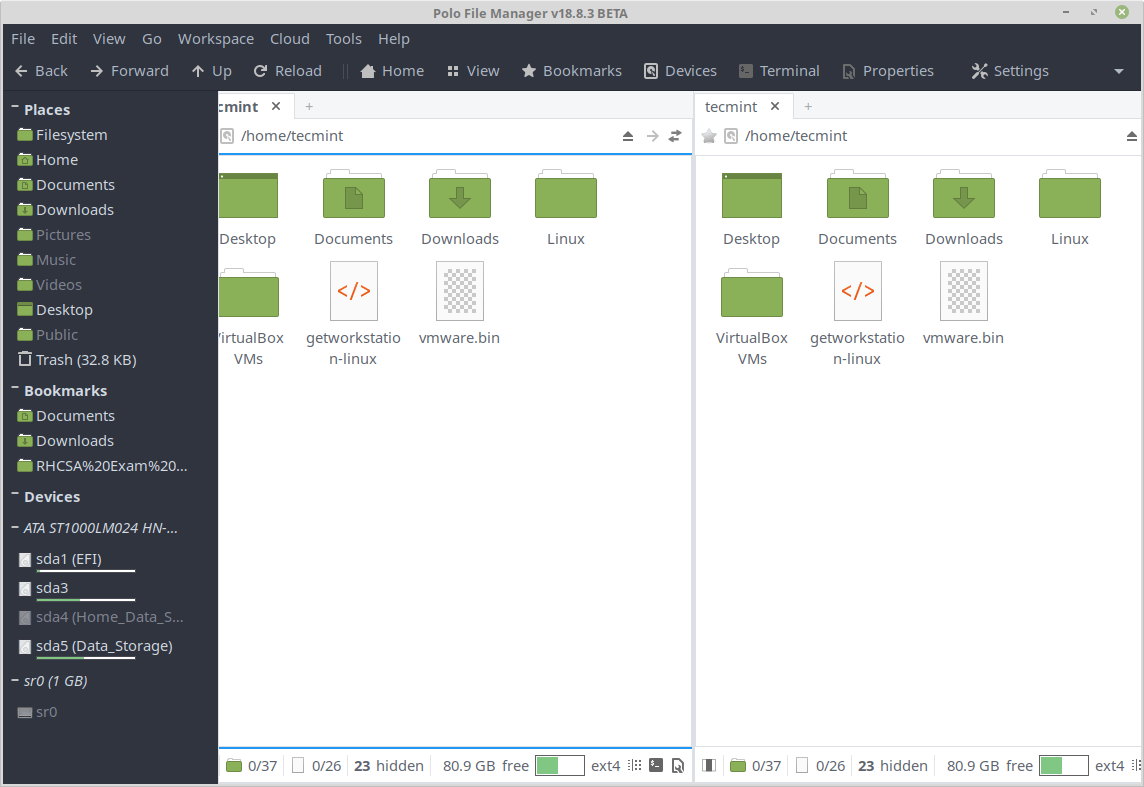
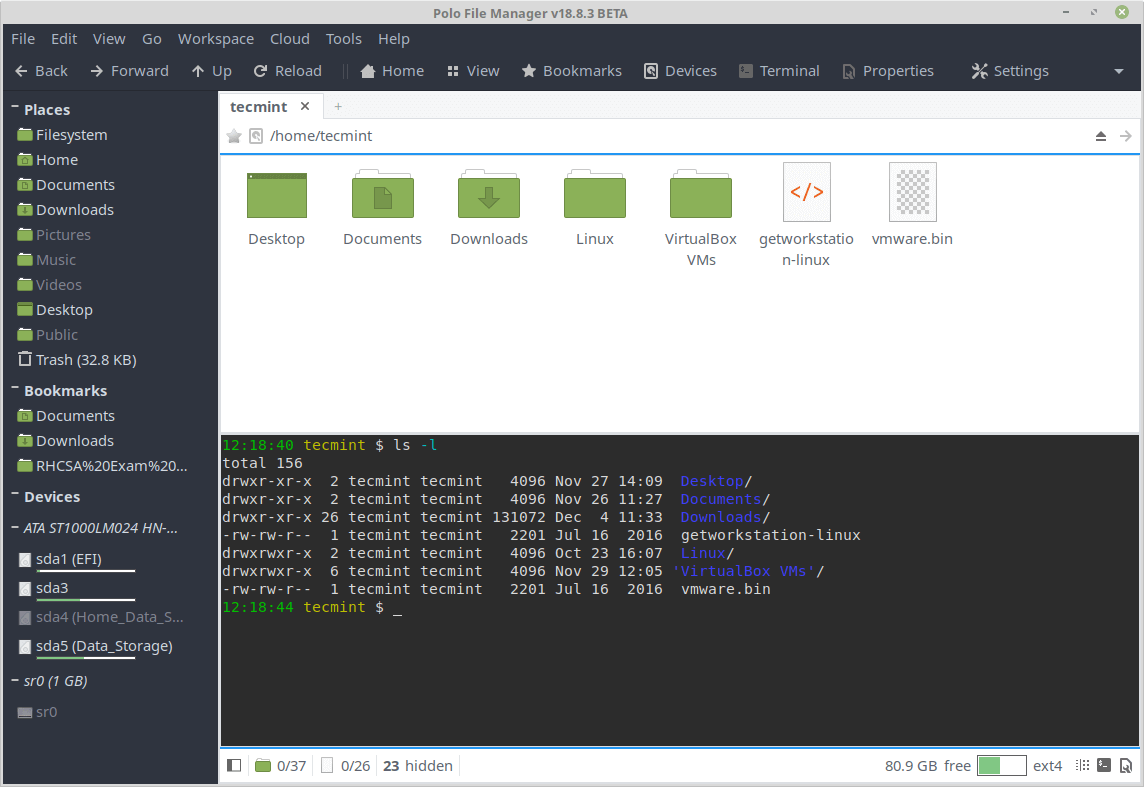
To open a terminal panel, click on Terminal.
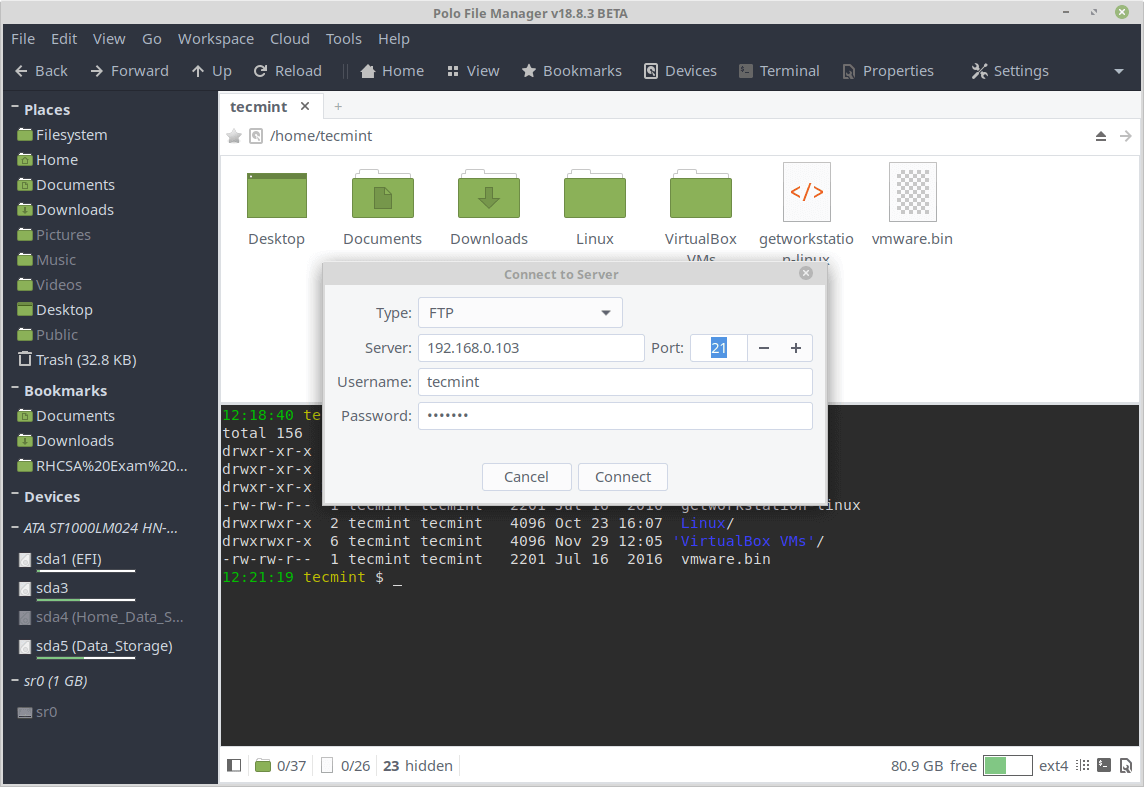
To connect to a remote Linux server, go to File then click on Connect to Server and enter the appropriate connection parameters and click Connect.
In addition, you can also add a cloud storage account by going to Cloud then Add Account. Note that cloud storage support requires the rclone package.
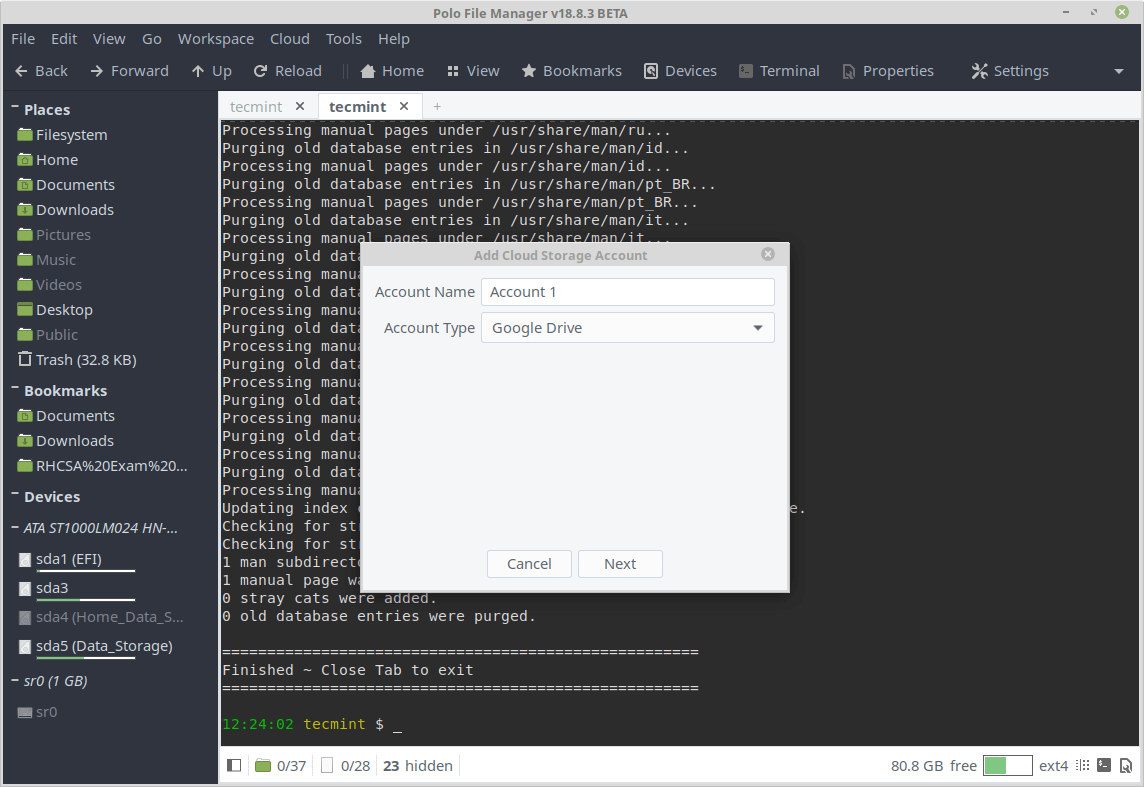
Polo is a modern, light-weight and feature-packed file manager for Linux. In this article, we showed how to install and briefly use Polo in Linux. Use the feedback form below to share your thoughts or ask questions about this advanced and exciting file manager.

I have paid this app in 2018, and no updates since. I discovered that there will not, the ‘developer’ will pursue with a new ‘paid’ app… I would not trust teejee anymore, save your money
There is no polo on repo you link to
https://launchpad.net/~teejee2008/+archive/ubuntu/ppa.This file manager is deprecated so no reason to be making an article about it since it will not receive any updates.
@Michael,
How did you know that this file manager is deprecated? I see clearly that the last update was made on 12 Aug 2018, see the release page: https://github.com/teejee2008/polo/releases
Ravi, please see the latest comments on
https://github.com/teejee2008/polo/issues/27#issuecomment-552287567.@Steven,
That’s sad to know that the project development stopped due to financial reasons.
@Ravi, I see the developer marked this project as archived due to financial issues.
https://github.com/teejee2008/polo/issues/27#issuecomment-552177916
It is sad, and also understandable :(.
@Buvanesh,
Thanks for the update.
I’m afraid that Michael may be right, for the project seems to be closed.
It says that it’s read only!…..
The repository has been archived by the owner and it is read-only.
See issues.