

In this article, we will explain two, simple command line tips that enable you to only list all today’s files.
One of the common problems Linux users encounter on the command line is locating files with a particular name, it can be much easier when you actually know the filename.
However, assuming that you have forgotten the name of a file that you created (in your home folder which contains hundreds of files) at an earlier time during the day and yet you need to use urgently.
Below are different ways of only listing all files that you created or modified (directly or indirectly) today.
1. Using the ls command, you can only list today’s files in your home folder as follows, where:
-a– list all files including hidden files-l– enables long listing format--time-style=FORMAT– shows time in the specified FORMAT+%D– show/use date in %m/%d/%y format
# ls -al --time-style=+%D | grep 'date +%D'
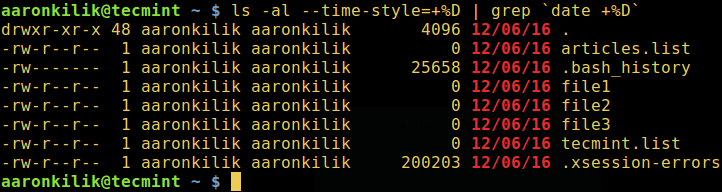
In addition, you can sort the resultant list alphabetically by including the -X flag:
# ls -alX --time-style=+%D | grep 'date +%D'
You can also list based on size (largest first) using the -S flag:
# ls -alS --time-style=+%D | grep 'date +%D'
2. Again, it is possible to use the find command which is practically more flexible and offers plenty of options than ls, for the same purpose as below.
-maxdepthlevel is used to specify the level (in terms of sub-directories) below the starting point (current directory in this case) to which the search operation will be carried out.-newerXY, this works if timestamp X of the file in question is newer than timestamp Y of the file reference. X and Y represent any of the letters below:- a – access time of the file reference
- B – birth time of the file reference
- c – inode status change time of reference
- m – modification time of the file reference
- t – reference is interpreted directly as a time
This means that, only files modified on 2016-12-06 will be considered:
# find . -maxdepth 1 -newermt "2016-12-06"
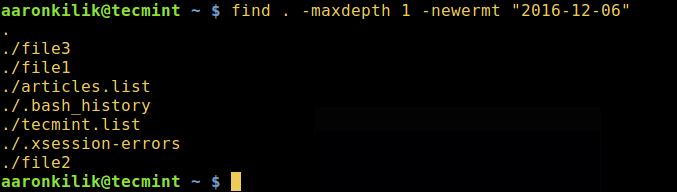
Important: Use the correct date format as reference in the find command above, once you use a wrong format, you will get an error as the one below:
# find . -maxdepth 1 -newermt "12-06-2016"

find: I cannot figure out how to interpret '12-06-2016' as a date or time
Alternatively, use the correct formats below:
# find . -maxdepth 1 -newermt "12/06/2016"
OR
# find . -maxdepth 1 -newermt "12/06/16"
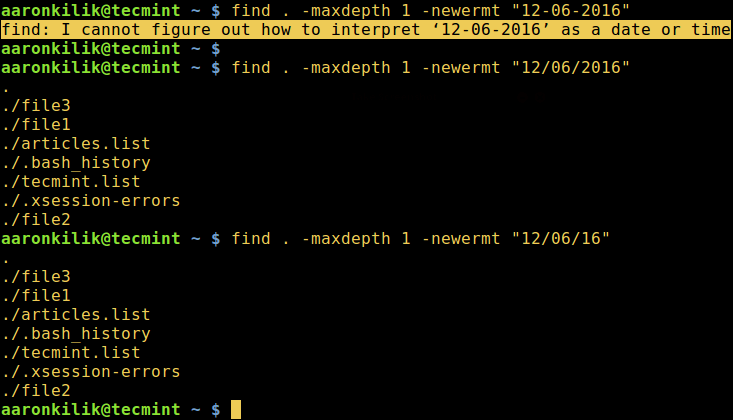
You can get more usage information for ls and find commands in our following series of articles on same.
- Master Linux ‘ls’ Command with This 15 Examples
- Useful 7 Quirky ‘ls’ Tricks for Linux Users
- Master Linux ‘find’ Command with This 35 Examples
- Ways to Find Multiple Filenames with Extensions in Linux
In this article, we explained two important tips of how to list only today’s files with the help of ls and find commands. Make use of the feedback form below to send us any question(s) or comments about the topic. You can as well inform us of any commands used for the same goal.

I would like to know a command that lists all files modified in the last 24 hours without using the find command.
@Sebastian,
If you want to list all files modified in the last 24 hours without using the find command, you can use a combination of ls, stat, and awk.
ls -lR --time-style=+%Y-%m-%dT%H:%M:%S | awk -v now="$(date +%s)" '{if ($6 ~ /^[0-9]{4}-[0-9]{2}-[0-9]{2}T[0-9]{2}:[0-9]{2}:[0-9]{2}$/) {cmd="date -d "$6" +%s"; cmd | getline filetime; if ((now - filetime) <= 86400) print $NF}}'
Does the check
/etcdirectory have any new files created (compared to the last run)? If yes, display the file information and if it is a text file, display the first 10 lines of the fileI just need a GUI click that shows me download files starting most recently. Only need to do it once in a while. Thanks for all those that have given me complex command line info but I only need to do it once in a while and a click should do it.
Hi,
Could anyone please help me?
I want to track editing made in the last some days into my systems’ network interface file (ens192).
Thanks and Regards,
Shozib Javed
And how to know what changes are done in that file on that day?
Hi,
I want to list out the file’s dependence on the size of the file, i.e max size.
@harish
You can run this command:
How can we find out all files in
/etcdirectory that have been modified since last 7 days through the above method.@Vinod,
To find all files under
/etcthat have been modified in the last 7 days, list them newest first.I need to list down latest 5 files out of 1000 files, how?
@dermecure
You can use the head utility for example:
$ls -al –time-style=+%D | grep ‘date +%D’ | head -n 5
I ran some samples using: ls -al –time-style=+%D | grep ‘date +%D’
but didn’t work for me.
find seems to work a little better. see below
[[email protected] home]$ find . -maxdepth 1 -newermt “2016-12-06”
.
./DOMAIN
./python.py
[[email protected] home]$ find . -maxdepth 1 -newermt “2016-12-07”
.
./python.py
@Jordi
Both methods should work just fine, try to check the first command ls -al – – time-style=+%D | grep ‘date +%D’ and ensure that the spacing between the individual characters options is correct.
However, you can always choose the method that works for you and above all, many thanks for the feedback.
Hi Jordi, you have to use the grave accent ( ` ) like this: grep `date +%D`
Saludos from Nerja (Spain)
Romu.
@ROMSTAT
That is correct, the problem could be the grave accent ( ` ) sign in the grep command. Thanks for the suggestion.