
12 ss Command Examples to Monitor Network Connections

ss command is a tool that is used for displaying network socket related information on a Linux system. The tool displays more detailed information that the netstat command which is used for displaying active socket connections.

In this guide, we delve in and see how the ss command can be used to display varied socket connection information in Linux.

1. Listing all Connections

The basic ss command without any options simply lists all the connections regardless of the state they are in.

$ ss
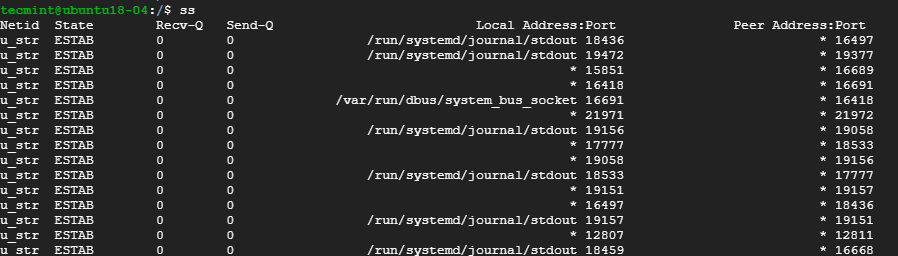
List All Connections in Linux

2. Listing Listening and Non-listening Ports

You can retrieve a list of both listening and non-listening ports using the -a option as shown below.

$ ss -a
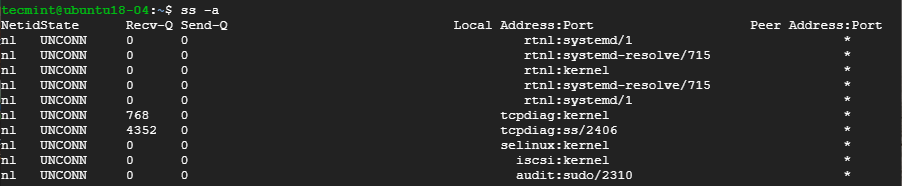
List All Ports in Linux

3. Listing Listening Sockets

To display listening sockets only, use the -l flag as shown.

$ ss -l

List Listening Sockets in Linux

4. List all TCP Connections

To display all TCP connection, use the -t option as shown.

$ ss -t

List TCP Connections in Linux

5. List all Listening TCP Connections

To have a view of all the listening TCP socket connection use the -lt combination as shown.

$ ss -lt

List Listening TCP Connections in Linux

6. List all UDP Connections

To view all the UDP socket connections use the -ua option as shown.

$ ss -ua

List UDP Socket Connections in Linux

7. List all Listening UDP Connections

To list listening UDP connections use the -lu option.

$ ss -lu

List Listening UDP Connections in Linux

8. Display PID (Process IDs) of Sockets

To display the Process IDs related to socket connections, use the -p flag as shown.

$ ss -p

Find Process ID of Sockets in Linux

9. Display Summary Statistics

To list the summary statistics, use the -s option.

$ ss -s
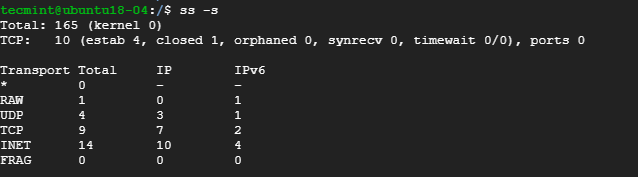
Find Summary Statistics

10. Display IPv4 and IPv6 Socket Connections

If you are curious about the IPv4 socket connections use the -4 option.

$ ss -4

Find IPv4 Socket Connections in Linux

To display IPv6 connections, use the -6 option.

$ ss -6

Find IPv6 Socket Connections in Linux

11. Filter Connections by Port Number

ss command also lets you filter socket port number or address number. For example, to display all socket connections with a destination or source port of ssh run the command.

$ ss -at '( dport = :22 or sport = :22 )'

Filter Connections by Port Number

Alternatively, you can run the command.

$ ss -at '( dport = :ssh or sport = :ssh )'

Filter Connections by Service

12. Check Man Pages for ss Command

To get more insights into the ss command usage, check the man pages using the command.

$ man ss
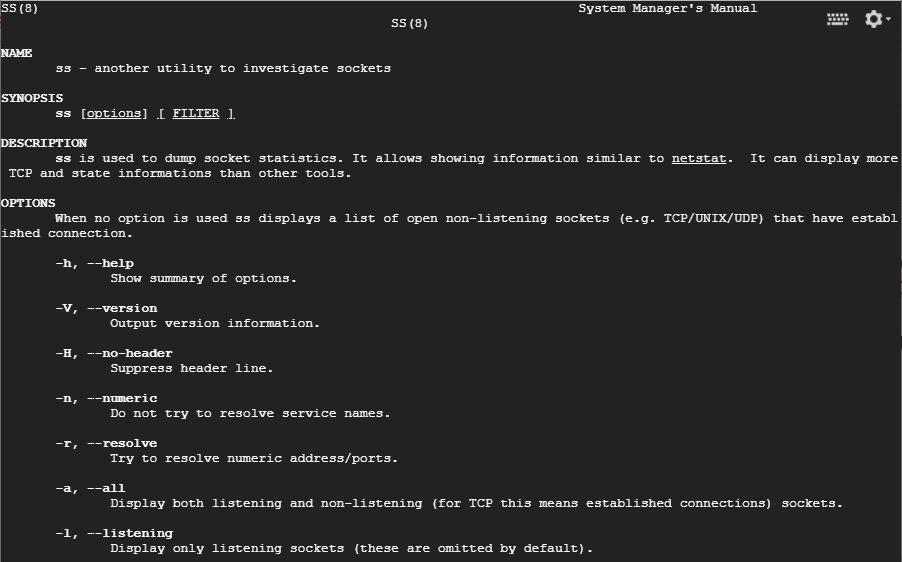
Find ss Command Usage and Options

Those are some of the commonly used options that are used with ss command. The command is considered more superior to netstat command and provide detailed information about network connections.

If this article helped, with someone on your team.

TecMint Weekly Newsletter
Get the Learn Linux 7 Days Crash Course free when you join 34,000+ Linux professionals reading every Thursday.
Check your email for a magic link to get started.
Something went wrong. Please try again.
TecMint has been free for 14 years. Help keep it that way.
Google AI Overviews and tools like ChatGPT have cut into search traffic for independent tech sites like TecMint. Running this site costs over $2,000 every month for hosting, infrastructure, and paying authors to keep the content accurate and tested.

If this article helped you solve a problem, consider buying a coffee. It helps keep TecMint free, supports the authors, and keeps the project going.
☕ Buy Me a Coffee
James Kiarie
This is James, a certified Linux administrator and a tech enthusiast who loves keeping in touch with emerging trends in the tech world. When I'm not running commands on the terminal, I'm taking listening to some cool music. taking a casual stroll or watching a nice movie.

Each tutorial at TecMint is created by a team of experienced Linux system administrators so that it meets our high-quality standards.

Got Something to Say? Join the Discussion...

Thank you for taking the time to share your thoughts with us. We appreciate your decision to leave a comment and value your contribution to the discussion. It's important to note that we moderate all comments in accordance with our comment policy to ensure a respectful and constructive conversation.

Rest assured that your email address will remain private and will not be published or shared with anyone. We prioritize the privacy and security of our users.

Free Course
Get a free Linux course before you go.
Subscribe to TecMint Weekly and get the Learn Linux 7 Days Crash Course free. Read by 34,000+ Linux professionals every Thursday.
Something went wrong. Please try again.
Check your email for a magic link to get started.