

In Unix-like operating systems, a man page (in full manual page) is a documentation for a terminal-based program/tool/utility (commonly known as a command). It contains the name of the command, syntax for using it, a description, options available, author, copyright, related commands etc.
You can read the manual page for a Linux command as follows; this will display the man page for the df command:
$ man df
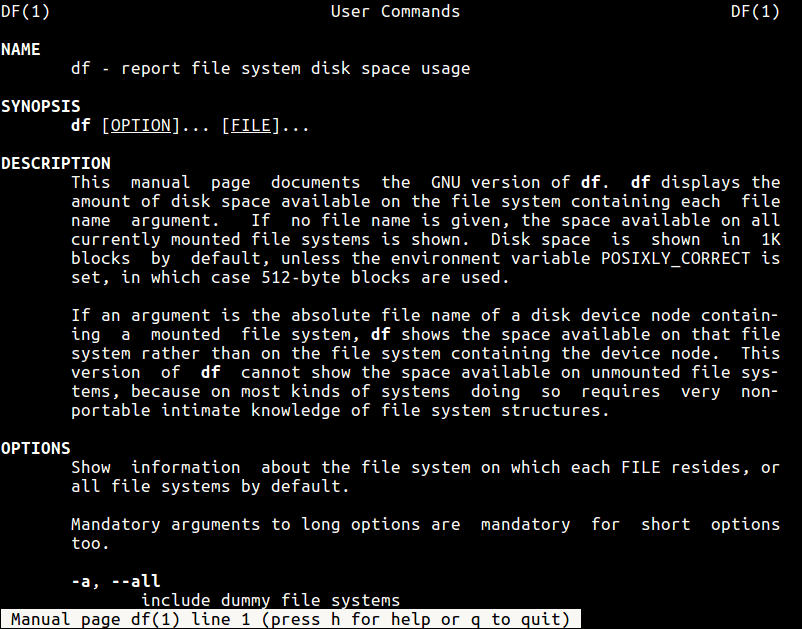
By default, the man program normally uses a terminal pager program such as more or less to format its output, and the default view is normally in white color for every kind of text (bold, underlined etc..).
You can make some tweaks to your ~/.bashrc file to get nicely colored man pages by specifying a color scheme using various LESS_TERMCAP variables.
$ vi ~/.bashrc
Add following color scheme variables.
export LESS_TERMCAP_mb=$'\e[1;32m'
export LESS_TERMCAP_md=$'\e[1;32m'
export LESS_TERMCAP_me=$'\e[0m'
export LESS_TERMCAP_se=$'\e[0m'
export LESS_TERMCAP_so=$'\e[01;33m'
export LESS_TERMCAP_ue=$'\e[0m'
export LESS_TERMCAP_us=$'\e[1;4;31m'
Following are the color codes that we used in the above configuration.
- 31 – red
- 32 – green
- 33 – yellow
And here are the meanings of the escape codes used in the above configuration.
- 0 – reset/normal
- 1 – bold
- 4 – underlined
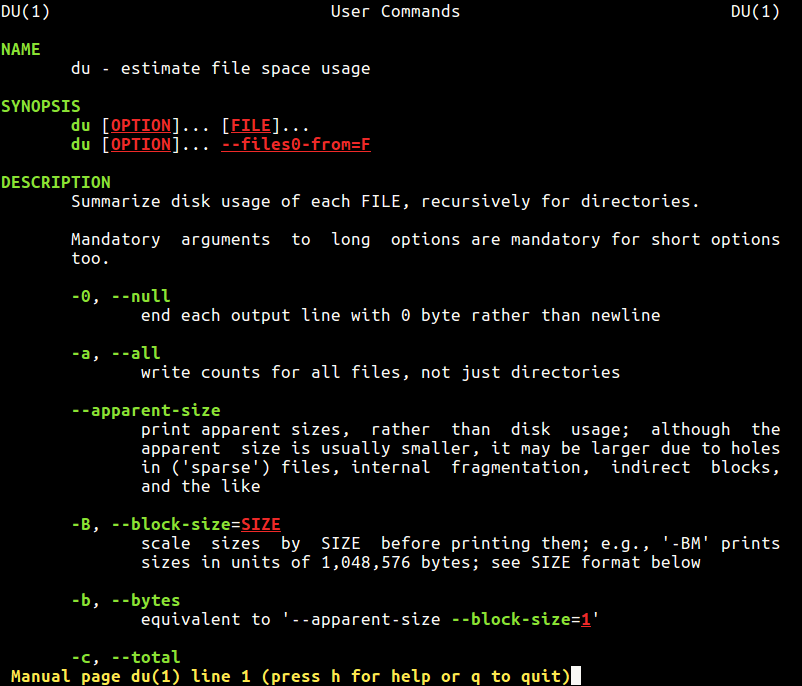
You can additionally reset your terminal by typing reset or even start up another shell. Now when you try to view a man page df command, it should look like this, nicer than the default view.
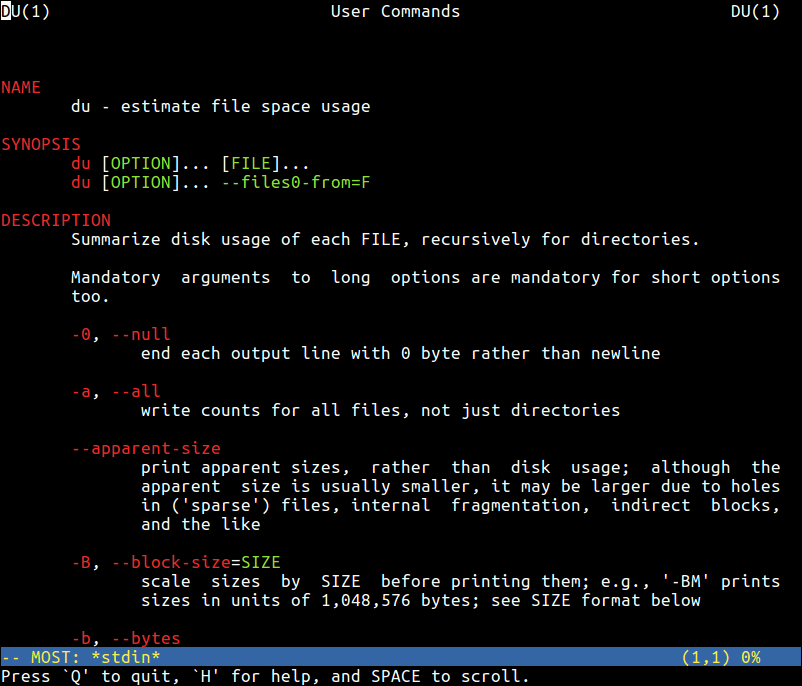
Alternatively, you can use the MOST paging program, which works on Unix-like operating systems and supports multiple windows and can scroll left and right.
$ sudo apt install most		#Debian/Ubuntu
# yum install most		#RHEL/CentOS
# dnf install most		#Fedora 22+
Next, add the line below in your ~/.bashrc file, then source the file like before and possibly reset your terminal.
export PAGER="most"
In this article, we showed you how to display beautifully colored man pages in Linux. To send us any queries or share any useful Linux shell tips/tricks, use the comment section below.

Same as the guy below, on Kubuntu 23.10 the “most” pager doesn’t render colors. Connecting to another machine through ssh and launching a man page from there, with the “most” pager set up actually renders the colors properly.
Same on my android terminal with termux. I cannot locate the source of the issue as there’s nothing wrong with my
.mostrc, my.bashrc, or the /etc/manpath.config.Does anybody know what’s going on?
For some reason this stopped working on my Ubuntu/Kubuntu 23.10.
Really interesting and useful tip. Although I prefer to add these kind of changes in /etc/profile.d instead of editing /.bashrc file.
@Israel
Okay, adding these kind of changes in /etc/profile.d applies for all users on the system – a global configuration(unless you intend the tip to be used in that way), and ~/.bashrc file works only for a specific user(which we intended while preparing this article). Thanks for sharing your thoughts with us.
Typo
In Unix-like operating systems, a man page (in full manual page) is a documentation for a terminal-based program/*too*/utility (commonly known as a command).
I think you mean tool?
@Lujun9972,
Thanks for pointing out typo, I’ve corrected in the article..:)