
xz is a new general-purpose, command line data compression utility, similar to gzip and bzip2. It can be used to compress or decompress a file according to the selected operation mode. It supports various formats to compress or decompress files.
Selecting a compression utility to use will depend mainly on two factors, the compression speed and rate of a given tool. Unlike its counterparts, xz is not commonly used but offers the best compression.
In this article, we will explain a number of xz command examples for compressing and uncompressing files in Linux.
Learn XZ Command Examples in Linux
The simplest example of compressing a file with xz is as follows, using the -z or --compress option.
$ ls -lh ClearOS-DVD-x86_64.iso
$ xz ClearOS-DVD-x86_64.iso
OR
$ xz -z ClearOS-DVD-x86_64.iso
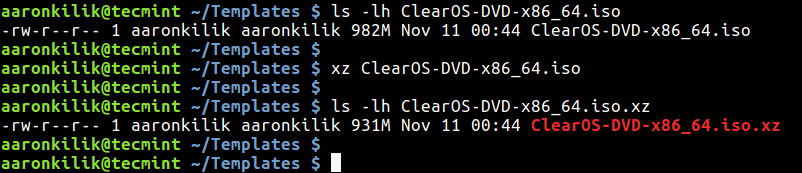
To decompress a file, use the -d option or unxz utility as shown.
$ xz -d ClearOS-DVD-x86_64.iso
OR
$ unxz ClearOS-DVD-x86_64.iso
To prevent deleting of the input file(s), use the -k flag as follows,
$ xz -k ClearOS-DVD-x86_64.iso
If an operation fails, for instance a compressed file with same name exists, you can use the -f option to force the process.
$ xz -kf ClearOS-DVD-x86_64.iso
xz also supports different compression preset levels (0 to 9, with default being 6). You can also use aliases such as --fast (but least compression) for 0 or --best for 9 (slow but highest compression). You can specify a compression level as in the examples below.
$ xz -k -8 ClearOS-DVD-x86_64.iso
$ xz -k --best ClearOS-DVD-x86_64.iso
If you have a small amount of system memory, and want to compress a huge file, you can use the –memory=limit option (where limit can be in MBs or as a percentage of RAM) to set a memory usage limit for compression as follows.
$ xz -k --best --memlimit-compress=10% ClearOS-DVD-x86_64.iso
You can run it in quiet mode using the -q option or enable verbose mode with the -v flag as shown.
$ xz -k -q ClearOS-DVD-x86_64.iso
$ xz -k -qv ClearOS-DVD-x86_64.iso
The following is an example of using tar archiving utility with xz utility.
$ tar -cf - *.txt | xz -7 > txtfiles.tar.xz
OR
$tar -cJf txtfiles.tar.xz *.txt
You can test the integrity of compressed files using the -t option and you can use the -l flag to view information about a compressed file.
$ xz -t txtfiles.tar.xz
$ xz -l txtfiles.tar.xz
For more information, see the man xz page.
xz is a powerful and so far the best compression tool for Linux systems. In this article, we looked at several xz command examples for compressing and uncompressing files. Use the feedback form below to ask questions or share your thoughts about this tool. Also tell us about the compression tool you use.


Hi,
It can be added that xz has a lot of useful options, which we can adjust the compression to the capabilities of the equipment (on which we work) while maintaining the maximum possible efficiency and speed of compression.
For example, you can set the compression level, the amount of maximum RAM consumption, and the number of processor threads that can be used. An example of such a command is below:
where:
-k– compress-8e– compression level-M– RAM usage limit (in GB)-T– number of processor threads usedMore info about the possibilities of optimizing the use of xz in
man xz.Regards
Adam W.