
SSH or Secure Shell daemon is a network protocol that is used to perform remotely secured log ins to Linux systems via a secured channel through unsecured networks using strong cryptography.
One of the most basic utility of SSH protocol is the ability to access Unix shells on remote Linux machines and execute commands. However, SSH protocol can offer other implementations, such as the ability to create secured TCP tunnels over the protocol, to remotely and securely transfer files between machines or to act as a FTP like service.
The standard port used by SSH service is 22/TCP. However, you might want to change SSH default port in your Linux server, in order to achieve some kind of security through obscurity because the standard 22/TCP port is continuously targeted for vulnerabilities by hackers and bots in internet.
To change SSH service default port in Linux, first you need to open the main SSH daemon configuration file for editing with your favorite text editor by issuing the below command and make the following changes.
# vi /etc/ssh/sshd_config
In sshd_config file, search and comment the line that begins with Port 22, by adding a hashtag (#) in front of the line. Below this line, add a new port line and specify your desired port to bind SSH.
In this example, we’ll configure SSH service to bind and listen on port 34627/TCP. Make sure you choose a random port, preferably higher than 1024 (the superior limit of standard well-known ports). The maximum port that can be setup for for SSH is 65535/TCP.
#Port 22
Port 34627
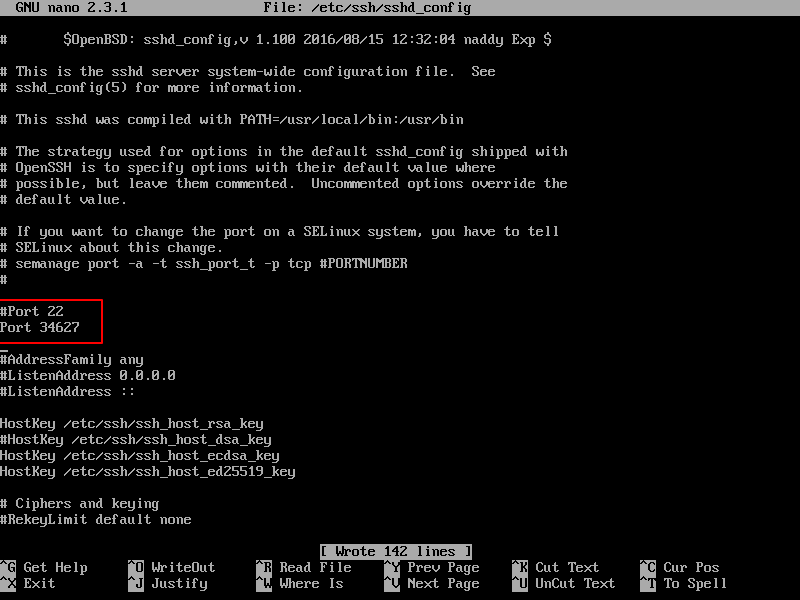
After you’ve made the above changes, restart the SSH daemon to reflect changes and issue netstat or ss command to confirm that SSH service listens on the new TCP port.
# systemctl restart ssh
# netstat -tlpn| grep ssh
# ss -tlpn| grep ssh
In CentOS or RHEL Linux based distributions, install policycoreutils package and add the below rules to relax SELinux policy in order for the SSH daemon to bind on the new port.
# yum install policycoreutils
# semanage port -a -t ssh_port_t -p tcp 34627
# semanage port -m -t ssh_port_t -p tcp 34627
# systemctl restart sshd
# netstat -tlpn| grep ssh
# ss -tlpn| grep ssh
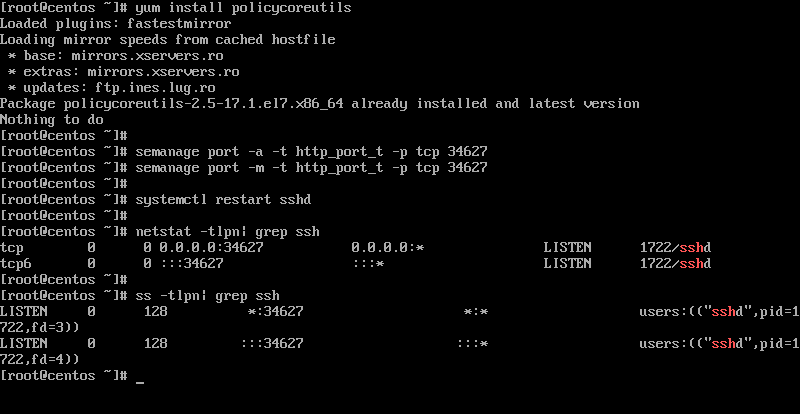
Also, don’t forget to update the firewall rules specific for your own installed Linux distribution in order to allow incoming connections to be established on the new added SSH port.





Did all the steps but now I cannot log in to SSH anymore, on port 22 it says connection refused, and on the port, I defined it says connection timed out. Any help on this? Btw I added it on Plesk firewall as both income and outgoing rules and please visit us:
https://www.ezeelogin.com.Try
ssh -p 34627 user@command.Thanks for the article.
Updated firewall as below for centos7, works smooth.
Each open port can be discovered, but adding an obscurity layer makes it harder for bots, for instance, to discover a service running on a well-known or standard port.
Security through obscurity is not security. A simple nmap -sV will discover your new ssh port on minutes.
I think it would be
Not “http_port_t”