

Nginx is an open source stable server that powers some of the most high traffic websites in internet today. Among web services, Nginx web server can be successfully deployed as an load-balancer, web reverse proxy or as a POP and IMAP proxy server.
By default, Nginx HTTP server listens for incoming connection and binds on port 80, which represents the standard web port. However, the TLS configuration, which is not enabled by default in Nginx, listens for secure connections on port 443.
In order to make Nginx HTTP server to listen for incoming web connections on other non-standard ports, we need to edit the main configuration file and change or add a new statement to reflect this fact.
In Ubuntu and Debian based system, we need to modify the /etc/nginx/sites-enabled/default file and on RHEL and CentOS based distributions edit /etc/nginx/nginx.conf file.
To begin with, open Nginx configuration file with a text editor, and change the port number as shown in the below excerpt.
# vi /etc/nginx/sites-enabled/default  [On Debian/Ubuntu]
# vi /etc/nginx/nginx.conf             [On CentOS/RHEL]
In this excerpt we’ll configure Nginx HTTP server to listen for incoming connections on port 3200. Search for the line that begins with listen statement in server directive and change the port from 80 to 3200, as illustrated in the below image.
listen 3200 default_server;
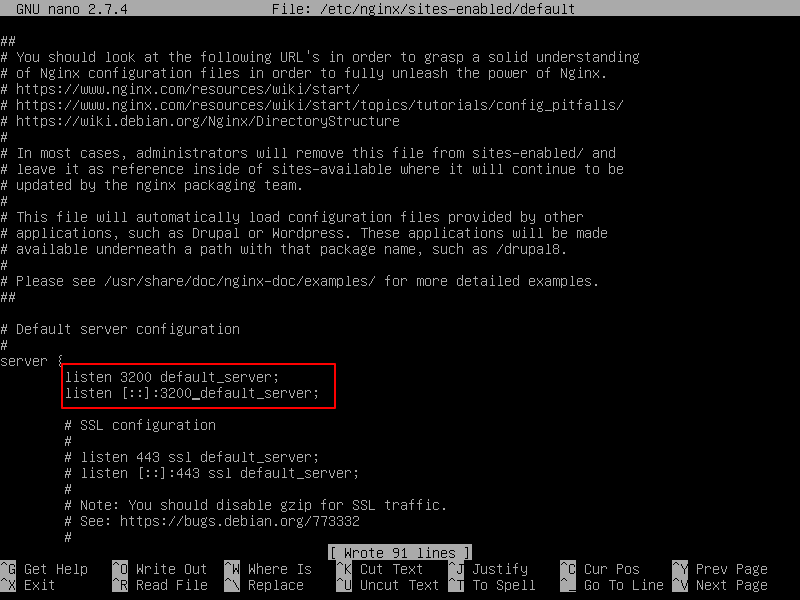
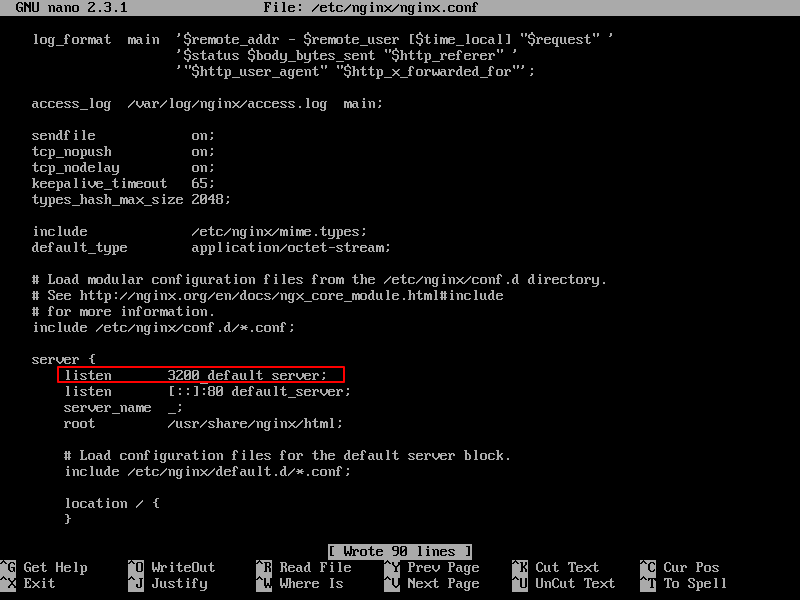
After altering Nginx port statement, you need to restart the web server in order to bind on the new port on Debian based Linux distributions. Verify local network sockets table with netstat or ss command. Port 3200 should be displayed in your server local network table.
# systemctl restart nginx
# netstat -tlpn| grep nginx
# ss -tlpn| grep nginx
In CentOS or RHEL based Linux distribution you need to install policycoreutils package and add the below rules required by SELinux for Nginx to bind on the new port.
# yum install policycoreutils
# semanage port -a -t http_port_t -p tcp 3200
# semanage port -m -t http_port_t -p tcp 3200
Finally restart Nginx HTTP server to apply changes.
# systemctl restart nginx.service
Check network tables listening sockets.
# netstat -tlpn| grep nginx
# ss -tlpn| grep nginx
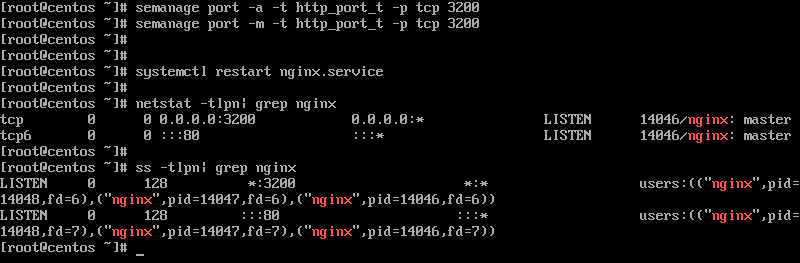
To check if the web server can be accessed form computers in your network, open a browser and navigate to your server IP address or domain name on port 3200. You should see Nginx default web page, as illustrated in the below screenshot.
http://sever.ip:3200
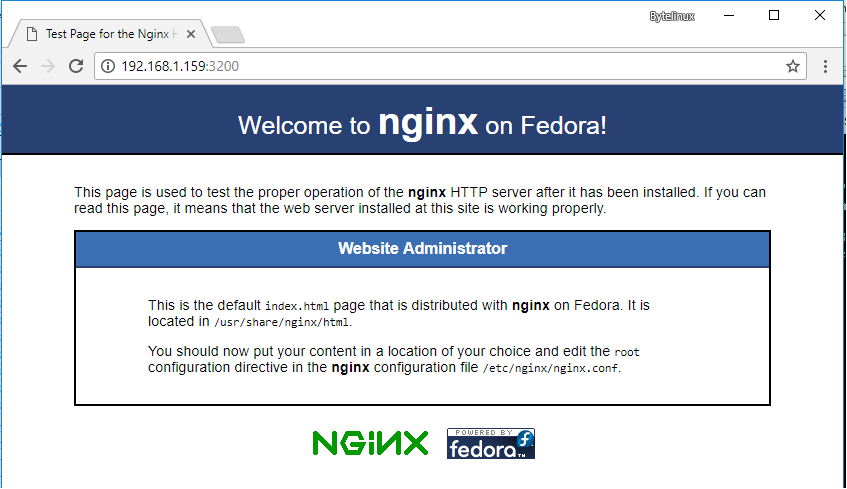
However, if you can’t browse Nginx web page, return to server console and check the firewall rules to allow incoming traffic on port 3200/tcp.

why -m ???
I have followed step by step above, but I stopped stuck on the
system restart nginxnotif error Job for nginx.service failed because the control process exited with error code. See “systemctl status nginx.service” and “journalctl -xe” for details.After I edit/add in nano /etc/nginx/nginx.conf.
Please help me to solve this problem…
thank you
Thank you very much for this document you have prepared.
Lots of Thanks for this article. I was completely blind after getting lots of issues in nginx, but with the help of your tips and tricks of nginx. it is working properly. Thank you……
Don’t forget that on RedHat or CentOS you may need to change the SELinux port context for Nginx to use the new port