Linux, with its powerful command-line interface, provides users with a myriad of tools to monitor and manage processes efficiently.
One essential piece of information for troubleshooting or system optimization is knowing how long a process has been running.
In this article, we’ll explore simple commands that new Linux users can use to check the duration of a running process.
1. ps Command
The ps command is a fundamental tool for viewing information about processes on a Linux system.
To find out how long a process (program or application) has been running, open a terminal and type the following command:
ps -eo pid,comm,etime
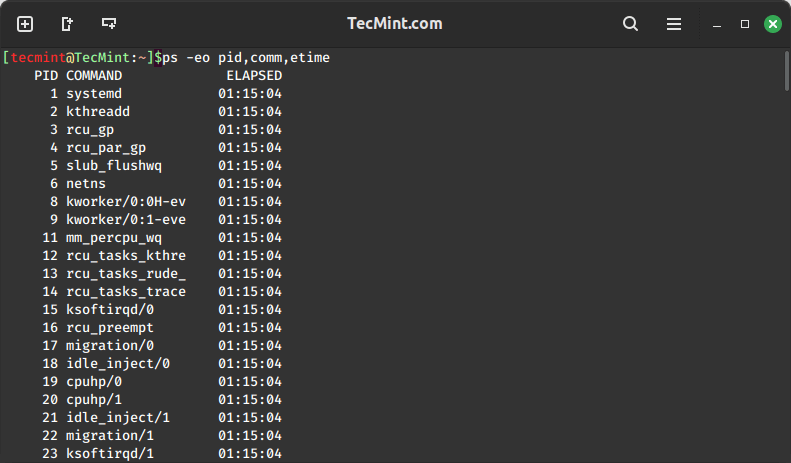
This command lists the process ID (PID), command name, and elapsed time (etime) for all processes. The elapsed time column displays the time duration in the format “dd-hh:mm:ss“, where “dd” represents days, “hh” represents hours, “mm” represents minutes, and “ss” represents seconds.
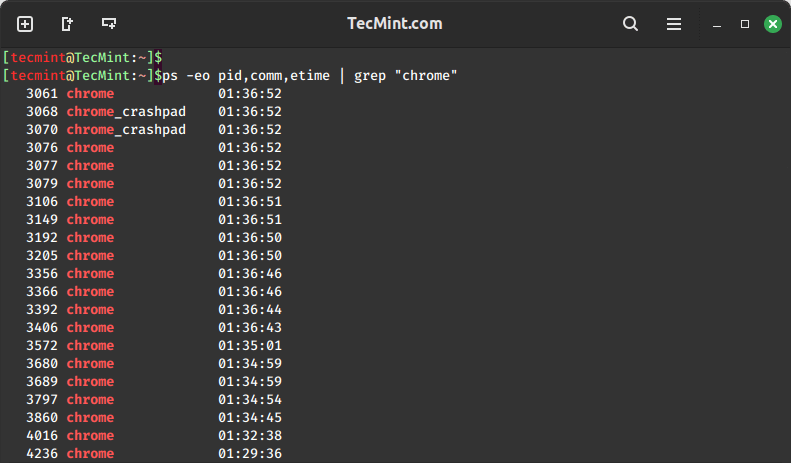
For a more targeted approach, you can combine the `ps` command with the grep command to filter out information about a specific process.
ps -eo pid,comm,etime | grep "process_name"
This command narrows down the output to only display information about the specified process, making it easier to determine how long it has been running.
2. top Command
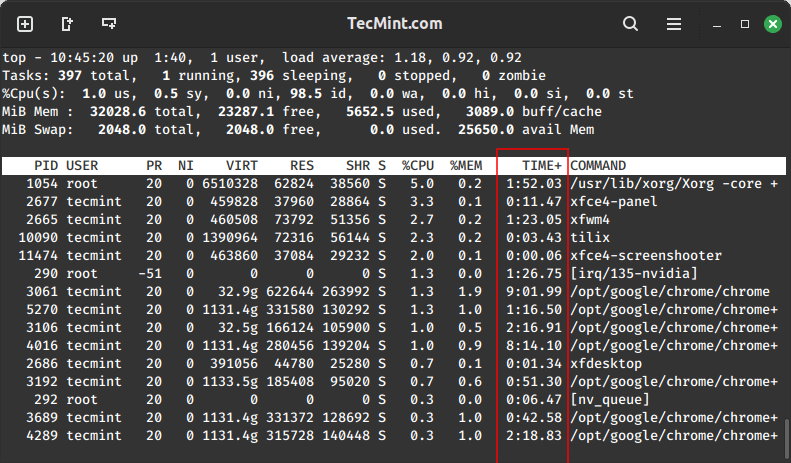
For a more user-friendly and interactive process monitoring experience, you can use the top command, which is used to provide a real-time overview of all running processes along with various details like CPU usage, memory usage, and running time.
top
After running the top command, just press 'c' to toggle between different display options and locate the desired process, and its uptime will be displayed in the "TIME+" column, which represents the total accumulated CPU time for each process.
3. System Monitor GUI Tool
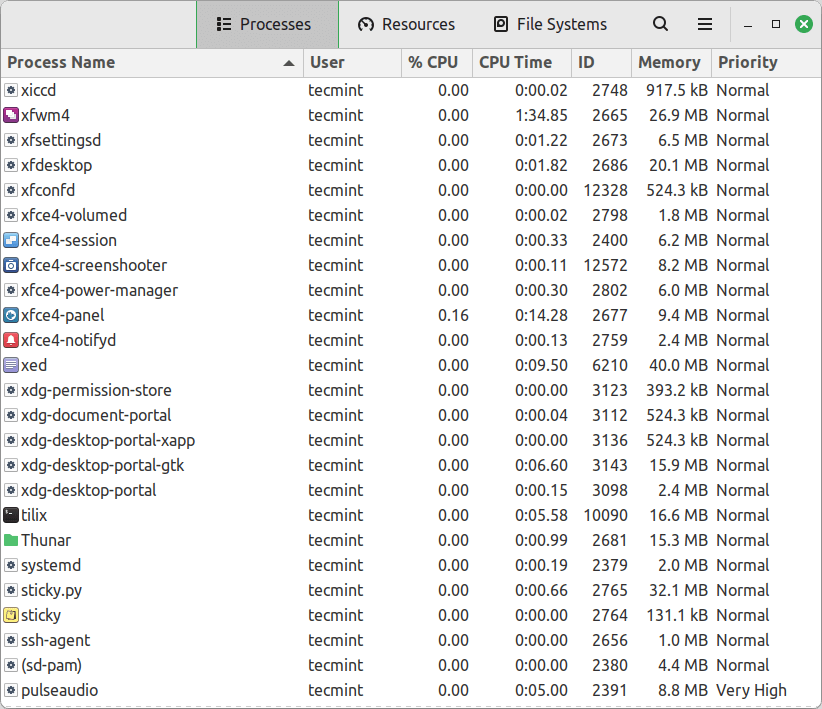
Linux also offers graphical user interfaces (GUIs) for those who prefer a visual representation of system information. The GNOME System Monitor is a popular choice for many Linux distributions.
To install the GNOME System Monitor on a Linux system, you can use the package manager specific to your Linux distribution.
sudo apt install gnome-system-monitor         [On Debian, Ubuntu and Mint]
sudo yum install gnome-system-monitor         [On RHEL/CentOS/Fedora and Rocky/AlmaLinux]
sudo emerge -a sys-apps/gnome-system-monitor  [On Gentoo Linux]
sudo apk add gnome-system-monitor             [On Alpine Linux]
sudo pacman -S gnome-system-monitor           [On Arch Linux]
sudo zypper install gnome-system-monitor      [On OpenSUSE]
sudo pkg install gnome-system-monitor         [On FreeBSD]
Once installed, you can launch it from the application menu or by running:
gnome-system-monitor
Navigate to the “Processes” tab, find your desired process, and check the “CPU Time” column, which will display the total CPU time consumed by a process, offering a quick glance at its running duration.
Conclusion
Understanding how long a Linux process has been running is a crucial skill for both troubleshooting and optimizing system performance. With these simple commands, new Linux users can easily retrieve information about process duration, gaining valuable insights into their system’s activity.
Whether using basic commands like ‘ps‘ or ‘top‘ and GUI options like GNOME System Monitor, Linux provides a variety of tools to meet the diverse needs of its users.
As you continue your Linux journey, mastering these commands will empower you to efficiently manage and monitor processes on your system.