How to Disable Push Notifications on Chrome, Firefox, and Opera

Web push notifications are a common way for websites to send updates and information directly to your browser, even if you’re not currently on the site.

While notifications can be helpful, they can also be annoying or intrusive. This article will show you how to find and turn off push notifications in three popular web browsers: Chrome, Firefox, and Opera.

TecMint Weekly Newsletter
Get the Learn Linux 7 Days Crash Course free when you join 34,000+ Linux professionals reading every Thursday.
Check your email for a magic link to get started.
Something went wrong. Please try again.

Disabling Push Notifications in Chrome

Click on the three vertical dots in the top right corner of the browser, then choose “Settings” from the menu.
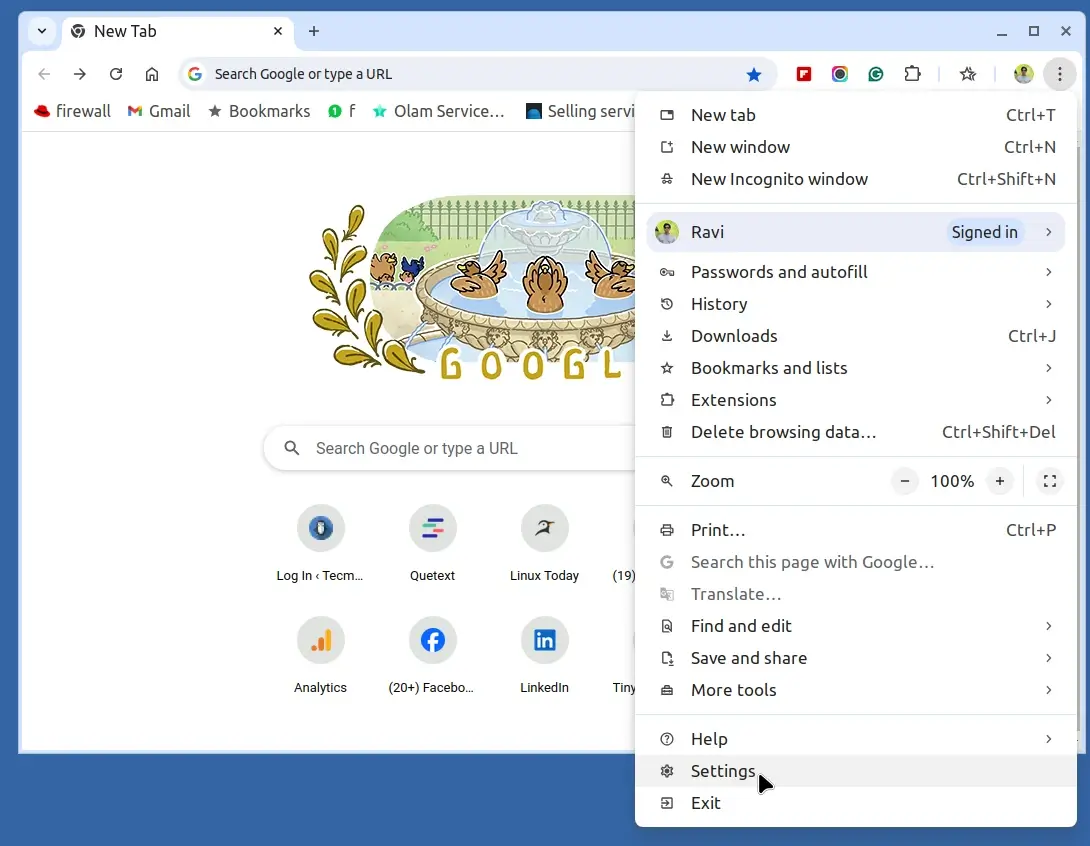
Chrome Settings
Chrome Settings

Next, scroll down and click “Privacy and security” on the left side, then select “Site Settings“.
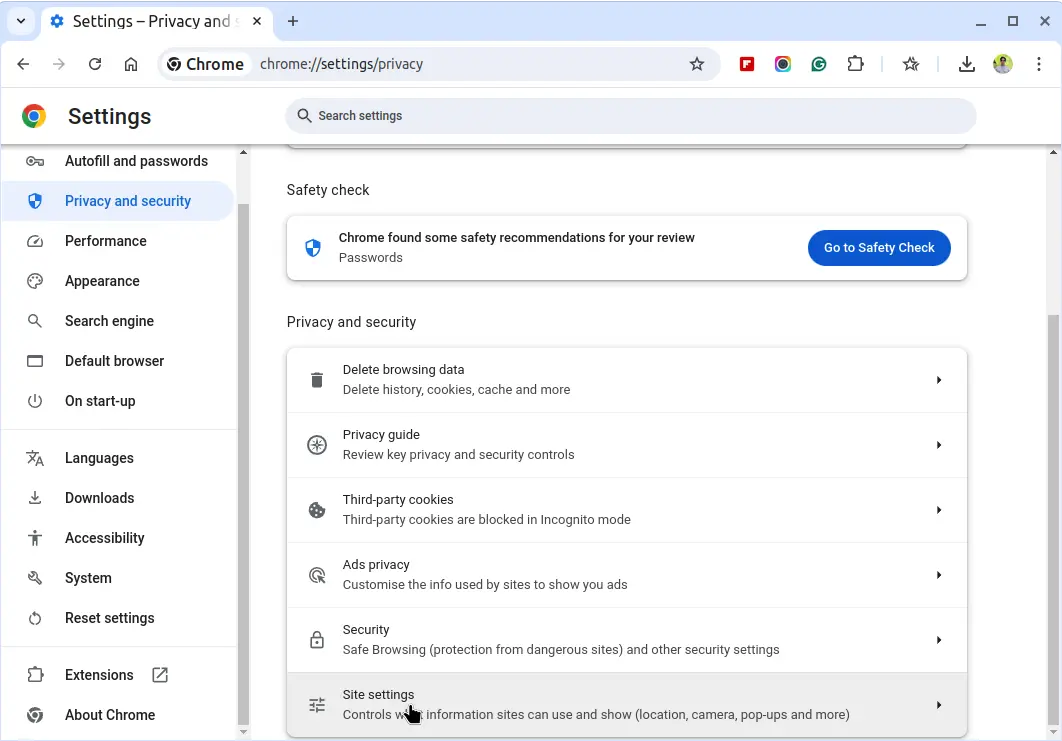
Chrome Site Settings

Scroll down and click on “Notifications“, which will show you a list of all the websites that are allowed to send you notifications.
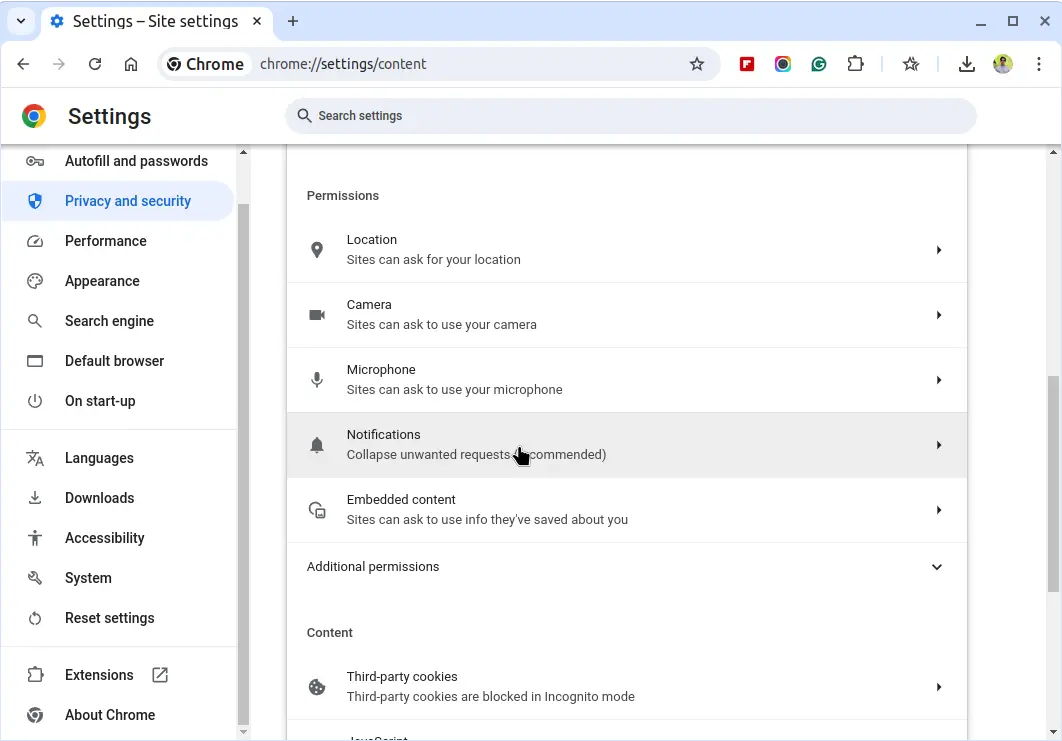
Chrome Site Notifications

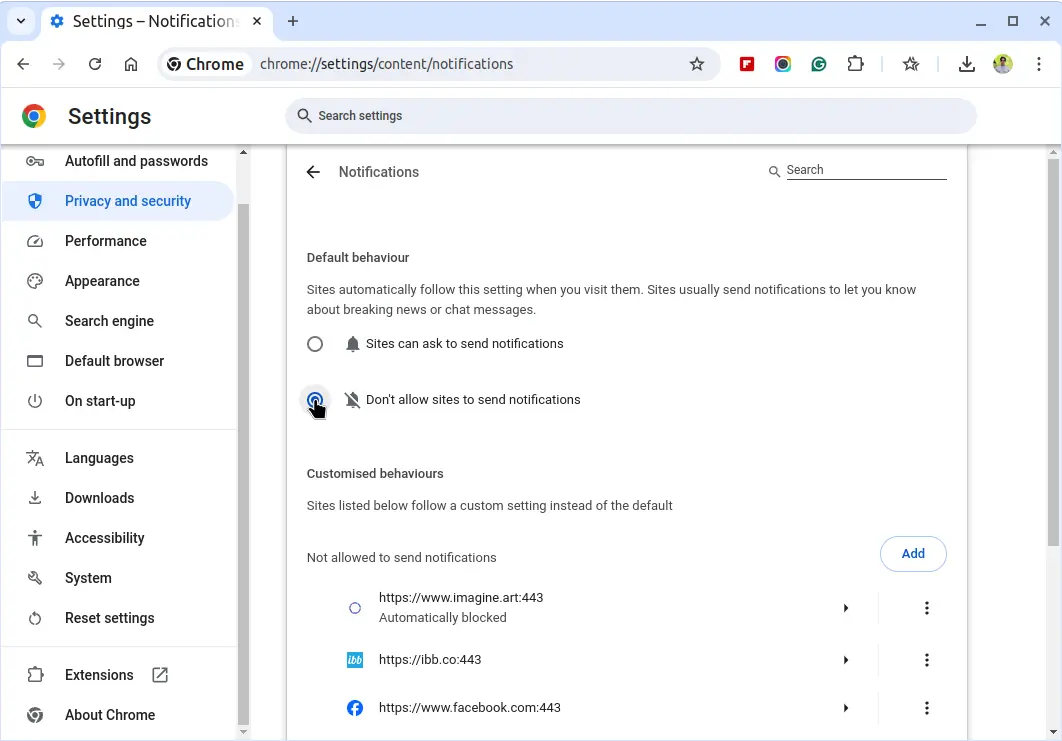
To block all notifications, choose the option “Do not allow sites to send notifications

Block All Website Notifications

To block specific websites, click on the three vertical dots next to the site name and select “Block“.
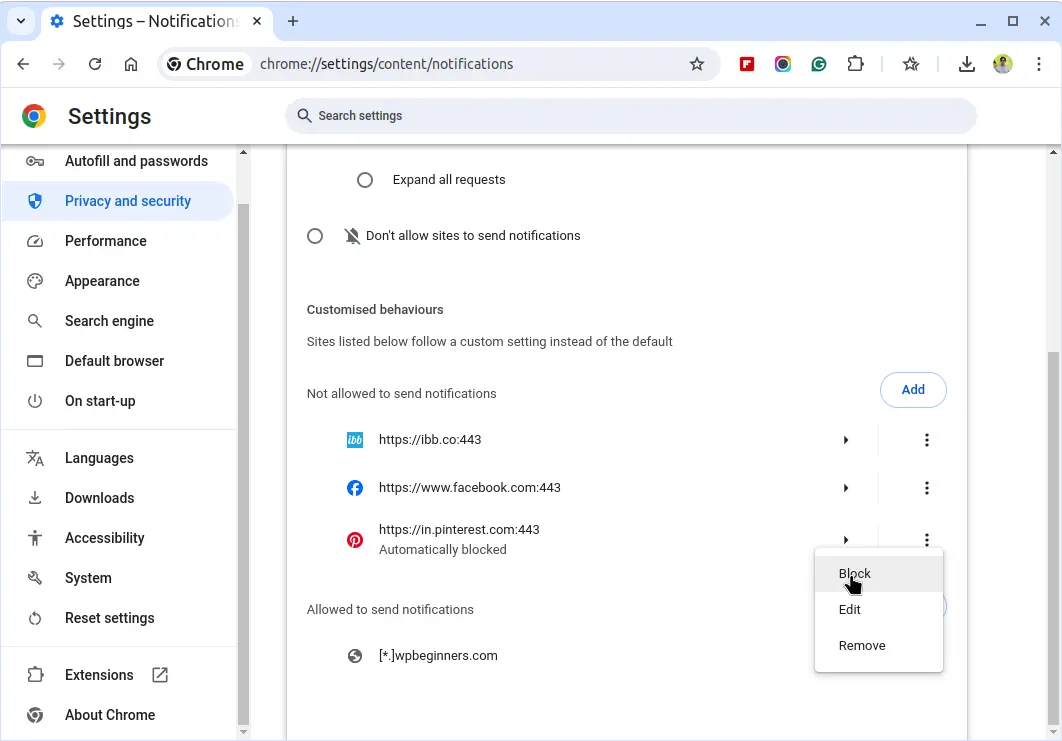
Block Website Notifications

Disabling Push Notifications in Firefox

Click on the three horizontal lines (menu) in the upper-right corner and select “Settings” from the dropdown menu.
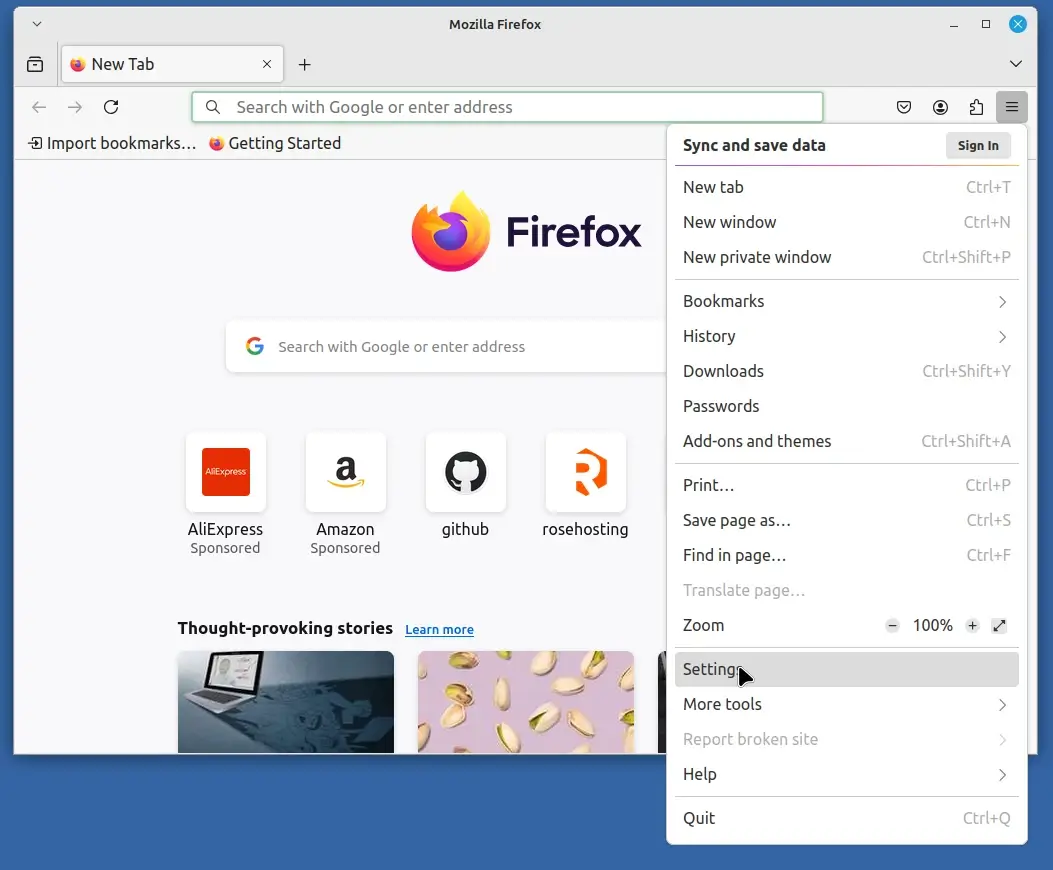
Firefox Settings
Firefox Settings

In the left-hand sidebar, click on “Privacy & Security“, scroll down to the “Permissions” section and click on the “Settings” button next to “Notifications.”
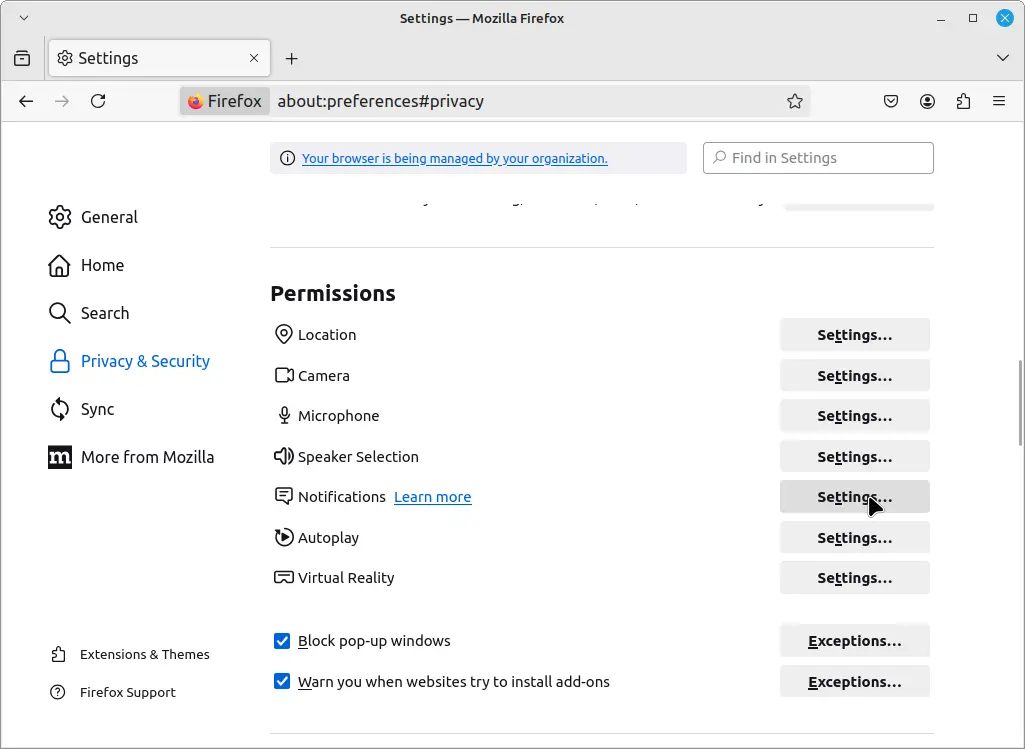
Firefox Site Settings

A list of websites with notification permissions will appear.
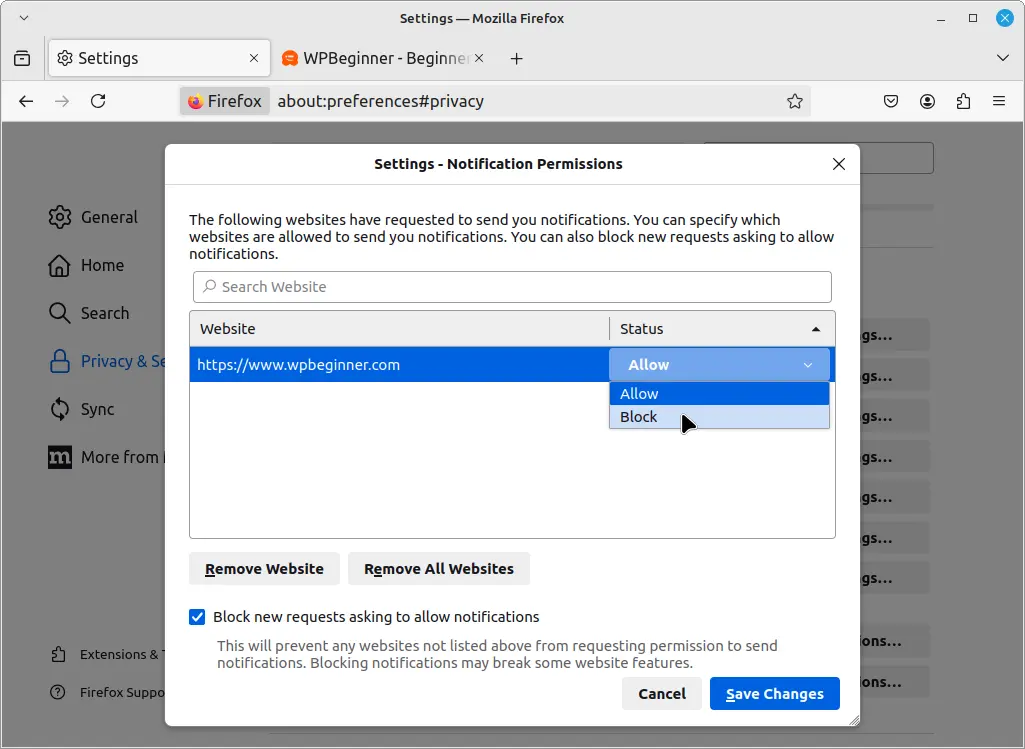
Block Website Notifications on Firefox

To block all notifications, check the box “Block new requests asking to allow notifications” or to block specific websites, select the site from the list and click “Remove Website” or change the status to “Block“.

Disabling Push Notifications in Opera

Click on the “Opera” icon in the upper-left corner and select “Settings” from the dropdown menu.
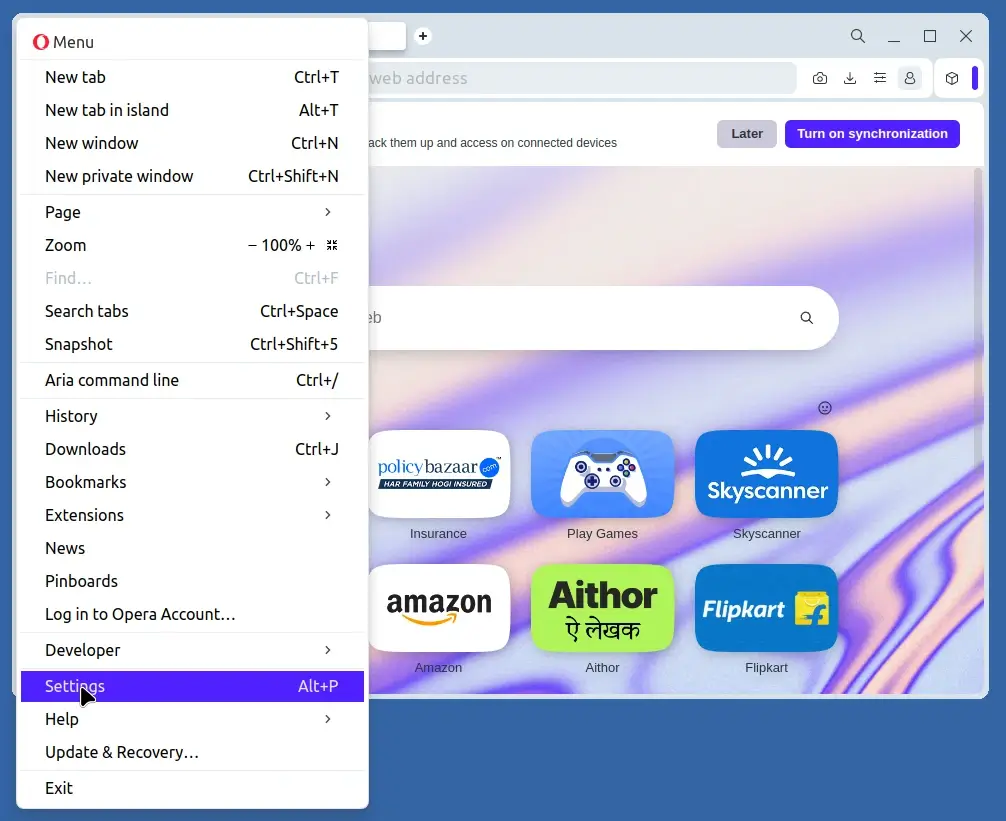
Opera Settings
Opera Settings

Scroll down and click on “Privacy and security” and select “Site settings“.
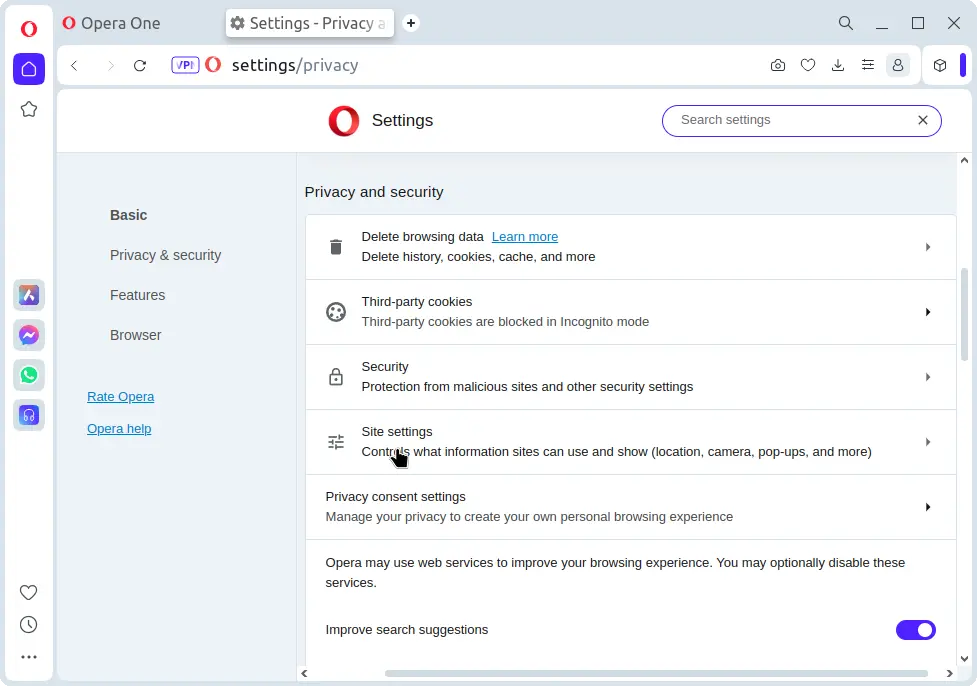
Opera Site Settings
Opera Site Settings

Next, scroll down and click on “Notifications“, here you will see a list of websites that have permission to send notifications.
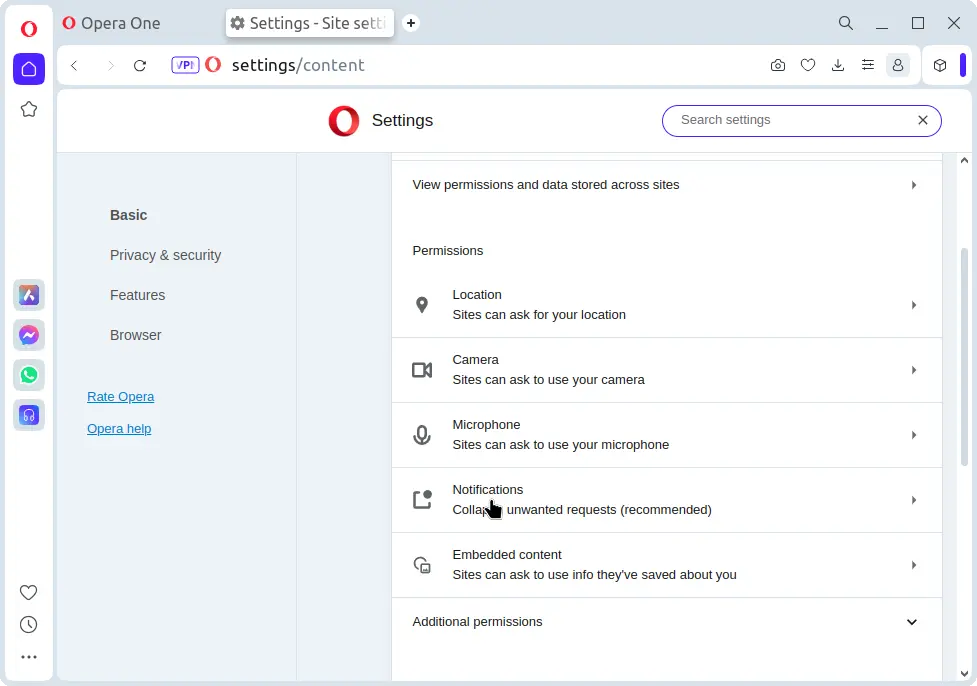
Opera Site Notifications

To block certain websites, click on the three vertical dots next to the site name and choose “Block“.
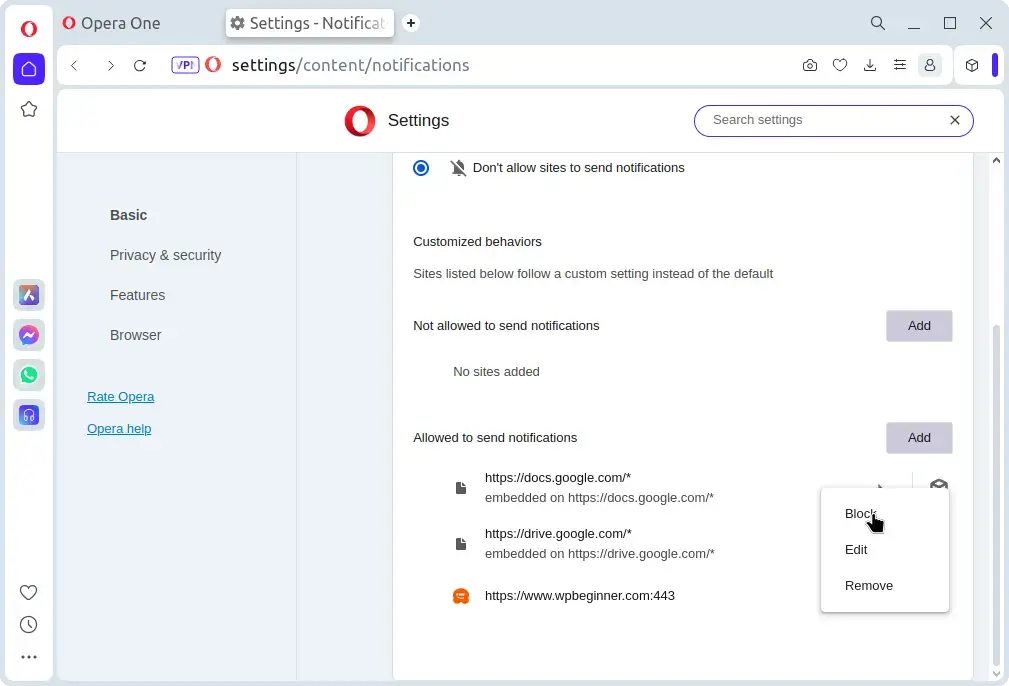
Block Website Notifications on Opera
Conclusion

Disabling push notifications can help reduce distractions and protect your privacy. By following the steps outlined above, you can easily manage and disable push notifications in Chrome, Firefox, and Opera.

Whether you want to block all notifications or just specific sites, these browsers provide straightforward options to control your notification settings.

If this article helped, with someone on your team.

TecMint Weekly Newsletter
Get the Learn Linux 7 Days Crash Course free when you join 34,000+ Linux professionals reading every Thursday.
Check your email for a magic link to get started.
Something went wrong. Please try again.
TecMint has been free for 14 years. Help keep it that way.
Google AI Overviews and tools like ChatGPT have cut into search traffic for independent tech sites like TecMint. Running this site costs over $2,000 every month for hosting, infrastructure, and paying authors to keep the content accurate and tested.

If this article helped you solve a problem, consider buying a coffee. It helps keep TecMint free, supports the authors, and keeps the project going.
☕ Buy Me a Coffee
Ravi Saive
I'm Ravi Saive, an award-winning entrepreneur and founder of several successful 5-figure online businesses, including TecMint.com, GeeksMint.com, UbuntuMint.com, and the premium learning hub Pro.Tecmint.com.

Each tutorial at TecMint is created by a team of experienced Linux system administrators so that it meets our high-quality standards.

Got Something to Say? Join the Discussion...

Thank you for taking the time to share your thoughts with us. We appreciate your decision to leave a comment and value your contribution to the discussion. It's important to note that we moderate all comments in accordance with our comment policy to ensure a respectful and constructive conversation.

Rest assured that your email address will remain private and will not be published or shared with anyone. We prioritize the privacy and security of our users.

Free Course
Get a free Linux course before you go.
Subscribe to TecMint Weekly and get the Learn Linux 7 Days Crash Course free. Read by 34,000+ Linux professionals every Thursday.
Something went wrong. Please try again.
Check your email for a magic link to get started.