
Linux filesystems are responsible for organizing how data is stored and retrieved. Over time – due to sudden power failures, forced shutdowns, hardware issues, or software bugs – a filesystem can become corrupted, and certain parts of it may become inaccessible.
When that happens, you need a reliable way to detect and fix those inconsistencies before they cause data loss or system instability. This is where fsck (File System Consistency Check) comes in.
In this article, we’ll cover everything you need to know about fsck from basic usage to running it safely on root and production partitions.
What is fsck in Linux?
fsck is a built-in Linux utility used to check and repair filesystem inconsistencies. It works similarly to chkdsk on Windows. The tool can be run automatically during system boot or manually by the system administrator.
Depending on the filesystem type (ext2, ext3, ext4, xfs, etc.), fsck calls the appropriate backend checker, for example, e2fsck for ext-family filesystems.
When Should You Run fsck?
Here are the most common scenarios where running fsck is necessary or recommended:
- The system fails to boot or drops into emergency/rescue mode.
- You see Input/Output errors when reading or writing files.
- A drive (HDD, SSD, USB flash drive, or SD card) isn’t working as expected.
- After an unclean shutdown – power loss, kernel panic, or forceful reboot.
- Routine maintenance – periodic integrity checks on critical servers.
- Filesystem reports corruption in kernel logs (dmesg output).
Production Tip: Always check /var/log/syslog or run dmesg | grep -i error before scheduling an fsck, which helps you understand the scope of the problem before diving in.
fsck Command Syntax:
fsck [options] [filesystem]
fsck must be run with superuser (root) privileges, and here are the most important options:
| Option | Description |
|---|---|
-A |
Check all filesystems listed in /etc/fstab |
-C |
Show a progress bar during the check |
-l |
Lock the device to prevent other programs from accessing it during the check |
-M |
Skip mounted filesystems (do not check them) |
-N |
Dry run – show what would be done without making any changes |
-P |
Check filesystems in parallel, including root |
-R |
Skip the root filesystem (use with -A) |
-r |
Show per-device statistics |
-T |
Suppress the title banner |
-t fstype |
Check only a specific filesystem type (e.g., ext4) |
-V |
Verbose — describe what is being done |
-y |
Automatically answer “yes” to all repair prompts |
-n |
Automatically answer “no” to all repair prompts (read-only check) |
-f |
Force check even if the filesystem appears clean |
How to Check Which Filesystem Type You Have
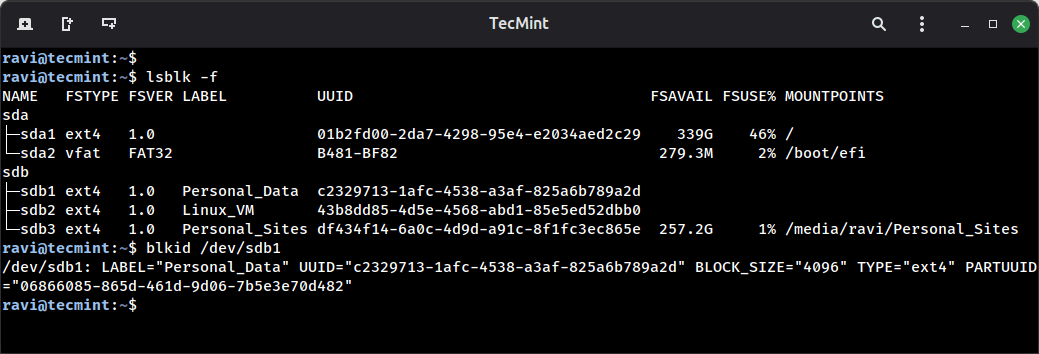
Before running fsck, confirm the filesystem type of your partition:
lsblk -f
Or
blkid /dev/sdb1
This is important because fsck delegates to type-specific tools like e2fsck (ext4), fsck.xfs, fsck.vfat, etc.
Important: Never Run fsck on a Mounted Partition
Running fsck on a mounted partition can cause severe data corruption, so always unmount the partition first.
To check if a partition is mounted:
mount | grep /dev/sdb
If it’s mounted, unmount it:
umount /dev/sdb1
If the device is busy, find what’s using it using lsof command:
lsof /dev/sdb1
Then try a lazy unmount:
umount -l /dev/sdb1
Running fsck to Check and Repair a Partition
To perform a basic filesystem check, run the following command, which will check and prompt you interactively to fix each error it finds.
fsck /dev/sdb1
For production servers where you want to automate repairs, use the -y flag.
fsck -y /dev/sdb1
To see what fsck would do without touching anything:
fsck -N /dev/sdb1
Production Tip: Always do a dry run first on critical systems before committing to repairs. Review the output, then decide if you want to proceed.
If the filesystem was marked as clean, but you still suspect issues:
fsck -f /dev/sdb1
To check a specific filesystem type:
fsck -t ext4 /dev/sdb1
To check all filesystems (excluding root), use the -A flag that reads entries from /etc/fstab, and -R skips the root filesystem.
fsck -AR -y
You can also use the following command to verbose output with a progress bar:
fsck -C -V /dev/sdb1
This is useful for large drives where you want to monitor progress.
Understanding fsck Exit Codes
After running fsck, it returns an exit code that tells you what happened. You can check it with echo $? right after running the command.
0    - No errors detected
1    - Filesystem errors were corrected
2    - System should be rebooted
4    - Filesystem errors left uncorrected
8    - Operational error
16   - Usage or syntax error
32   - Checking was canceled by user request
128  - Shared library error
Exit codes can be combined (added together). For example, an exit code of 3 means errors were corrected (1) and a reboot is required (2).
Production Tip: In scripts and cron jobs, always capture and evaluate the fsck exit code to trigger alerts or automatic reboots when needed.
fsck -y /dev/sdb1
EXIT_CODE=$?

if [ $EXIT_CODE -ge 4 ]; then
    echo "ALERT: Filesystem errors could not be corrected on /dev/sdb1" | mail -s "fsck Alert" [email protected]
fi
How to Run fsck on the Root Partition (/)
You cannot run fsck on a mounted root partition, but the following are three reliable methods to handle it.
Method 1: Force fsck on Next Boot
The simplest approach is to create a forcefsck flag file in the root:
touch /forcefsck
Then schedule a reboot:
reboot
During the next boot, the system will automatically run fsck on the root filesystem before mounting it. After the system comes back up, verify and remove the flag file to avoid triggering fsck on every boot:
ls /forcefsck
rm /forcefsck
Note: On systemd-based systems (RHEL 7+, Ubuntu 16.04+), the forcefsck method may not work. Use the method below instead.
Method 2: Force fsck via tune2fs (ext4)
For ext4 filesystems, you can force an fsck on the next reboot using tune2fs, which will sets the mount count to 1, which triggers fsck at next boot. After the check, the mount count resets automatically.
tune2fs -C 1 /dev/sda1
You can also set a maximum mount count after which fsck is forced automatically:
tune2fs -c 30 /dev/sda1
Method 3: Run fsck in Rescue/Recovery Mode
This method gives you full manual control and is recommended for serious corruption cases.
- Step 1: Reboot the system and during boot, hold the
Shiftkey to bring up the GRUB menu. - Step 2: Select “Advanced options” from the GRUB menu.
- Step 3: Choose “Recovery mode” for your kernel version.
- Step 4: In the recovery menu, select “fsck“.
- Step 5: When prompted to remount the root filesystem, select “Yes“.
- Step 6: Once fsck completes, select “Resume” to continue normal boot.
How to Run fsck on LVM and Software RAID Volumes
For LVM logical volumes, first identify the volume:
lvdisplay
Deactivate it before running fsck:
lvchange -an /dev/vg_data/lv_data
fsck -y /dev/vg_data/lv_data
lvchange -ay /dev/vg_data/lv_data
For a RAID member, check the underlying block device:
fsck -y /dev/md0
Production Warning: Be extra cautious with RAID arrays. Ensure the array is in a healthy state (cat /proc/mdstat) before running fsck. A degraded array should be rebuilt first.
How to Schedule Regular fsck Checks
On production servers, it’s good practice to schedule periodic fsck runs rather than waiting for problems to occur.
Using tune2fs for Automatic Checks (ext4)
Set a time-based check interval (e.g., every 6 months):
tune2fs -i 6m /dev/sda1
Set a mount-count-based check (e.g., every 30 mounts):
tune2fs -c 30 /dev/sda1
Verify the settings:
tune2fs -l /dev/sda1 | grep -i "mount count\|check interval"
View Filesystem Health Summary
tune2fs -l /dev/sda1 | grep -E "Filesystem state|Last checked|Mount count|Maximum mount"
Checking fsck Logs
After fsck runs (either at boot or manually), you can review what it did:
# On RHEL/CentOS/Rocky Linux
grep -i fsck /var/log/messages

# On Ubuntu/Debian
grep -i fsck /var/log/syslog

# Systemd journal
journalctl -b | grep -i fsck
Quick Reference: fsck Command Examples
# Check a partition interactively
fsck /dev/sdb1

# Auto-repair all errors
fsck -y /dev/sdb1

# Dry run (no changes)
fsck -N /dev/sdb1

# Force check even if filesystem looks clean
fsck -f /dev/sdb1

# Check all filesystems except root
fsck -AR -y

# Verbose check with progress bar
fsck -C -V /dev/sdb1

# Check only ext4 filesystems
fsck -t ext4 -A -y
Conclusion
fsck is one of the most critical tools in a Linux sysadmin’s toolkit. Whether you’re dealing with a corrupted partition after a power outage, running routine integrity checks on a production server, or troubleshooting a system that won’t boot – knowing how to use fsck correctly can save you from serious data loss and unplanned downtime.
The key rules to remember:
- Never run fsck on a mounted partition.
- Always do a dry run (-N) first on critical systems.
- Capture exit codes in scripts to automate alerts and reboots.
- Schedule periodic checks using tune2fs on important filesystems.
If you have any questions about using fsck or ran into a specific error, feel free to share it in the comments below.



This is the wrong instruction, on a Debian system, the HDD will be broken.
Thank you for this. I used the first option of fsck command and it seems to have worked like a charm.
I appreciate your contributing to the community.
When I typed fsck /dev/SDA -a, it showed me this,
If the device is valid and it really contains an ext2/ext3/ext4 filesystem (and if not swap or ufs or something else), then the superblock is corrupt, and you might try running e2fsck with an alternate superblock:
Found a dos partition table in /dev/SDA.
When I try to run the e2fsck commands it gave, it shows sh: syntax error: unexpected newline.
And then when I try to unmount /dev/SDA it can’t unmount because it’s an invalid argument?
I’m a total beginner at Linux and I really don’t know what to do now
Capitalization and spelling matter on the shell. Device names are never capitalized (so sda, not SDA). unmount should be umount, too.
I updated to the newest version of Ubuntu, now it will not boot. I get the BusyBox black screen and when I used the exit command, here’s the output:
/init: line 866: logsave: not found
Failure: File system check of the root filesystem failed
The root filesystem in /dev/sda6 requires a manual fsck
But when I attempt to do so, I get a text file busy error.
How can I fix this?
Good morning, happy new year to you.
Thank you for the article and your time spent on this website your time spent doing this is very much appreciated by me. I am using a laptop and ran a disk check using the smart control application which stated errors were found.
Although I deleted the partition and reformatted the drive the errors remained which made me curious about error checking and cyclic redundancy checks which lead me to do a little research on physical drive checks and more detailed analysis.
Doing searching online drove me here and to the FSCK command which even though I had wiped the drive still showed a wealth of errors (As I ran it without the
-yflag initially), your article provided some clarity I was missing and made me wonder if some of these errors are reached because there is still junk data left on the drive because I have not low-level formatted it.So now I am running the command as
'sudo fsck -y -c /dev/sdb'Now it will search for errors, fix them as found, and display ongoing progress… Which begs the question… If I low-level formatted this drive by overwriting it with zero, would these errors then be wiped free? And if that is true, then the error that may still be found would be from smart control querying the device bios to see if it’s detected possible hardware failure (As the drive would now be wiped completely clean of any software issues) which means that fsck is really only untangling crosslinked files/sectors/clusters, etc.
Forgive the stupid questions, I am not well educated on computer drives from a hardware perspective, or a read/write/data perspective so I am aware I’m ignorant and most articles I’ve read only give so much in-depth information.
In any case, I am going to let this command run in its entirety and see what the outcome is. Thank you for your time. Thank you for the article.
Does Linux (ubuntu) install run fsck before installing? or format automatically “note” the problematic sectors on the new partitions? I try to install Ubuntu and always ran into disc problems How to force a correction before the install?
Would be better to get this on youtube.
Not at all. You can’t copy text out of a video. Text articles work well for this kind of explanation.
Hi Ravi,
I have an issue below on my Centos 7.7 64 bit, when i check the log /var/log/dmesg.
I have running RAID1 with two hard disk another one internal hard disk mount manually, now i have unmount another hard disk and showing below message. But the system is booting properly without any issue. Could you help me, what’s the issue and how to solve it.
11.231467] FAT-fs (sdb1): Volume was not properly unmounted. Some data may be corrupt. Please run fsck.
#df -h
Filesystem Size Used Avail Use% Mounted on
devtmpfs 3.8G 0 3.8G 0% /dev
tmpfs 3.8G 4.0K 3.8G 1% /dev/shm
tmpfs 3.8G 41M 3.8G 2% /run
tmpfs 3.8G 0 3.8G 0% /sys/fs/cgroup
/dev/mapper/centos-root 908G 548G 361G 61% /
/dev/sdb2 3.8G 271M 3.5G 8% /boot
/dev/sdb1 3.8G 12M 3.8G 1% /boot/efi
tmpfs 778M 0 778M 0% /run/user/2
tmpfs 778M 0 778M 0% /run/user/0
Want to thank you so much, your advice helped me to fix my Linux-system. I thought I would have to throw away my laptop, now it runs again :-).
Thank you!
Just a note, but you probably never have to throw out an entire laptop if the drive fails. Almost all laptops allow quick and easy replacement of the hard drive… Still a good thing you could fix it through just software though. :)
Does it support swap partition?
@Robercleiton,
No, it won’t work, because swap partition does not contain any data and there is no point in repairing it. If swap partition is corrupted, you can fix it using mkswap command.
Doesn’t work. I have a 32 bits Ubuntu-based system. When I try to use Gparted, it says that I must have a more recent version of e2fsprogs. When I use fsck, it says the same thing. I tried to update through Synaptic, it doesn’t see a newer version. I tried to add the PPA (ppa:hloeung/e2fsprogs), it shows a mistake, and thus doesn’t show newer packages.
This is likely related to the fact that 32-bit builds of Ubuntu and Ubuntu packages have been dropped. The PPA you mention also only has a 64-bit build.
If moving to a 64-bit distro isn’t an option, perhaps you can build a 32-bit version of e2fsprogs from the source.
systemd broke the well-known
sudo touch /forcefsckmethod in 2015.Since then, it hasn’t worked.
There is an obtuse grub command that does work or just boot from alternate media, like from a “Try Ubuntu” flash drive, then run the fsck from that environment.
Hi,
I ran
fsck -y.The volume could not be repaired after 3 attempts
Any suggestions?
Hi,
I did a umount and:
No return code, but the file disappeared (not in fstab, but in lsblk). What happened? Can I get it back?
Best regards
torben
Recovery options in this guide are obsolete.
You can no longer check all filesystems with the recovery menu since all filesystems mount as read-write. The logic of the recovery boot menu is broken now.
Also, adding
/forcefsckno longer works on recent Ubuntu versions with systemd.Hello,
I need to run fsck on root, but for some reason creation of forcefsck does not result in a file systems consistency check upon sudo reboot it just takes me directly to the GRUB menu.
Any advice?
This was an awesome little guide! However, why doesn’t it work for me? I think it has to do with the fact that I’ve set up my OS to use LVM, even when I use
touch /forcefsck, the log states that I should no longer use forcefsck but rather use the command in grub… any idea?@Ricardo,
Could you share the screenshot or output of the forcefsck command?
Lifesaver, short and accurate article..
Thank a lot Sir, was very useful
I tried it from the recovery mode and I get to the screen to switch to read/write and click yes, then it says
dev/sda1is mounted and takes me back to recovery menu.If I click fsck again, it says this operation requires me to be in read-only mode and the last operation requested switched me to read/write. To go back to read-only, reboot the system. I’ve done this over and over. I’m in Ubuntu 18.10. Any ideas? Thanks
I have exact same problem with Mint 19.1 virtual machine on VirtualBox.
I have the exact same issue – it says `dev/sda1` is mounted and aborts and when I try again it says now it has to be `readonly` – did you manage to get it fixed?
I have a VPS CentOS 7, If following this tutorial, will i lose my data on vps ?
@Hung,
Not at all, fsck only scans for filesystem errors and fix it
What version of Ubuntu does this article relate to? People like me are still using 16.04 because of all of 18.04’s problems and I don’t see the graphic just below the line, “You can then resume to normal boot, by selecting “Resume”. Is that GUI ONLY in 18.04?
My PC is not showing 64 bit while I try to install it. What to do please help me..
Classic Ubuntu user arrogance, to equate Ubuntu with all of Linux in the headline, then list *Ubuntu-specific recovery-mode options as if they were universal. Just about every “recovery mode” I’ve ever seen, even under GRUB 2, is a command line prompt with very limited options. Well the first half of the article is universal, at least.
Still doesn’t work. I can’t access root, my command starts with (initramfs)
@Tsele,
Your question is not clear, could you elaborate more..
@Eric, if you have an issue with a windows partition, it would be better to use chkdsk windows utility. In Linux, there is fsck.ntfs which is a symlink to ntfsfix.
ntfsfix is a utility that fixes some common NTFS problems. ntfsfix is NOT a Linux version of chkdsk. It only repairs some fundamental NTFS inconsistencies, resets the NTFS journal file and schedules an NTFS consistency check for the first boot into Windows.
Interesting, but what about an external drive that giving problems running Windows 10? will fsck “fix” that drive as well? And is the syntax the same? (Just point your Linux machine to it and run fsck??)
@Eric,
I don’t think fsck recognize windows filesystem, never tried it. I think you should give a try and see..:)
If you have the ntfs4g binaries installed, fsck can evaluate and even fix said partitions; that said, Windows specific tools, such as CHKDSK are (for once) less destructive and get better results if you’re trying to preserve as much data as possible.