

While installation of RHEL 9, the installer recommends we choose a complex password and while making the password complex enough, the chances of forgetting our password are quite high. And things get even more complex when your user is not even added to the wheel group (which allows a normal user to elevate root privileges for a small amount of time).
This tutorial will guide you on how you can change your forgotten root password in 3 scenarios and we are quite sure that you’ll be able to recover your forgotten password at the end of this guide.
Method 1: Changing Root Password in RHEL 9
So if you are a root user and want to change your existing root password, you can accomplish this task with a single command.
# passwd

And it will ask you to enter your new root password. For confirmation, it will ask you again for entering the new password and it will throw a message saying “all authentication tokens updated successfully”.
Method 2: Changing Root Password as Sudo User
For the majority, this will be the case where the user is added to the wheel group and want to change the root password. Thankfully, you can change your root password even if you don’t know the current one.
To change your root password as a wheel group user, utilize the given command:
$ sudo passwd root

First, you’ll be asked to enter your user password and after that, you’ll be allowed to change your root password by entering it twice and for confirmation.
Method 3: Changing Forgotten Root Password in RHEL 9
This method is for those who are not root users or their local user is not added to the Wheel group and still wants to change or reset their forgotten root password.
This is the most complex method and while using this method, make sure you read commands twice before applying them as we will be dealing with GRUB.
Step 1: Enter GRUB Edit Mode
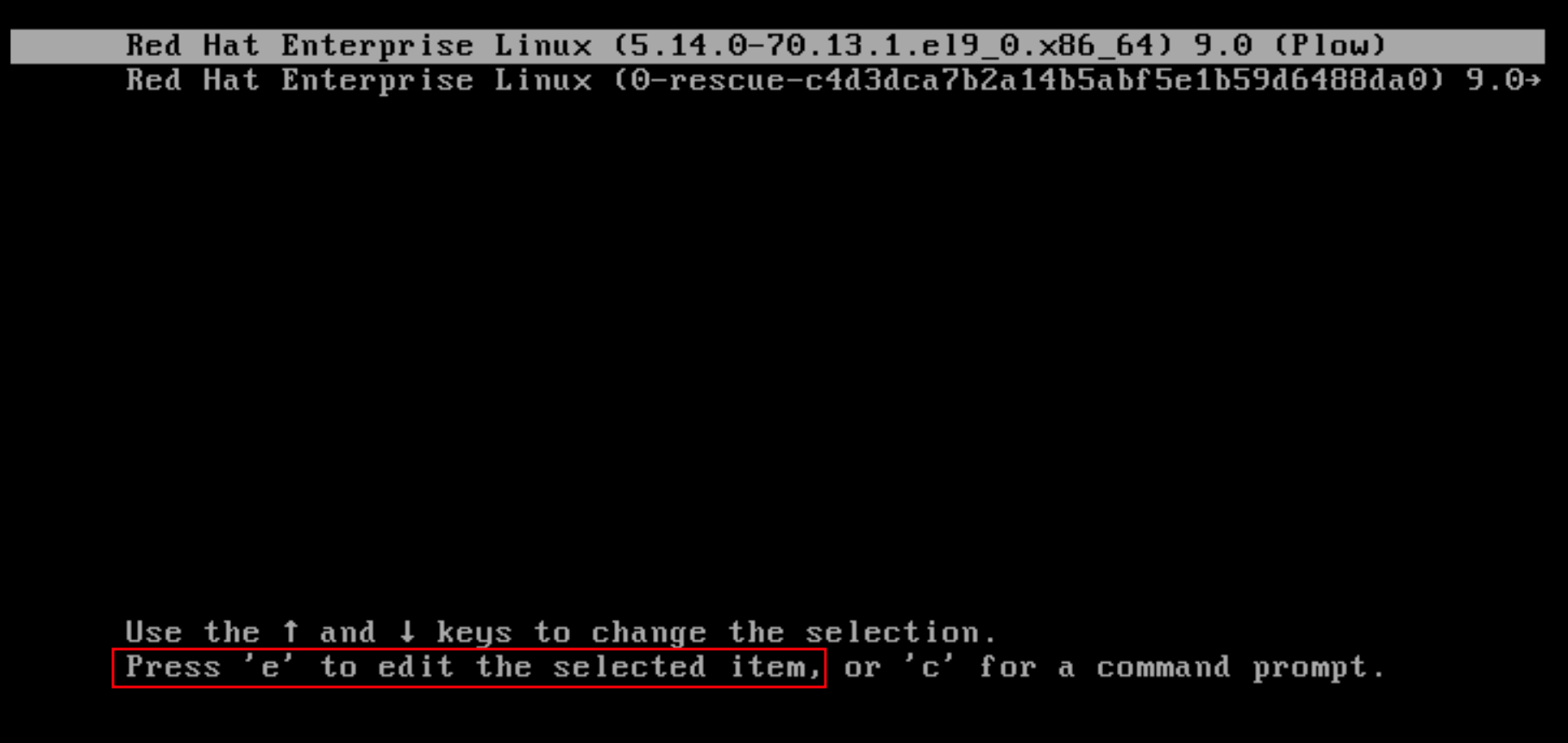
To enter GRUB edit mode, first, we have to reboot our system. When you see GRUB 2 screen, press the 'e' key to interrupt the boot process.
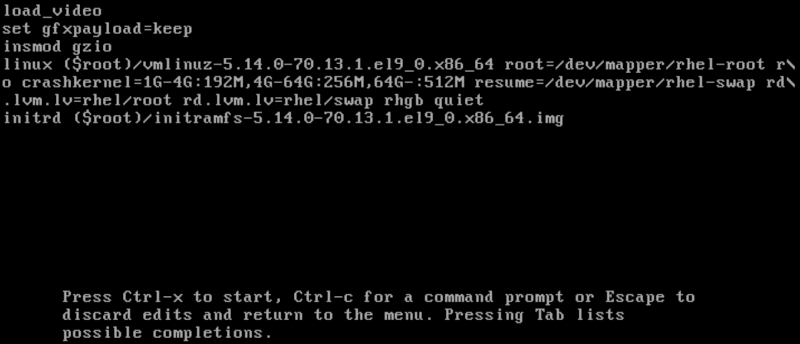
Once you press 'e', it will show us kernel boot parameters.
Step 2: Edit Kernel Boot Parameters
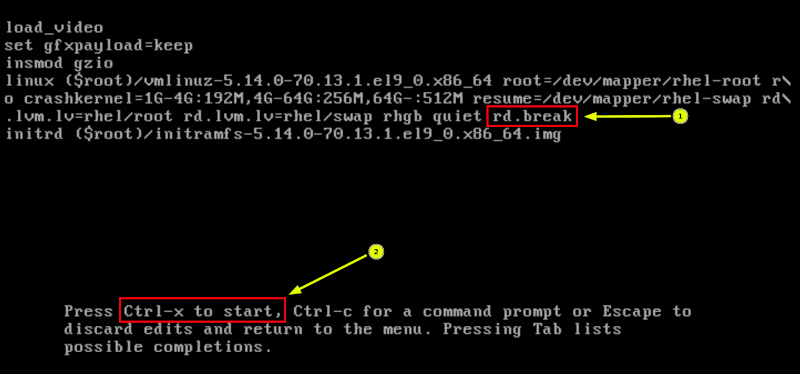
Once you enter Kernel boot parameters, go to the end of the line which starts with linux. The easiest way to do that is first to go to the line that starts with linux and press CTRL + e to jump to the end of the line.

Once you are at the end of the line, add rd.break and press CTRL + x to start the system with changed parameters.
Step 3: Reset Forgotten Root Password
You will be given an emergency mode prompt. From here, we will be mounting our drives, entering into chroot environment, and changing our root password. Press Enter and the sh-5.1 prompt will appear for further process.
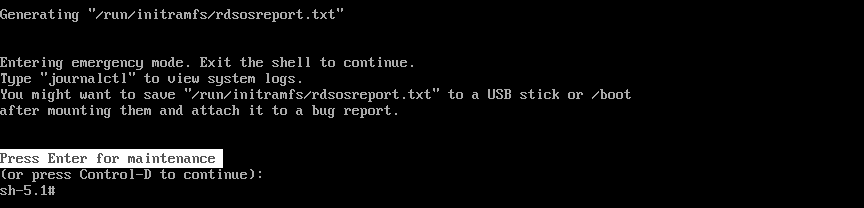
By default, the file system is mounted as read-only under /sysroot directory. By using the given commands, we will be remounting them to make them writable and change our password.
# mount -o remount,rw /sysroot
After mounting drives, let’s enter into chroot environment which will allow us to make changes directly to system files.
# chroot /sysroot
Finally, we can change our root password by utilizing the given command:
# passwd
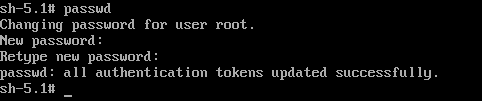
After changing the password, let’s enable SELinux relabeling process on the next system boot.
# touch /.autorelabel
Important: We are not running any scripts here, so make sure you use /.autorelabel correctly.
After changing the password and relabeling, let’s exit chroot environment by the given command:
# exit
Similarly, to exit from the sh-5.1 prompt, we will be using the given command:
# exit
Step 4: Verify Root Password
To verify whether we have successfully changed our root password or not, log in as a normal user and open the terminal emulator and run an interactive shell as root, utilize the given command:
$ su
Enter the newly configured root password. To print the username associated with a current user ID, we will be using the given command:
# whoami

And it will return as “root”.
This guide has shown 3 methods by which you can change your forgotten root password in RHEL 9. But if you still have any doubts, feel free to mention them in the comments.

We need to do the same steps in rescue mode to reset the root password in RHEL 9, then it should work…
Thanks, it worked, I managed to recover my forgotten root password in RHEL 9.
Doesn’t work, when I add the rd .break argument, it doesn’t prompt in emergency mode.