
dpkg-reconfigure is a powerful command line tool used to reconfigure an already installed package. It is one of the several tools offered under dpkg – the core package management system on Debian/Ubuntu Linux. It works in conjunction with debconf, the configuration system for Debian packages. Debconf registers the configuration of all installed packages on your system.
This tool can actually be used to reconfigure an entire Ubuntu or Debian system installation. Simply provide the name(s) of package(s) to reconfigure, and it will ask a number of configuration questions, in the same way when the package was initially installed on your system.
It can allow you to retrieve the settings of an installed package, as well as change the current settings of that package as recorded in decconf. A common category of packages you can reconfigure are those whose configurations are determined by questions in the package installation script, usually shown via a graphical interface during the package installation process, for example phpmyadmin.
View Configurations Of Installed Package
To view current configurations of an installed package “phpmyadmin“, use the debconf-show utility as shown.
$ sudo debconf-show phpmyadmin
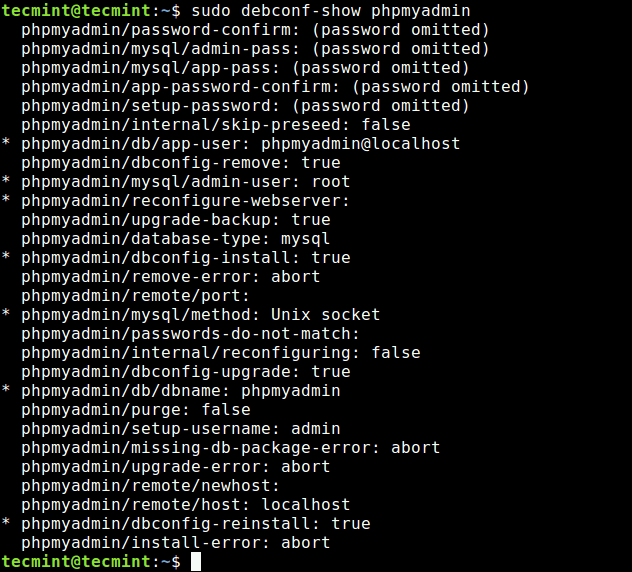
Reconfigure Installed Package in Debian and Ubuntu
If you have already installed a package, for instance phpmyadmin, you can reconfigure it by passing the package name to dpkg-reconfigure as shown.
$ sudo dpkg-reconfigure phpmyadmin
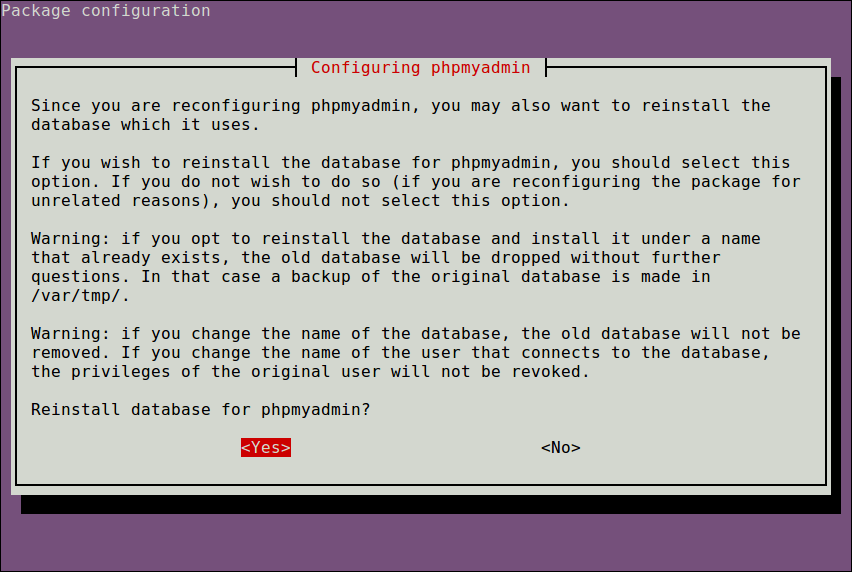
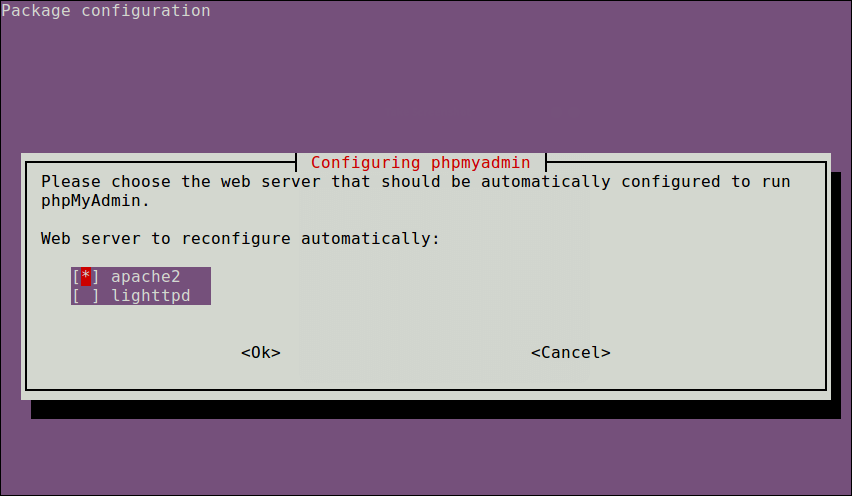
Once you have run the command above, you should be able to start reconfiguring phpmyadmin as shown in the following screenshot. You will be asked a series of questions, select the settings you want and complete the process.
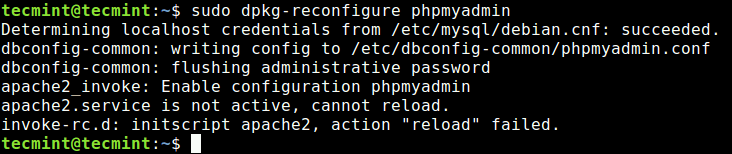
When the phpmyadmin reconfiguration process is done, you will see the some useful information concerning the new package settings as shown in the following screenshot.
There are some useful options which allow you to change its default behavior, we will explain some of the practically useful ones, as follows.
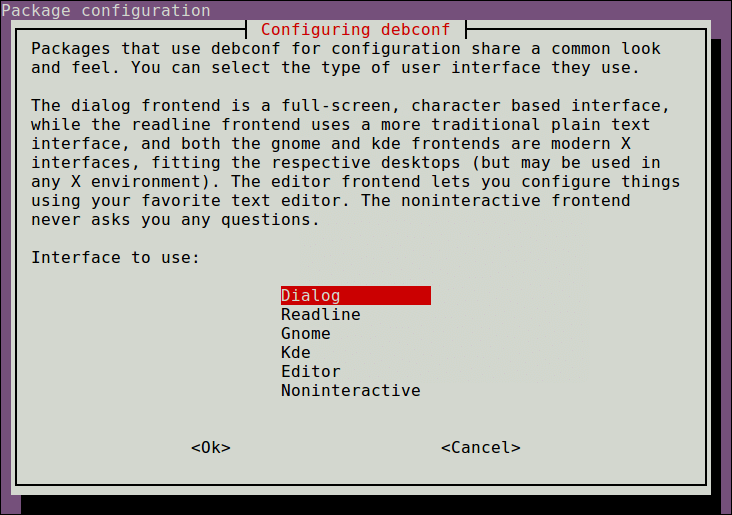
The -f flag is used to choose the frontend (such as dailog, readline, Gnome, Kde, Editor or noninteractive) to use.
$ sudo dpkg-reconfigure -f readline phpmyadmin
You can permanently change the default frontend via the debconf, by running the following command.
$ sudo dpkg-reconfigure debconf
Use the Up and Down keys to select an option, and press the TAB key to choose Ok and press Enter.
Also choose which questions to ignore according to priority level, as shown in the screenshot and press Enter.
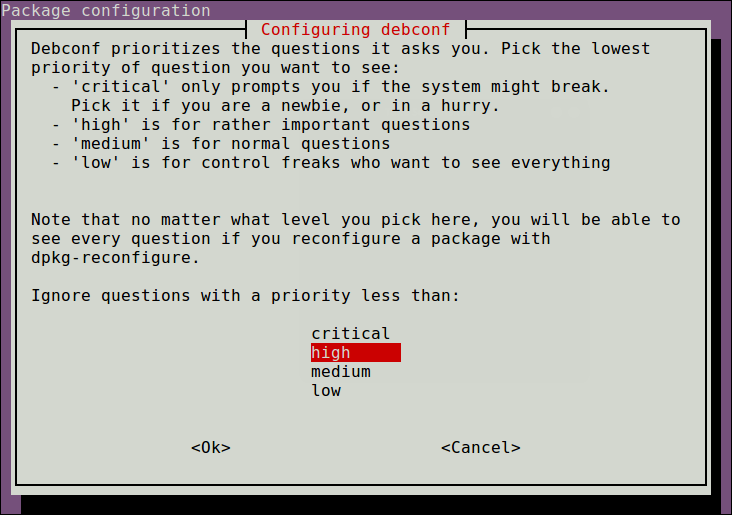
To specify the minimum priority of questions that will be displayed, directly from the command line, use the -p option.
$ sudo dpkg-reconfigure -p critical phpmyadmin
Some packages may be in an inconsistent or broken state, in such a case, you can use the -f flag to force dpkg-reconfigure to reconfigure a package. Remember to use this flag with caution!
$ sudo dpkg-reconfigure -f package_name
For more information, see the dpkg-reconfigure man page.
$ man dpkg-reconfigure
That’s it for now! If you have any questions concerning how to use dpkg-reconfigure, or any additional thoughts to share, reach us via the comments section below.




The invaluable amount of times I’ve used the
dpkg-reconfigure tzdataoption to override the sneaky systemd use of the locale and keyboard mapping to automatically determine your time zone during installation makes this one of the hidden powerhouse tricks of the terminal.So how do I get this tool?
I have tried sudo apt-get install only to get an “Unable to locate package” error.
Do I need to add a certain repo?
I have dpkg version 1.18.25 if that helps.