

Eclipse is a free integrated development environment IDE that is used by programmers around to write software mostly in Java but also in other major programming languages via Eclipse plugins.
The latest release of Eclipse IDE 2023‑06 doesn’t come with pre-build binary packages specific for Debian-based Linux distributions. Instead, you can install Eclipse IDE in Ubuntu or Debian-based Linux distributions via the compressed installer file.
In this tutorial, we will learn how to install the latest edition of Eclipse IDE in Ubuntu or in Debian-based Linux distributions.
Requirements:
- A Desktop machine with a minimum of 2GB of RAM.
- Java 9 or higher installed in Debian-based distributions.
Install Eclipse IDE in Ubuntu
A Java 9 or newer JRE/JDK is required to install Eclipse IDE and the easiest way to install Oracle Java JDK using the apt command as shown.
$ sudo apt install default-jre
For installing Eclipse IDE in your system, first, open a browser and go to Eclipse’s official download page and download the latest version of the tar package specific to your installed Linux distribution architecture.
Alternatively, you can also download the Eclipse IDE tarball installer file in your system via wget utility, by issuing the below command.
$ wget http://ftp.yz.yamagata-u.ac.jp/pub/eclipse/oomph/epp/2023-06/R/eclipse-inst-jre-linux64.tar.gz
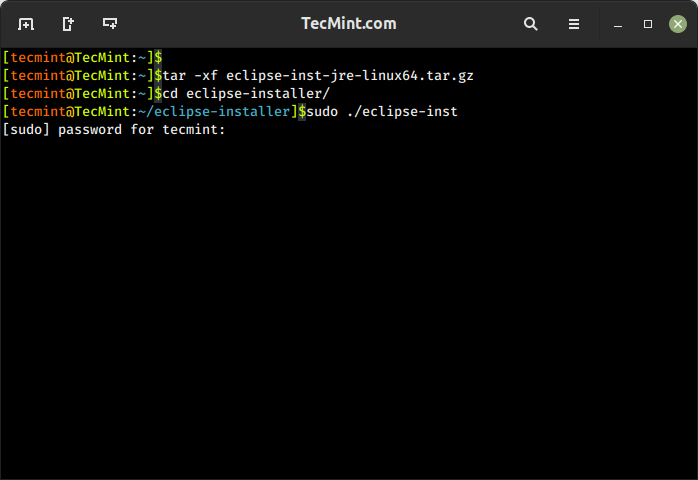
After the download completes, navigate to the directory where the archive package has been downloaded, usually Downloads directories from your home, and issue the below commands to start installing Eclipse IDE.
$ tar -xvf eclipse-inst-jre-linux64.tar.gz
$ cd eclipse-installer/
$ sudo ./eclipse-inst
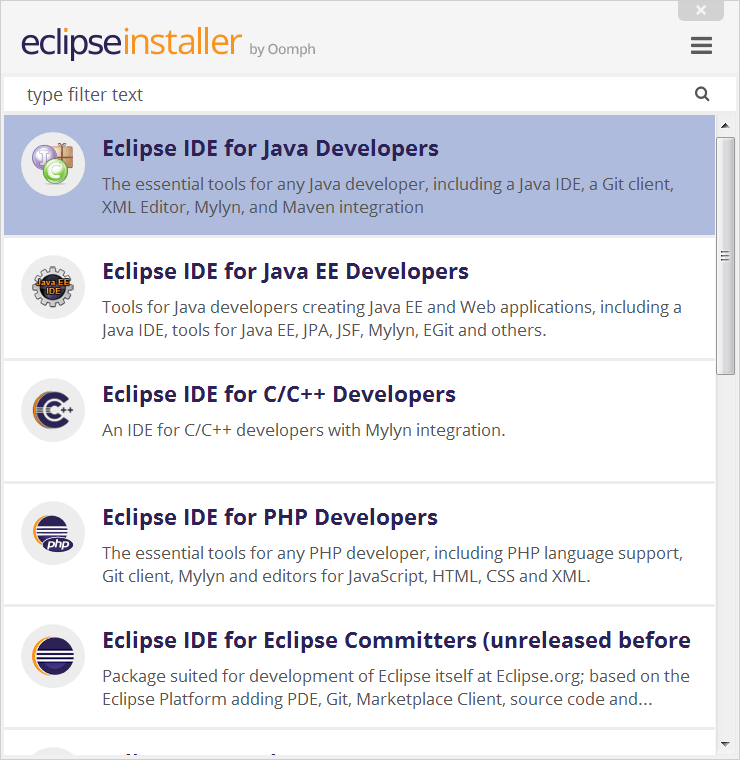
The new Eclipse Installer lists the IDEs available to Eclipse users. You can choose and click on the IDE package you want to install.
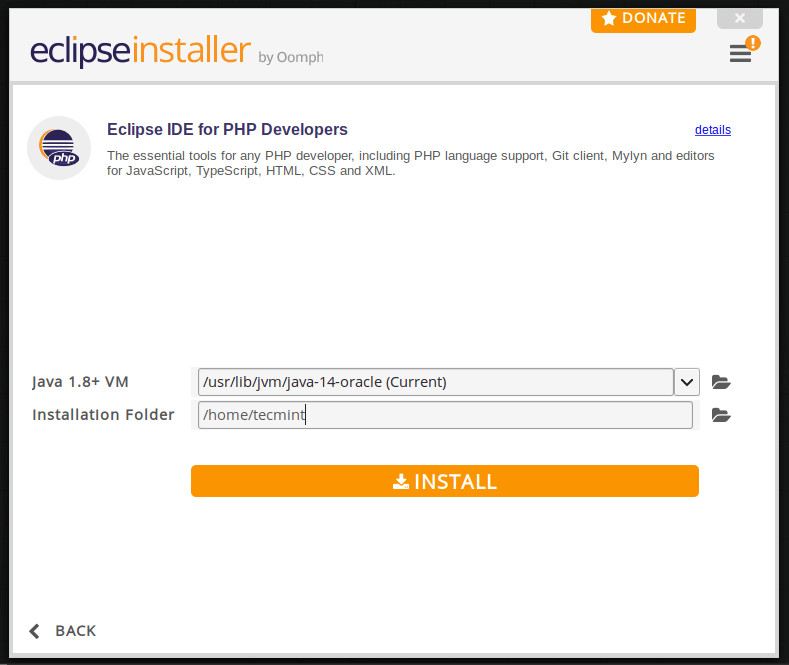
Next, choose the folder where you want Eclipse to be installed.
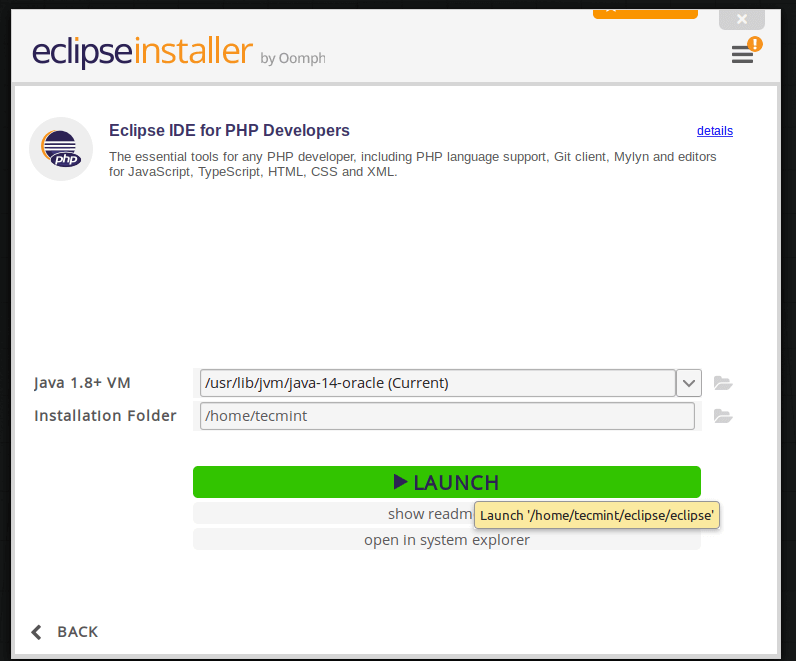
Once the installation is finished you can now launch Eclipse.
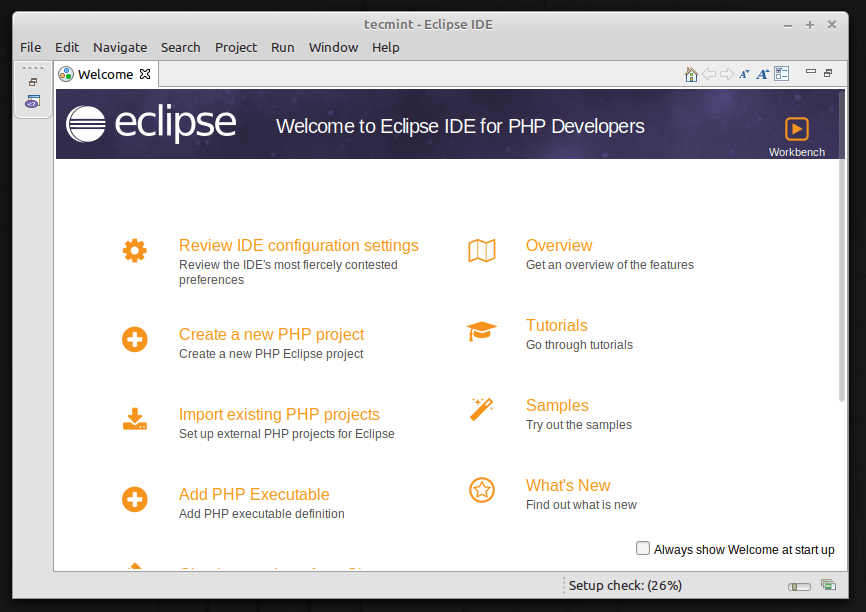
Install Eclipse IDE via Snap on Ubuntu
Snap is a software deployment and package management system to manage packages on Linux distribution, you can use Snap to install Eclipse IDE on Ubuntu 18.04 or newer using the following commands.
$ sudo apt install snapd
$ sudo snap install --classic eclipse
After installing Eclipse, navigate to the Activities Overview and search for Eclipse and launch it…
That’s all! The latest version of Eclipse IDE is now installed in your system. Enjoy programming with Eclipse IDE.

It worked thanks to the Instruction after 1 GB Losing…
Hi, you has forgotten : Path=/opt/eclipse/.
Hello,
I am using Debian-Linux, not Ubuntu. However, when I tried to complete the Launcher Properties window, it did not launch the Eclipse application due to /usr/share/applications/eclipse is not a valid executable line.
Please email me if you can find a solution for this problem. Thank you very much.
@LocTheLe,
I’ve updated the article and included latest installation instructions of Eclipse Photon and Oxygen IDE. Also you can install Eclipse using Snap as shown in the article.