How to Set Up AnyDesk Remote Desktop on Ubuntu

Take Your Linux Skills to the Next Level All courses, certifications, ad-free articles & community — from $8/mo
Join Root →
Ad-free access to all premium articles
Access to all courses: Learn Linux, AI for Linux, Bash Scripting, Ubuntu Handbook, Golang and more.
Access to Linux certifications (RHCSA, RHCE, LFCS and LFCA)
Access new courses on release
Get access to weekly newsletter
Priority help in comments
Private Telegram community
Connect with the Linux community
From $8/mo · or $59/yr billed annually · Cancel anytime

AnyDesk is a popular remote desktop software that allows users to connect and control other computers remotely. It’s lightweight, fast, and ideal for anyone who needs to access their systems from afar, troubleshoot remotely, or collaborate with others on their devices.

In this guide, we’ll cover how to install AnyDesk on Ubuntu in a few simple steps.

Installing AnyDesk in Ubuntu

First, it’s a good idea to update your system packages to ensure you’re working with the latest versions.

sudo apt update && sudo apt upgrade -y

Next, you need to add the AnyDesk repository key, which confirms the authenticity of the software.

wget -qO- https://keys.anydesk.com/repos/DEB-GPG-KEY | gpg --dearmor | sudo tee /etc/apt/trusted.gpg.d/anydesk.gpg > /dev/null

Next, add the AnyDesk repository so that your system knows where to find AnyDesk when you install it.

echo "deb http://deb.anydesk.com/ all main" | sudo tee /etc/apt/sources.list.d/anydesk.list

Now that the AnyDesk repository is added, update the package list again to include the latest packages from the AnyDesk repository:

sudo apt update

With the repository added and the packages list updated, you’re ready to install AnyDesk.

sudo apt install anydesk -y

After installation, you can start AnyDesk from the applications menu, or you can launch it directly from the terminal by typing:

anydesk

When you open AnyDesk for the first time, you’ll see your AnyDesk address on the main window. You can use this address to connect to other computers or share it with others for remote access.
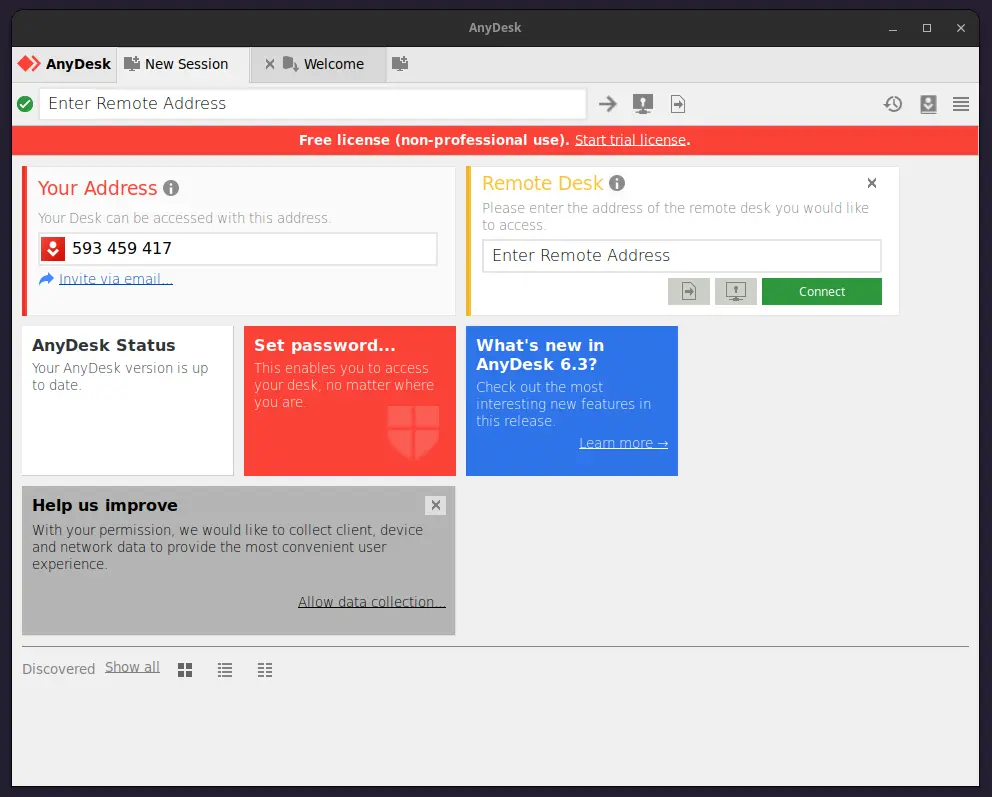
AnyDesk Remote Desktop Software

Uninstall AnyDesk in Ubuntu

If, for any reason, you want to remove AnyDesk from your system, you can do so by running:

sudo apt remove anydesk -y

This command removes AnyDesk, but it keeps the AnyDesk repository in your sources list. If you also want to remove the repository, delete the anydesk.list file:

sudo rm /etc/apt/sources.list.d/anydesk.list

Then, update your package list:

sudo apt update
Conclusion

You have successfully installed AnyDesk on your Ubuntu system! Now you can easily connect to and control remote devices, collaborate with others, or assist people with technical issues from afar.

AnyDesk offers a user-friendly interface with quick connection speeds, making it a reliable choice for remote desktop needs.


Root Plan
Premium Linux Education for Serious Learners

Take Your Linux Skills to the Next Level

Root members get full access to every course, certification prep track, and a growing library of hands-on Linux content — with new courses added every month.

What You Get
Ad-free access to all premium articles
Access to all courses: Learn Linux, AI for Linux, Bash Scripting, Ubuntu Handbook, Golang and more.
Access to Linux certifications (RHCSA, RHCE, LFCS and LFCA)
Access new courses on release
Get access to weekly newsletter
Priority help in comments
Private Telegram community
Connect with the Linux community
Ravi Saive
I'm Ravi Saive, an award-winning entrepreneur and founder of several successful 5-figure online businesses, including TecMint.com, GeeksMint.com, UbuntuMint.com, and the premium learning hub Pro.Tecmint.com.

Each tutorial at TecMint is created by a team of experienced Linux system administrators so that it meets our high-quality standards.

Join the TecMint Weekly Newsletter (More Than 156,129 Linux Enthusiasts Have Subscribed)
Was this article helpful? Please add a comment or buy me a coffee to show your appreciation.

2 Comments

Leave a Reply
  1. Warning: apt-key is deprecated. Instead, manage keyring files in trusted.gpg.d (see apt-key(8)).

    Instead of using the deprecated apt-key command to add keys, use the updated method.

    Replace:

    wget -qO - https://keys.anydesk.com/repos/DEB-GPG-KEY | sudo apt-key add -
    

    with:

    wget -qO- https://keys.anydesk.com/repos/DEB-GPG-KEY | gpg --dearmor | sudo tee /etc/apt/trusted.gpg.d/anydesk.gpg > /dev/null
    

    This way, if you delete the repository, you can also easily remove the key file.

    Reply

Got Something to Say? Join the Discussion...

Thank you for taking the time to share your thoughts with us. We appreciate your decision to leave a comment and value your contribution to the discussion. It's important to note that we moderate all comments in accordance with our comment policy to ensure a respectful and constructive conversation.

Rest assured that your email address will remain private and will not be published or shared with anyone. We prioritize the privacy and security of our users.

Root Plan Premium Linux Education for Serious Learners

Before You Go - Upgrade Your Linux Skills

Root members get everything in one place, with new courses added every month.

What You Get
Ad-free access to all premium articles
Access to all courses: Learn Linux, AI for Linux, Bash Scripting, Ubuntu Handbook, Golang and more.
Linux certifications: RHCSA, RHCE, LFCS and LFCA
Access new courses on release
Weekly newsletter, priority support & Telegram community
Join Root Today and Start Learning Linux the Right Way
Structured courses, certification prep, and a community of Linux professionals - all in one membership.
Join Root Plan →
$8/mo · or $59/yr billed annually