

This article is the continuation of our ongoing series about Linux Top Tools, In this series, we will introduce you most famous open source tools for Linux systems.
With the increase in the use of portable document format (PDF) files on the Internet for online books and other related documents, having a PDF viewer/reader is very important on desktop Linux distributions.
There are several PDF viewers/readers that one can use on Linux and they all offer related basic and advanced features.
In this article, we shall look at 10 important PDF viewers/readers that can help you when dealing with PDF files in Linux systems.
1. Okular
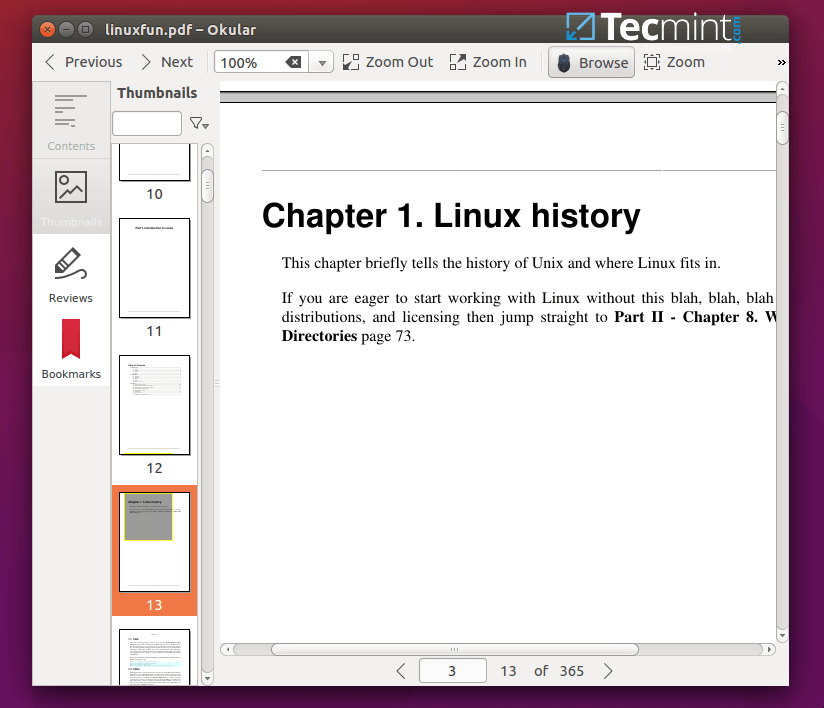
Okular is a universal document viewer which is also a free software developed by KDE that runs on Linux, Windows, Mac OSX, and many other Unix-like systems.
It supports various document formats, including PDF, XPS, ePub, CHM, Postscript, and many others, with the following features:
- Embedded 3D model.
- Subpixel rendering.
- Table selection tool.
- Geometric shapes.
- Adding textboxes, and stamps.
- Copy images to the clipboard.
- Magnifier and many more.
To install Okular PDF reader in Linux, run:
$ sudo apt install okular         [On Debian, Ubuntu and Mint]
$ sudo yum install okular         [On RHEL/CentOS/Fedora and Rocky/AlmaLinux]
$ sudo emerge -a sys-apps/okular  [On Gentoo Linux]
$ sudo apk add okular             [On Alpine Linux]
$ sudo pacman -S okular           [On Arch Linux]
$ sudo zypper install okular      [On OpenSUSE]
2. Evince
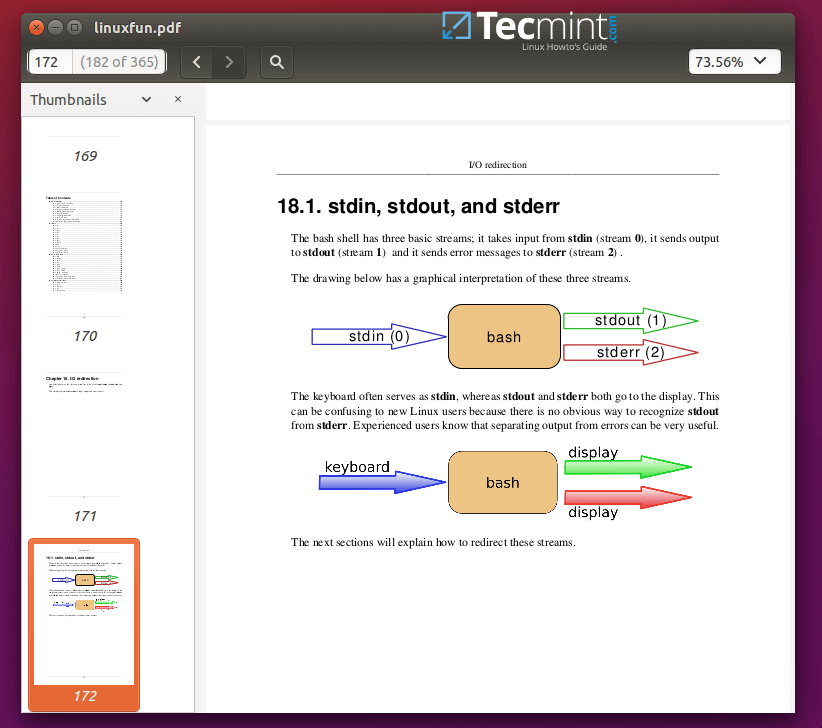
Evince is a lightweight document viewer that comes as the default on the Gnome desktop environment. It supports document formats such as PDF, Postscript, Tiff, XPS, DjVu, DVI, plus many more.
It has features such as:
- Search tool.
- Page thumbnails for easy reference.
- Document Indexes.
- Document Printing.
- Encrypted Document Viewing.
To install Evince PDF reader in Linux, run:
$ sudo apt install evince         [On Debian, Ubuntu and Mint]
$ sudo yum install evince         [On RHEL/CentOS/Fedora and Rocky/AlmaLinux]
$ sudo emerge -a sys-apps/evince  [On Gentoo Linux]
$ sudo apk add evince             [On Alpine Linux]
$ sudo pacman -S evince           [On Arch Linux]
$ sudo zypper install evince      [On OpenSUSE]
3. Foxit Reader
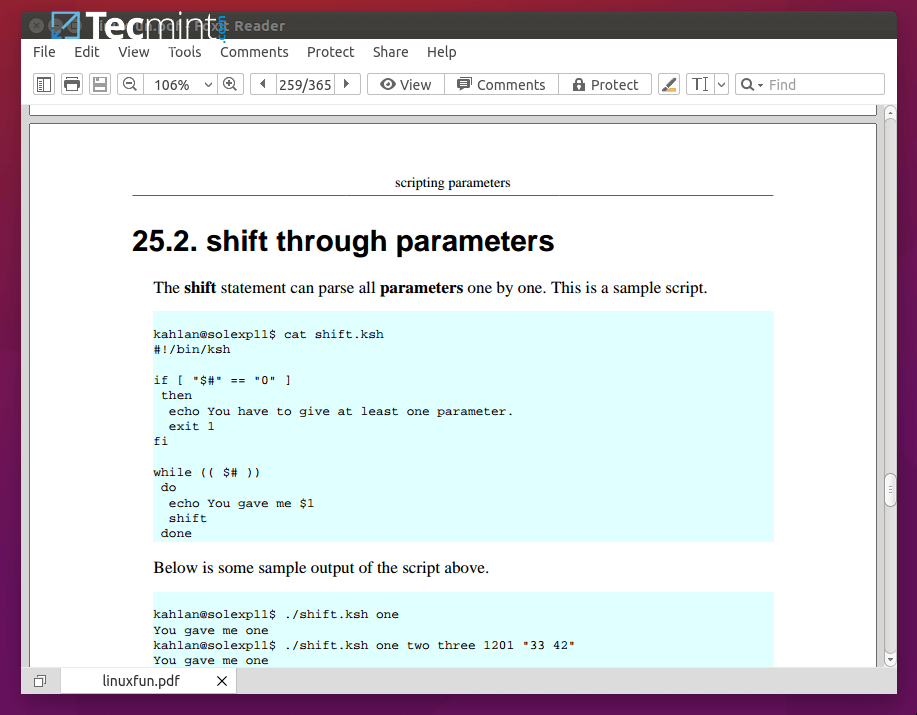
Foxit is a cross-platform, small fast secure PDF reader known for its speed and user-friendly interface. It offers advanced annotation tools, security features, and mobile integration, making it a preferred choice for many professionals and casual users alike.
It is feature-rich with features including:
- An intuitive user interface.
- Support for scanning documents into PDF.
- Allows shared viewing of documents.
- Commenting tools.
- Add/verify digital signatures and many more.
To install Foxit Reader on Linux systems, you need to download the Foxit archive file, and run it as shown.
$ cd /tmp
$ gzip -d FoxitReader.enu.setup*.run.tar.gz
OR
$ tar -xvf FoxitReader.enu.setup*.run.tar.gz
$ ./FoxitReader.enu.setup*.run
4. Firefox (PDF.js)
PDF.js is a general-purpose, web-based PDF viewer built with HTML5, and it’s an open-source, community-driven project backed by Mozilla Labs.
To install PDF.js in Linux systems, follow the below instructions:
$ git clone git://github.com/mozilla/pdf.js.git
$ cd pdf.js
$ npm install -g gulp-cli
$ npm install
$ gulp server
and then you can open
http://localhost:8888/web/viewer.html
5. XpdfReader
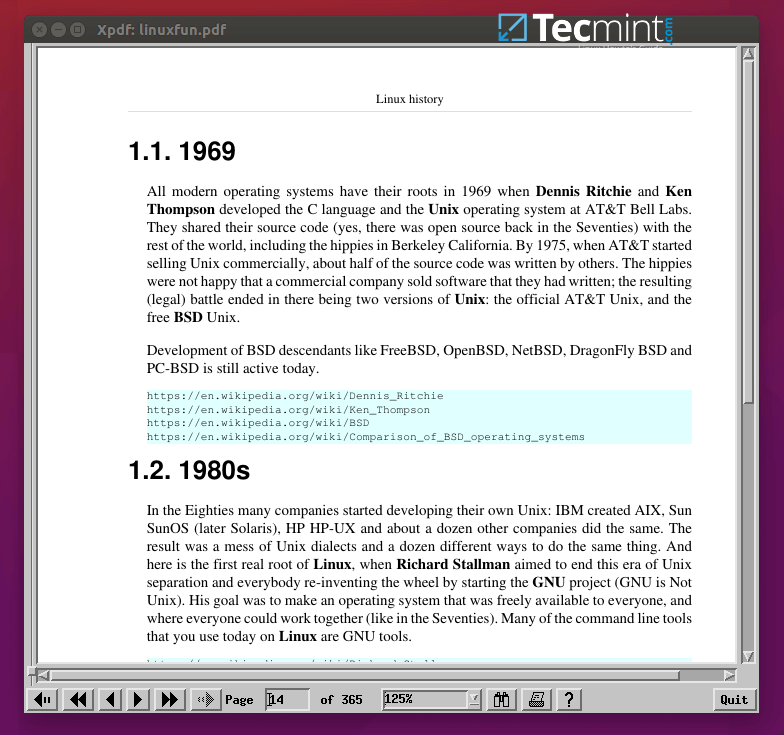
XpdfReader is an old and open-source PDF viewer for the X Windows system that is supported on Linux and other Unix-like operating systems. It additionally includes a text extractor, PDF-to-PostScript converter, and many other utilities.
It has an old interface, therefore users who care so much about nice graphics may not enjoy using it so much.
To install XpdfReader PDF reader in Linux, run:
$ sudo apt install xpdf         [On Debian, Ubuntu and Mint]
$ sudo yum install xpdf         [On RHEL/CentOS/Fedora and Rocky/AlmaLinux]
$ sudo emerge -a sys-apps/xpdf  [On Gentoo Linux]
$ sudo apk add xpdf             [On Alpine Linux]
$ sudo pacman -S xpdf           [On Arch Linux]
$ sudo zypper install xpdf      [On OpenSUSE]
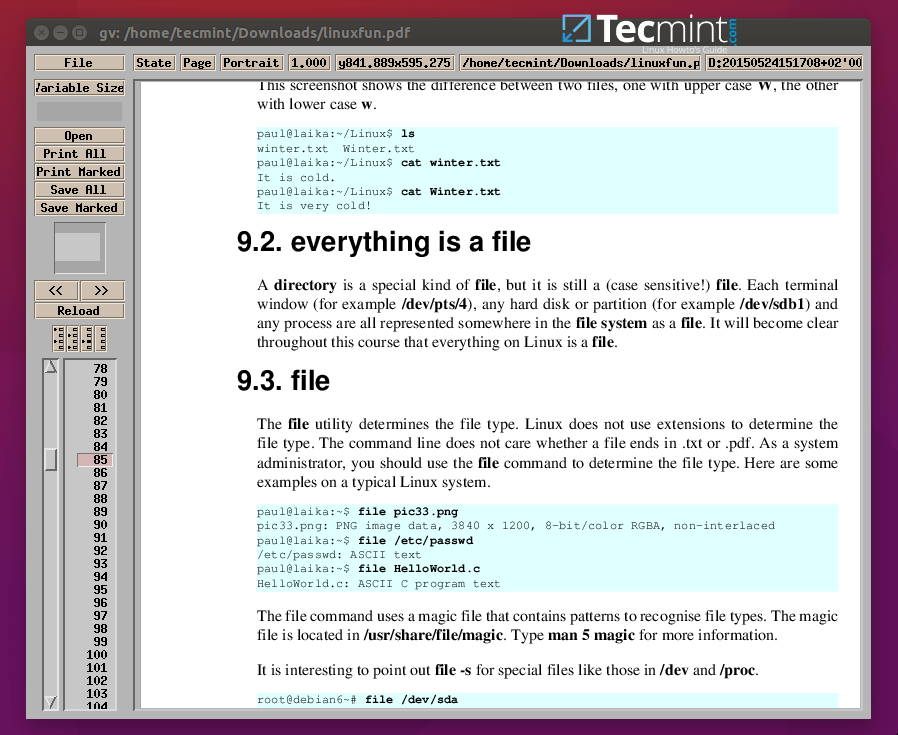
6. GNU GV
GNU GV is an old PDF and Postscript document viewer that works on an X display by providing a graphical user interface for the Ghostscript interpreter.
It is an improved derivation of Ghostview developed by Timothy O. Theisen, which was originally developed by Johannes Plass. It also has old an graphical user interface.
To install GNU GV PDF reader in Linux, run:
$ sudo apt install gv         [On Debian, Ubuntu and Mint]
$ sudo yum install gv         [On RHEL/CentOS/Fedora and Rocky/AlmaLinux]
$ sudo emerge -a sys-apps/gv  [On Gentoo Linux]
$ sudo apk add gv             [On Alpine Linux]
$ sudo pacman -S gv           [On Arch Linux]
$ sudo zypper install gv      [On OpenSUSE]
7. Mupdf
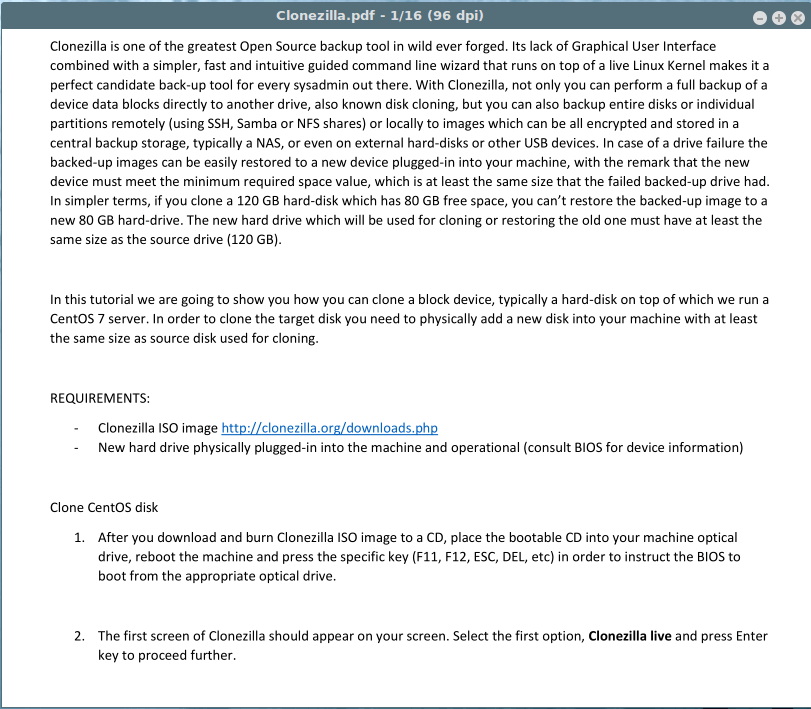
Mupdf is a free, small, lightweight, fast, and complete PDF and XPS viewer. It is highly extensible because of its modular nature.
A handful of its notable features include:
- Supports a highly quality anti-aliased graphics renderer.
- Supports PDF 1.7 with transparency, encryption, hyperlinks, annotations, searching plus many more.
- Reads XPS and OpenXPS documents.
- Written modularly to support additional features.
- Importantly, it can also handle PDF encoded with Chinese GBK well.
8. Qpdfview
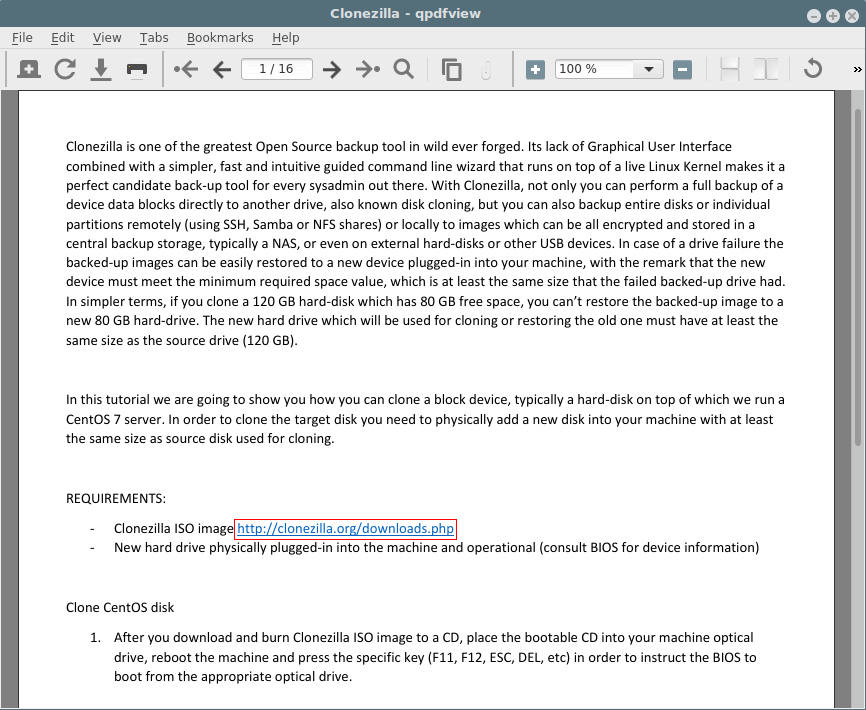
qpdfview is a tabbed document viewer for Linux that uses Poppler for PDF support. It also supports other document formats as well, including PS and DjVu.
Below is a list of its features and components:
- Uses Qt toolkit for interfaces.
- Uses CUPS for printing purposes.
- Supports outline properties, and thumbnail panes.
- Supports scale, rotate, and fit functions.
- Also supports fullscreen and presentation views.
- Enables text search.
- Supports configurable toolbars.
- Supports configurable keyboard shortcuts and many others.
To install Qpdfview PDF reader in Linux, run:
$ sudo apt install qpdfview         [On Debian, Ubuntu and Mint]
$ sudo yum install qpdfview         [On RHEL/CentOS/Fedora and Rocky/AlmaLinux]
$ sudo emerge -a sys-apps/qpdfview  [On Gentoo Linux]
$ sudo apk add qpdfview             [On Alpine Linux]
$ sudo pacman -S qpdfview           [On Arch Linux]
$ sudo zypper install qpdfview      [On OpenSUSE]
9. Zathura
Zathura is a lightweight, highly customizable PDF reader that offers a minimalistic interface, keyboard-driven navigation, and supports plugins to handle various document formats.
To install Zathura PDF reader in Linux, run:
$ sudo apt install zathura         [On Debian, Ubuntu and Mint]
$ sudo yum install zathura         [On RHEL/CentOS/Fedora and Rocky/AlmaLinux]
$ sudo emerge -a sys-apps/zathura  [On Gentoo Linux]
$ sudo apk add zathura             [On Alpine Linux]
$ sudo pacman -S zathura           [On Arch Linux]
$ sudo zypper install zathura      [On OpenSUSE]
10. Poppler
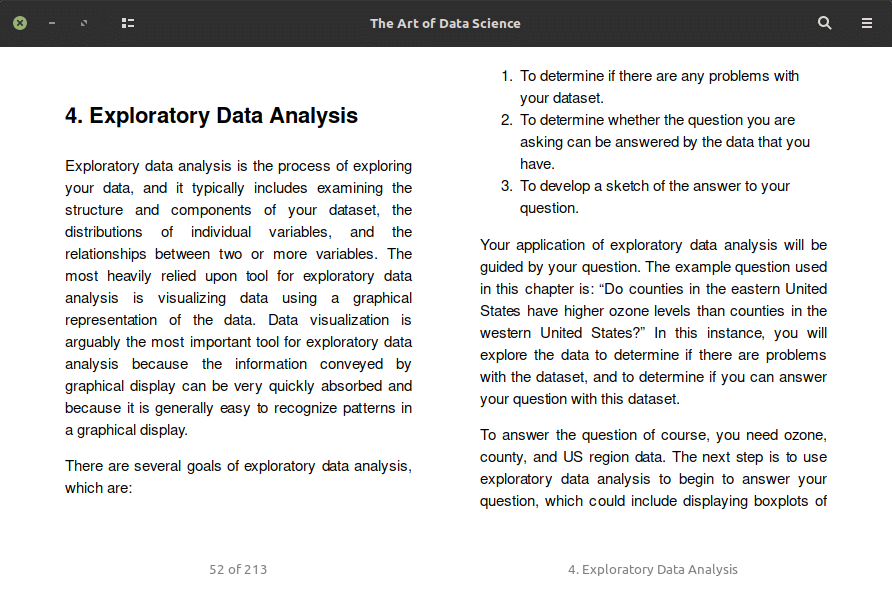
Poppler is an open-source PDF viewer primarily used for rendering PDFs. Originating from the Xpdf project, it has become a go-to library for many Linux applications, offering efficient performance, extensive format support, and continuous development by the community.
To install Poppler PDF reader in Linux, run:
$ sudo apt install poppler         [On Debian, Ubuntu and Mint]
$ sudo yum install poppler         [On RHEL/CentOS/Fedora and Rocky/AlmaLinux]
$ sudo emerge -a sys-apps/poppler  [On Gentoo Linux]
$ sudo apk add poppler             [On Alpine Linux]
$ sudo pacman -S poppler           [On Arch Linux]
$ sudo zypper install poppler      [On OpenSUSE]
Summary
Many people these days prefer using PDF files because many online documents and books now come in the form of PDF files. Therefore getting a PDF viewer that meets your needs is vital.
I hope you find this article useful and if we’ve missed any tool in the above list, do share in the comments, and don’t forget to share your additional thoughts, You can leave a comment in the comment section.

Could you explain how to install MuPDF? The version in Software Manager is from 2017. A more current version, mupdf-1.23.11-source.tar.gz , is downloaded from their site, inzipped, it doesn’t appear to have a “configure” file. The instructions I’m finding on their site are confusing.
A
.debfile, like for Master PDF Editor, seems to work much better with the Linux Mint’s built-in GDebi Package Installer.How come that Foxit Reader is here? The Linux version is not good at all. It freezes constantly when you open something more than a few pages
@John
Thanks for the useful feedback, we shall test this and where necessary update the article accordingly.
THE BEST, I MEAN THE BEST, PDF READER IS LLPP, AND I’VE ALREADY TESTED OUT ALL OF THEM.
There is also Zathura, based on gtk3 and poppler.
@schillingklaus
Thanks for sharing, we will check it out.
Okular is an amazing product and really worked for me.
Thanks!
I’m a religious okular user (use it every day). I just don’t understand why an update has to change the UI so much that my current settings and shortcuts were erased. I have to annotate so many PDF files everyday and having my workflow disrupted like this is just utter bullocks!!
The developer knows best what you need and what will work for you. :P
I’m trying to find a PDF viewer that will view XFA forms. So far, Okular, the Mint Document Viewer, and Adobe Reader 9.15 (the last Linux release from Adobe) all fail to do so.
I’m looking for a PDF viewer for Linux who shows the digital signatures of the documents. Any ideas?
Thank you.
Okular in the latest versions (19.12 for instance)
Thank you! I also found Master PDF :)
How about if I want booklet printing? an alternative for adobe acrobat reader?
Using Ubuntu 16.04.6. Does a pdf save previous versions of it’s self within the pdf? I downloaded and saved a fillable and savable pdf form, it was working. Places – Recent Documents saved in two spots. The Recent Documents list was cleared and now it seems to be gone when I re-access the pdf in the documents folder.
I was searching for a PDF viewer with a small memory print but usable and GV is a real find and surprisingly small if you consider all it does. Thank you!
@ 01101001b
It’s good that you have found something you were looking for. Thanks for the feedback.
Correct me if I am wrong, but Okular does not support 3D embadded graphics. The PDF media extension is currently only supported by Adobe Reader.
@copyme
It has an embedded 3D model, so it should support for 3D features like 3D embedded graphics.
The screenshots didn’t show one important thing: In Okular, you can have the normal menubar (file, edit, view etc) which makes your life so easy. In evince, there used to be a similar menubar, but no more – just the awful hamburger button with many missing properties. The new evince (3.28) has also another problem: resizing he window doesn’t work at least in kde plasma.
@Suvi
Okay, many thanks for sharing your concerns with us.
I have just tried evince, okular and foxitreader, no doubt, foxitreader is much better for study purposes and easy way to highlight and making notes…
@Marcos
Many thanks for sharing your experience with us.
After a probed many options, found Master pdf editor, a very nice option to read and modify pdfs. They have a free options, for me, it’s a must have. Very complete.
@Mario
Many thanks for mentioning, we will check it out.
Had been using Master PDF, which is a very polished and complete editor. I only use rarely and for basic marking, and after an update today the free version is forcing a watermark “Created with Master PDF” which is not acceptable for the purpose. I’m looking to replace it.
@Albin
Thanks for sharing this useful info, we will check out the latest version of Master PDF.
Actually, I didn’t even know before that Foxit supports unix distros so far. But I’ve tried out its features when I was on Windows and hands down, it’s a splendid tool to read documents, but not the best one in order to edit them.
Sure, it recognizes text, but doesn’t allow you to replace or delete some, just to draw something over. Thus I prefer to use this thing in order to work with pdf-documents. It’s pretty nice solution for Linux, because it works very fast despite it’s online tool, and they have applications for all the common systems as well
@Jacob
Okay, thanks for sharing your thoughts with us.
I have found DocHub to be very useful and similar to AdobeReader – a good alternative for people on Linux is. No need to install, and is able to read and sign documents.
@Chris
Many thanks for sharing this.
FoxIt is no longer supported for Debian systems.
@Anandesh
Thanks for sharing this with us.
is there a decent multi threaded PDF reader that can use all CPU cores. I need to search within files a lot. MuPDF doesn’t seem to be well maintained.
@Joe
Have you tried out all the above, may be doing so can help you find one that fits your needs.
Very helpful list! Thank you for this, it saved my college homework today!
@Alexandre
Good to know that this helped you in a college homework; hope you enjoyed it. Thanks a lot for writing back.
I needed a PDF app to sign and complete forms: LibreOffice’s viewer is the best so far (given you have a jpg image of your signature and don’t need a digital signature).
@Edo
Try to look through this list: http://alternativeto.net/software/fill-and-sign-pdf-forms/?license=free
Add/verify digital signatures and many more is one of the most important features that lack this programs.
I tried Foxit and wasn’t able to find the feature in the “free” version.
Usually use Okular but didn’t want to pull in all these Qt4 dependencies so I’m trying out qpdfview. Very nice! Even the ability to add bookmarks and annotation (highlighting and notes). A bit less feature-complete than Okular, but way fewer dependencies, lean, and works great.
@Mikkle
Yap, dealing with a lot of dependencies can be so nagging at times, i actually use Okular as well but now i have to give Qpdfview some time and find its strong points comprehensively. Thanks for stopping by and for the wonderful feedback.
I very much enjoy using PDF Studio. PDF Studio is a versatile tool for manipulating and annotating PDFs. This is the perfect replacement to Adobe Acrobat(I use Ubuntu). There is a slight learning curve. However the installation is very simple. I use it to edit my notes as a college student.
@Derek
We had not come across PDF Studio, many thanks for bringing it to our attention, and for the useful feedback. We shall review it as well.
Could you please add whether the above viewers support fillable forms. Thank you.
@Lurkin4pdf4Linux
Most if not all of the above PDF viewers do not efficiently and reliably support fillable forms, however, Evince comes close with a similar feature but it may not be productive enough for the task.You can use PDFEdit, install it from here: http://apt.ubuntu.com/p/pdfedit.
Try to read through the answers provided here: http://askubuntu.com/questions/29230/is-there-software-that-can-fill-pdf-forms for a better understanding.
does anyone knows PDF editor tool for centos 6 or 7 supported application ???
qpdfviewer default on Manjaro and its work everything with pdf files.
@mgundogdu
Thanks for the informative update, it’s much appreciated.
qpdfview is the best I’ve come around. FOSS, nice rendering, nice annotations. However for everyday things I stick with eVince.
@Mauro
Many thanks for letting us know of qpdfview, its the first time we have heard of it.
@Mauro
We have added qpdfview to the list, once again, thank you for bringing it to our attention.
OKULAR /Evince / xpdf all based on poppler, and have problem when handing GBK charset, for Chinese people we suggest not use these pdf reader.
@nsynet
Sorry about that, you can also make suggestions of what works well for the Chinese people(that region generally) and we shall include it in the article. Thanks for your getting back to us.
MuPDF can handle pdf encoded with GBK well, for OKULAR /Evince / xpdf ,they are based on poppler, and I submit a bug report on poppler (https://bugs.freedesktop.org/show_bug.cgi?id=91013) , seems no people answer.
Mupdf can handle pdf encoded with Chinese GBK well .
@sheng yue Ni
Thanks a lot for the useful suggestion, we hope Chinese, and users from other regions will benefit from it. Additionally, we shall review all of the suggestions from the readers.
@sheng yue Ni
Mupdf has now been included in the article, thanks once more for mentioning it to us.
Greetings … Is there any software in Linux to convert pdf to odt (or docx)?
@Luiz L. Marins
Try to use pdf2odt:
https://github.com/gutschke/pdf2odt
You can also try this free online conversion:
http://www.zamzar.com/convert/pdf-to-odt/
I saw your suggestion, but I need convert to text. Thank you by your interested.
“… In order to perform the conversion, all input files are first converted to image files and then included as background images for the ODT and ODS Open Document files. The Open Document files can then be edited by writing on top of the image(s)…”
At the moment Foxit is the most reliable PDF viewer (I mean – it will render all documents without any issues and have good support for annotations/comments and highlighting).
Evince has problems with annotations/comments, more advanced PDF’s (not always are rendered as intended) and it’s quite slow for larger documents.
PDF.js works well with smaller docs – it’s quite good to preview downloaded PDF’s in the browser, but is very slow).
Didn’t tried Okular since it has too much dependencies for GTK based environments.
MuPDF is missing in this list – it’s very fast so I use to quick preview documents…
Thanks for sharing, i have checked out MuPDF, will surely add it to the list
Sure will collect all info and update you with that
Could you add any repository details for yum?