PostgreSQL is a powerful, highly scalable, open source, and cross-platform object-relational database system that runs on Unix-like operating systems including Linux and Windows OS. It is an enterprise-level database system that is highly reliable and offers data integrity and correctness to users.
In this step-by-step tutorial, we will show you how to install PostgreSQL 16 and pgAdmin (graphical database management tool) on Debian 12 Linux.
Table of Contents
1. Updating Debian System
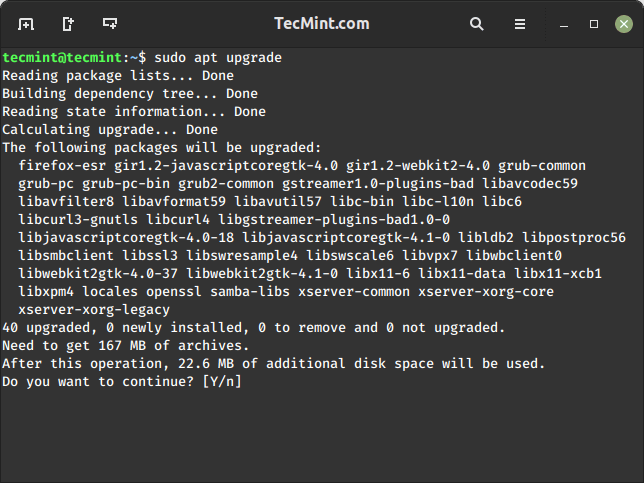
Before installing PostgreSQL, make sure to update your Debian package list and upgrade existing packages using the following apt commands.
sudo apt update
sudo apt upgrade
2. Add PostgreSQL Repository on Debian
The official PostgreSQL APT Repository will combine with your Linux system and offer automatic updates for all supported versions of PostgreSQL throughout their support lifetime.
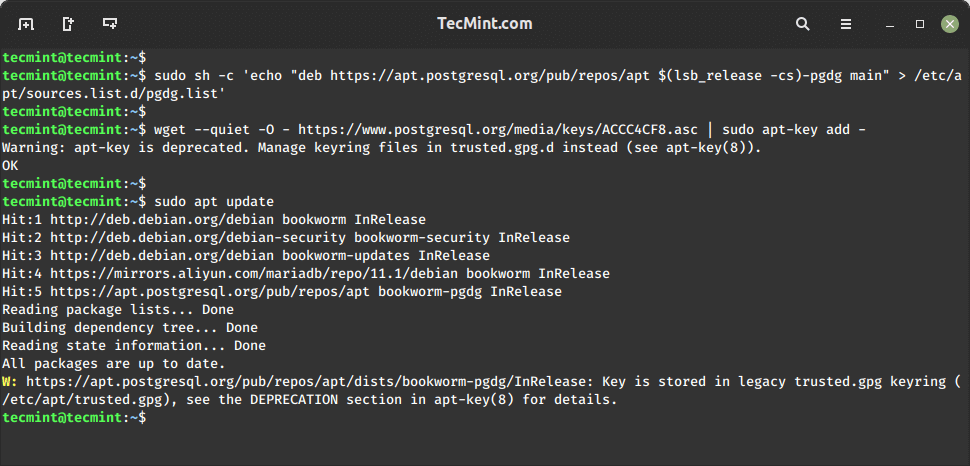
First, add the PostgreSQL repository, import the repository signing key, and update the package lists as shown.
sudo sh -c 'echo "deb https://apt.postgresql.org/pub/repos/apt $(lsb_release -cs)-pgdg main" > /etc/apt/sources.list.d/pgdg.list'
wget --quiet -O - https://www.postgresql.org/media/keys/ACCC4CF8.asc | sudo apt-key add -
sudo apt update
3. Install PostgreSQL 16 on Debian
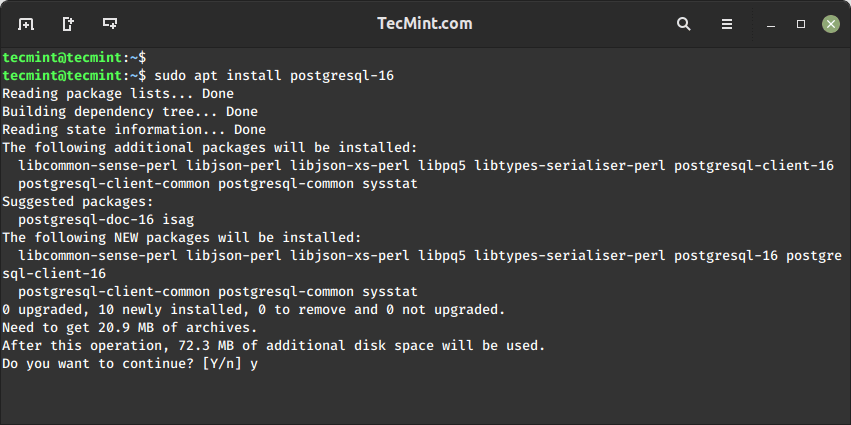
Once you have added the PostgreSQL APT Repository, install the PostgreSQL 16 server with the following command.
$ sudo apt install postgresql-16
The PostgreSQL data directory /var/lib/postgresql/16/main/ contains all of the data files for the database.
4. Manage PostgreSQL Service
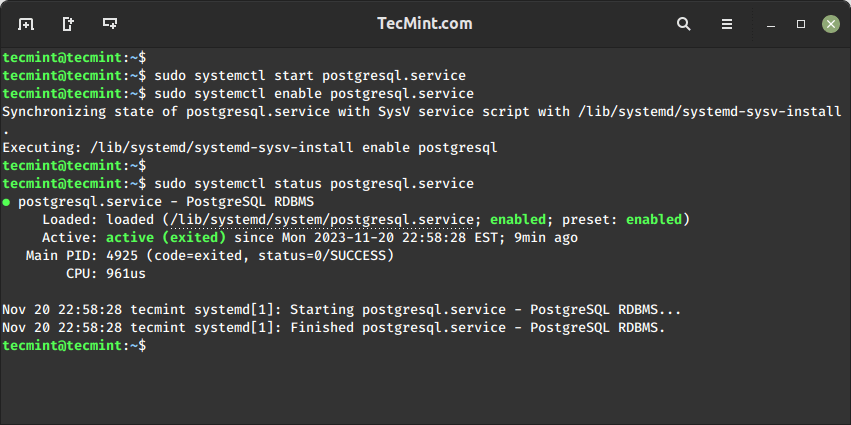
To start, enable, and check the status of the PostgreSQL service, use the following commands.
sudo systemctl start postgresql.service
sudo systemctl enable postgresql.service
sudo systemctl status postgresql.service
5. Verify PostgreSQL Installation
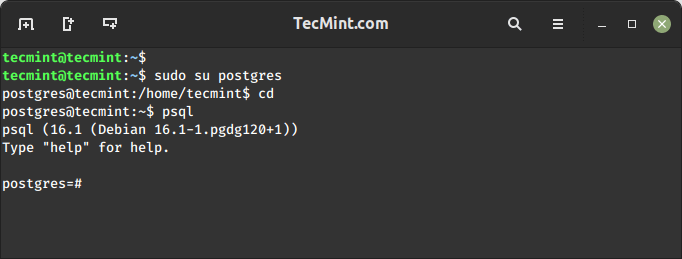
After installing the PostgreSQL database system on your server, verify its installation by connecting to postgres database server. The PostgreSQL administrator user is named as postgres, type this command to access the user system account.
sudo su postgres
cd
psql
6. Set Postgres User Password
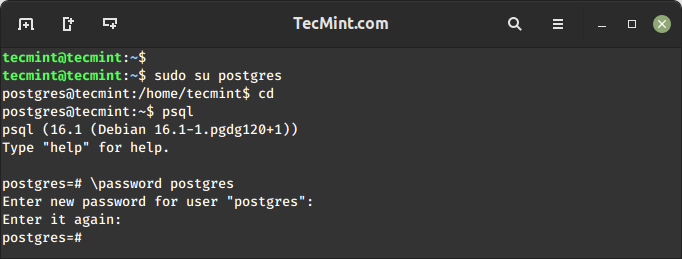
To set a password for the postgres database administrator user, use the following command.
\password postgres
After running the above command, you will be prompted to enter the new password.
Once you’ve set the password, exit the PostgreSQL prompt.
\q
exit
7. Install pgAdmin in Debian
pgAdmin is a popular graphical user interface (GUI) for managing PostgreSQL databases and it is used for creating, editing, and managing databases, tables, users, and other database objects.
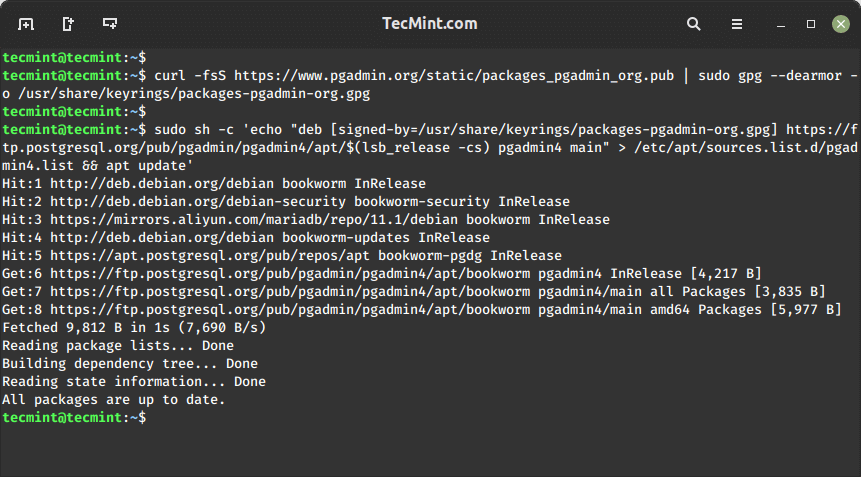
To install pgAdmin, you need to install the public key for the repository with the following curl command.
curl -fsS https://www.pgadmin.org/static/packages_pgadmin_org.pub | sudo gpg --dearmor -o /usr/share/keyrings/packages-pgadmin-org.gpg
Next, create the repository configuration file with the following command.
sudo sh -c 'echo "deb [signed-by=/usr/share/keyrings/packages-pgadmin-org.gpg] https://ftp.postgresql.org/pub/pgadmin/pgadmin4/apt/$(lsb_release -cs) pgadmin4 main" > /etc/apt/sources.list.d/pgadmin4.list && apt update'
Next, install the pgAdmin as shown.
sudo apt install pgadmin4
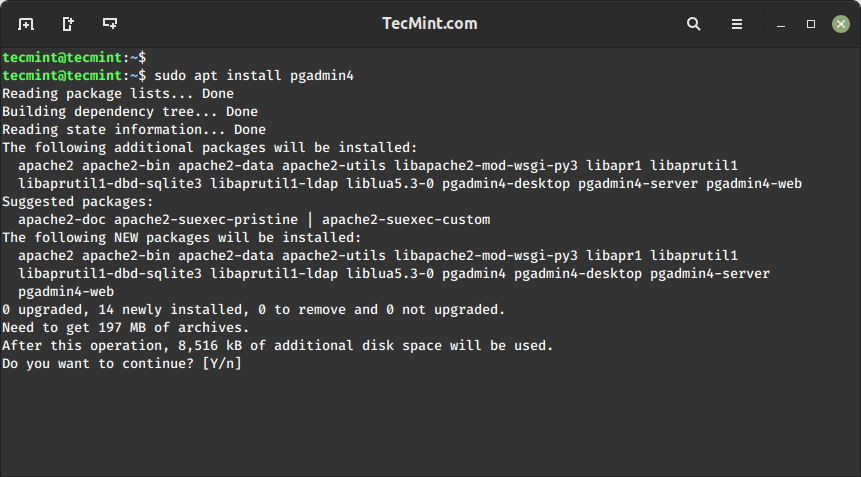
Afterward, you’ll have to execute a web setup script to configure the pgadmin4 for web mode operation as shown.
sudo /usr/pgadmin4/bin/setup-web.sh
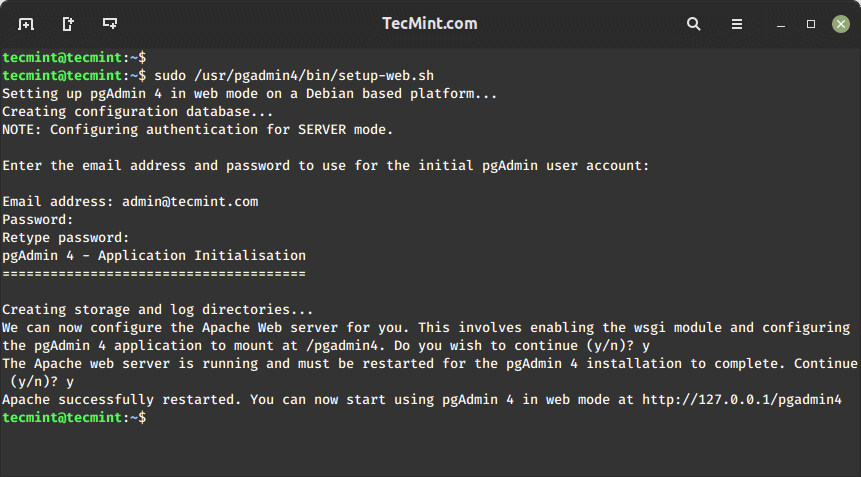
Now, launch your web browser and enter the following URL to reach the pgAdmin4 login web interface.
http://your-server-ip/pgadmin4
OR
http://localhost/pgadmin4
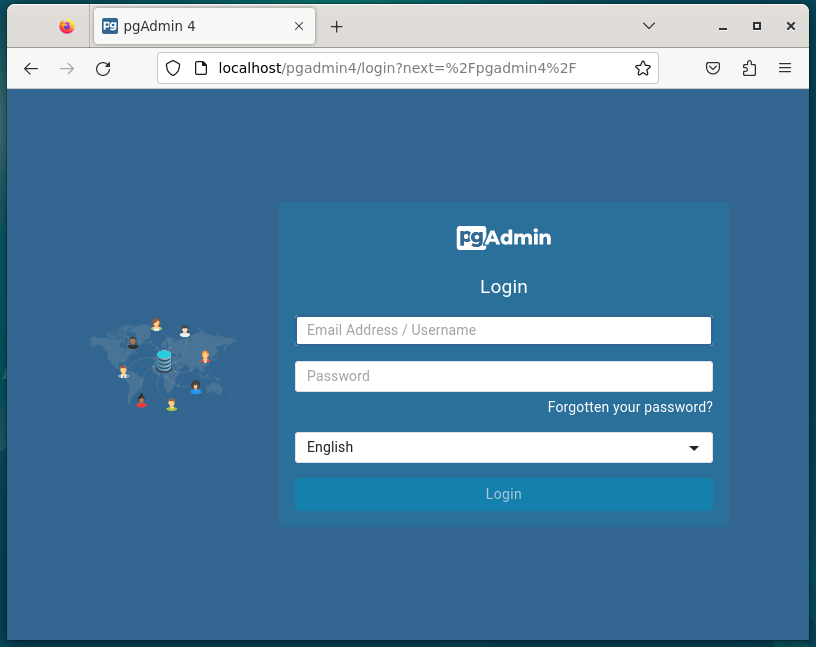
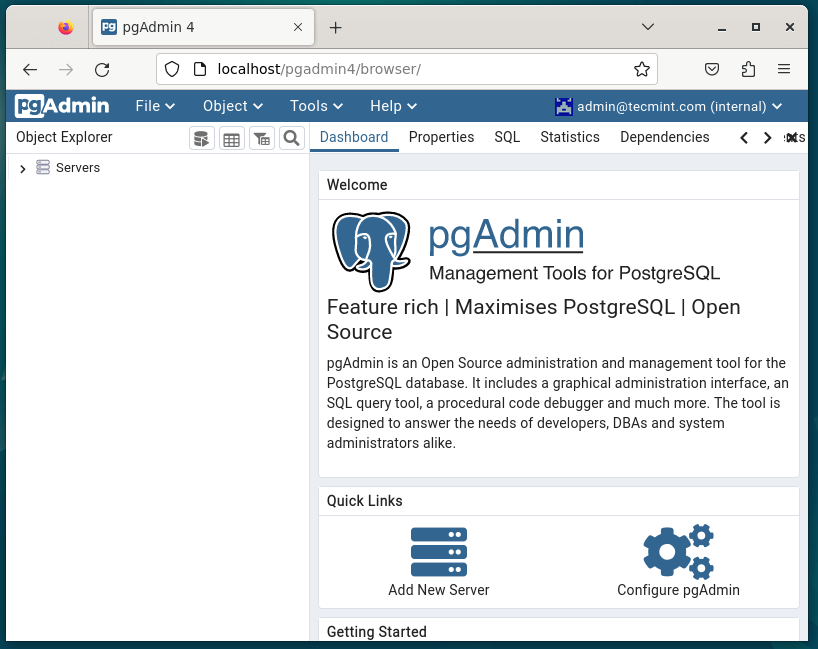
Enter your email address and password, then click the Login button to view the pgAdmin4 dashboard page.
Finally, read through these related articles about the PostgreSQL database management system:
Conclusion
You have now successfully installed PostgreSQL 16 and pgAdmin on Debian 12. You can now start using pgAdmin to manage your PostgreSQL databases.