How to Install Xubuntu Desktop on Ubuntu 20.04

Take Your Linux Skills to the Next Level All courses, certifications, ad-free articles & community — from $8/mo
Join Root →
Ad-free access to all premium articles
Access to all courses: Learn Linux, AI for Linux, Bash Scripting, Ubuntu Handbook, Golang and more.
Access to Linux certifications (RHCSA, RHCE, LFCS and LFCA)
Access new courses on release
Get access to weekly newsletter
Priority help in comments
Private Telegram community
Connect with the Linux community
From $8/mo · or $59/yr billed annually · Cancel anytime

One of the wonderful things about the Linux operating system is its vast array of customization options. If you are using a system with a graphical user interface, you can tweak almost anything – the desktop background, wallpaper, icons, and even installing a different desktop environment to have a change in the look-and-feel.

You can have multiple Desktop environments installed on your Linux system or you can decide to remove others and remain with one. The choice is usually entirely up to you.

One of the desktop environments that you can use to add some oomph and improve your user experience is the Xubuntu desktop environment. Xubuntu is stable and relatively lightweight compared to the GNOME desktop environment which ships with Ubuntu 18.04 and later versions.

It’s highly customizable and is kind on the computing resources such as CPU and RAM. Xubuntu is, therefore, an ideal environment to turn to if you want to speed up your PC particularly if you are running a system with low computing specifications.

In this guide, we focus on how you can install Xubuntu 20.04 desktop on Ubuntu.

Install Xubuntu Desktop on Ubuntu 20.04

Let’s get started by updating the package lists of your system.

$ sudo apt update

Once the repositories are refreshed, install the Xubuntu desktop environment from the xubuntu-desktop meta-package as shown.

$ sudo apt install xubuntu-desktop

The command also installs the XFCE environment and additional software packages that will be required by Xubuntu. The installation size, in my case, came to about 357 MB.
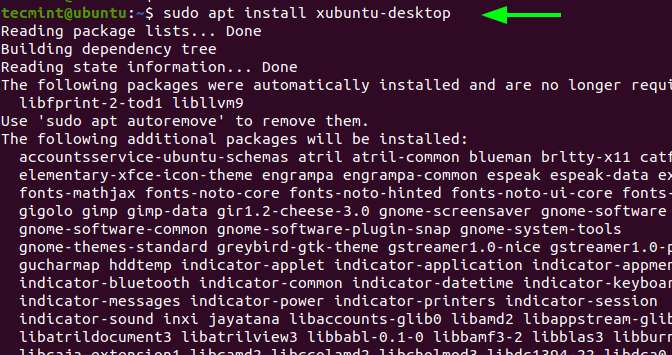
Install Xubuntu Desktop in Ubuntu

During the installation, you will be required to select a display manager. In my case, I chose gdm3.
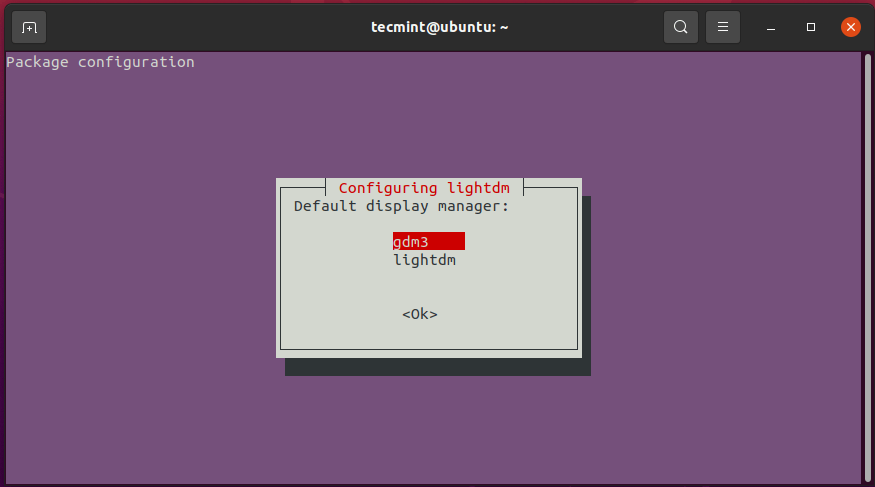
Choose Display Manager in Ubuntu

Thereafter, the installation will continue and wrap up successfully. To start using the new Xubuntu desktop environment, reboot your system

$ sudo reboot

During the reboot process, you will notice a Xubuntu logo momentarily splash on the screen.
Xubuntu Booting
Xubuntu Booting

On the login screen, click on the gear icon, and select Xubuntu Session. Then provide your password and hit ‘ENTER’ on the keyboard.
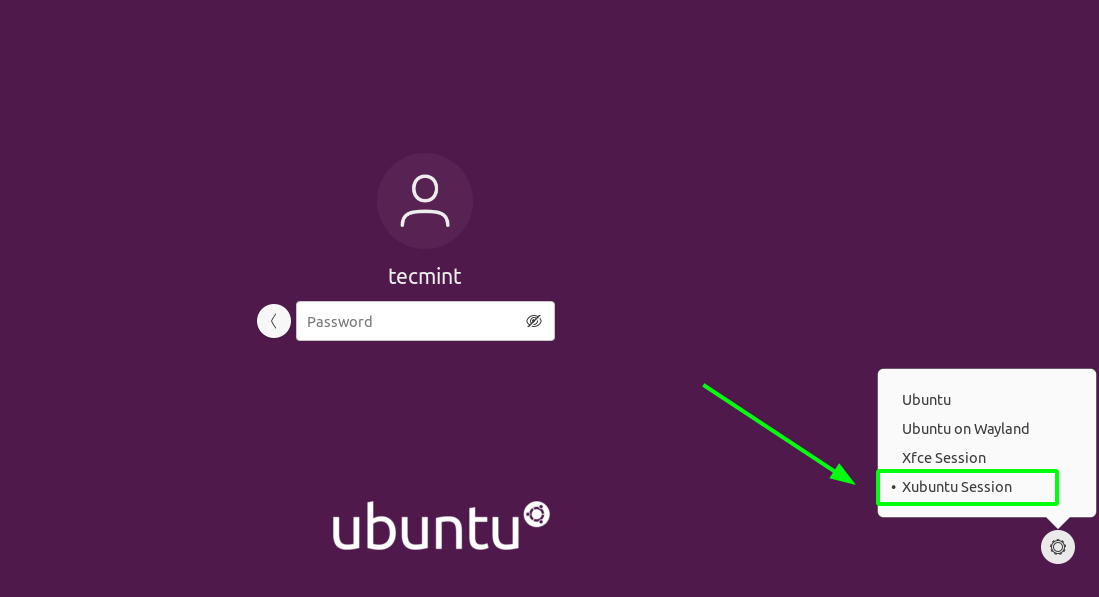
Choose Xubuntu in Ubuntu

This ushers you to the elegant and stable Xubuntu desktop environment as shown below.
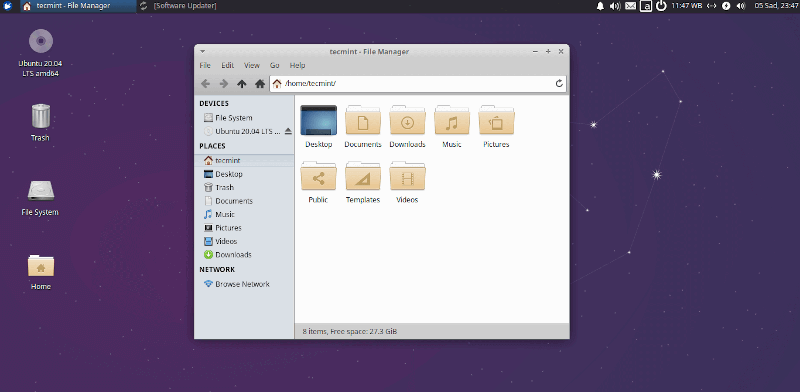
Xubuntu Desktop
Xubuntu Desktop

Whenever you feel your PC is lagging due to resource constraints, you can always install and switch to Xubuntu which is a better fit for performance and customization options.

Aside from that, there really isn’t much to gain by switching to Xubuntu. If GNOME is running perfectly well with negligible impact on performance, you can continue using it without switching to Xubuntu.


Root Plan
Premium Linux Education for Serious Learners

Take Your Linux Skills to the Next Level

Root members get full access to every course, certification prep track, and a growing library of hands-on Linux content — with new courses added every month.

What You Get
Ad-free access to all premium articles
Access to all courses: Learn Linux, AI for Linux, Bash Scripting, Ubuntu Handbook, Golang and more.
Access to Linux certifications (RHCSA, RHCE, LFCS and LFCA)
Access new courses on release
Get access to weekly newsletter
Priority help in comments
Private Telegram community
Connect with the Linux community
Ravi Saive
I'm Ravi Saive, an award-winning entrepreneur and founder of several successful 5-figure online businesses, including TecMint.com, GeeksMint.com, UbuntuMint.com, and the premium learning hub Pro.Tecmint.com.

Each tutorial at TecMint is created by a team of experienced Linux system administrators so that it meets our high-quality standards.

Join the TecMint Weekly Newsletter (More Than 156,129 Linux Enthusiasts Have Subscribed)
Was this article helpful? Please add a comment or buy me a coffee to show your appreciation.

1 Comment

Leave a Reply

Got Something to Say? Join the Discussion...

Thank you for taking the time to share your thoughts with us. We appreciate your decision to leave a comment and value your contribution to the discussion. It's important to note that we moderate all comments in accordance with our comment policy to ensure a respectful and constructive conversation.

Rest assured that your email address will remain private and will not be published or shared with anyone. We prioritize the privacy and security of our users.

Root Plan Premium Linux Education for Serious Learners

Before You Go - Upgrade Your Linux Skills

Root members get everything in one place, with new courses added every month.

What You Get
Ad-free access to all premium articles
Access to all courses: Learn Linux, AI for Linux, Bash Scripting, Ubuntu Handbook, Golang and more.
Linux certifications: RHCSA, RHCE, LFCS and LFCA
Access new courses on release
Weekly newsletter, priority support & Telegram community
Join Root Today and Start Learning Linux the Right Way
Structured courses, certification prep, and a community of Linux professionals - all in one membership.
Join Root Plan →
$8/mo · or $59/yr billed annually