

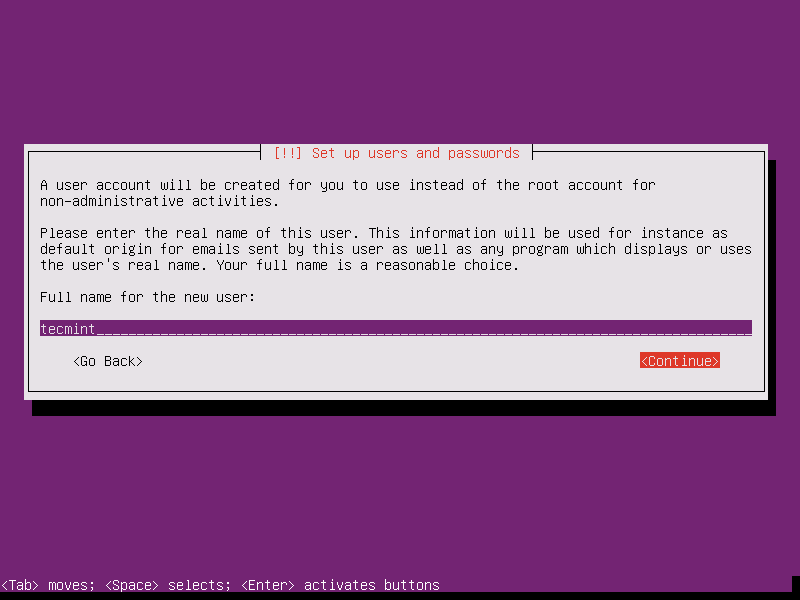
10. On this step the installer prompts you to setup a username and a password for your system. This username will be granted by the system with sudo powers, so, technically, this user will be the supreme administrator next to root account (which is disabled by default).
Thus, choose an inspired username, maybe hard to guess for security reasons, with a strong password and hit on Continue. Choose not to encrypt your home directory and press Enter to continue further.
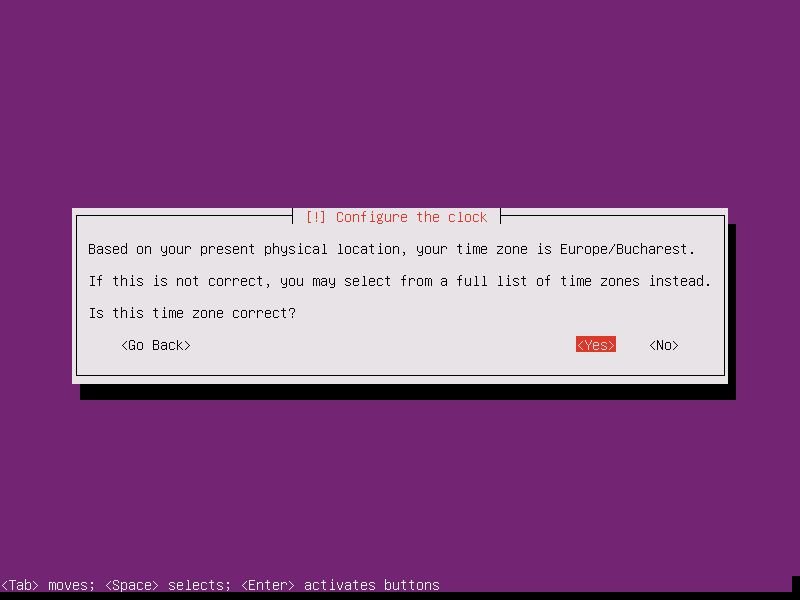
11. Next, the installer will automatically set your clock based on the physical location configured earlier. In case the location is correctly chosen hit on Yes to continue to disk partition layout.
12. On the next step you can choose the method that will be used to slice up your disk. For instance, if you need to create custom partition scheme (such as /home, /var, /boot etc) choose Manual method.
For a general purpose server you can stick to Guided with LVM method as illustrated below, which automatically creates the partitions on your behalf.

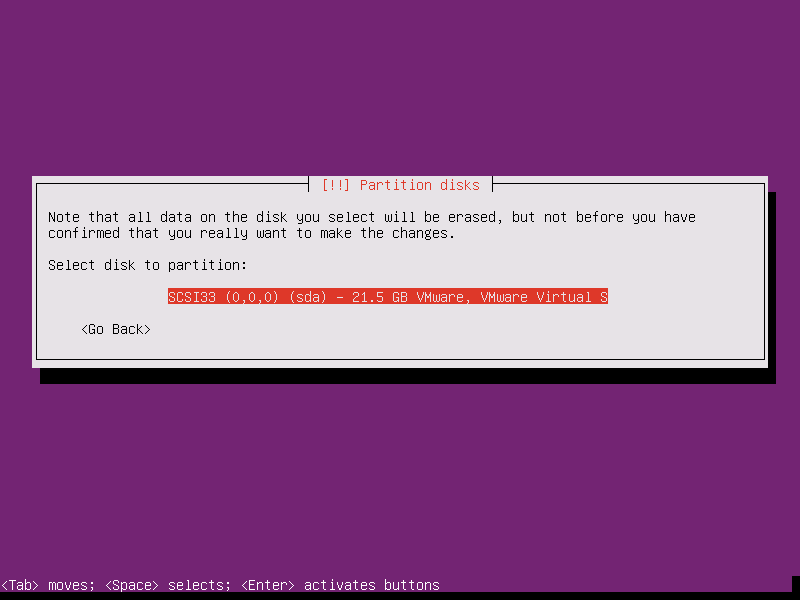
13. Next, select the disk that will be used by the installer to create partitions and press Enter key.
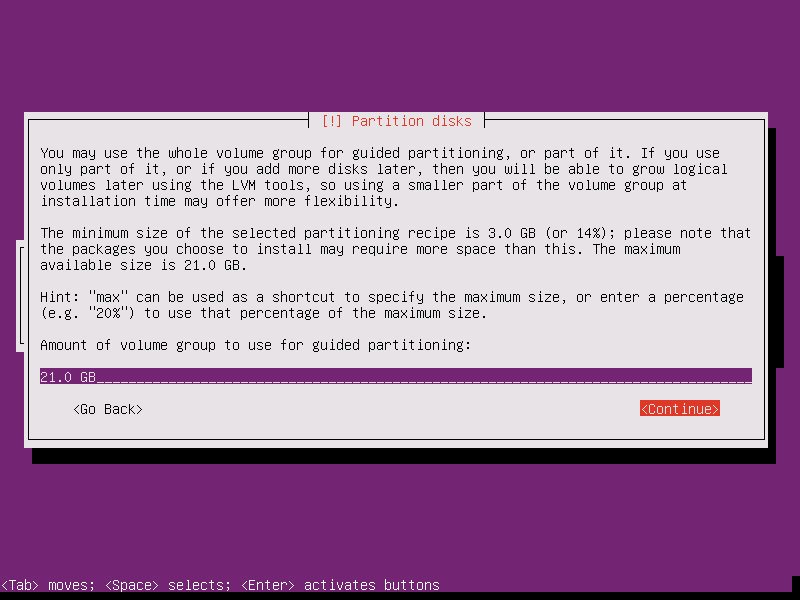
14. Answer with Yes at the next screen in order to commit changes to disk with LVM scheme and hit on Continue to use the entire disk space for guided partitions.
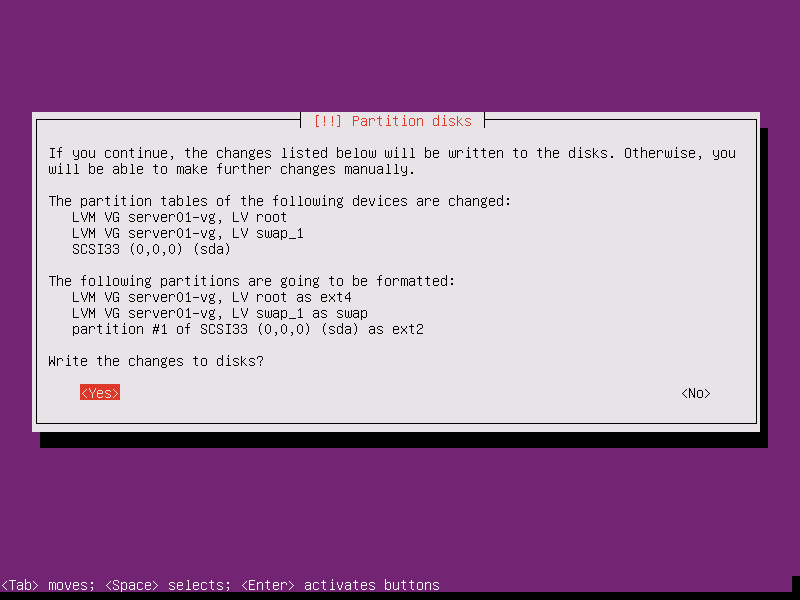
15. Finally, approve for the last time the changes to be written to disk by pressing on Yes and the installation will now begin. From this step on all the changes will be committed to disk.
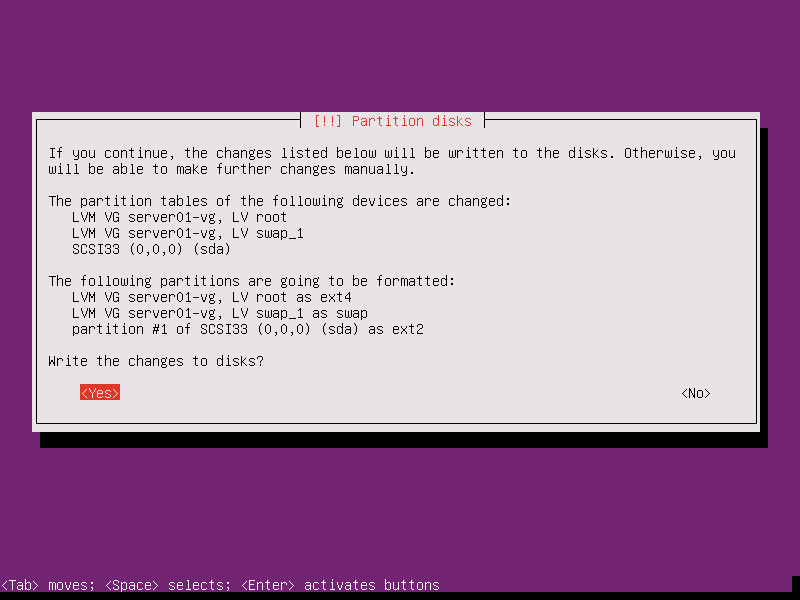
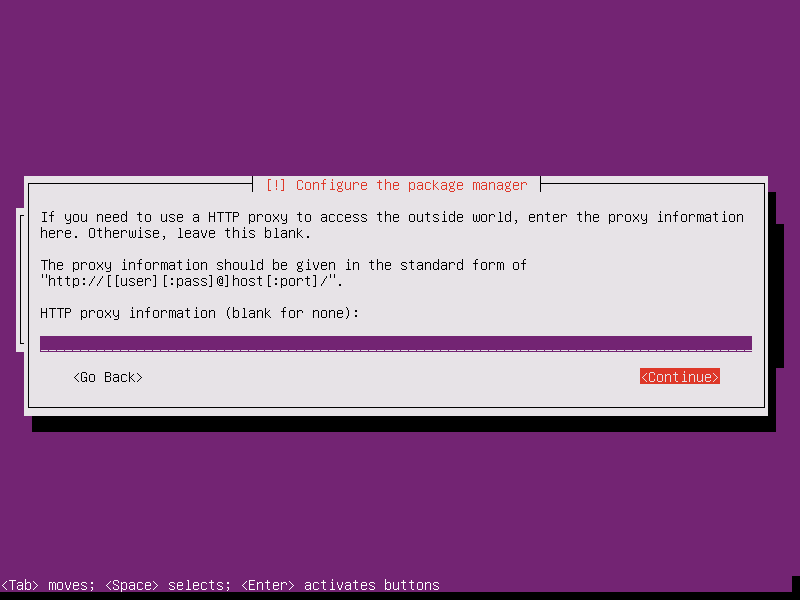
16. In case your system is behind a proxy or a firewall use the next screen to bypass the network restrictions, otherwise just leave it black and hit on Continue.
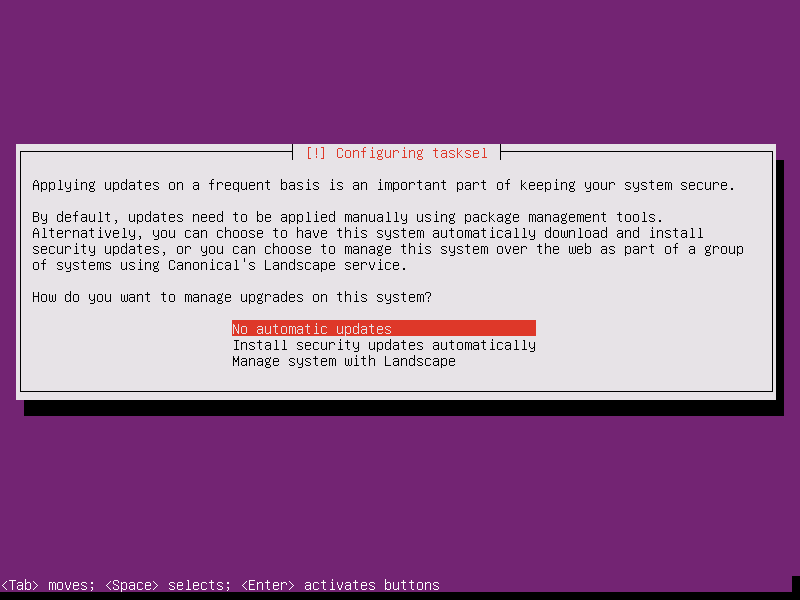
17. Next, the installer will configure apt repositories and will install the selected software. After it finishes the installation tasks a new screen will appear which will ask you how to manage the upgrade process. Select No automatic updates for now (you will manually select what updates are necessary) and hit Enter key to continue.
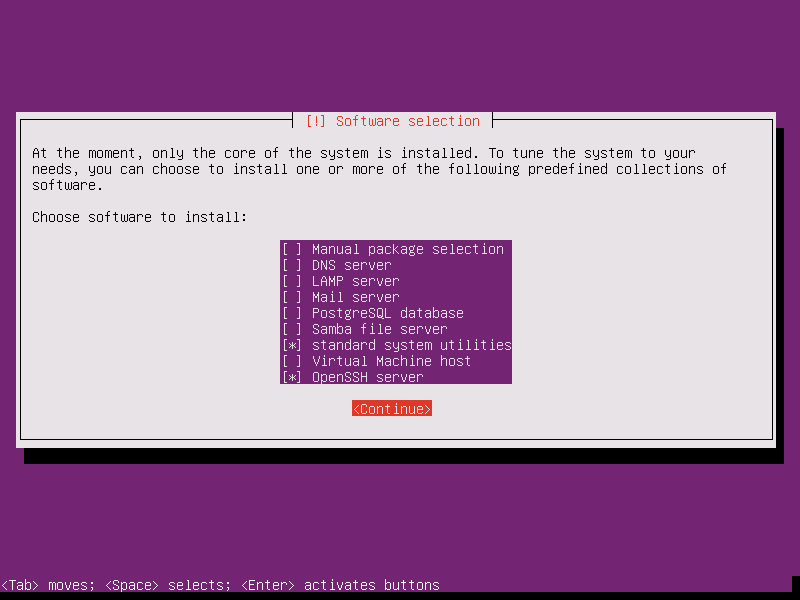
18. On the next step you will be asked to select what software to install. Select only standard system utilities and OpenSSH server (if you require remote access) by pressing the spacebar key and hit on Continue.
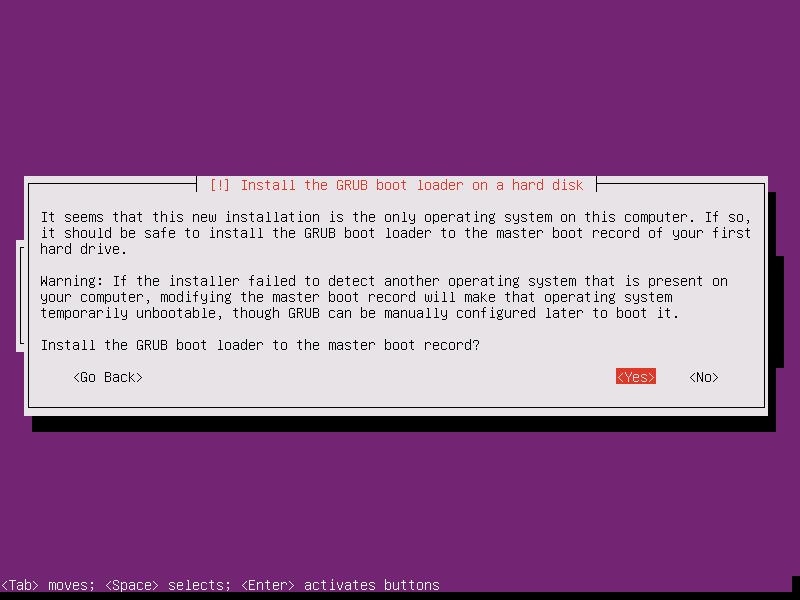
19. Once the installer finishes installing the software, a new screen will prompt you whether to install the Grub boot loader to hard disk MBR (first 512 byte sector). Obviously without the GRUB you can’t boot up your system after restart, so hit on Yes to continue with the installation.
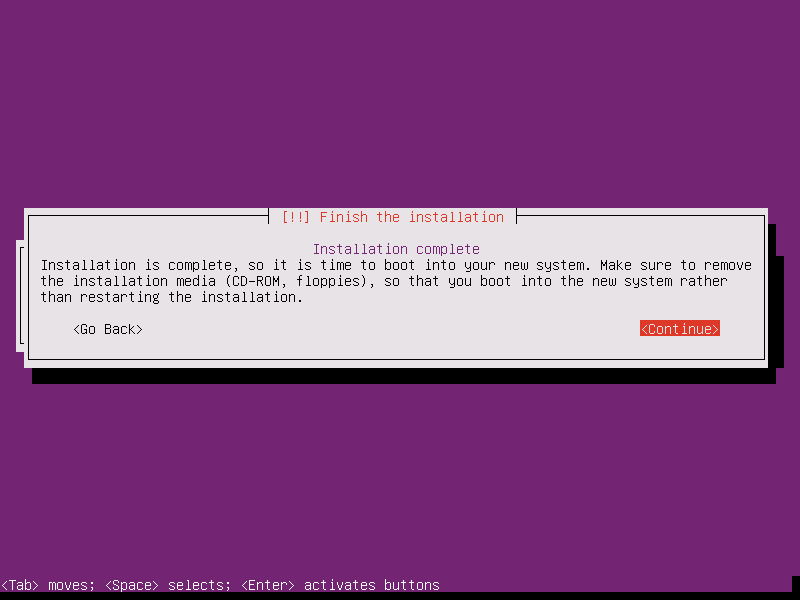
20. Finally, after the boot loader is written to Hard Disk MBR, the installation process finishes. Hit on Continue to reboot the machine and remove the installation media.
21. After reboot, login to your system console using the credentials configured during the installation process and you’re good to go on production with your server.
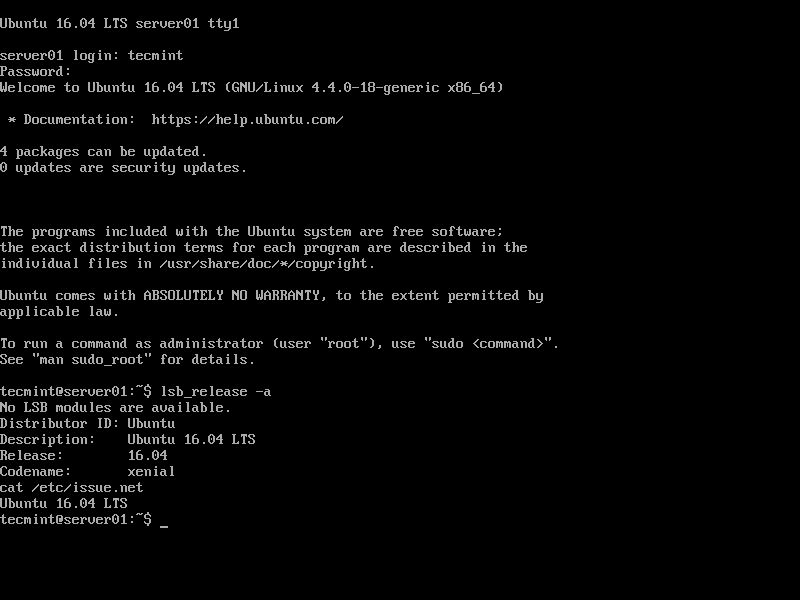
That’s all! Keep in mind that this version of Ubuntu has official maintenance support from Canonical until 2021 for hardware, bugs, software and security updates.

Thanks for tutorial, Thank you for your help.
Hello,
Can you show how to split a disk into separate partitions for home, tmp, srv, var?
Thank you for your help.