Installation of Ubuntu 16.04 Server Edition

Ubuntu Server 16.04, also named Xenial Xerus, has been released by Canonical and it’s now ready for installation.

The details about this new LTS version can be found on the previous article: How to upgrade Ubuntu 15.10 to 16.04.

This topic will guide you on how you can install Ubuntu 16.04 Server Edition with Long Time Support on your machine.

If you’re looking for Desktop Edition, read our previous article: Installation of Ubuntu 16.04 Desktop

Requirements

  1. Ubuntu 16.04 Server ISO Image

Install Ubuntu 16.04 Server Edition

1. On the first step visit the above link and download the latest version of Ubuntu Server ISO image on your computer.

Once the image download completes, burn it to a CD or create a bootable USB disk using Unbootin (for BIOS machines) or Rufus (for UEFI machines).

2. Place the bootable media intro the appropriate drive, start-up the machine and instruct the BIOS/UEFI by pressing a special function key (F2, F11, F12) to boot-up from the inserted USB/CD drive.

In a few seconds you will be presented with the first screen of Ubuntu installer. Select your language to perform the installation and hit Enter key to move to the next screen.
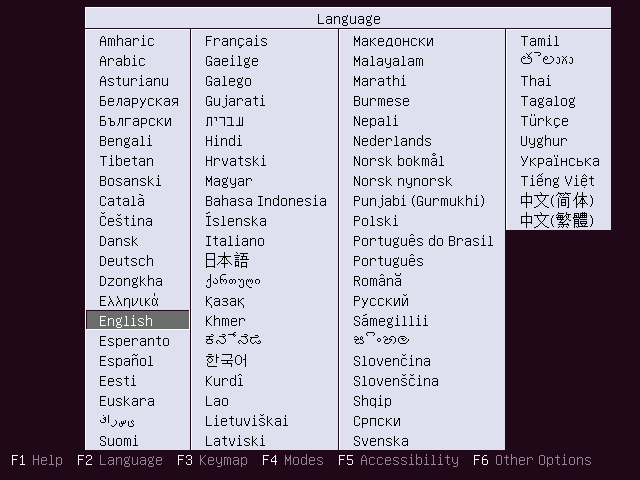
Choose Ubuntu 16.04 Server Installation Language

3. Next, select the first option, Install Ubuntu Server and press Enter key to continue.

Install Ubuntu 16.04 Server

4. Select the language you with to install the system and press Enter again to continue further.
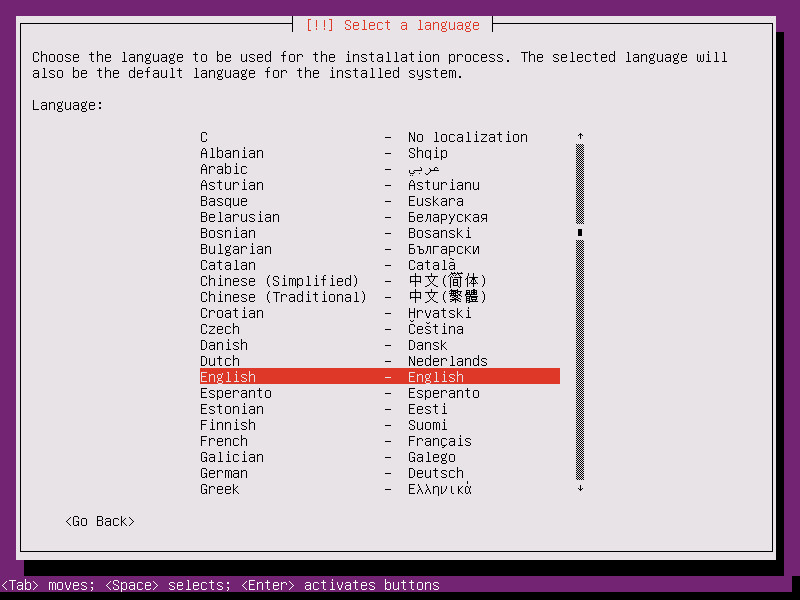
Select Language for Ubuntu 16.04 Server

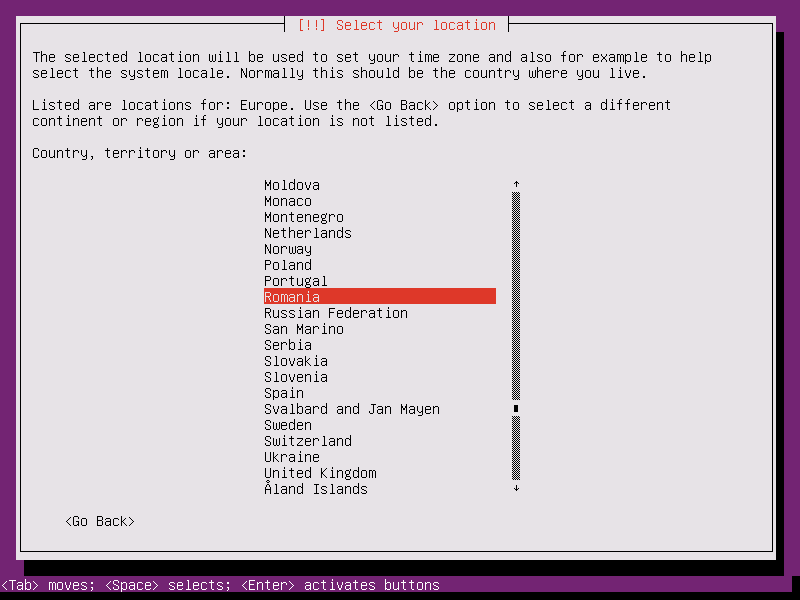
5. On the next series of screen choose your physical location from the presented list. If your location is different than the ones offered on the first screen, select other and hit Enter key, then select the location based on your continent and country. This location will be also used by the timezone system variable. Use the below screenshots as a guide.
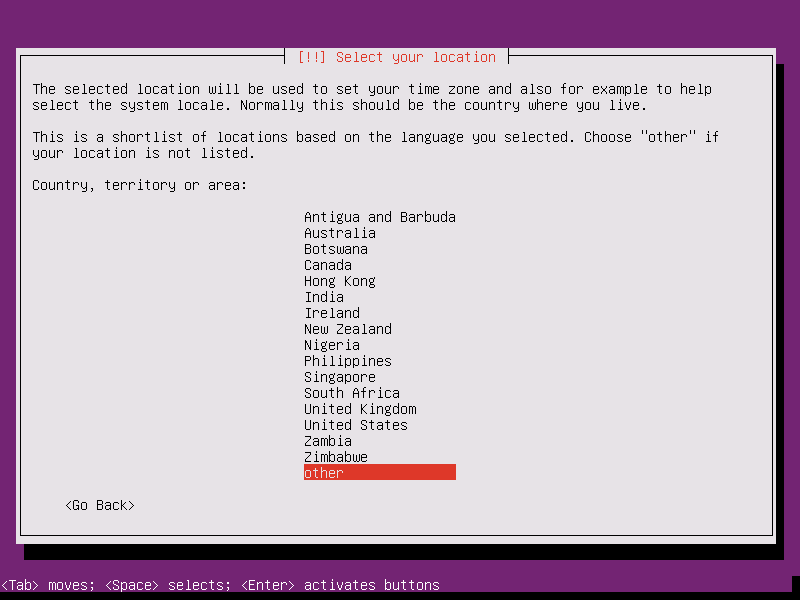
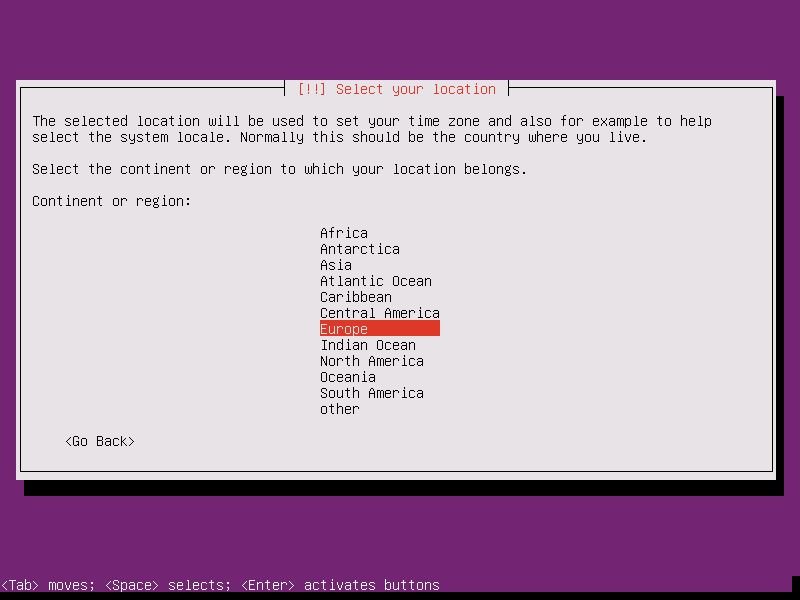
Choose Location for Ubuntu 16.04 Server
Select Country Region
Select Area Location

6. Assign the locales and keyboard settings for your system as illustrated below and hit Enter to continue the installation setup.
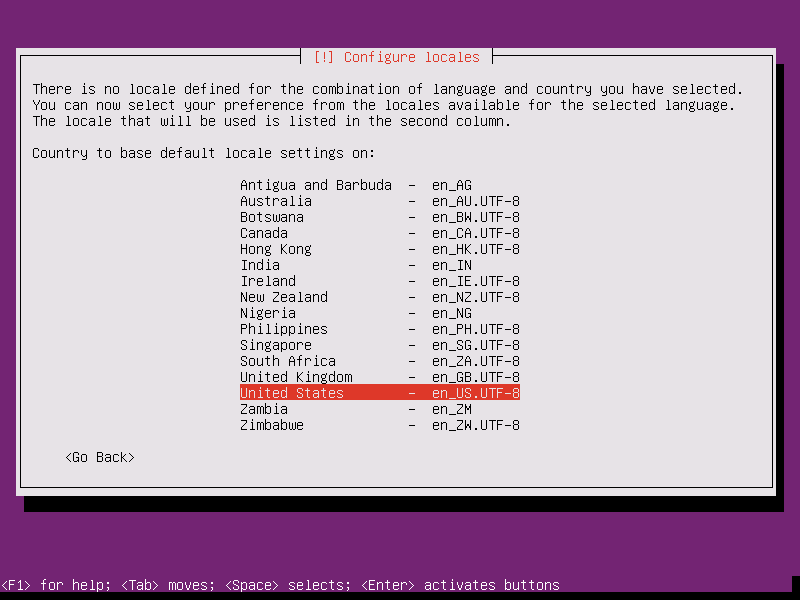
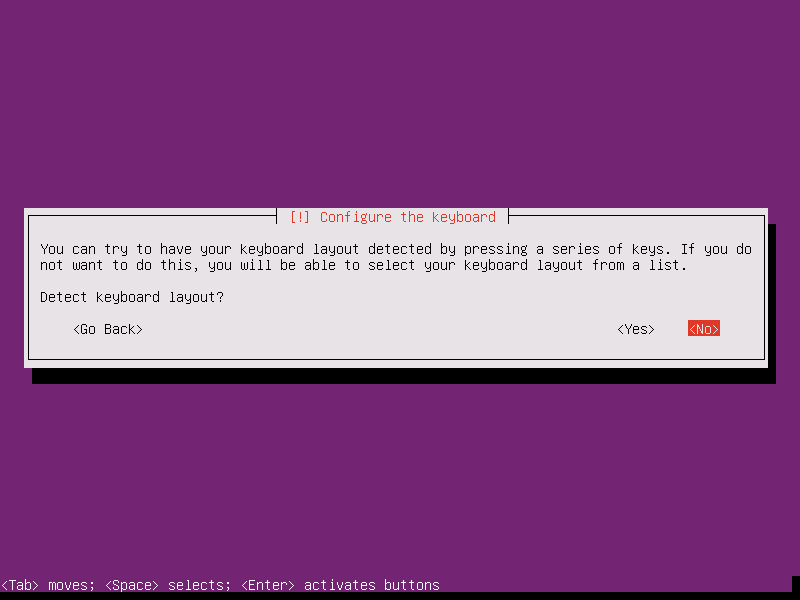
Configure Locales
Configure Locales
Configure Keyboard Layout

7. The installer will load a series of additional components required for the next steps and will automatically configure your network settings in case you have a DHCP server on the LAN.

Because this installation is intended for a server it’s a good idea to setup a static IP address for your network interface.

To do this you can interrupt the automatic network configuration process by pressing on Cancel or once the installer reaches hostname phase you can hit on Go Back and choose to Configure network manually.
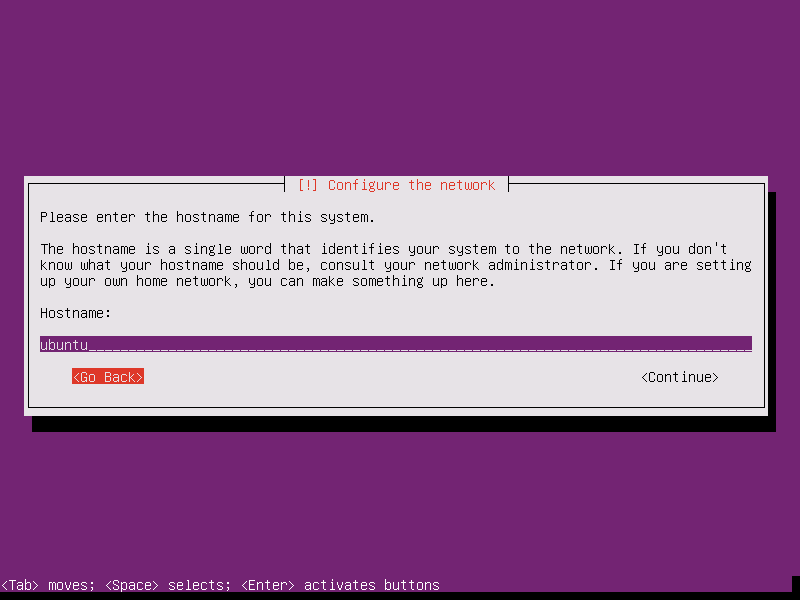
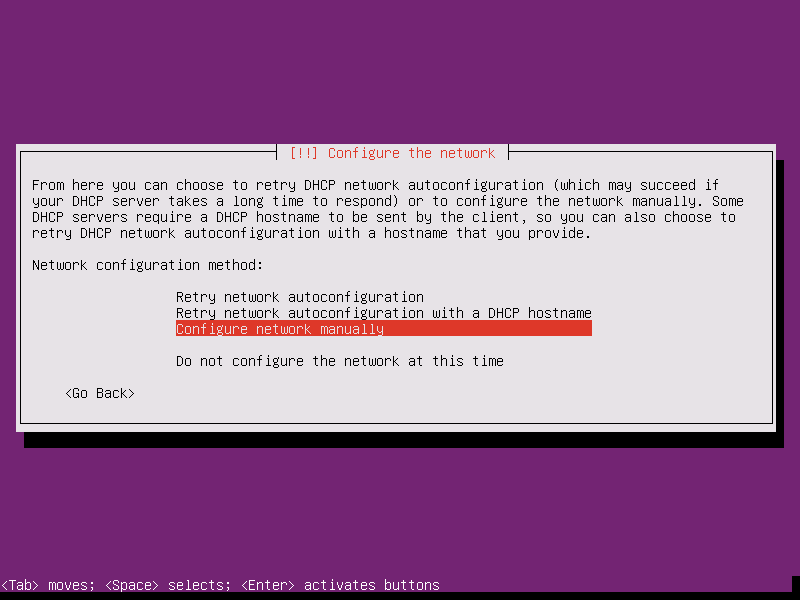
Set Ubuntu 16.04 Hostname
Configure Network Manually

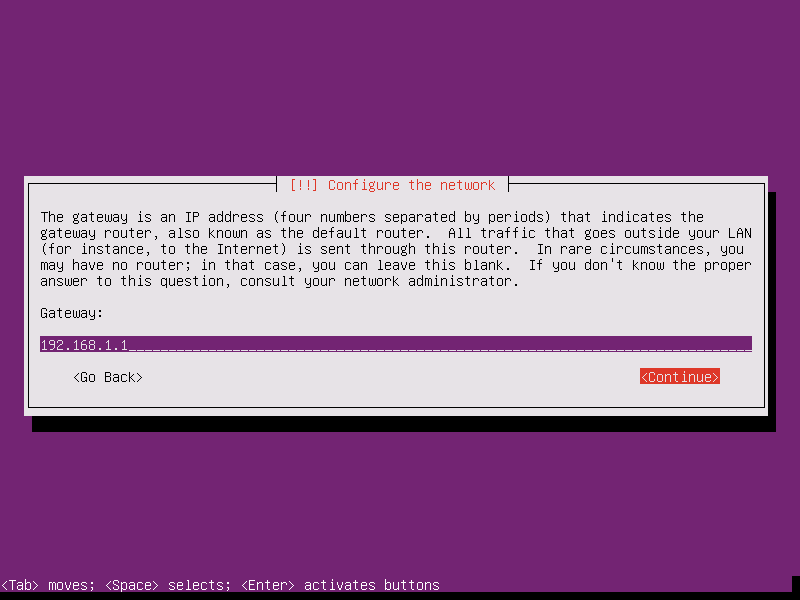
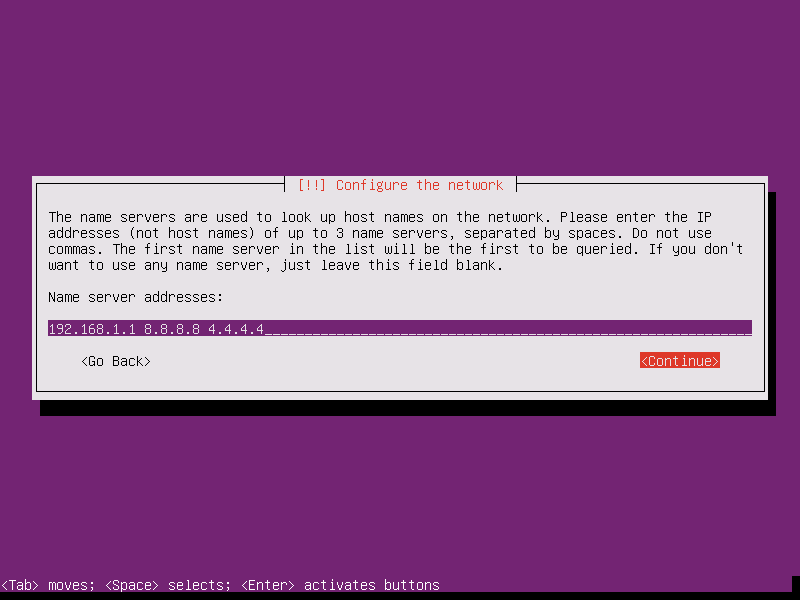
8. Enter your network settings accordingly (IP Address, netmask, gateway and at least two DNS nameservers) as illustrated on the below images.
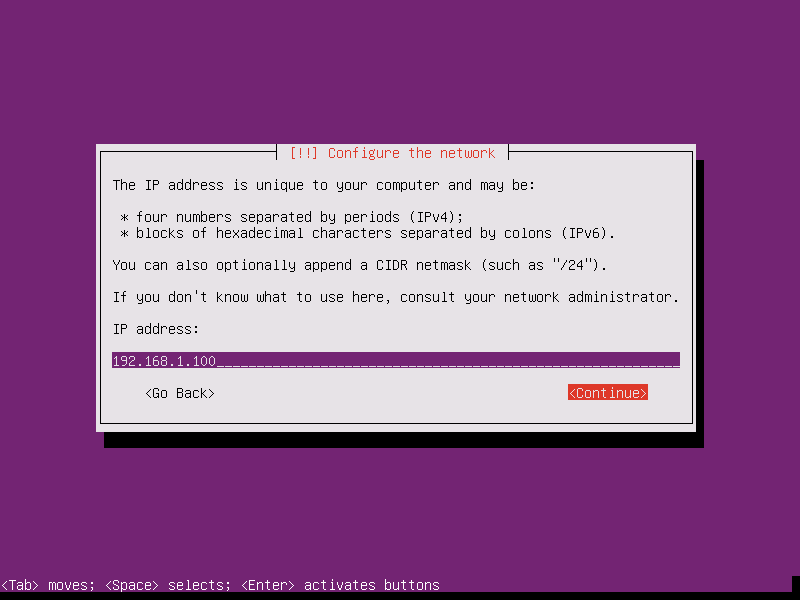
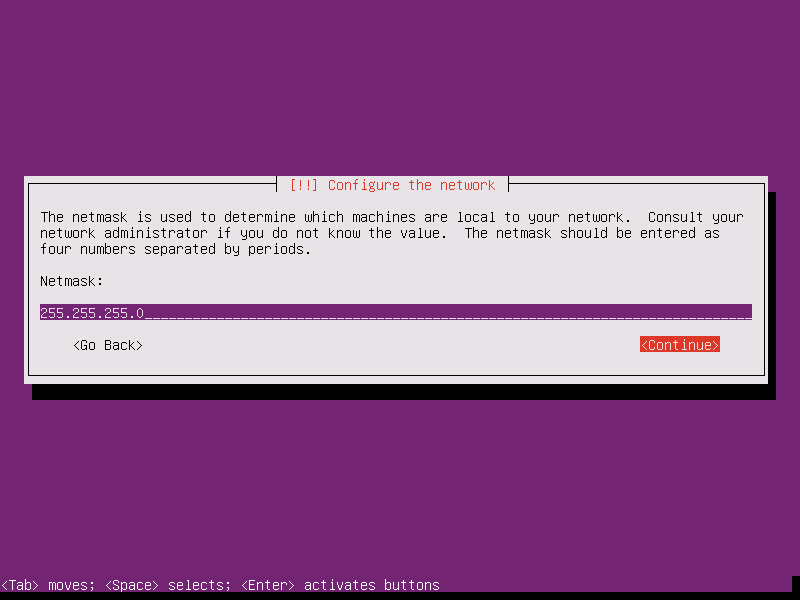
Set Static IP Address on Ubuntu 16.04
Configure Network Mask for Ubuntu 16.04
Configure Network Gateway for Ubuntu 16.04
Configure Network DNS on Ubuntu 16.04

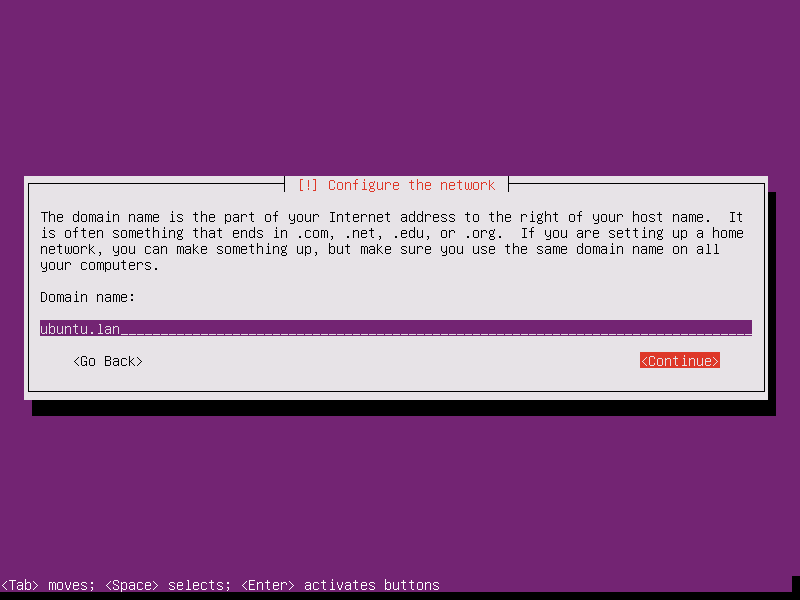
9. On the next step setup a descriptive hostname for your machine and a domain (not necessary required) and hit on Continue to move to the next screen. This step concludes the network settings.
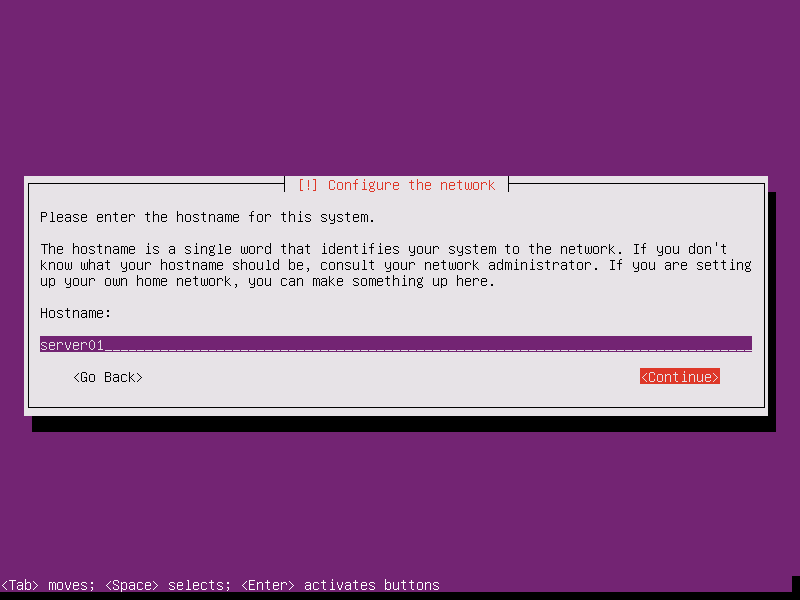
Set Ubuntu 16.04 Server Hostname
Set Ubuntu 16.04 Domain Name
If this article helped, with someone on your team.

TecMint Weekly Newsletter
Get the Learn Linux 7 Days Crash Course free when you join 34,000+ Linux professionals reading every Thursday.
Check your email for a magic link to get started.
Something went wrong. Please try again.
TecMint has been free for 14 years. Help keep it that way.
Google AI Overviews and tools like ChatGPT have cut into search traffic for independent tech sites like TecMint. Running this site costs over $2,000 every month for hosting, infrastructure, and paying authors to keep the content accurate and tested.

If this article helped you solve a problem, consider buying a coffee. It helps keep TecMint free, supports the authors, and keeps the project going.
☕ Buy Me a Coffee
Matei Cezar
I'am a computer addicted guy, a fan of open source and linux based system software, have about 4 years experience with Linux distributions desktop, servers and bash scripting.

Each tutorial at TecMint is created by a team of experienced Linux system administrators so that it meets our high-quality standards.

2 Comments

Leave a Reply

Got Something to Say? Join the Discussion...

Thank you for taking the time to share your thoughts with us. We appreciate your decision to leave a comment and value your contribution to the discussion. It's important to note that we moderate all comments in accordance with our comment policy to ensure a respectful and constructive conversation.

Rest assured that your email address will remain private and will not be published or shared with anyone. We prioritize the privacy and security of our users.

Free Course
Get a free Linux course before you go.
Subscribe to TecMint Weekly and get the Learn Linux 7 Days Crash Course free. Read by 34,000+ Linux professionals every Thursday.
Something went wrong. Please try again.
Check your email for a magic link to get started.